
rockspace AC1200
rockspace AC1200 Dual Band WiFi Extender Instruction Manual
Model: AC1200
1. Product Overview
The rockspace AC1200 Dual Band WiFi Extender is designed to expand your existing wireless network coverage, eliminating dead zones and providing a stronger, more reliable internet connection throughout your home or office. It operates on both 2.4 GHz and 5 GHz frequency bands, offering combined speeds up to 733Mbps for various online activities.

Image 1.1: The rockspace AC1200 Dual Band WiFi Extender with its two external antennas and indicator lights.
Key Features:
- Extended Coverage: Provides 360° signal coverage, extending your WiFi network up to 1292 sq. ft.
- Dual-Band Performance: Supports both 2.4 GHz (for wider coverage) and 5 GHz (for faster speeds) bands, with a combined rate of up to 733Mbps.
- Universal Compatibility: Works with all standard 802.11n/g/b/ac routers and gateways.
- Smart Signal Indicator: Helps identify the optimal placement for the extender by displaying connection status with varied colors.
- Easy Setup: Features a one-press WPS button setup for quick connection to your router.

Image 1.2: Illustration showing how the WiFi extender expands coverage to eliminate dead zones in a multi-story home.
2. Setup Instructions
There are two primary methods to set up your rockspace AC1200 WiFi Extender: using the WPS button or via a web browser.
2.1. WPS Button Setup (Recommended for quick setup)
The WPS (Wi-Fi Protected Setup) method allows for a quick and easy connection to your existing router.
- Power On: Plug the WiFi extender into an electrical outlet near your main router. Wait for the Power (PWR) LED to turn solid blue.
- Activate WPS on Extender: Press the WPS button on the side of the extender. The WPS LED will start blinking.
- Activate WPS on Router: Within two minutes, press the WPS button on your main router. Refer to your router's manual if you cannot locate the WPS button.
- Connect: Wait for the WPS LED on the extender to turn solid blue, indicating a successful connection. This may take a few moments.
- Relocate: Once connected, unplug the extender and move it to a location halfway between your router and the WiFi dead zone. Plug it into an outlet and wait for the Signal LED to turn blue (indicating a good connection).

Image 2.1: Diagram illustrating the WPS setup process, showing pressing WPS buttons on both the router and the extender.
2.2. Web Browser Setup
If your router does not have a WPS button, or if the WPS method fails, you can set up the extender using a web browser.
- Power On: Plug the WiFi extender into an electrical outlet near your main router. Wait for the Power (PWR) LED to turn solid blue.
- Connect to Extender's WiFi: On your computer or smartphone, connect to the extender's default WiFi network (e.g., "rockspace_EXT" or similar, usually found on a label on the device). No password is required initially.
- Access Setup Page: Open a web browser (e.g., Chrome, Firefox) and enter the default IP address or domain name (e.g., re.rockspace.local or 192.168.0.254) in the address bar.
- Follow On-Screen Instructions: Create an administrator password, select your existing WiFi network, and enter its password. The extender will then connect to your router.
- Relocate: Once setup is complete, unplug the extender and move it to an optimal location. Plug it back in and wait for the Signal LED to turn blue.
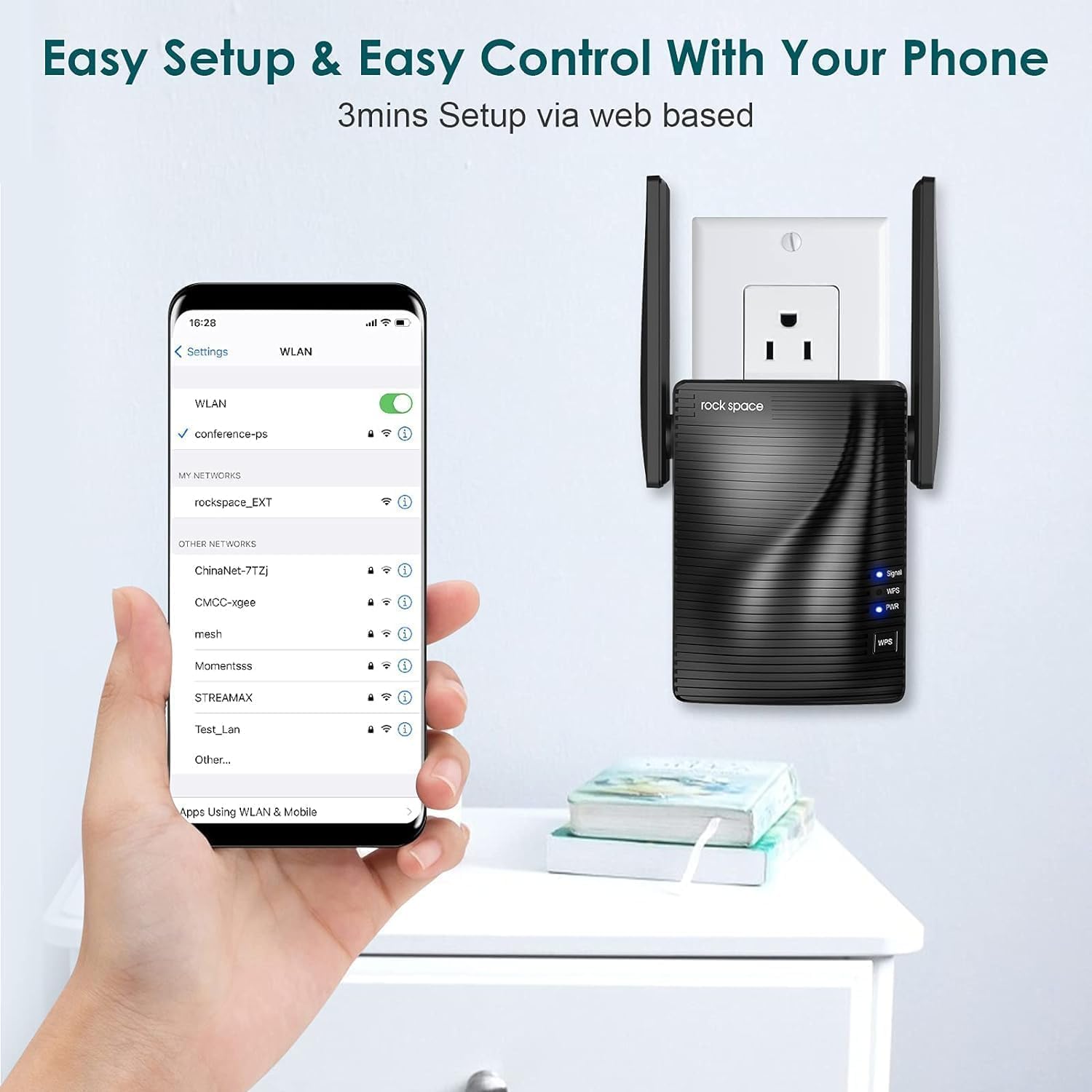
Image 2.2: A smartphone screen showing connection to the extender's WiFi network for web-based setup.
3. Operating Instructions
3.1. Understanding Indicator Lights
- Power (PWR) LED: Solid blue indicates the extender is powered on.
- WPS LED: Blinking indicates WPS pairing mode. Solid blue indicates a successful WPS connection.
- Signal LED:
- Solid Blue: Good signal strength from the router.
- Solid Red: Weak signal strength from the router. Consider relocating the extender closer to the router.
- Off: No connection to the router.
3.2. Dual Band Operation
The AC1200 extender creates two extended networks, one for 2.4 GHz and one for 5 GHz. Devices connected to the 2.4 GHz network will generally have a wider range, while devices connected to the 5 GHz network will experience faster speeds, ideal for streaming and gaming.

Image 3.1: Illustration showing devices connected to 2.4GHz and 5GHz bands with their respective speed capabilities.
3.3. Wired Connection
The extender may include an Ethernet port, allowing you to connect a wired device (like a desktop computer, gaming console, or smart TV) to the extended network for a stable, high-speed connection.
4. Maintenance
Proper maintenance ensures the longevity and optimal performance of your WiFi extender.
- Cleaning: Gently wipe the device with a dry, soft cloth. Avoid using liquid cleaners or aerosols.
- Ventilation: Ensure the extender is placed in a location with adequate airflow to prevent overheating. Do not cover ventilation holes.
- Environment: Avoid placing the extender in direct sunlight, near heat sources, or in areas with high humidity.
- Firmware Updates: Periodically check the rockspace official website for firmware updates. Updating firmware can improve performance, add new features, and fix bugs.
5. Troubleshooting
If you encounter issues with your WiFi extender, try the following troubleshooting steps:
5.1. No Internet Connection or Weak Signal
- Check Placement: Relocate the extender closer to your main router. The Signal LED should be solid blue.
- Verify Router Connection: Ensure your main router is working correctly and providing internet access.
- Re-setup: Try performing the setup process again, either via WPS or web browser.
- Interference: Move the extender away from large metal objects, microwaves, cordless phones, or other devices that might cause interference.
5.2. Slow Speeds
- Optimal Placement: Ensure the extender is placed in an optimal location (Signal LED solid blue).
- Band Selection: For speed-intensive tasks, try connecting your device to the 5 GHz extended network if available.
- Network Congestion: Too many devices on your network or heavy internet usage can slow down speeds.
5.3. WPS Setup Fails
- Timing: Ensure you press the WPS button on both the extender and router within the two-minute window.
- Router WPS: Some routers require WPS to be enabled in their settings. Check your router's manual.
- Alternative Setup: Use the web browser setup method if WPS continues to fail.
5.4. Forgot Administrator Password or Network Name/Password
- Factory Reset: Locate the reset button (usually a small pinhole) on the extender. With the extender powered on, use a paperclip to press and hold the reset button for about 8-10 seconds until the LEDs flash. The extender will revert to factory default settings, and you will need to set it up again.
6. Specifications
| Feature | Specification |
|---|---|
| Model | AC1200 |
| Wireless Standard | IEEE 802.11ac/n/g/b |
| Frequency Bands | 2.4 GHz & 5 GHz |
| Combined Speed | Up to 733 Mbps (300 Mbps for 2.4 GHz, 433 Mbps for 5 GHz) |
| Antennas | Dual External Antennas |
| Ethernet Port | 1 x 10/100 Mbps |
| Security | WPA-PSK/WPA2-PSK |
| Dimensions | 4.8 x 3.86 x 3.43 inches |
| Weight | 9.4 ounces |
7. Warranty Information
rockspace products typically come with a limited warranty. For detailed warranty terms and conditions, please refer to the warranty card included with your product or visit the official rockspace website. Keep your purchase receipt as proof of purchase for warranty claims.
8. Customer Support
If you require further assistance or have questions not covered in this manual, please contact rockspace customer support through their official website or the contact information provided with your product packaging.
Related documentsAC1200


Ask a question about this manual
Ask about setup, troubleshooting, compatibility, parts, safety, or missing instructions. Manuals+ will review the question and use this page’s manual context to help answer it.