
1. Introduction
Thank you for choosing the Anker 100W 3-Port GaN USB-C Charger. This ultra-compact wall adapter is designed to provide full-speed 100W max power across its USB-C ports, utilizing advanced GaN technology for sustained performance. Featuring a smart display and touch control, it offers real-time charging status, temperature monitoring, and port performance insights. Its travel-friendly design and intelligent low-power device adaptation make it a versatile charging solution for various devices, including MacBooks, iPads, and iPhones.

Image: The Anker 100W 3-Port GaN USB-C Charger, dark gray, shown with two braided USB-C to USB-C cables. The charger features a smart display indicating '100W' and three charging ports (two USB-C, one USB-A) on its front face. The foldable prongs are visible on the side.
2. Important Safety Information
- Do not expose the charger to liquids, moisture, or extreme temperatures.
- Avoid dropping or subjecting the charger to strong impacts.
- Do not attempt to disassemble, repair, or modify the charger.
- Use only original or certified cables for optimal performance and safety.
- Keep out of reach of children.
- Unplug the charger during lightning storms or when unused for extended periods.
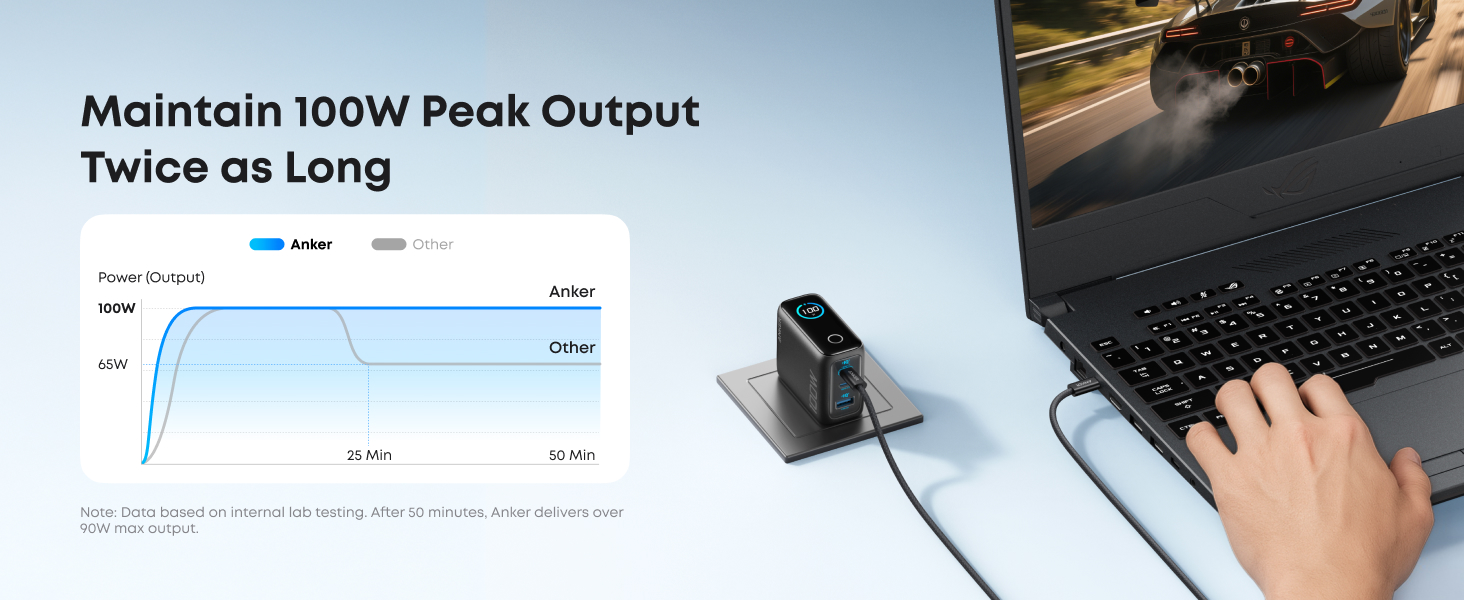
Image: A man is shown plugging the Anker charger into a wall outlet next to his bed, with a smartphone charging on the nightstand. An icon for 'ActiveShield 4.0' is displayed, representing the charger's 24/7 temperature monitoring and protection features.
3. Package Contents
The Anker 100W 3-Port GaN USB-C Charger package includes:
- Anker Charger (100W, 3 Ports, Smart Display, Non-Battery)
- 4.9 ft USB-C to USB-C cable
- Welcome guide
4. Product Overview
The Anker 100W Charger features a compact design with three charging ports and an integrated smart display. The foldable plug enhances portability, making it ideal for travel.
4.1. Ports and Display
- USB-C1 Port: Delivers up to 100W max output.
- USB-C2 Port: Delivers up to 100W max output.
- USB-A Port: Delivers up to 33W max output.
- Smart Display: Shows real-time charging status, temperature, and individual port performance.
- Touch Control: Allows interaction with the smart display, such as rotating the view.
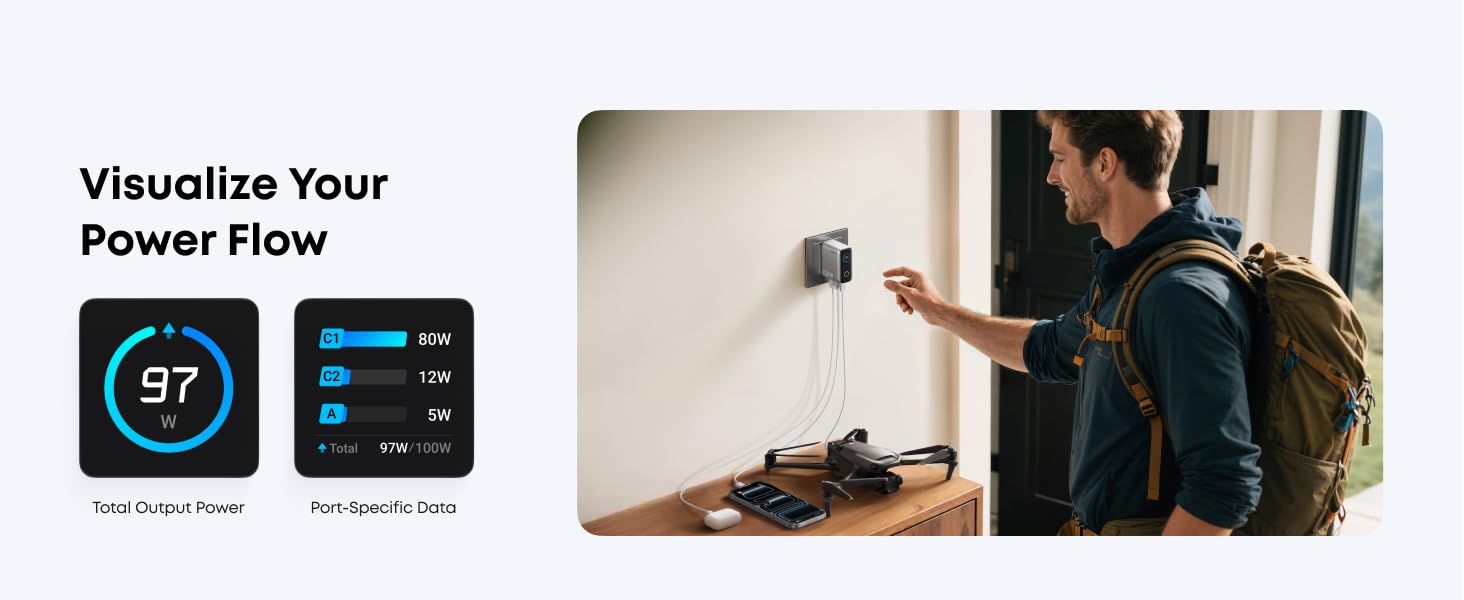
Image: A visual representation of the Anker charger's smart display interfaces, including port data (C1, C2, A with wattage), temperature monitoring (low temperature, high performance, active cooling), and total wattage output (100W).
4.2. Design Features
- Ultra-Compact: Approximately 30% smaller and lighter than previous models, with dimensions of 2.72 x 2.17 x 1.34 inches.
- Foldable Plug: For enhanced portability and protection of prongs.
- Stable Base: Designed for secure placement in wall outlets.
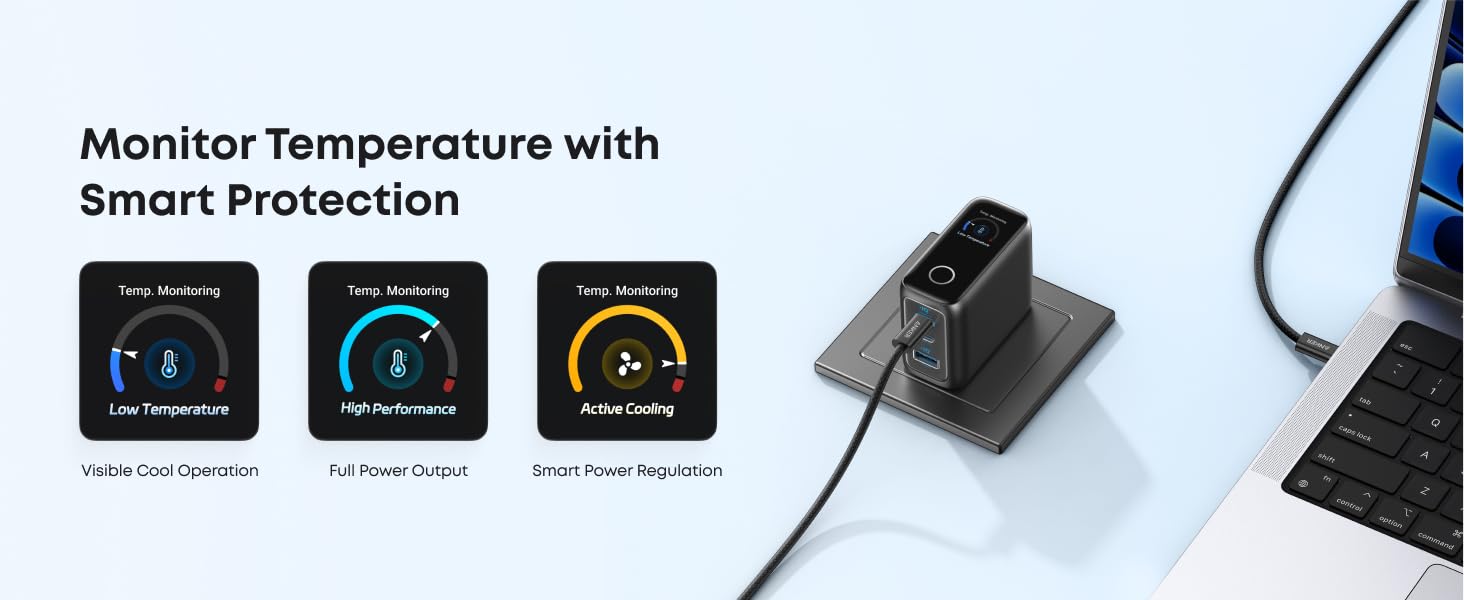
Image: A graphic illustrating the compact size of the Anker 100W charger compared to a larger, older model. It also shows the charger's ability to replace multiple chargers, highlighting its 3-in-1 charging capability.
5. Setup
Setting up your Anker 100W 3-Port GaN USB-C Charger is straightforward:
- Unfold the AC prongs from the charger body.
- Plug the charger firmly into a standard wall outlet.
- Connect your device(s) to the appropriate USB-C or USB-A port using a compatible charging cable.
- The smart display will activate, showing charging information.
6. Operating Instructions
6.1. Charging Your Devices
- Single Port Charging: Connect your device to either USB-C1 or USB-C2 for up to 100W max output. For USB-A, the maximum output is 33W.
- Multi-Port Charging: The charger intelligently distributes power when multiple devices are connected. For example, with two USB-C devices, power might be distributed as 70W + 30W. With three devices (two USB-C, one USB-A), typical distribution could be 80W (USB-C1) + 12W (USB-C2) + 7.5W (USB-A). USB-C1 is prioritized for maximum output during three-port charging.
- Low-Current Mode: USB-C2 or USB-A ports automatically switch to 95W + 5W Low-Current Mode if the output remains at or below 5W for 1 minute. This safely charges low-power devices like earbuds.
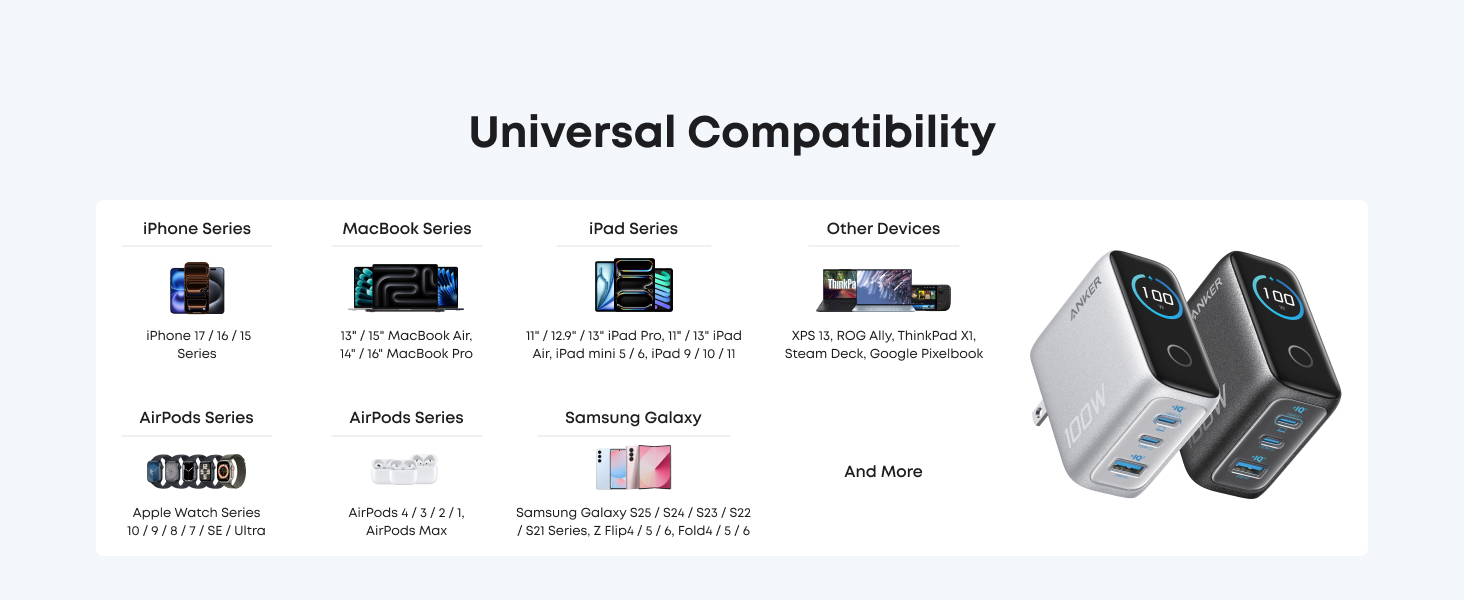
Image: The Anker charger plugged into a wall outlet, simultaneously charging a laptop via USB-C1, a smartphone via USB-C2, and wireless earbuds via USB-A. The smart display shows the power distribution across the three ports.
6.2. Using the Smart Display
- The smart display activates when connected to a power source and shows real-time wattage output.
- Tap the touch control button below the display to cycle through different information views, such as individual port wattage, total wattage, and temperature monitoring.
- Press and hold the touch control button to rotate the display 90 degrees for better viewing in different outlet orientations. The display automatically returns to your last used rotation angle when powered on again.
- The screen automatically turns off 1 minute after no activity to conserve energy.
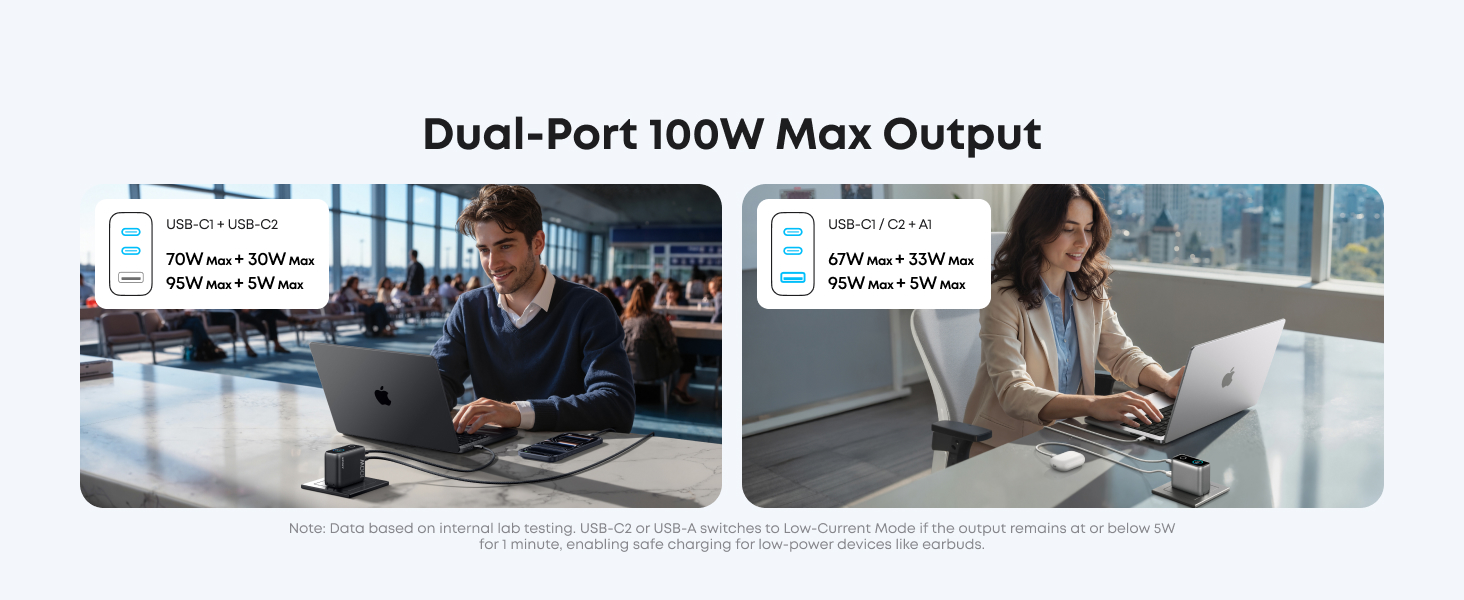
Image: A graphic demonstrating the 'Visualize Your Power Flow' feature of the smart display, showing total output power and port-specific data (e.g., C1: 80W, C2: 12W, A: 5W, Total: 97W/100W).
6.3. Official Product Video
Video: An official Anker video showcasing the Anker 100W Max USB C Charger Block. It highlights its full 100W output, various charging solutions for multiple devices, travel-ready design, visible power display, and temperature protection features. The video demonstrates the charger's compact size, foldable prongs, and smart display functionality.
7. Maintenance
To ensure the longevity and optimal performance of your Anker charger:
- Clean the charger regularly with a dry, soft cloth.
- Avoid using harsh chemicals or abrasive materials.
- Store the charger in a cool, dry place when not in use.
8. Troubleshooting
8.1. Charger Not Working
- Ensure the charger is securely plugged into a functioning wall outlet.
- Try a different wall outlet to rule out power supply issues.
- Check if the charging cable is properly connected to both the charger and your device.
- Test with a different charging cable to ensure the cable is not faulty.
8.2. Slow Charging
- Verify that your device supports fast charging and that you are using a compatible cable.
- When charging multiple devices, the power output per port may decrease. Disconnect other devices to see if charging speed improves for a specific device.
- Ensure the cable used is rated for 100W or higher to achieve full 100W charging.
8.3. Smart Display Not Showing Information
- The display only turns on when connected to a power source. Ensure the charger is plugged in.
- The display automatically turns off after 1 minute of inactivity. Tap the touch control button to reactivate it.
9. Specifications
| Feature | Detail |
|---|---|
| Product Dimensions | 2.72 x 2.17 x 1.34 inches |
| Item Weight | 7.5 ounces |
| Model Number | B121B |
| Brand | Anker |
| Connector Type | USB Type C, USB Type A |
| Compatible Devices | MacBook, iPad, iPhone 17/16/15/14/13/SE Series, Samsung S24/S23 Series, Tablets, and more. |
| Special Feature | Fast Charging, Smart Display, Touch Control, GaN Technology, ActiveShield 4.0 |
| Color | Dark Gray |
| Input Voltage | 240 Volts |
| Wattage | 100 watts (Max) |
| Output Current | 20 Amps (Max) |
10. Warranty
Anker provides an 18-month warranty for this product. This warranty covers manufacturing defects and ensures your product functions as intended under normal use. Please retain your proof of purchase for warranty claims.
11. Customer Support
For further assistance, troubleshooting, or warranty inquiries, please contact Anker customer service through their official website or the contact information provided in your welcome guide. You can also visit the Anker Store on Amazon for more information and resources.


