
1. Introduction
This manual provides essential information for the proper setup, operation, maintenance, and troubleshooting of your UPERFECT 24-inch 120Hz QLED Portable Touchscreen Monitor. Please read this guide thoroughly before using the product to ensure optimal performance and safety.
2. Safety Information
To ensure safe and effective use of your monitor, please observe the following guidelines:
- Place the monitor on a stable, flat surface to prevent accidental falls.
- For optimal comfort and safety, position your monitor at or slightly below eye level.
- Avoid steep upward angles that may stress the built-in stand and potentially cause the monitor to become unstable, especially with larger screens.
- Do not expose the monitor to extreme temperatures, humidity, or direct sunlight.
- Use only the provided power adapter and cables to prevent damage.
- Keep liquids away from the monitor to avoid electrical hazards.

3. What's in the Box
Verify that all items are present in the packaging:
- UPERFECT 23.8" 120Hz Portable Monitor
- USB-C to USB-C Cable
- Standard HDMI Cable
- PD Power Adapter (30W)
- Instruction Manual
4. Product Overview
Familiarize yourself with the monitor's components and features.
4.1. Ports and Controls
The monitor features various ports for connectivity and a multi-function toggle wheel for menu navigation.

- USB Type-C Ports (x2): Full-featured ports for video, power, and touch signal transmission with a single cable.
- HDMI Port (x1): For video input from compatible devices. Requires separate power and a USB connection for touch functionality.
- 3.5mm Audio Jack (x1): For connecting external headphones or speakers.
- Power Button/Toggle Wheel: Used to power the monitor on/off and navigate the On-Screen Display (OSD) menu.
4.2. Built-in Stand and VESA Mount
The monitor includes an integrated stand for flexible positioning and VESA mounting holes for alternative setups.

- The built-in stand offers stable positioning from 0 to 90 degrees.
- VESA compatibility (75x75 mm) allows for mounting on monitor arms or wall mounts (sold separately).
5. Setup
5.1. Powering the Monitor
The monitor requires external power for full functionality. Use the provided 30W PD Power Adapter.

- Connect the 30W PD Power Adapter to a power outlet.
- Plug the USB-C end of the power adapter cable into one of the USB Type-C ports on the monitor.
Note: For power-hungry devices connected via USB-C, a dedicated power source directly to the device is recommended for optimal charging, even if the monitor provides power pass-through.
5.2. Connecting to Devices
The monitor supports various devices via USB Type-C and HDMI.
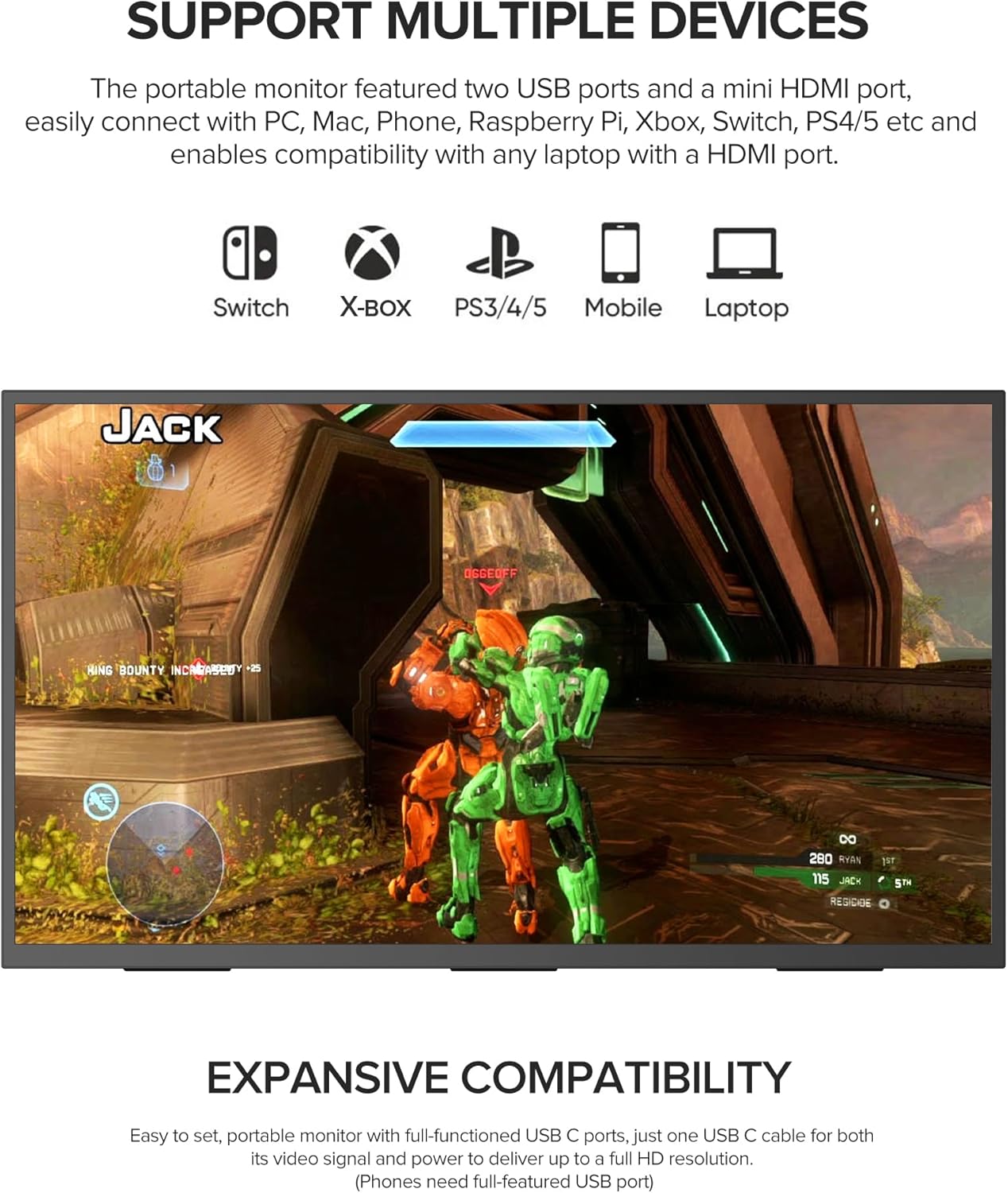
5.2.1. USB Type-C Connection (Full-Featured)
For devices with a full-featured USB Type-C port (supporting DisplayPort Alternate Mode and Power Delivery), a single USB-C cable can transmit video, power, and touch signals.
- Ensure the monitor is powered (refer to Section 5.1).
- Connect one end of the provided USB-C to USB-C cable to your device's full-featured USB Type-C port.
- Connect the other end of the cable to one of the USB Type-C ports on the monitor.
Important: Touch functionality is only available when connected via a full-featured USB Type-C port that supports touch signal transmission from your device.
5.2.2. HDMI Connection
For devices with an HDMI output, use the provided HDMI cable for video transmission. A separate USB connection is required for touch functionality, and external power for the monitor is always needed.
- Ensure the monitor is powered (refer to Section 5.1).
- Connect one end of the provided Standard HDMI Cable to your device's HDMI output.
- Connect the other end of the HDMI cable to the HDMI port on the monitor.
- To enable touch functionality (if supported by your device), connect a USB-A to USB-C cable (not always included, may need to be purchased separately) from your device's USB-A port to one of the monitor's USB-C ports.
6. Operating the Monitor
6.1. Power On/Off
Press and hold the toggle wheel for approximately 3 seconds to power the monitor on or off.
6.2. On-Screen Display (OSD) Menu Navigation
The OSD menu allows you to adjust various monitor settings. You can navigate the OSD using the toggle wheel or directly via the touchscreen.
- Access OSD: Press the toggle wheel once to open the OSD menu.
- Navigate: Roll the toggle wheel up/down or swipe on the touchscreen to move between options.
- Select: Press the toggle wheel or tap on the touchscreen to select an option.
- Exit: Roll the toggle wheel left or tap outside the menu area to exit.
Quick Adjustments:
- Brightness: Push the toggle wheel down, then roll to adjust brightness.
- Volume: Push the toggle wheel up, then roll to adjust volume.
6.3. Adjusting Refresh Rate
The monitor supports a 120Hz refresh rate for smoother visuals. You may need to manually set this in your device's display settings.

- On your connected device (e.g., Windows PC), go to Display Settings.
- Select Advanced Display Settings.
- Choose the UPERFECT monitor and select Display adapter properties.
- Navigate to the Monitor tab and select 120Hz from the Screen refresh rate dropdown menu.
- Click Apply and then OK.
6.4. Touchscreen Functionality
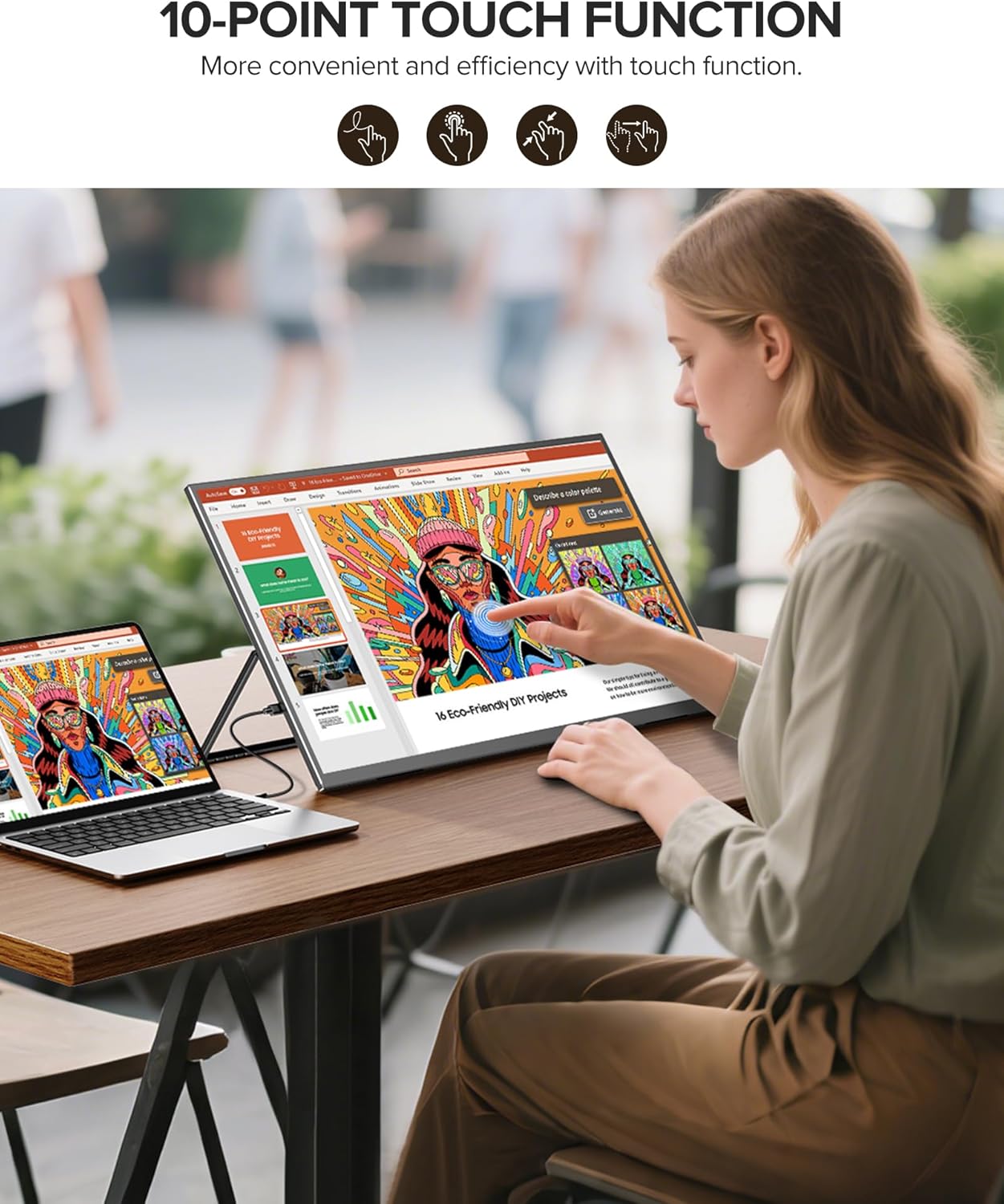
The monitor features a responsive 10-point multi-touch display, enhancing interaction with compatible devices.

Ensure your device supports touch input over USB-C or has a separate USB connection for touch data (as described in Section 5.2.2). The frameless glass panel provides a seamless experience for gestures and direct interaction.
7. Maintenance
7.1. Cleaning
- Screen: Gently wipe the screen with a soft, lint-free cloth. For stubborn marks, lightly dampen the cloth with water or a screen-cleaning solution. Avoid harsh chemicals.
- Body: Wipe the monitor's casing with a soft, dry cloth.
7.2. Storage
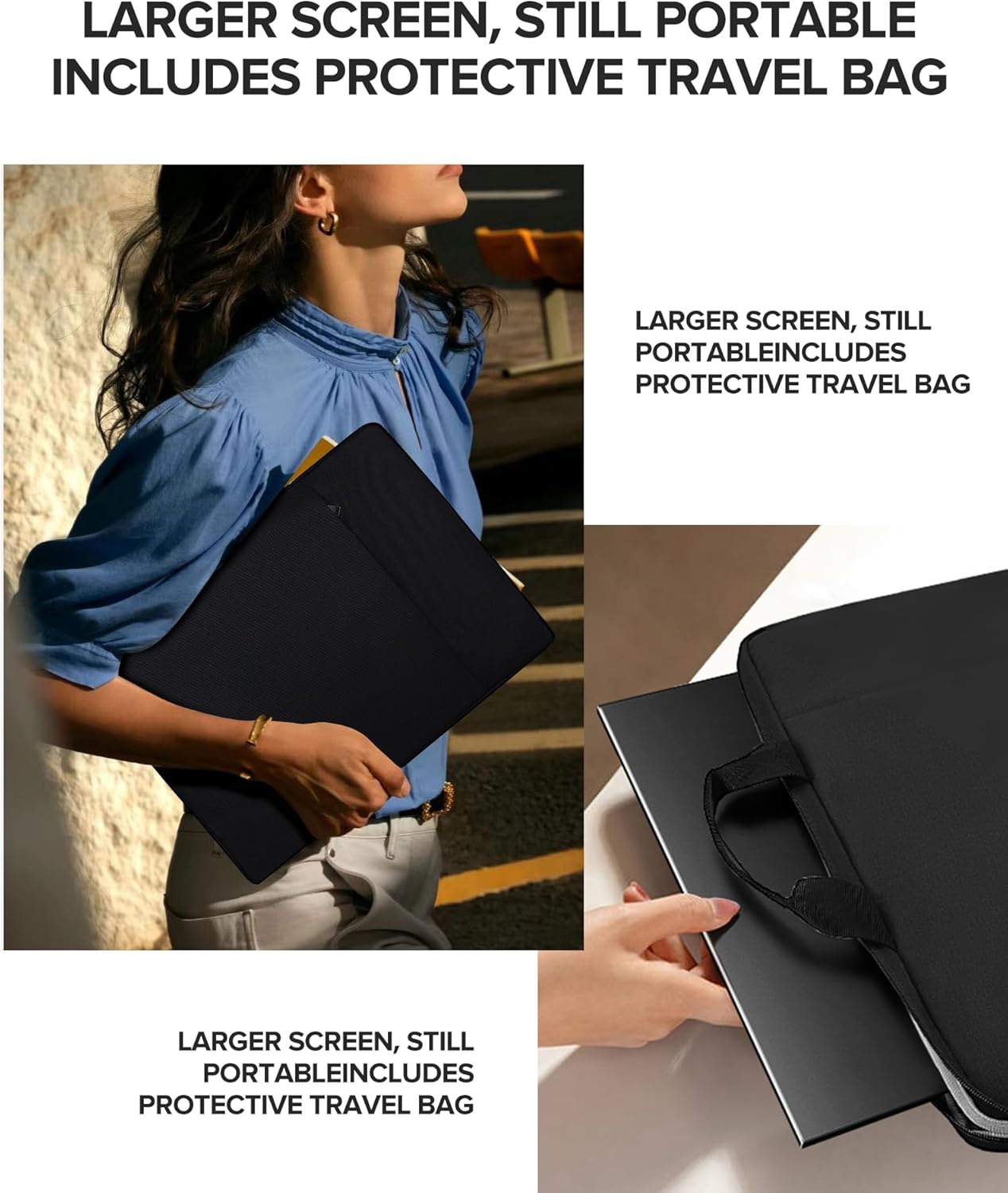
When not in use, store the monitor in a cool, dry place. The included protective travel bag is recommended for transport and storage to prevent scratches and minor impacts.
8. Troubleshooting
If you encounter issues with your monitor, refer to the following common problems and solutions:
| Problem | Possible Cause | Solution |
|---|---|---|
| No display/"No Signal" message | Incorrect cable connection, insufficient power, incorrect input source. | Ensure all cables (power, video) are securely connected. Verify the monitor is powered by the 30W adapter. Check your device's display settings. Try a different cable or port. |
| Touchscreen not responding | Not connected via full-featured USB-C, missing USB touch cable (for HDMI), device driver issue. | Confirm your device's USB-C port supports touch output. If using HDMI, ensure a separate USB cable is connected for touch data. Check device drivers. |
| Monitor not reaching 120Hz refresh rate | Refresh rate not manually set in device settings. | Adjust the refresh rate in your device's display settings (refer to Section 6.3). Ensure your device's graphics card supports 120Hz output at 1080p. |
| Flickering or unstable image | Faulty cable, power issue, incompatible resolution/refresh rate. | Try a different cable. Ensure stable power supply. Lower the resolution or refresh rate on your device. |
| No audio from monitor speakers | Volume too low, incorrect audio output selected on device. | Increase monitor volume using the toggle wheel. Select the monitor as the audio output device in your computer's sound settings. |
9. Specifications
Detailed technical specifications for the UPERFECT 24-inch 120Hz QLED Portable Touchscreen Monitor:
| Feature | Specification |
|---|---|
| Brand | UPERFECT |
| Model Number | Uperfect-24 |
| Screen Size | 23.8 inches |
| Display Type | QLED |
| Resolution | FHD 1080p (1920 x 1080) |
| Refresh Rate | 120 Hz |
| Contrast Ratio | 2000:1 |
| Color Gamut | 125% sRGB |
| Brightness | 400 Nits |
| Touchscreen | 10-point Multi-touch |
| Connectivity | HDMI, USB Type-C (x2) |
| VESA Mount | 75x75 mm |
| Additional Features | Eye Care, Flicker-Free, Frameless, Portable |
| Color | Black |
| Weight | Approximately 5.37 lbs |
10. Warranty and Support
10.1. Warranty Information
Your UPERFECT monitor is covered by a 2-Year Manufacturer Warranty. This warranty covers defects in materials and workmanship under normal use. Please retain your proof of purchase for warranty claims.
10.2. Customer Support
For technical assistance, warranty claims, or product inquiries, please contact UPERFECT customer support through their official website or the retailer where the product was purchased. Provide your model number (Uperfect-24) and purchase details for faster service.


