
PenPower ePaper SignPad
PenPower ePaper SignPad User Manual
Model: ePaper SignPad
1. Introduction
The PenPower ePaper SignPad is a versatile digital signature pad designed to streamline your workflow by enabling paperless e-signatures and digital note-taking. This manual provides comprehensive instructions for setting up, operating, and maintaining your device, ensuring optimal performance and longevity.

Image: The PenPower ePaper SignPad, showing the device and its retail packaging.
2. Package Contents
Please verify that all items are present in your package:
- PenPower ePaper SignPad (LCD handwriting pad)
- Digital Pen
- Quick Guide
- Warranty Card

Image: Side view of the product box, detailing package contents and system requirements.
3. System Requirements
To ensure proper functionality, your computer must meet the following minimum requirements:
- Operating System: Windows or Mac
- Connectivity: Available USB port
4. Setup Guide
- Connect the SignPad: Plug the USB cable from the PenPower ePaper SignPad into an available USB port on your computer.
- Install Software: Insert the provided software CD (if applicable) or download the latest drivers and application software from the official PenPower website. Follow the on-screen instructions to complete the installation. You can find more information at d.penpower.net/epsignp.
- Restart (if prompted): Some installations may require a system restart.
- Calibration: Follow the on-screen prompts in the PenPower software to calibrate the SignPad for accurate pen input.

Image: The ePaper SignPad connected to a laptop, demonstrating its role in a paperless workflow.
5. Operating Instructions
5.1 Instant E-Signatures
The PenPower ePaper SignPad allows you to seamlessly add your handwritten signature to various digital documents. Simply open your document (PDF, Word, Excel, JPG, PNG, TIFF) and use the PenPower software to initiate the signature process. Your signature will be captured with precision and inserted directly into the file.

Image: The SignPad in use, showing compatibility with multiple document formats for instant e-signatures.
5.2 Timestamp & Printed Name
For enhanced credibility and traceability, every signature captured with the ePaper SignPad automatically includes a timestamp and your printed name. This feature is ideal for business and legal documentation, providing clear record-keeping.

Image: A close-up of the SignPad screen, illustrating the automatic addition of a timestamp and printed name to a signature.
5.3 Smart Sticky Notes
Utilize the SignPad to jot down quick memos, reminders, or ideas. The PenPower software allows you to upload these digital notes instantly to your Outlook Calendar or directly to your desktop, helping you stay organized.
5.4 Effortless Visual Collaboration
The ePaper SignPad is an excellent tool for visual communication. Sketch workflows, wireframes, diagrams, or brainstorm ideas in real-time. The visuals can be easily shared through popular communication platforms such as WhatsApp, Messenger, Slack, Zoom, WeChat, Line, Viber, and KakaoTalk, facilitating team collaboration.

Image: The SignPad used for sketching, highlighting its compatibility with various communication applications for sharing.
5.5 E-Paper Technology
Experience a smooth, precise, and natural writing sensation with the ePaper screen. The integrated design provides a true pen-on-paper feel, making digital writing and signing intuitive and comfortable.

Image: A close-up view of the SignPad screen, emphasizing the smooth handwriting experience provided by its e-paper technology.
6. Maintenance
- Cleaning: Use a soft, dry, lint-free cloth to clean the screen and body of the SignPad. Do not use liquid cleaners or abrasive materials.
- Storage: Store the device in a cool, dry place away from direct sunlight and extreme temperatures.
- Pen Care: Keep the digital pen clean and avoid dropping it. Replace pen nibs as needed.
7. Troubleshooting
- Device Not Recognized: Ensure the USB cable is securely connected to both the SignPad and your computer. Try a different USB port. Reinstall the PenPower software and drivers.
- Pen Not Responding: Check if the digital pen is functioning correctly. Ensure the software is running and the device is active. Recalibrate the pen if necessary.
- Software Issues: Close and restart the PenPower application. Ensure your operating system and software are up to date.
8. Specifications
| Feature | Specification |
|---|---|
| Product Dimensions | 8.6 x 5.11 x 0.04 inches (218.6 x 130 x 8 mm) |
| Item Weight | 11.6 ounces (195g) |
| Writing Area | 150 x 100 mm |
| Connectivity Technology | USB |
| Pressure Sensitivity | 8192 Levels |
| Special Feature | ePaper screen |
9. Safety Information
Warning:
- Please do not apply heavy pressure to the device.
- Avoid dropping the device from a height.
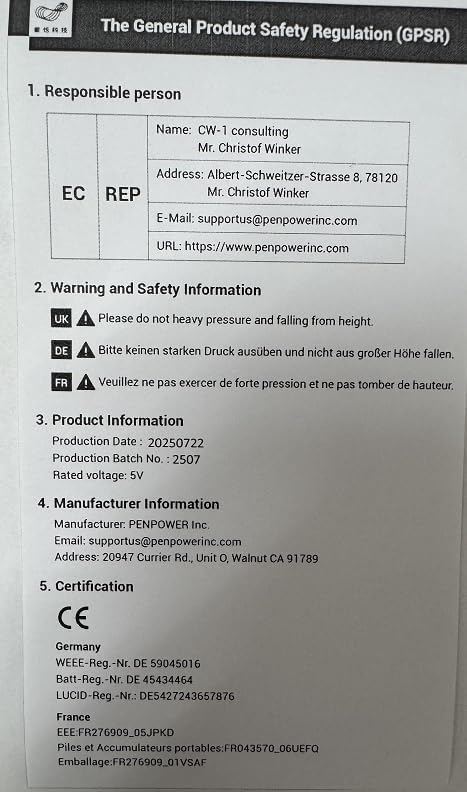
Image: General Product Safety Regulation document, detailing safety warnings and manufacturer information.
10. Warranty and Support
10.1 Warranty Notice
Product warranty is limited to the original purchase. Users may pay a service fee when requesting technical support or product service in a different country.
Made in Taiwan.
10.2 Manufacturer Information
- Manufacturer: PenPower
- Email: supportus@penpowerinc.com
- Website: www.penpowerinc.com
- Address: 20947 Currier Rd., Unit O, Walnut CA 91789
Ask a question about this manual
Ask about setup, troubleshooting, compatibility, parts, safety, or missing instructions. Manuals+ will review the question and use this page’s manual context to help answer it.