Introduction
The UCOCARE M7 4MP Mini 4G SIM Camera is a portable and versatile security solution designed for both indoor and outdoor use. It operates on a 4G LTE network, eliminating the need for Wi-Fi, making it ideal for remote locations, RVs, camping, and other areas without traditional internet access. Featuring a high-capacity 5200mAh battery, 4MP video clarity, AI motion detection, and seamless remote access via a smartphone app, this camera provides reliable surveillance wherever you need it.
Key Features
- Portable 4G Security: Operates on 4G LTE network, no Wi-Fi required, offering flexible monitoring in remote areas.
- Extended Battery Life: Equipped with a powerful 5200mAh rechargeable battery for long-lasting protection and fewer recharges.
- Superior 4MP Clarity: Delivers 4MP video quality, twice as sharp as 1080P, with a 160° viewing angle and 10x digital zoom for detailed coverage.
- Plug & Play with Included SIM: Comes with a 4G SIM card and 7 days of free unlimited data for immediate remote monitoring. Compatible with major 4G operators.
- Smart AI Motion Detection: Advanced AI accurately detects relevant movements, reducing false alarms, and sends instant notifications to your smartphone.
- Flexible Storage & Sharing: Supports local storage via an SD card (up to 128GB, not included) and optional cloud storage with a 30-day free trial. Device access can be shared with family members.
- Enhanced Night Vision: Provides clear night vision up to 10 meters without red glare, ensuring visibility in low-light conditions.
- Compact and Easy to Install: Small, portable design allows for quick installation and easy transport for security anywhere.
Package Contents
Verify that all items are present and in good condition upon opening the package.
- UCOCARE Mini 4G Camera (Model M7)
- 4G SIM Card (with 7 days free unlimited data)
- Mounting Bracket
- Charging Cable
- Screw Pack for Installation
- User Manual
Product Overview

Figure 1: The UCOCARE M7 4G SIM Camera, shown with its adjustable stand and an included 4G SIM card, ready for setup.
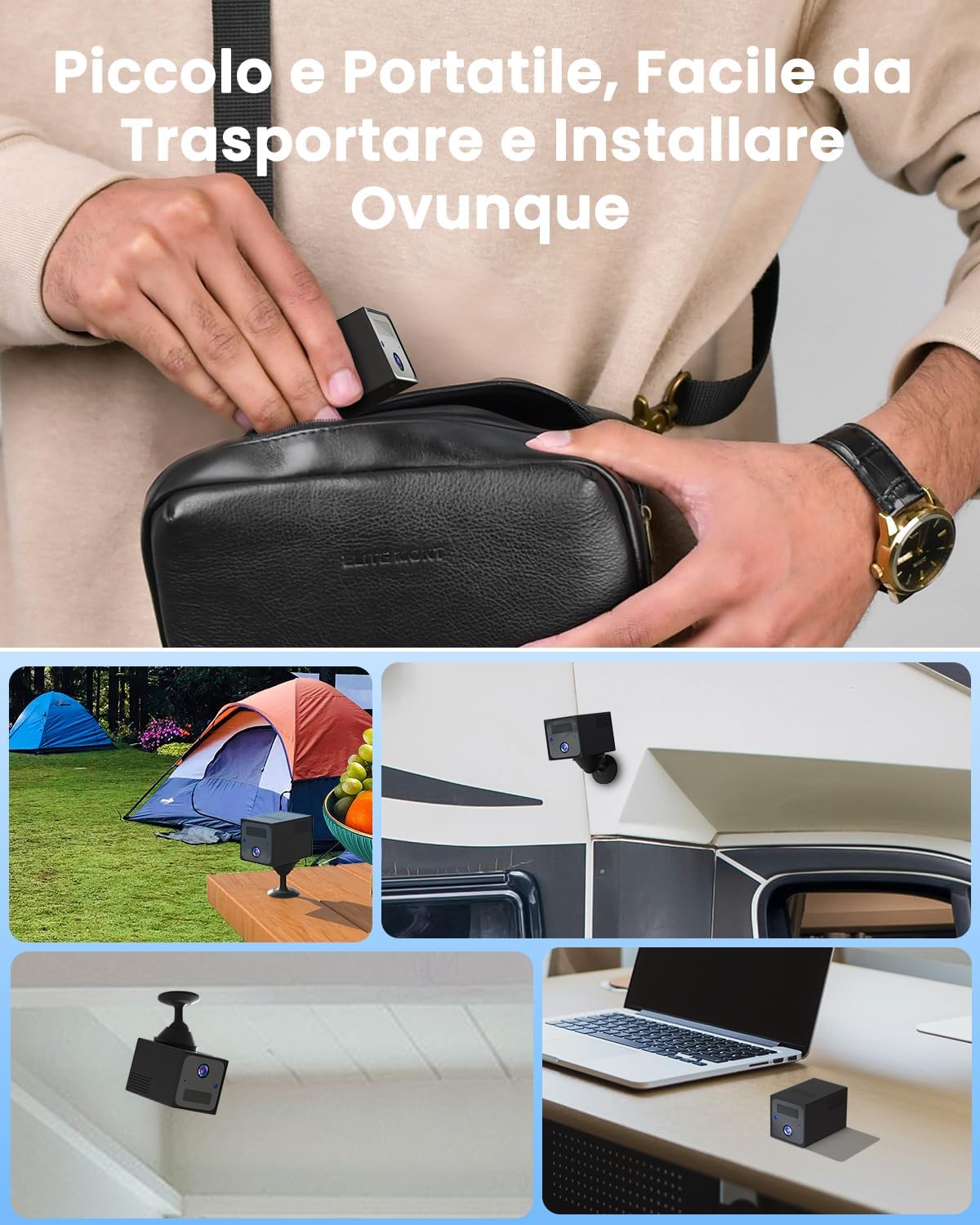
Figure 2: The compact size of the UCOCARE M7 camera allows for easy portability and versatile installation in various environments, including outdoor camping, RVs, and indoor spaces.
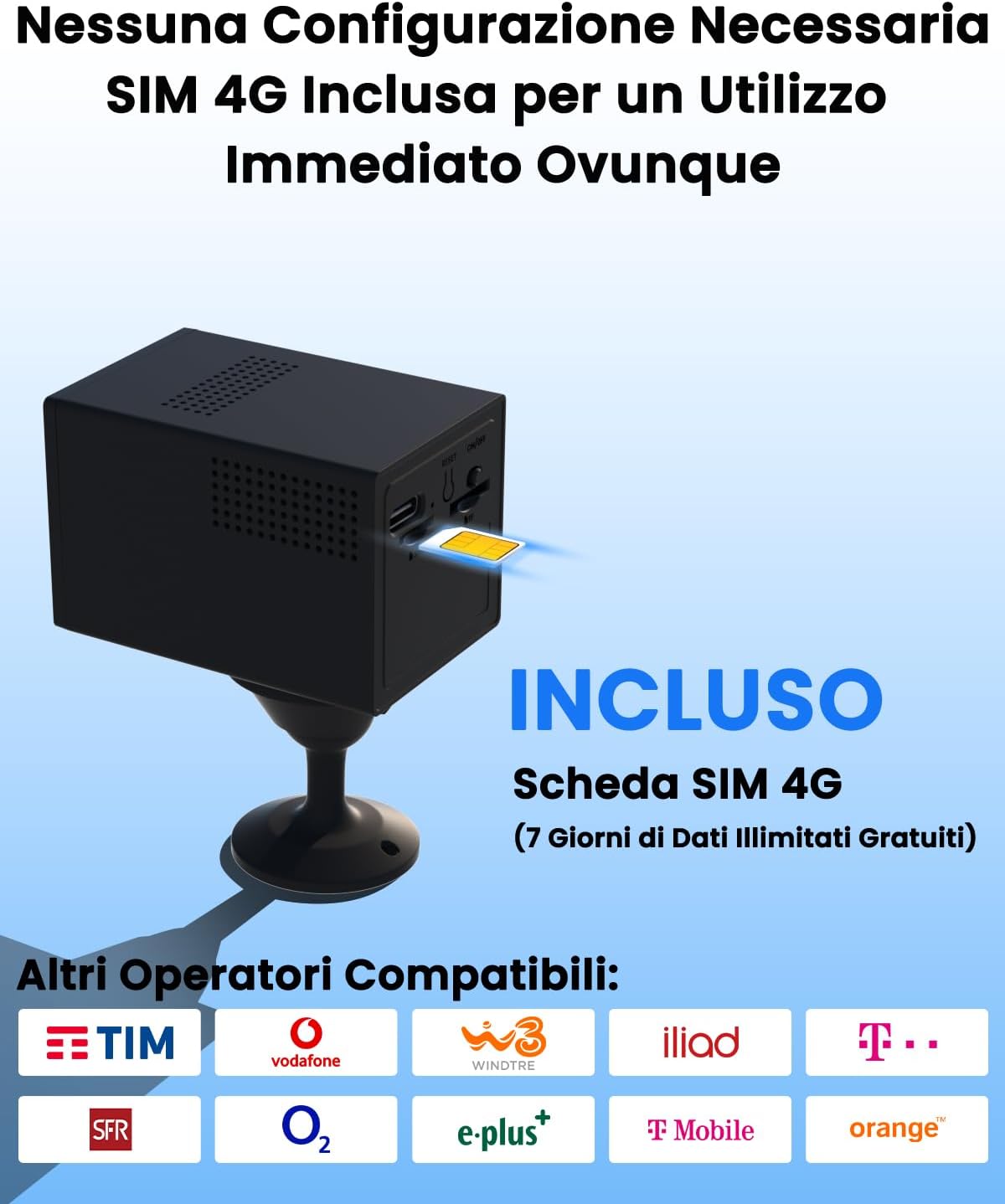
Figure 3: Close-up view of the UCOCARE M7 camera demonstrating the SIM card insertion process. The camera comes with a 4G SIM card and is compatible with various network operators.
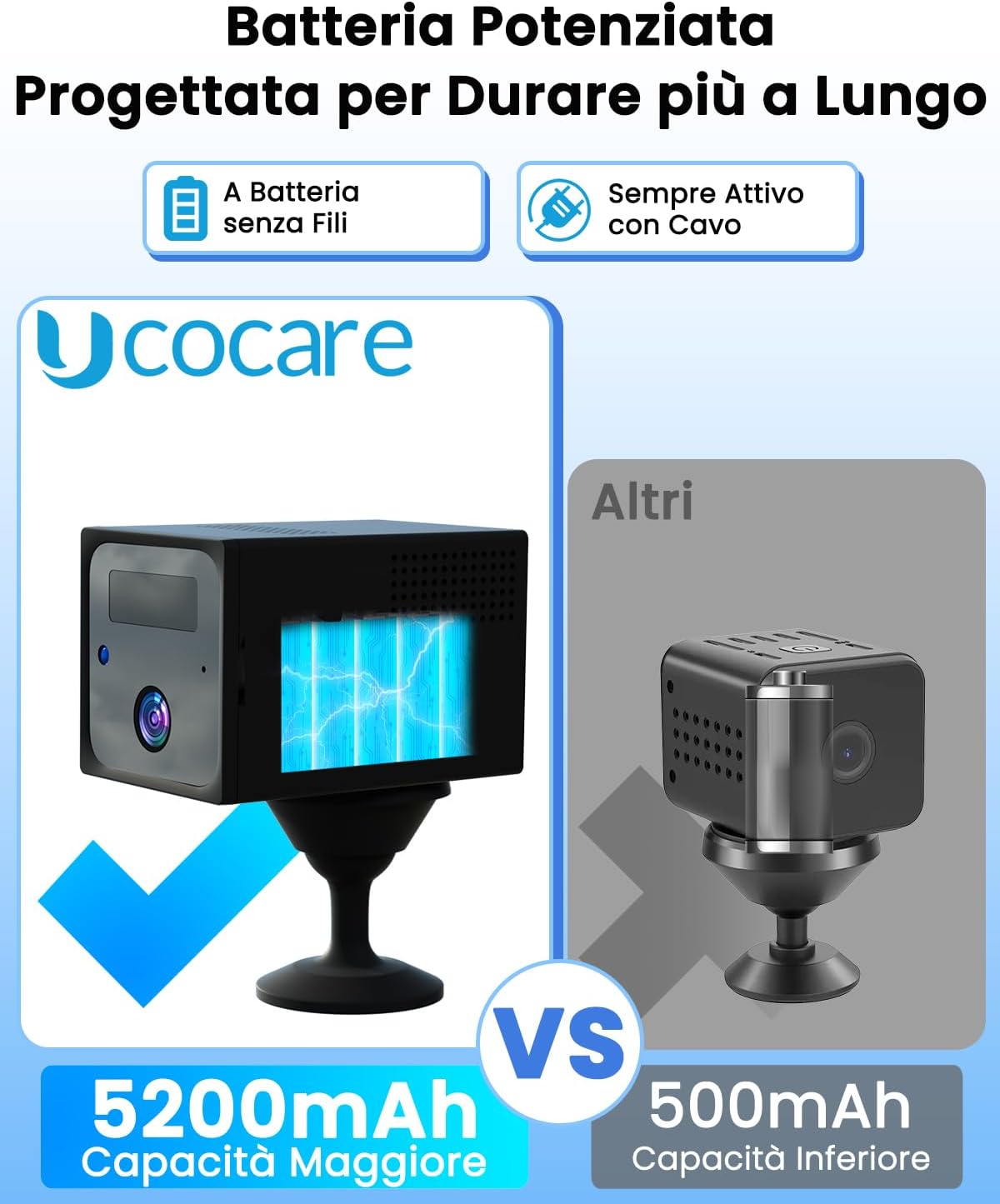
Figure 4: A visual comparison highlighting the UCOCARE M7's 5200mAh battery capacity against typical mini cameras with 500mAh, emphasizing its extended operational duration.
Setup Guide
- Charge the Camera: Before first use, fully charge the camera using the provided charging cable. The charging indicator light will change once fully charged.
- Insert SIM Card: Locate the SIM card slot on the camera. Insert the provided 4G SIM card into the slot. Ensure it is inserted correctly according to the diagram on the camera or in the quick start guide.
- Power On: Press and hold the power button until the indicator light turns on. The camera will initiate its startup sequence.
- Download the App: Scan the QR code in the quick start guide or search for "UBoxPro" in your smartphone's app store (available for Android and iOS). Download and install the application.
- Pair the Camera:
- Open the UBoxPro app and create an account or log in.
- Enable Bluetooth on your smartphone.
- In the app, select "Add Device" or the "+" icon.
- Follow the on-screen instructions to connect to the camera via Bluetooth. The app will guide you through the pairing process.
- Once connected, the blue indicator light on the camera should remain solid.
- Mount the Camera: Use the included mounting bracket and screw pack to install the camera in your desired location. The adjustable bracket allows for wall, ceiling, or tabletop mounting. Ensure the camera has a clear line of sight to the area you wish to monitor.

Figure 5: Visual guide illustrating the simple four-step setup process: 1. Download the UBoxPro app and enable Bluetooth. 2. Insert the provided SIM card. 3. Power on and wait for the blue light to stabilize. 4. Scan the configuration QR code in the app to complete pairing.
Operating Instructions
Real-time Monitoring
Once the camera is paired and connected to the 4G network, you can view live footage from anywhere using the UBoxPro app.
- Open the UBoxPro app on your smartphone.
- Select your camera from the device list to access the live view.
- You can use on-screen controls for digital zoom (up to 10x) and to capture screenshots or record video manually.

Figure 6: The UBoxPro app interface displaying real-time video monitoring, motion detection alerts, event video playback, remote viewing capabilities, and multi-user access options.
Motion Detection and Alerts
The camera features advanced AI motion detection to alert you to significant activity.
- Enable Alerts: In the UBoxPro app settings for your camera, ensure motion detection alerts are enabled.
- Sensitivity Adjustment: Adjust the motion detection sensitivity to minimize false alarms. You can set it to low, medium, or high based on your environment.
- Scheduled Detection: Configure specific time periods for motion detection to be active, optimizing battery life and reducing unnecessary alerts.
- When motion is detected, you will receive an instant push notification on your smartphone.
- Tapping the notification will take you directly to the live view or the recorded event clip.

Figure 7: An example of an instant motion detection notification received on a smartphone, indicating activity detected by the UCOCARE 4G camera, allowing for immediate remote control and viewing of video clips.
Video Storage and Playback
The camera supports two methods for video storage:
- Local Storage (SD Card): Insert a microSD card (up to 128GB, not included) into the camera's SD card slot for local recording of motion-triggered events.
- Cloud Storage: The camera offers an optional cloud storage service with a 30-day free trial. After the trial, you can subscribe to a plan via the app for continuous cloud backup.
- To view recorded footage, navigate to the "Playback" or "Events" section within the UBoxPro app. You can filter by date and time to find specific events.

Figure 8: The app's interface for instant playback of recorded events, showing a timeline of activities and options for storage, including local SD card storage (up to 128GB) and optional cloud storage with a 30-day free trial.
Multi-User Access
You can share access to your camera with family members or trusted individuals.
- In the UBoxPro app, go to the camera settings and look for "Share Device" or "Multi-User Access."
- Follow the instructions to invite others to view the camera feed. They will need to download the UBoxPro app and create an account.

Figure 9: Illustration of the multi-user access feature, allowing unlimited user sharing and up to 5 simultaneous online users to monitor the camera from various locations globally.
Maintenance
- Cleaning: Use a soft, dry cloth to clean the camera lens and body. Do not use liquid cleaners or aerosols.
- Battery Care: To prolong battery life, avoid extreme temperatures. Recharge the camera when the battery level is low. The camera can operate while charging.
- Firmware Updates: Periodically check the UBoxPro app for available firmware updates. Keeping the firmware updated ensures optimal performance and security.
- Storage Management: If using an SD card, regularly back up important footage and format the card to maintain performance. For cloud storage, ensure your subscription is active.
Troubleshooting
| Problem | Possible Cause | Solution |
|---|---|---|
| Camera not powering on. | Low battery; Power button not pressed correctly. | Charge the camera fully. Press and hold the power button for a few seconds until the indicator light appears. |
| No 4G signal or offline. | SIM card not inserted correctly; No network coverage; SIM card data plan expired. | Reinsert the SIM card. Move the camera to an area with better 4G coverage. Check your SIM card data plan status and recharge if necessary. |
| Cannot pair with app. | Bluetooth not enabled; Incorrect pairing steps; App version outdated. | Ensure Bluetooth is enabled on your phone. Follow the setup guide steps carefully. Update the UBoxPro app to the latest version. |
| Frequent false motion alerts. | Motion sensitivity too high; Environmental factors (e.g., moving branches, shadows). | Adjust the motion detection sensitivity in the app settings to a lower level. Utilize the scheduled detection feature to activate alerts only when needed. |
| Poor video quality. | Dirty lens; Low light conditions; Network bandwidth issues. | Clean the camera lens with a soft cloth. Ensure adequate lighting for optimal day vision. Check 4G signal strength; a weak signal can affect streaming quality. |
Specifications
| Feature | Detail |
|---|---|
| Brand | UCOCARE |
| Model Name | M7 |
| Indoor/Outdoor Use | Outdoor, Indoor |
| Compatible Devices | Smartphone (Android, iOS) |
| Power Source | Battery Powered |
| Connection Protocol | Cellular (4G LTE) |
| Mounting Type | Wall, Ceiling, Tabletop (Self-adhesive, Freestanding, Screw-in) |
| Video Capture Resolution | 4MP (2560 x 1440) |
| Included Components | Mini 4G Camera, 4G SIM Card, Mounting Bracket, Charging Cable, Screw Pack, User Manual |
| Wireless Communication Technology | Cellular |
| Viewing Angle | 160 Degrees |
| Night Vision Range | 10 Meters (33 feet) |
| Material | Plastic |
| Voltage | 5 Volts |
| Battery Capacity | 5200 mAh |
| Item Dimensions (LxWxH) | 5.8 x 3.8 x 3.8 cm (2.28 x 1.5 x 1.5 inches) |
| Item Weight | 284 grams (0.63 lbs) |
| Battery Type | Lithium Ion (1 included) |
| Special Features | 4MP HD Resolution, 40 Meter Visual Range, 160° Wide Angle, 10x Digital Zoom, Motion Detection, 10 Meter Night Vision, Portable Wireless |
| Recommended Uses | Pet Monitoring, Baby Monitoring, Outdoor Security, Indoor Security |
Warranty and Support
UCOCARE is committed to providing high-quality security products and excellent customer service.
- Quality Assurance: All UCOCARE products undergo rigorous testing and inspection before shipment to ensure they meet high factory standards and certifications (CE, FCC, ROHS).
- Customer Satisfaction: Our professional technical support team is dedicated to resolving any issues you may encounter, ensuring 100% satisfaction.
- Privacy Protection: Your video data is protected with financial-grade encryption, ensuring it is secure from theft and damage. Your data remains private and accessible only with your permission.
- Returns: This product is eligible for a refund/replacement within 14 days of purchase, as per Amazon's return policy.
For technical assistance or warranty claims, please contact UCOCARE customer support through the contact information provided in your product packaging or via the UCOCARE store on Amazon.

Figure 10: UCOCARE's dedicated customer support team is available to assist with any product-related inquiries or issues, ensuring complete customer satisfaction.


