
1. Introduction
The Redragon M693 LIT is a versatile wireless gaming mouse designed for optimal performance and user comfort. It features multiple connectivity options, adjustable DPI settings, programmable buttons, and customizable RGB lighting, making it suitable for various gaming and productivity needs.
2. Key Features
- Tri-Mode Connection: Supports Bluetooth, 2.4GHz wireless via nano receiver, and USB-C wired connection for flexible usage.
- High Precision Sensor: Equipped with the S205 Optical Pixart sensor for accurate tracking.
- Adjustable DPI: Up to 12800 DPI with 5 on-board levels (800/1200/1600/2400/8000) and software customization.
- Programmable Buttons: 7 customizable buttons for macro keybinding and enhanced control.
- Long-lasting Battery: 700 mAh rechargeable battery for extended use.
- Customizable RGB Lighting: Dynamic and adjustable RGB backlight effects via Redragon Pro driver.
- High Polling Rate: 1000Hz polling rate in each mode for responsive performance.

Image: Overview of Redragon M693 LIT features including tri-mode connection, S205 optical sensor, 12800 DPI, 7 macro buttons, 1ms response, 20 million clicks, advanced software, and ergonomic design.
3. Package Contents
Please verify that all items are present in the package:
- Redragon M693 LIT Wireless Gaming Mouse
- 2.4GHz USB Nano Receiver
- USB-C Charging Cable
- User Manual (this document)
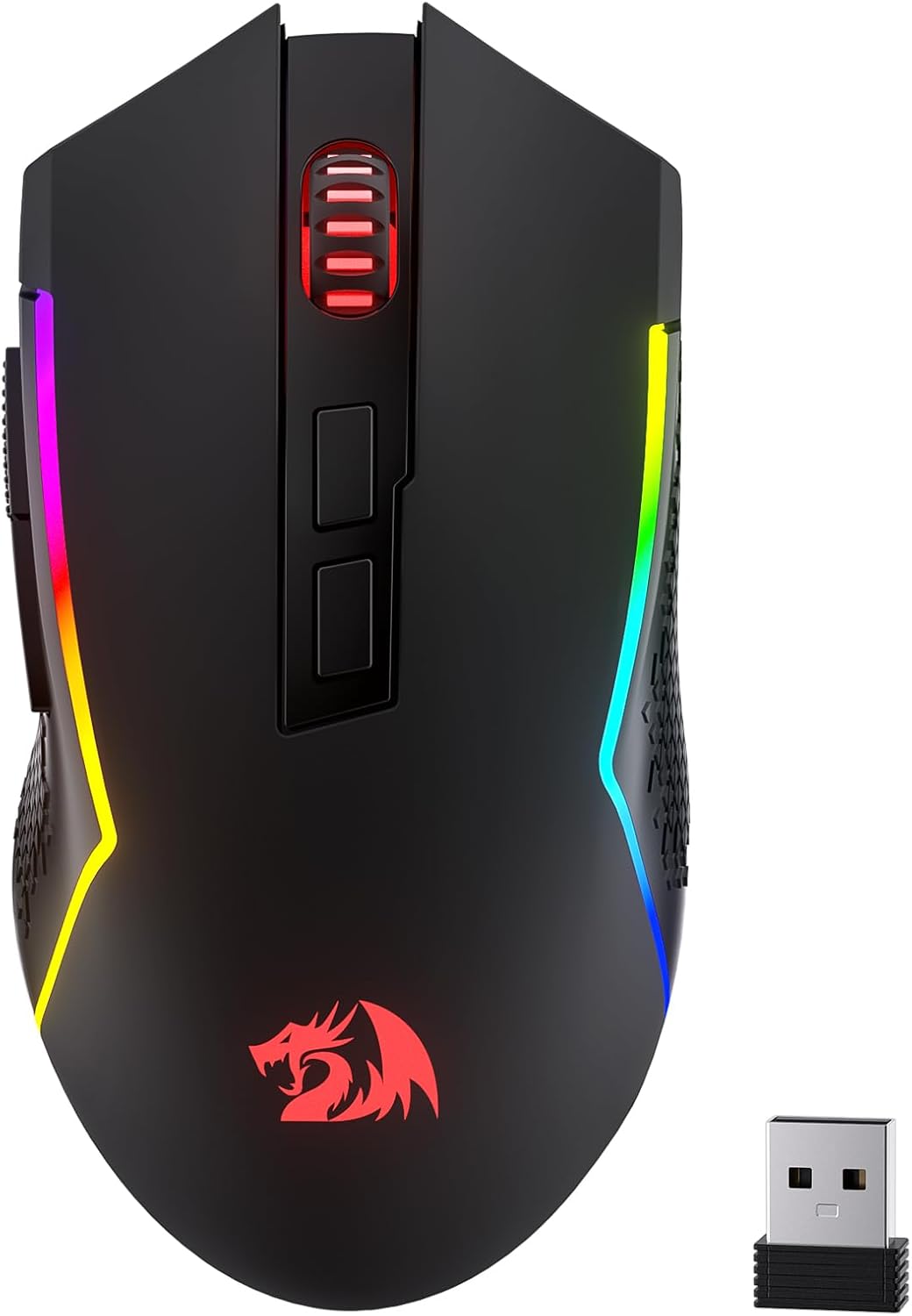
Image: The Redragon M693 LIT wireless gaming mouse shown alongside its 2.4GHz USB nano receiver.
4. Setup Instructions
4.1. 2.4GHz Wireless Connection
- Locate the 2.4GHz USB nano receiver. It is typically stored in a compartment on the underside of the mouse.
- Plug the USB nano receiver into an available USB port on your computer.
- Turn on the mouse using the power switch located on the underside. Ensure it is set to 2.4G mode if there is a mode switch.
- The mouse should automatically connect to your computer.
4.2. Bluetooth Connection
- Turn on the mouse and set the mode switch (if present) to Bluetooth mode.
- On your computer, navigate to Bluetooth settings.
- Initiate the pairing process on the mouse (refer to the mouse's specific button combination for Bluetooth pairing, often a long press of a mode button).
- Select "Redragon M693 LIT" from the list of available Bluetooth devices on your computer and complete the pairing.
4.3. Wired Connection
- Connect one end of the provided USB-C cable to the mouse's USB-C port.
- Connect the other end of the USB-C cable to an available USB port on your computer.
- The mouse will function as a wired mouse and will also charge its internal battery.
5. Operating Instructions
5.1. Basic Operation
The Redragon M693 LIT functions as a standard mouse with left-click, right-click, and scroll wheel. Additional buttons provide enhanced functionality.
5.2. DPI Adjustment
The mouse features dedicated DPI buttons, typically located near the scroll wheel, allowing you to cycle through preset DPI levels. The default levels are 800, 1200, 1600, 2400, and 8000 DPI. These can be customized using the Redragon Pro software.
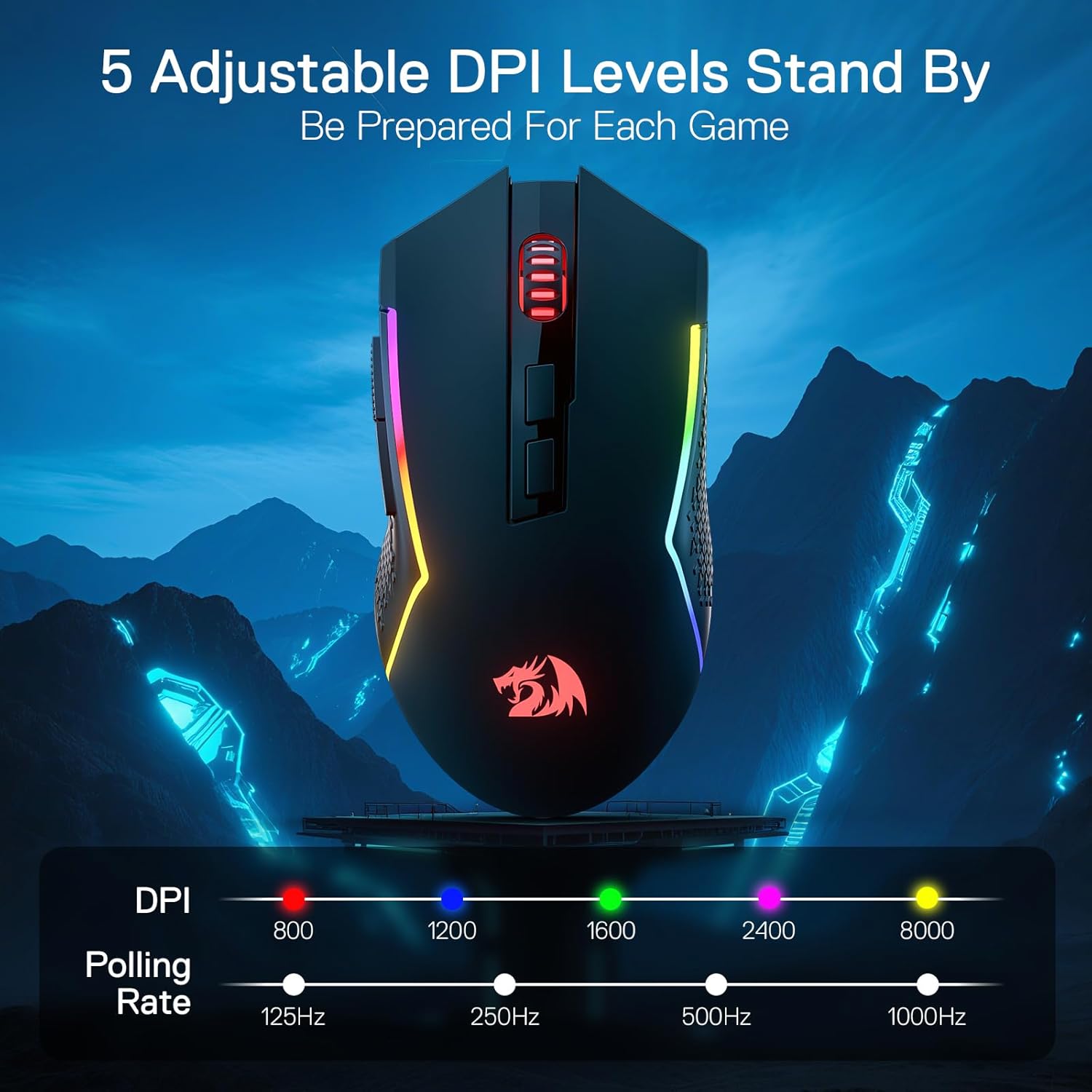
Image: Illustration of the 5 adjustable DPI levels (800, 1200, 1600, 2400, 8000) and corresponding polling rates (125Hz, 250Hz, 500Hz, 1000Hz) for the Redragon M693 LIT mouse.
5.3. Programmable Buttons
The M693 LIT has 7 programmable buttons. These buttons can be assigned various functions, macros, or keybindings using the Redragon Pro software. Refer to the software section for more details.

Image: Diagram highlighting the 7 programmable buttons on the Redragon M693 LIT mouse, indicating their positions for easy keybinding.
6. Redragon Pro Software
To unlock the full potential of your Redragon M693 LIT mouse, including advanced customization of DPI, macro keybindings, and RGB lighting effects, download and install the Redragon Pro driver software from the official Redragon website. The software allows you to:
- Assign custom functions to all 7 programmable buttons.
- Create and manage complex macros.
- Fine-tune DPI levels and polling rates.
- Customize RGB lighting effects, colors, and brightness.
- Save multiple profiles for different games or applications.

Image: The Redragon M693 LIT mouse shown with a monitor displaying the Redragon Pro software, illustrating options for key assignment, DPI adjustment, DIY macros, report rate, customizable RGB, and profile loading.
7. Charging and Battery Life
The Redragon M693 LIT is equipped with a 700 mAh rechargeable lithium polymer battery. To charge the mouse, connect it to your computer using the provided USB-C cable. The mouse can be used normally while charging.
- A low battery indicator (often a flashing LED) will notify you when charging is required.
- Charging time typically takes 1-2 hours for a full charge.
- Battery life varies depending on usage, especially RGB lighting intensity and polling rate.
8. Maintenance
- Cleaning: Use a soft, dry cloth to clean the mouse. For stubborn dirt, a slightly damp cloth can be used, but ensure no moisture enters the mouse. Avoid harsh chemicals or abrasive materials.
- Storage: When not in use for extended periods, store the mouse in a cool, dry place.
- Battery Care: To prolong battery life, avoid fully discharging the battery frequently. Charge the mouse when the low battery indicator appears.
9. Troubleshooting
9.1. Mouse Not Responding
- Ensure the mouse is turned on.
- Check the battery level and charge the mouse if necessary.
- For 2.4GHz wireless, ensure the USB receiver is securely plugged into a working USB port. Try a different USB port.
- For Bluetooth, ensure Bluetooth is enabled on your computer and the mouse is properly paired. Try re-pairing the device.
- For wired connection, ensure the USB-C cable is securely connected to both the mouse and the computer.
- Try restarting your computer.
9.2. Cursor Lag or Jitter
- Ensure the mouse sensor is clean and free of debris.
- Use the mouse on a suitable surface (e.g., a mouse pad).
- For wireless connections, ensure there are no strong interferences (e.g., other wireless devices, large metal objects) between the mouse and the receiver/computer.
- Adjust the DPI settings to a lower value if the cursor is too sensitive.
- Update the mouse driver software via the Redragon Pro software or official website.
9.3. RGB Lighting Not Working
- Ensure the RGB lighting is enabled via the Redragon Pro software.
- Check if the mouse is in a power-saving mode that disables lighting.
- Update the mouse firmware/software.
10. Specifications
| Feature | Specification |
|---|---|
| Model Number | M693 LIT |
| Connectivity Technology | BT, 2.4Ghz Wireless, USB-C |
| DPI Levels | 800/1200/1600/2400/8000 (Adjustable up to 12800 via software) |
| Polling Rate | 1000Hz |
| Programmable Buttons | 7 |
| Sensor | S205 Optical Pixart Sensor |
| Battery Type | Lithium Polymer |
| Battery Capacity | 700 mAh |
| Item Weight | 8.1 ounces (approx. 230 grams) |
| Color | Black |
11. Warranty and Support
Redragon products typically come with a limited warranty. For specific warranty terms, technical support, driver downloads, and frequently asked questions, please visit the official Redragon website or contact their customer service directly. Keep your purchase receipt for warranty claims.
Official Redragon Website: www.redragonusa.com


