
1. Introduction
This manual provides detailed instructions for the installation, operation, and maintenance of your WonVon Car Stereo, designed specifically for Toyota Tacoma models from 2005 to 2015. This advanced head unit features a 9-inch touchscreen, Android 13 operating system, wireless CarPlay and Android Auto, Bluetooth, GPS navigation, and support for a backup camera. Please read this manual thoroughly before installation and use to ensure optimal performance and safety.

Figure 1.1: WonVon Car Stereo integrated into a Toyota Tacoma dashboard.
2. Vehicle Compatibility
This car stereo is custom-built for Toyota Tacoma models manufactured between 2005 and 2015. It includes a custom-fit frame kit and a dedicated plug-and-play wire harness for seamless integration. It is crucial to verify your vehicle's center stack year, size, and shape before purchase and installation to ensure perfect compatibility. This unit is not compatible with vehicles that have a factory touchscreen system.

Figure 2.1: Visual guide for Toyota Tacoma dashboard compatibility (2005-2014 shown in image, product supports up to 2015). Compatible types A and B are shown, while factory touchscreen models are not compatible.
3. Package Contents
Please check the package for the following items:
- WonVon Car Stereo Head Unit (9-inch Touchscreen)
- Custom-fit Frame Kit for Toyota Tacoma (2005-2015)
- Dedicated Plug-and-Play Wiring Harness
- Built-in Cooling Fan (integrated)
- GPS Antenna
- USB Cables
- User Manual (this document)
- Mounting Hardware (screws, brackets if separate)
4. Installation Guide
Professional installation is recommended. Ensure the vehicle's battery is disconnected before beginning installation to prevent electrical damage.
- Preparation: Carefully remove the existing factory radio and trim panels from your Toyota Tacoma dashboard. Refer to your vehicle's service manual for specific panel removal instructions.
- Wiring Connection: Connect the provided plug-and-play wiring harness to the vehicle's factory harness. Ensure all connections are secure. Connect the GPS antenna and any other auxiliary cables (e.g., USB, backup camera input) to the corresponding ports on the head unit.
- Mounting: Attach the WonVon head unit to the custom-fit frame kit. Secure the assembly into the dashboard opening.
- Testing: Before fully reassembling the dashboard, reconnect the vehicle's battery and power on the head unit to test basic functions (power, audio, touchscreen response).
- Final Assembly: Once confirmed operational, carefully reattach all trim panels and secure them in place.
Note: The unit features a built-in cooling fan to maintain stable operation. Ensure adequate ventilation around the unit during installation.

Figure 4.1: The integrated cooling fan ensures stable and smooth operation by dissipating heat.
5. Operating Instructions
5.1. Basic Operations and Interface
The WonVon Car Stereo runs on Android 13, providing a familiar and intuitive interface. The 9-inch HD touchscreen offers clear visibility and responsive control. Navigate through menus by tapping icons and swiping across the screen.
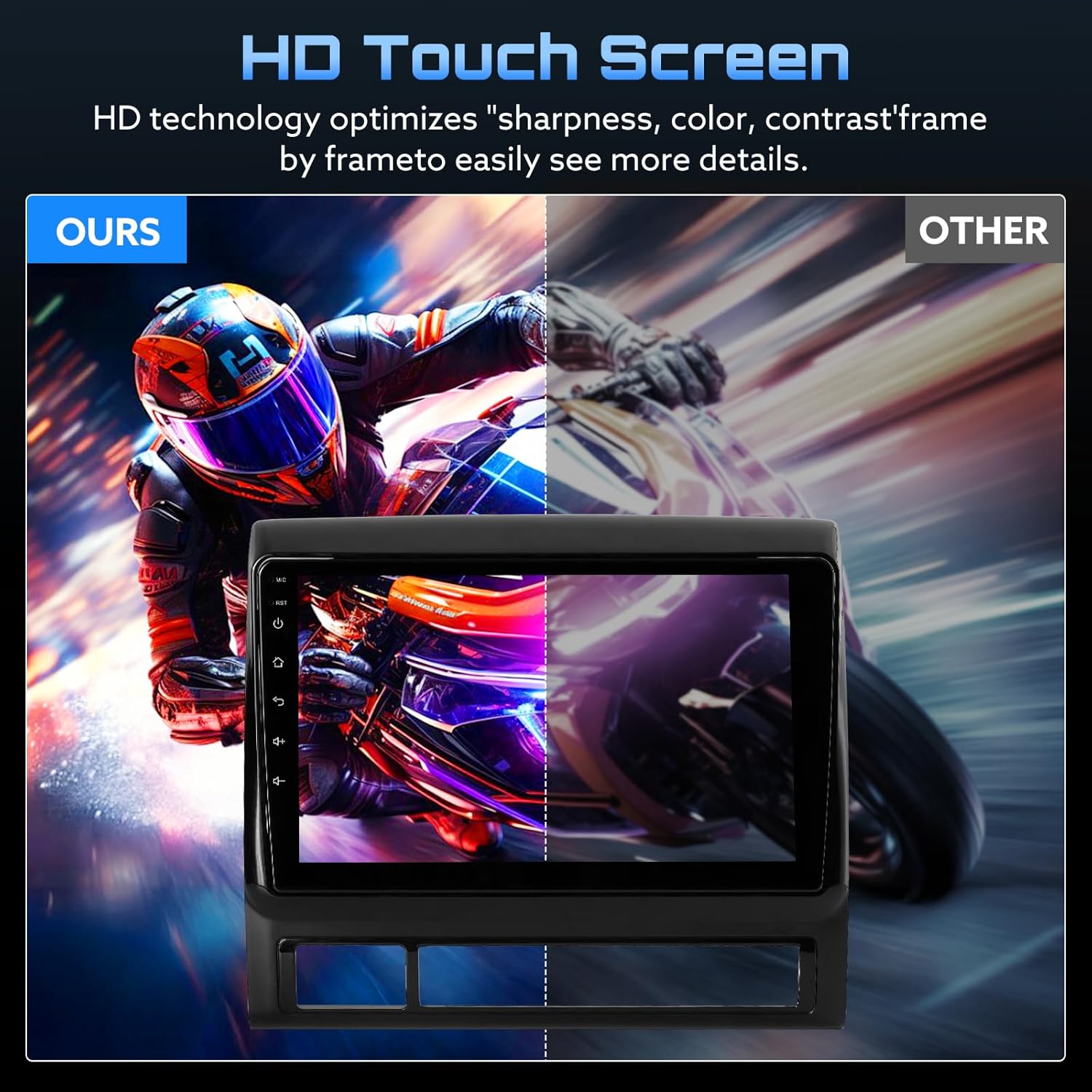
Figure 5.1: The HD touchscreen provides enhanced sharpness, color, and contrast for improved visibility.

Figure 5.2: The unit's 2GB RAM and 64GB ROM enable smooth multitasking and app performance.
5.2. Wireless CarPlay & Android Auto
Connect your smartphone wirelessly to access compatible apps, make calls, send messages, and use navigation features directly from the head unit. This feature supports both iOS (CarPlay) and Android (Android Auto) devices.
- Pairing: Ensure Bluetooth and Wi-Fi are enabled on your smartphone. On the head unit, navigate to the CarPlay/Android Auto application and follow the on-screen instructions to pair your device.
- Functionality: Once connected, your phone's interface will be mirrored on the head unit, allowing access to approved applications for navigation, music, messaging, and calls.

Figure 5.3: Wireless Apple CarPlay, Android Auto, and Mirror Link functionality.
5.3. Bluetooth Hands-free Calling and Audio Streaming
The built-in microphone allows for hands-free calls. You can also stream audio from your smartphone via Bluetooth.
- Pairing: Go to the Bluetooth settings on the head unit and search for available devices. Select your phone from the list and confirm the pairing code.
- Calling: Once paired, you can dial numbers directly from the touchscreen or access your phone's contacts.
- Audio: Select Bluetooth Audio as the source to stream music or other audio from your paired device.

Figure 5.4: Bluetooth hands-free calling interface and FM RDS Radio display.
5.4. FM/AM Radio
The unit features a crystal-clear FM/AM tuner with auto and manual station seek functions. You can save your favorite stations for quick access.
- Tuning: Select the Radio application. Use the on-screen controls to scan for stations or manually tune to a specific frequency.
- Presets: Long-press on a frequency to save it as a preset.
5.5. GPS Navigation
Utilize the included GPS antenna for precise route planning. The Android operating system allows for the installation of various navigation applications.
- Antenna: Ensure the GPS antenna is properly installed and positioned for optimal signal reception.
- Software: Use pre-installed navigation apps or download your preferred navigation software from the app store.
- Input: Enter destinations using coordinates, ZIP codes, points of interest (POI), or addresses.
5.6. Backup Camera Support
The unit is ready to connect to a rearview camera (sold separately). When connected, the display automatically switches to the camera view when the vehicle is in reverse, providing parking guidance with directional overlays.
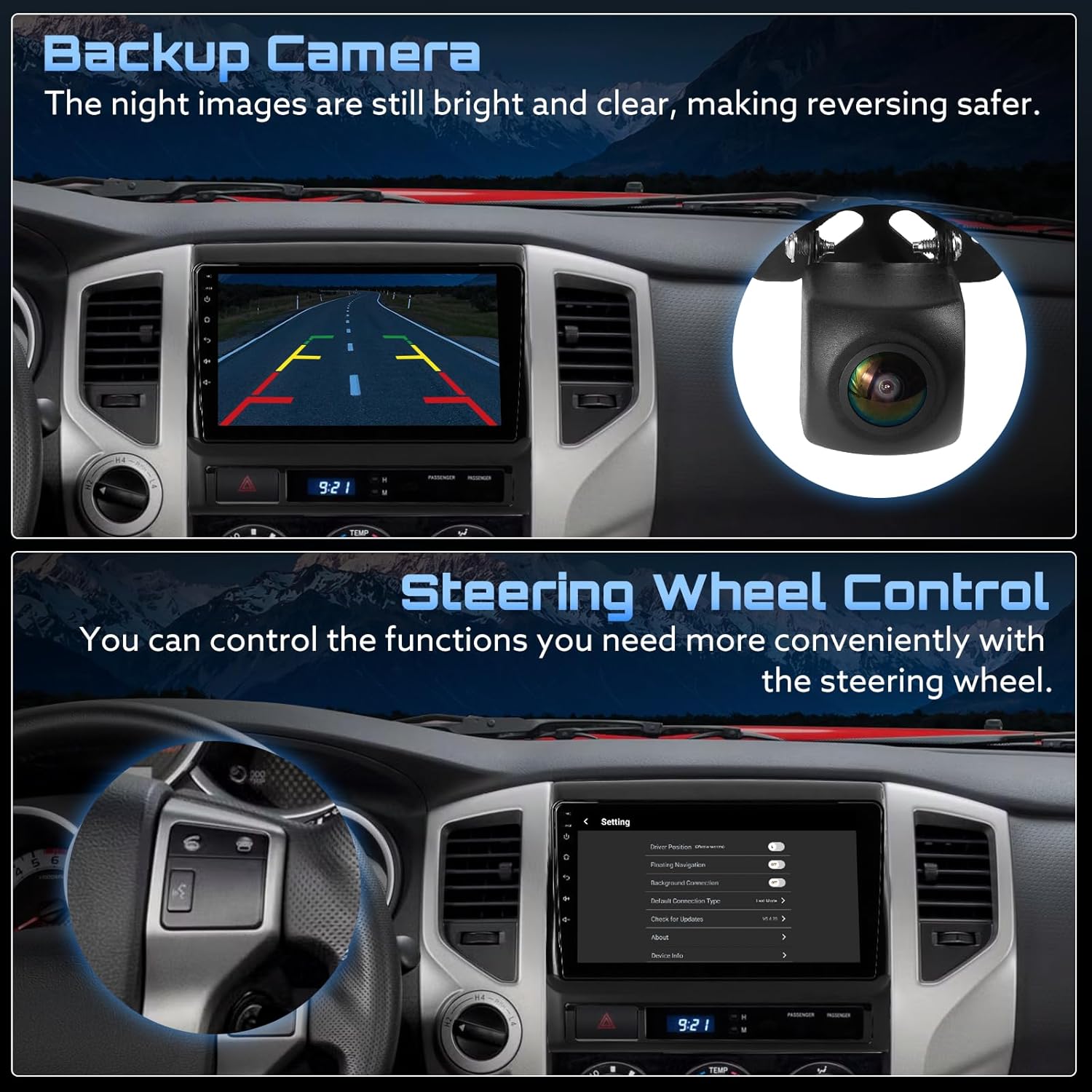
Figure 5.5: Backup camera display with parking guidance lines for safer reversing.
5.7. Steering Wheel Control
If your Toyota Tacoma is equipped with factory steering wheel controls, the head unit supports integration, allowing you to control various functions (e.g., volume, track skip) conveniently without taking your hands off the wheel.
- Configuration: Access the steering wheel control settings in the unit's menu to map the vehicle's buttons to the desired functions.
Figure 5.6: Steering wheel controls allow convenient operation of the head unit.
5.8. Mirror Link
Mirror Link allows you to display your phone's screen directly onto the head unit, minimizing distractions by keeping your eyes on the road while interacting with your phone's content.
- Connection: Follow the instructions within the Mirror Link application on the head unit to connect your smartphone.
5.9. Dual-Band WiFi (2.4G+5G)
The integrated dual-band Wi-Fi module enables fast downloads and smooth streaming. Connect to a Wi-Fi hotspot (e.g., from your smartphone) to access online content, download apps, and receive software updates.
- Connecting: Navigate to Wi-Fi settings on the head unit, scan for available networks, select your network, and enter the password.
5.10. Retained Factory Features
The WonVon Car Stereo is designed to integrate with and retain certain factory features of your Toyota Tacoma, provided your vehicle was originally equipped with them. These may include:
- Factory Steering Wheel Controls
- Factory USB/AUX Port
- Factory Reverse Camera (if applicable and compatible with the unit's input)
Important: If your original car did not have these features, they will not be added by installing this head unit.

Figure 5.7: Examples of factory features that can be retained with the WonVon Car Stereo.
6. Maintenance
- Screen Cleaning: Use a soft, lint-free cloth to gently wipe the touchscreen. For stubborn smudges, slightly dampen the cloth with water or a screen-safe cleaner. Avoid harsh chemicals or abrasive materials.
- Software Updates: Periodically check for system updates via the Wi-Fi connection to ensure optimal performance and access to the latest features and security patches.
- General Care: Keep the unit free from dust and debris. Avoid exposing it to extreme temperatures or direct sunlight for prolonged periods.
7. Troubleshooting
If you encounter issues, please refer to the following common troubleshooting steps:
- No Power:
- Check all wiring connections, especially the power and ground wires.
- Verify the vehicle's fuse for the radio is intact.
- Ensure the vehicle's battery is properly connected and charged.
- No Sound:
- Check speaker connections.
- Ensure volume is not muted or set to minimum.
- Verify audio source selection (e.g., Radio, Bluetooth, CarPlay).
- Bluetooth Connectivity Issues:
- Ensure Bluetooth is enabled on both the head unit and your smartphone.
- Delete previous pairings on both devices and attempt to re-pair.
- Restart both the head unit and your smartphone.
- Check for any available software updates for the head unit.
- CarPlay/Android Auto Not Connecting:
- Ensure Wi-Fi and Bluetooth are active on your phone.
- Verify that the CarPlay/Android Auto app is running on the head unit.
- Check your phone's settings to ensure it's allowed to connect to the car stereo.
- Try restarting both devices.
- GPS Signal Loss:
- Ensure the GPS antenna is securely connected and has a clear view of the sky (not obstructed by metal or other objects).
- Move the vehicle to an open area to re-acquire satellite signals.
- Touchscreen Unresponsive:
- Perform a soft reset of the head unit (refer to the device's specific reset procedure, usually a small reset button or holding the power button).
- Ensure the screen is clean and free of debris.
- Wiring Harness Compatibility:
- Double-check that the provided wiring harness matches your vehicle's factory harness connectors. If there's a mismatch, contact customer support for assistance.
If these steps do not resolve the issue, please contact WonVon customer support for further assistance.
8. Specifications
| Brand | WonVon |
| Model Compatibility | Toyota Tacoma (2005-2015) |
| Operating System | Android 13 |
| Memory (RAM) | 2GB |
| Storage (ROM) | 64GB |
| Screen Size | 9 Inches |
| Display Type | LCD, HD Touchscreen |
| Connectivity | Bluetooth, Dual-Band Wi-Fi (2.4G+5G) |
| Special Features | Wireless CarPlay, Wireless Android Auto, Mirror Link, Built-in Cooling Fan, GPS Navigation, Backup Camera Support, Steering Wheel Control Support |
| Audio Output Mode | Stereo |
| Mounting Type | Panel Mount |
9. Warranty and Support
WonVon is committed to providing reliable support for its products. If you have any questions regarding installation, operation, or troubleshooting, please do not hesitate to contact our expert technical team. We offer prompt installation guidance and troubleshooting assistance with a 24-hour online response.
For support, please refer to the contact information provided with your purchase or visit the official WonVon website.
