Product Overview
The NYXI Hyperion Pro Wireless Controller is designed for use with Nintendo Switch and Switch OLED consoles, offering an enhanced gaming experience. It features Hall Effect Joysticks for precise control, programmable back buttons for customizability, 6-Axis Gyroscope motion sensing for immersive gameplay, and adjustable turbo and vibration functions. This controller is engineered for comfort during extended gaming sessions.

Front view of the NYXI Hyperion Pro Wireless Controller in green.
Key Features
- Hall Effect Joystick: Provides precise and drift-free control for enhanced gaming accuracy.
- "Gamer's Reflex" Memory Function: Allows users to save and recall preferred settings for personalized gameplay.
- Programmable Back Buttons: Offers customizable controls for executing complex actions with ease.
- 6-Axis Gyroscope Motion Sensing: Enables immersive gameplay with accurate motion control.
- Adjustable Turbo & Vibration Function: Provides responsive feedback and customizable rapid-fire settings.
- Breathing RGB Light: Features 8 color lights and 3 different modes for personalized aesthetics.
- Mechanical Trigger: Designed with only 0.3mm trigger distances for quick response.
- Replaceable Metal Ring Thumbsticks: Allows for flexible operation and improved accuracy.
- Super-Comfortable Ergonomics: Designed for easy long-time gaming sessions.

The controller features customizable breathing RGB lighting.

Detailed view of the mechanical trigger mechanism, highlighting its short travel distance.
Setup and Connection
Initial Charging
Before first use, ensure the controller is fully charged. Connect the included USB-C cable to the charging port on the controller and to a compatible USB power source. The indicator lights will show charging status.
Pairing with Nintendo Switch/Switch OLED
The NYXI Hyperion Pro controller is designed for slide-in use with the Nintendo Switch/Switch OLED. It is not magnetic. To connect:
- Ensure your Nintendo Switch console is powered on.
- Slide the left and right controller units onto the sides of your Nintendo Switch console until they click into place.
- The console should automatically recognize the controllers. If not, navigate to the "Controllers" menu on your Switch and select "Change Grip/Order" to initiate pairing.
Important Note: This controller does NOT support Switch 2's handheld mode, mouse mode, or wake-up function. For Switch 2 compatibility, please contact NYXI after-sales service for upgrade methods.
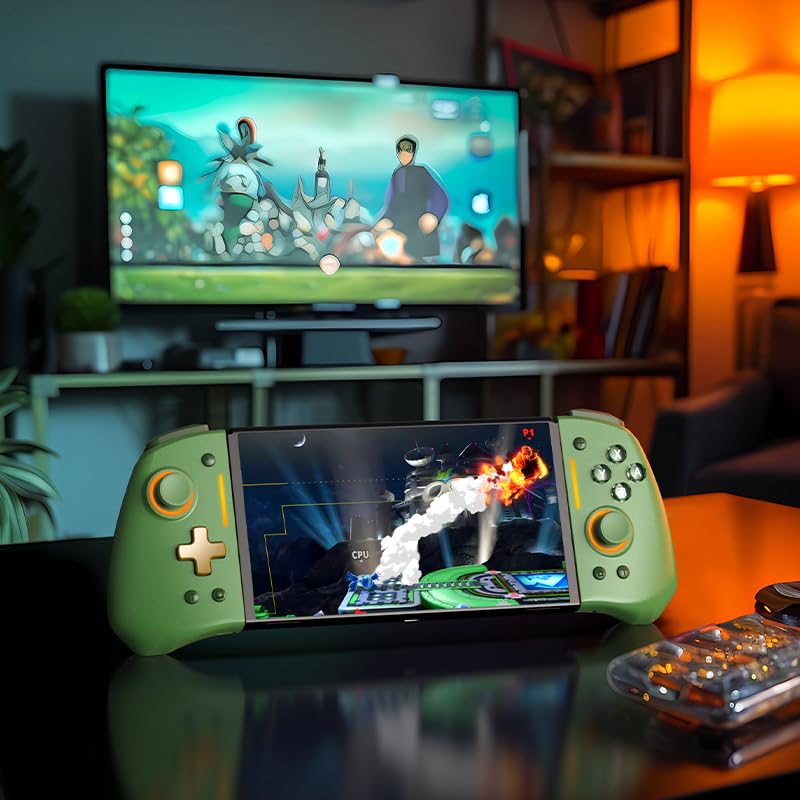
The NYXI Hyperion Pro controller attached to a Nintendo Switch OLED console, ready for handheld play.

The controller seamlessly integrates with the Nintendo Switch for a comfortable handheld experience.
Operating Instructions
Button Layout and Functions
The Hyperion Pro controller features a standard button layout with additional programmable back buttons. Familiarize yourself with the button placement for optimal use.
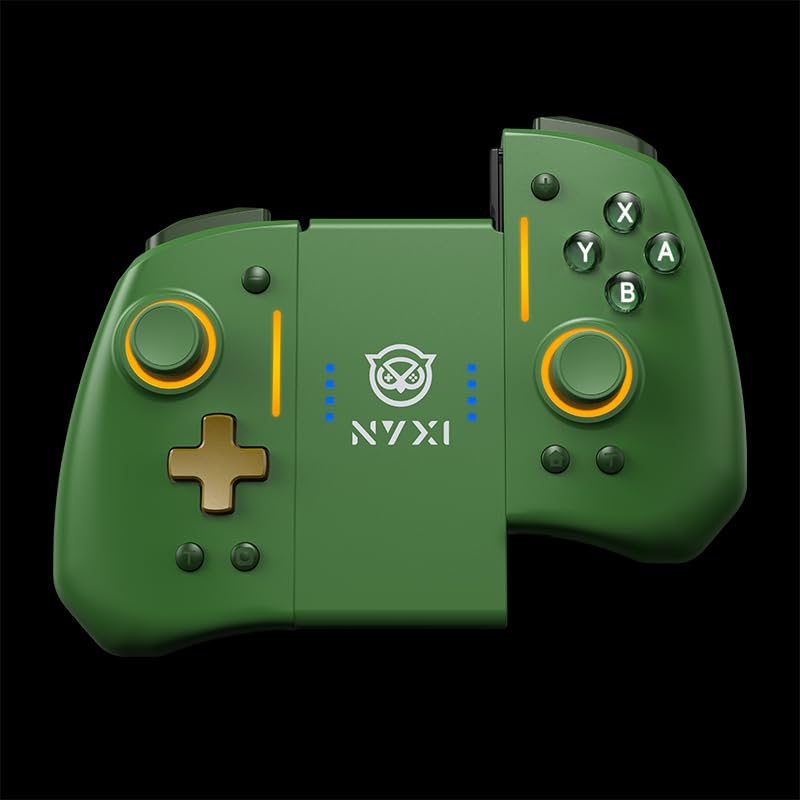
The controller can be used as two separate units or attached to the console.
Programmable Back Buttons
The back buttons can be programmed to replicate other button inputs, allowing for quick access to complex commands. Refer to the detailed programming guide included in the product packaging for specific instructions on mapping these buttons.
Turbo Function
Activate the turbo function for rapid, continuous input of a specific button. This feature is adjustable, allowing you to set the desired turbo speed. Consult the full manual for steps to enable and adjust turbo settings.
Vibration Adjustment
The intensity of the controller's vibration can be adjusted to suit your preference, providing customizable haptic feedback during gameplay.
"Gamer's Reflex" Memory Function
This unique feature allows you to save and quickly switch between different controller configurations, optimizing your setup for various games or play styles.
Maintenance and Care
To ensure the longevity and optimal performance of your NYXI Hyperion Pro controller, follow these maintenance guidelines:
- Cleaning: Use a soft, dry cloth to wipe down the controller. For stubborn dirt, slightly dampen the cloth with water. Avoid harsh chemicals or abrasive cleaners.
- Storage: Store the controller in a cool, dry place away from direct sunlight and extreme temperatures.
- Battery Care: Do not expose the battery to excessive heat or attempt to disassemble it. Charge the controller regularly, even if not in frequent use, to maintain battery health.
- Handling: Avoid dropping the controller or subjecting it to strong impacts, as this can damage internal components.
- Thumbstick Replacement: The metal ring thumbsticks are replaceable. Refer to the product packaging for instructions on how to safely replace them.
Troubleshooting
| Issue | Possible Cause | Solution |
|---|---|---|
| Controller not connecting/disconnecting randomly | Low battery, interference, or pairing issue. | Ensure controller is charged. Re-pair the controller with the Switch via "Change Grip/Order" menu. Move closer to the console to reduce interference. If issues persist, try restarting the Switch console. |
| Joystick drift | Wear and tear, or calibration issue. | Perform joystick calibration through the Nintendo Switch system settings. If calibration does not resolve the issue, contact customer support. The Hall Effect Joysticks are designed to minimize drift, but external factors can still affect performance. |
| Buttons unresponsive | Low battery, software glitch, or physical damage. | Charge the controller. Restart the Switch console. If specific buttons are consistently unresponsive, there may be physical damage requiring repair or replacement. |
| Lights not working/changing | Incorrect setting or software issue. | Refer to the full manual for instructions on adjusting RGB light modes and colors. If the issue persists, try resetting the controller (if a reset button is available, otherwise restart the console). |
Specifications
- Model: Hyperion Pro
- Brand: NYXI
- Compatibility: Nintendo Switch, Nintendo Switch OLED
- Connectivity: Wireless (Slide-in)
- Special Features: Hall Effect Joysticks, Programmable Back Buttons, 6-Axis Gyro, Adjustable Turbo, Adjustable Vibration, "Gamer's Reflex" Memory Function, Breathing RGB Light, Mechanical Triggers, Replaceable Metal Ring Thumbsticks.
- Power Source: 1 Nonstandard Battery (included)
- Item Weight: Approximately 11.3 ounces (320 grams)
- Package Dimensions: Approximately 5.91 x 5.75 x 2.64 inches
- Release Date: May 26, 2025
Warranty and Support
NYXI products are manufactured with high-quality standards. For specific warranty details, please refer to the warranty card included with your product or visit the official NYXI website. In case of any issues or for technical assistance, please contact NYXI customer support.
NYXI Official Seller: NYXI OFFICIAL
For the latest information and support resources, please visit the NYXI Store on Amazon.


