
1. Product Overview
This manual provides instructions for the Surakey Car Stereo Radio, designed for Mercedes Benz Sprinter models from 2006 to 2017. This unit features a 9-inch touch screen, runs on Android 13, and includes 2GB RAM and 32GB ROM. Key functionalities include wireless CarPlay and Android Auto, built-in GPS navigation, WiFi, Bluetooth connectivity, and support for steering wheel controls and a backup camera.
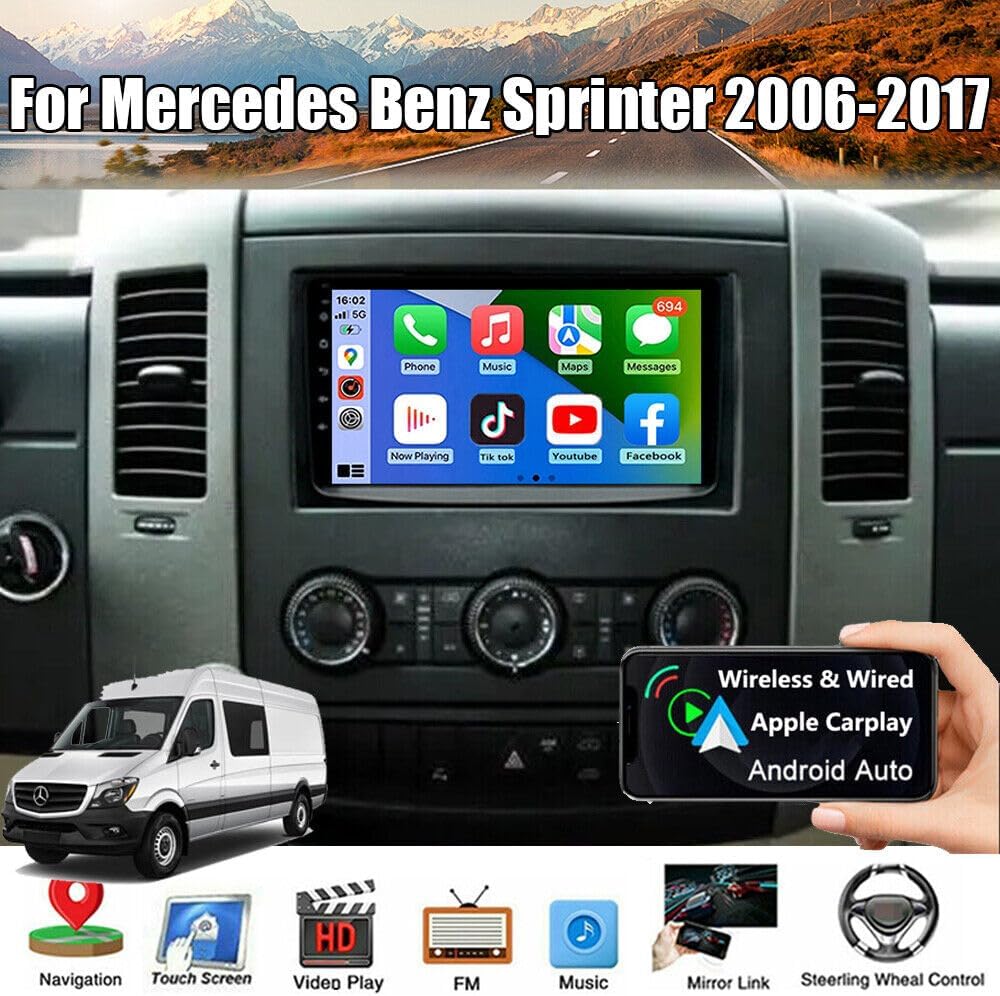
Image 1.1: The Surakey Car Stereo Radio installed in a Mercedes Benz Sprinter dashboard, showcasing its 9-inch display with various application icons.
2. Setup and Installation
2.1 Compatibility Check
Before installation, verify that your vehicle is a Mercedes Benz Sprinter manufactured between 2006 and 2017. It is crucial to compare your vehicle's dashboard and existing wiring with the product's specifications. If unsure, provide a complete image of the plugs on the back of your center console and the original head unit to the seller for confirmation of compatibility and any necessary additional wiring harnesses or adapters.

Image 2.1: A visual comparison showing the original car radio setup (top) versus the Surakey Car Stereo Radio installed (bottom) in a Mercedes Benz Sprinter dashboard.
2.2 Included Components
The package typically includes the following items:
- 9-inch Radio Stereo with Frame
- GPS Cable
- 2 x USB Cables
- Original Power Cable with Canbus Box
- RCA Cable
- Camera Input Cable
- Radio Adapter Cable
- User Manual

Image 2.2: An illustration detailing the dimensions of the car stereo unit and a layout of all included cables and accessories, such as the power cable, RCA input/output, USB cables, GPS antenna, instruction manual, Canbus box, and radio adapter.
2.3 Wiring Connections
Connect the provided cables to their respective ports on the car stereo and your vehicle's wiring harness. Ensure all connections are secure to prevent signal loss or malfunction.
- Power Cable: Connect the main power harness to the vehicle's power supply. The Canbus Box integrates with your vehicle's system for functions like steering wheel control.
- RCA Cable: For external audio/video input/output, such as amplifiers or additional displays.
- USB Cables: For connecting USB devices, including wired CarPlay/Android Auto, USB drives, or charging.
- GPS Cable: Connect the GPS antenna and position it in a location with a clear view of the sky for optimal signal reception.
- Camera Input Cable: For connecting a backup camera. Ensure proper wiring for reverse trigger functionality.
- Radio Adapter Cable: Connects to the vehicle's existing radio antenna.

Image 2.3: The rear panel of the car stereo unit, illustrating the various ports and connected wiring harnesses for power, audio, video, and data.
3. Operating Instructions
3.1 Power On/Off and Basic Interface
Press the power button (usually located on the front panel or integrated into the volume knob) to turn the unit on or off. The 9-inch touch screen provides access to all functions. Navigate through menus by tapping icons and swiping.
3.2 CarPlay and Android Auto
This unit supports both wireless and wired CarPlay for iOS devices and Android Auto for Android smartphones. Connect your phone via a USB cable or wirelessly via Bluetooth and WiFi. Once connected, you can access your phone's navigation, music, calls, messages, and other compatible apps directly on the car stereo screen. Voice control is also supported.

Image 3.1: The car stereo display showing both CarPlay and Android Auto interfaces, demonstrating how phone applications like navigation and music are integrated.
3.3 GPS Navigation
The unit has built-in GPS reception. You can use offline navigation by installing maps directly from the Play Store or by utilizing the included GPS module. For online navigation, connect the unit to a WiFi network, and use applications like Google Maps.
3.4 Bluetooth Connectivity
Pair your smartphone via Bluetooth for hands-free calling and audio streaming. Access your phone's contact list and call history directly from the stereo after granting necessary permissions.
3.5 WiFi Connection
Connect the car stereo to a WiFi hotspot (e.g., from your smartphone) to access online features such as web browsing, app downloads from the Play Store, and online navigation services.
3.6 Mirror Link and Split Screen
The Mirror Link function allows you to mirror your iOS or Android smartphone screen onto the car stereo display via WiFi. The split-screen feature enables you to view two applications simultaneously, for example, navigation on one side and music playback on the other.
3.7 Steering Wheel Control
If your vehicle supports it and the Canbus box is correctly installed, you can control essential functions like answering calls, changing music tracks, and adjusting volume directly from your steering wheel buttons.
4. Maintenance
To ensure the longevity and optimal performance of your car stereo, follow these maintenance guidelines:
- Cleaning: Use a soft, dry cloth to clean the screen and exterior. For stubborn smudges, lightly dampen the cloth with water or a screen-safe cleaner. Avoid abrasive materials or harsh chemicals.
- Software Updates: Periodically check for and install software updates to ensure the system runs efficiently and has the latest features and security patches. Updates can usually be performed via a WiFi connection.
- Environmental Conditions: Avoid exposing the unit to extreme temperatures, direct sunlight for prolonged periods, or excessive moisture.
5. Troubleshooting
If you encounter issues with your car stereo, refer to the following common troubleshooting steps:
- No Power:
- Check all power cable connections.
- Verify the vehicle's fuse for the stereo is intact.
- Ensure the ignition is on.
- No Sound:
- Check speaker wire connections.
- Ensure the volume is not muted or set too low.
- Verify audio output settings in the system menu.
- GPS Not Working/Inaccurate:
- Ensure the GPS antenna is properly connected and positioned with a clear view of the sky.
- Check GPS settings in the system menu.
- If using online maps, verify WiFi connectivity.
- Bluetooth Connection Issues:
- Ensure Bluetooth is enabled on both the stereo and your phone.
- Delete previous pairings and attempt to re-pair the devices.
- Restart both the stereo and your phone.
- Touch Screen Unresponsive:
- Restart the unit.
- Ensure the screen is clean and free of debris.
If problems persist after attempting these steps, contact customer support for further assistance.
6. Specifications
| Feature | Specification |
|---|---|
| Model Number | JIAQI-QA1732X-WYQ-2505 |
| Operating System | Android 13 |
| RAM | 2GB |
| ROM (Internal Storage) | 32GB |
| Screen Size | 9 Inches |
| Screen Resolution | 1024x600 |
| Stereo Output | 4x45W |
| FM Tuning Range | 87.5-108MHz |
| Connectivity | Bluetooth, USB, Wi-Fi |
| Supported Navigation | GPS (Offline/Online) |
| Product Dimensions | 37 x 23 x 14 cm |
| Item Weight | 1.55 kg |
7. Warranty and Support
For warranty information, technical support, or service inquiries, please refer to the documentation provided with your purchase or contact the seller directly. Warranty terms and conditions may vary.