
1. Introduction
Thank you for choosing the Fafeicy PD13 3D Hologram Projector. This device is designed to create vivid, true-color 3D holographic imagery without the need for special glasses, making it suitable for retail displays, events, and home decor. This manual provides essential information for the safe and efficient use of your projector, including setup, operation, maintenance, and troubleshooting.
2. Product Overview
2.1 Key Features
- Compact 3D Holographic Display: Features an 88x88mm viewing area with LED holographic technology.
- High-Definition Visual Performance: 48 LED array delivers 480x480 resolution for true-color 3D projection.
- Flexible Installation Options: Includes an acrylic stand for tabletop use and supports wall-mount capability.
- Intuitive Media Control: Comes with 16GB storage and an IR remote for effortless video switching and content management.
- Simple Connectivity: USB-powered operation with included adapter, supporting direct video uploads from computers.
2.2 Package Contents
Please verify that all items are present in your package:
- 1 × Fafeicy PD13 Hologram Projector
- 1 × USB Cable
- 1 × Acrylic Stand
- 1 × 16GB TF Card
- 1 × IR Remote Control (batteries included)

Figure 1: Included accessories: remote control, card reader, power cord, and acrylic base.
3. Setup
3.1 Physical Installation
The PD13 projector offers versatile placement options:
- Tabletop Use: Attach the provided acrylic stand to the base of the projector. Ensure the stand is securely fitted for stability. Place the projector on a flat, stable surface.
- Wall Mount: The projector can be mounted on a wall. Use appropriate mounting hardware (not included) suitable for your wall type and the device's weight. Ensure the device is installed out of reach to prevent accidental contact with the rotating LED array.

Figure 2: Desktop installation of the PD13 projector using the acrylic stand.
3.2 Power Connection
Connect the provided USB cable to the projector's power input port and then to the included 5V/2A power adapter. Plug the adapter into a standard electrical outlet (100-240V).
3.3 Initial Power-On
Once connected to power, the projector should automatically power on and begin displaying content from the pre-installed 16GB TF card. If it does not, ensure all connections are secure.
4. Operation
4.1 Remote Control Functions
The included IR remote control allows for convenient management of the projector's functions. Ensure the remote has batteries installed and is pointed towards the projector's IR receiver.
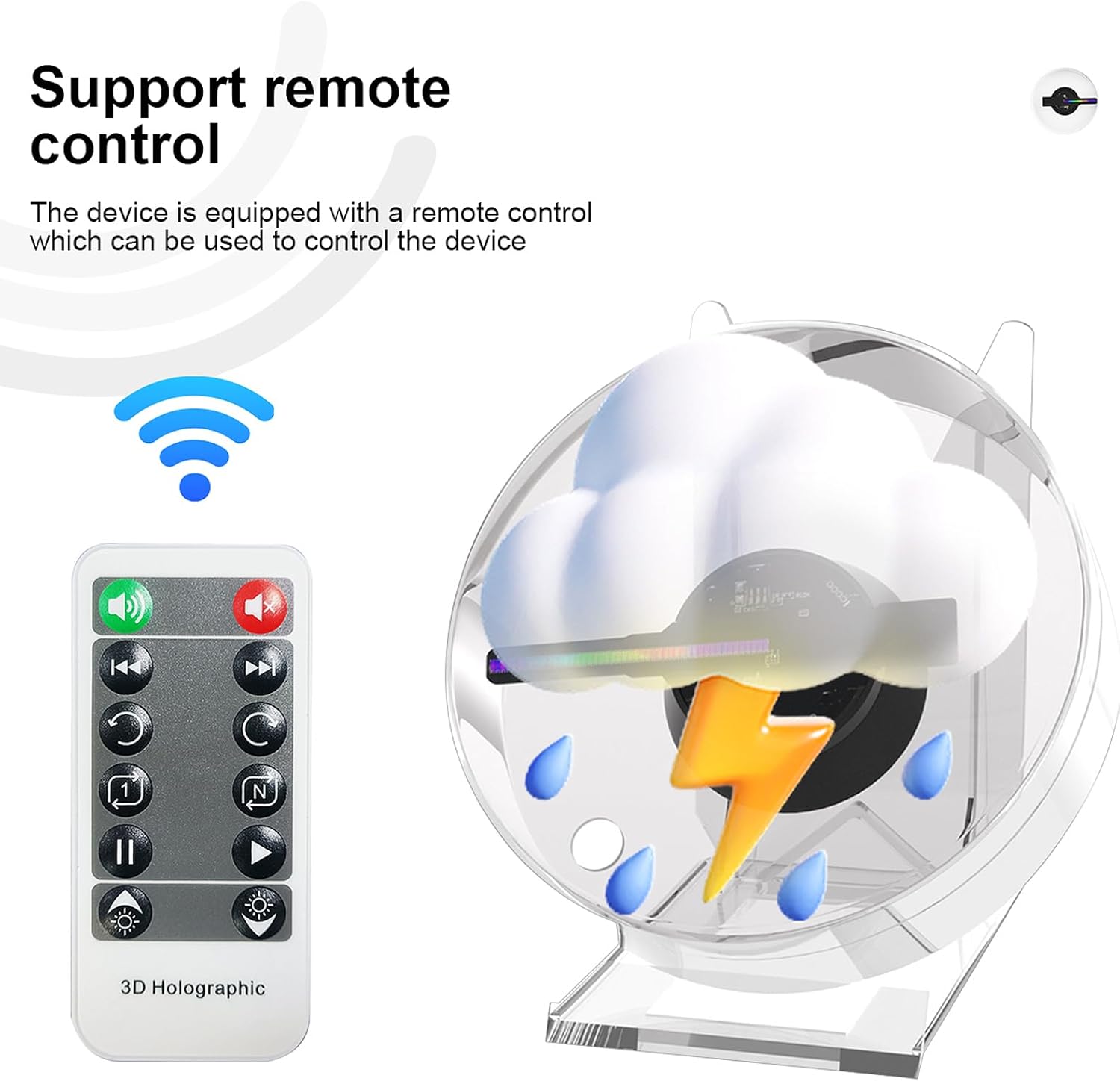
Figure 3: The projector and its remote control, illustrating remote functionality.
Common remote functions include:
- Power On/Off: Turns the device on or off.
- Play/Pause: Controls media playback.
- Next/Previous: Navigates through stored content.
- Brightness Adjustment: Adjusts the display brightness.
- Angle Adjustment: Modifies the display angle for optimal viewing.
4.2 Media Playback
The projector automatically plays content stored on the inserted 16GB TF card. Use the remote control to switch between different videos or images.
5. Media Management
5.1 Uploading Content
To upload new content to your Fafeicy PD13 projector:
- Remove the TF card from the projector.
- Insert the TF card into a card reader (included).
- Connect the card reader to your computer's USB interface.
- Access the TF card's storage on your computer.
- Use the '5DDisplayer' software (if provided or available for download) or directly copy compatible media files (MP4/AVI/JPG/PNG) to the TF card.
- Safely eject the TF card from your computer and reinsert it into the projector.

Figure 4: Process of uploading content to the projector via a computer and TF card.
5.2 Supported Media Formats
The projector supports MP4, AVI, JPG, and PNG file formats for holographic display.
6. Maintenance
6.1 Cleaning
To maintain optimal visual clarity, regularly clean the acrylic protective cover and the LED guide plate. Use a soft, dry, lint-free cloth. For stubborn smudges, a slightly damp cloth with mild, non-abrasive cleaner can be used, followed by immediate drying.

Figure 5: Key components of the projector, including areas to clean.
6.2 Storage
When not in use, store the projector in a cool, dry place, away from direct sunlight and extreme temperatures. If storing for extended periods, consider placing it back in its original packaging to protect it from dust and damage.
7. Troubleshooting
If you encounter issues with your Fafeicy PD13 projector, refer to the following common solutions:
- No Display: Ensure the power cable is securely connected and the power adapter is plugged into a working outlet. Check if the TF card is properly inserted.
- Remote Not Responding: Verify that the remote control batteries are correctly installed and have sufficient charge. Ensure there are no obstructions between the remote and the projector's IR receiver.
- Poor Image Quality: Ensure the acrylic protective cover and LED guide plate are clean. Check if the media files are of sufficient resolution (480x480 recommended). Adjust brightness and angle using the remote.
- Content Not Playing: Confirm that the media files on the TF card are in a supported format (MP4/AVI/JPG/PNG). Re-upload content if necessary.
If problems persist after attempting these solutions, please contact customer support.
8. Specifications
| Feature | Detail |
|---|---|
| Model | PD13 |
| Display Area | 88x88mm |
| LED Array | 48 LEDs |
| Resolution | 480x480 |
| Power Input | 100-240V |
| Power Output | 5V/2A |
| Rated Power | 18W |
| Storage | 16GB TF Card (included) |
| Supported Media | MP4, AVI, JPG, PNG |
| Controls | IR Remote, Brightness/Angle Adjustment |
| Dimensions | 12.3 × 12.3 × 7 cm (approx. 4.84"L x 4.84"W x 2.76"H) |
| Item Weight | 400g (approx. 0.88 lbs) |
| Operating Temperature | -20°C to 60°C (-4°F to 140°F) |
| Mounting Type | Tabletop Mount, Wall Mount |
| Material | Acrylic |

Figure 6: Additional features such as energy saving and long lifespan.
9. Safety Information
Please read and adhere to the following safety guidelines to prevent injury or damage to the device:
- Installation: Install the projector out of reach, especially if children are present, or use a protective cover to prevent contact with the rotating LED array.
- Indoor Use: This device is recommended for indoor use only. Avoid exposure to moisture, rain, or extreme environmental conditions.
- Ventilation: Ensure adequate ventilation around the projector to prevent overheating. Do not block ventilation openings.
- Power Supply: Use only the provided power adapter and USB cable. Do not use damaged cables or adapters.
- Handling: Handle the device with care. Avoid dropping or subjecting it to strong impacts.
- Disassembly: Do not attempt to disassemble or repair the projector yourself. Refer all servicing to qualified personnel.
10. Warranty and Support
Specific warranty details for the Fafeicy PD13 3D Hologram Projector may vary by region and retailer. Please refer to your purchase documentation or contact your point of sale for warranty information.
For technical support, troubleshooting assistance beyond this manual, or inquiries regarding replacement parts, please contact Fafeicy customer service through the retailer where you purchased the product or visit the official Fafeicy brand store online.