
1. Introduction
This manual provides essential information for setting up, operating, maintaining, and troubleshooting your Blackview Shark 6 smartphone. Please read this guide thoroughly to ensure optimal performance and longevity of your device.
The Blackview Shark 6 is a 5G-enabled smartphone featuring a 6.88-inch 120Hz display, powered by an octa-core processor with 12GB RAM and 128GB internal storage, expandable up to 2TB. It runs on Android 15 with DokeOS 4.2 and includes a 5000mAh battery with 18W fast charging, a 16MP main camera, an 8MP front camera, and NFC functionality.
2. What's in the Box
Verify that all items are present in your product packaging:
- Blackview SHARK 6 Mobile Phone
- Power Adaptor (9V2A)
- Micro USB Cable (Type-C)
- Protective Case
- Tempered Glass Film
- SIM Ejector Pin
- User Manual (this document)
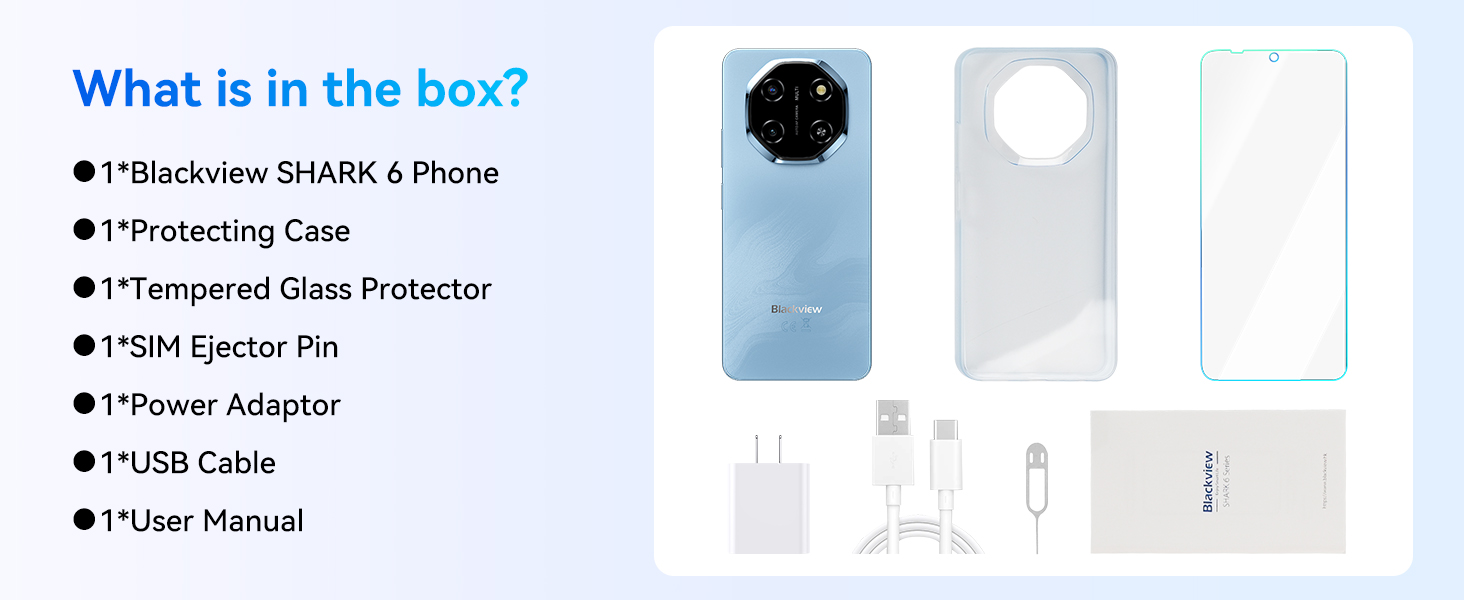
Image: Contents of the Blackview Shark 6 retail box.
3. Device Overview
The Blackview Shark 6 features a sleek design with a large display and a distinctive camera module. Familiarize yourself with the physical components of your device.

Image: Front and rear view of the Blackview Shark 6.
- Front: 6.88-inch display, 8MP front camera, earpiece.
- Rear: 16MP main camera, flash, Blackview branding.
- Sides: Power button (with integrated fingerprint sensor), volume buttons, SIM/microSD card tray, USB Type-C port, 3.5mm audio jack.

Image: Blackview Shark 6 design and dimensions (8.45mm thin, 210.5g weight).
4. Setup
4.1 Inserting SIM Cards and MicroSD Card
- Locate the SIM card tray on the side of your phone.
- Insert the SIM ejector pin into the small hole next to the tray and press gently until the tray pops out.
- Place your Nano-SIM cards (up to two) and/or a microSD card into the designated slots on the tray. Ensure the gold contacts face downwards.
- Carefully push the tray back into the phone until it clicks into place.
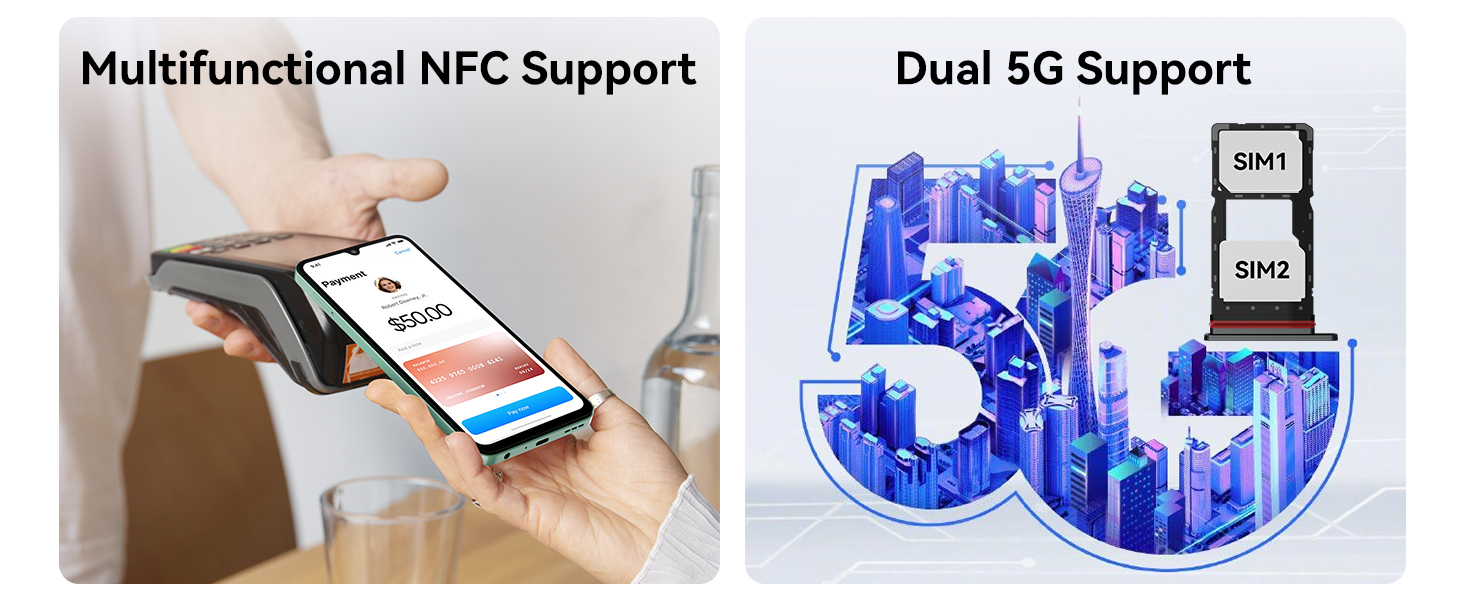
Image: Dual 5G SIM support and NFC functionality.
4.2 Initial Power On and Basic Configuration
- Press and hold the Power button until the Blackview logo appears.
- Follow the on-screen prompts to select your language, connect to a Wi-Fi network, and accept the terms and conditions.
- Sign in with your Google account or create a new one to access Google services and the Play Store.
- Set up screen lock methods such as PIN, pattern, or password.
4.3 Fingerprint and Face Unlock Setup
For enhanced security and convenience, configure fingerprint and face unlock:
- Navigate to Settings > Security > Fingerprint Unlock or Face Unlock.
- Follow the on-screen instructions to register your fingerprints or face. Ensure good lighting for face recognition.
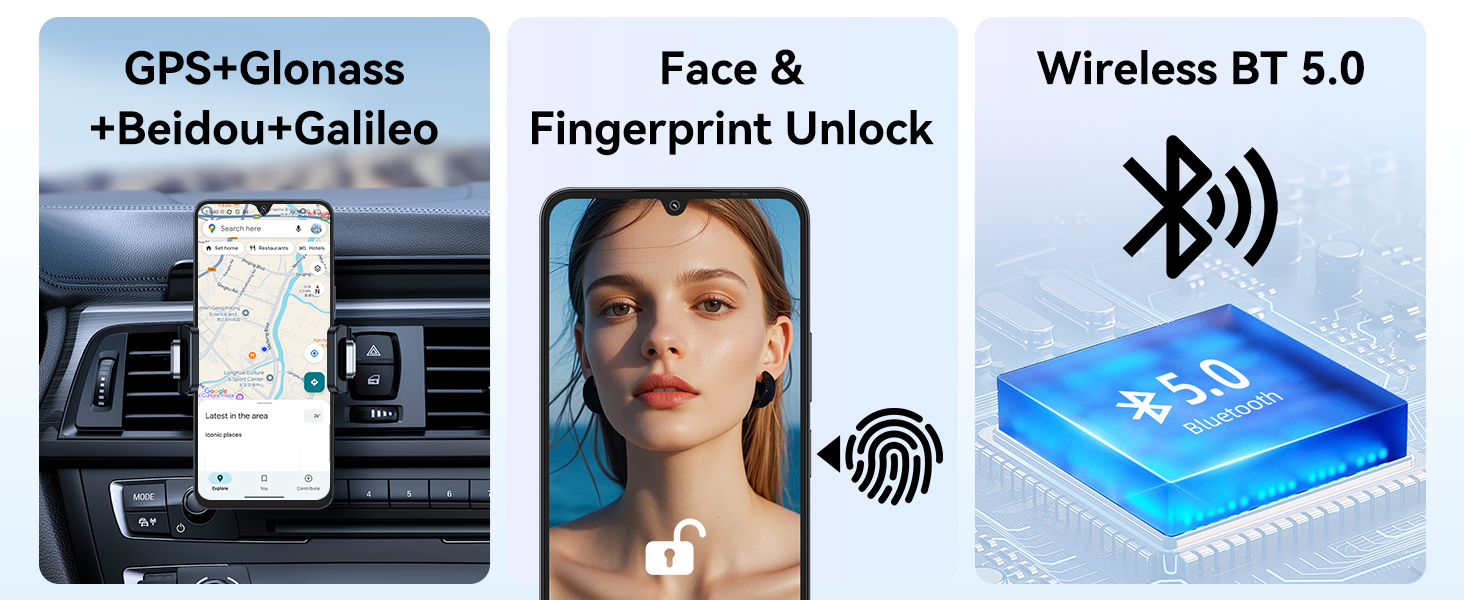
Image: GPS, Face & Fingerprint Unlock, and Wireless BT 5.0 features.
5. Operating Your Blackview Shark 6
5.1 Basic Navigation and Android 15 Features
Your Blackview Shark 6 runs on Android 15 with Blackview's DokeOS 4.2, offering a user-friendly interface and enhanced privacy features.
- Home Screen: Swipe left/right to access app pages, swipe down for notifications and quick settings.
- App Drawer: Swipe up from the home screen to view all installed applications.
- Multitasking: Swipe up and hold from the bottom of the screen (or tap the square navigation button) to view recent apps.
- Privacy Dashboard: Monitor and manage app permissions under Settings > Privacy.

Image: DokeOS 4.2 features based on Android 15.
5.2 Display Settings and Eye Comfort
The 6.88-inch FHD+ display offers a 120Hz refresh rate for smooth visuals. Adjust display settings for optimal viewing comfort:
- Refresh Rate: Set to 120Hz for the smoothest experience, or use Smart AI Refresh Rate for adaptive power saving.
- Reading Mode: Reduces blue light for comfortable reading.
- Night Light: Adjusts screen colors to warmer tones for evening use.
- Dark Mode: Changes the system theme to dark colors, reducing eye strain in low light.

Image: 6.88-inch FHD+ Immersive Display with 120Hz refresh rate.
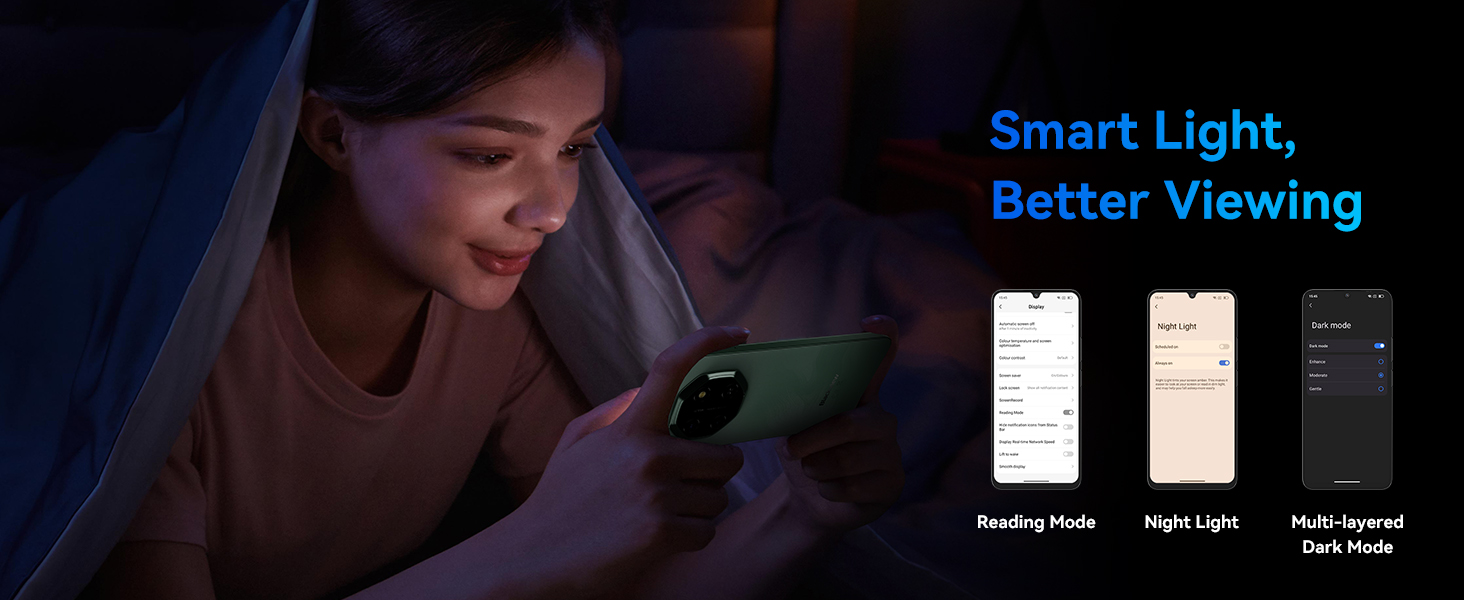
Image: Smart Light features for better viewing comfort.
5.3 Camera Usage and AI Features
Capture moments with the 16MP rear camera and 8MP front camera. Utilize AI features for enhanced photography and creativity.
- Rear Camera: 16MP with AI Scene Recognition, Portrait mode, Smile Shutter, and 4K Ultra-clear Video Recording.
- Front Camera: 8MP with Face Fill Light and HDR for clear selfies.
- AI Photo Editing Tools: Includes Magic Eraser to remove unwanted objects, One-Tap Sky Replacement, and Portrait Blur.

Image: Magic AI Photo Editing Tools.
5.4 Connectivity
The Blackview Shark 6 supports various connectivity options:
- 5G Network: Enjoy high-speed internet connectivity.
- Wi-Fi: Connect to wireless networks for internet access.
- Bluetooth: Pair with wireless headphones, speakers, and other devices.
- NFC: Enable contactless payments and quick pairing with compatible devices.
- GPS: Integrated GPS, GLONASS, Beidou, and Galileo for accurate navigation.
5.5 AI Assistant and Smart Features
Leverage the integrated AI features for a smarter user experience:
- Doke AI: Includes AI Smart Chat App, Magic AI Photo Editor, Smart AI Video Editor, and Smart AI Music Composer.
- Gemini Integration: Access Google Gemini for voice wake-up, voiceprint recognition, real-time voice interaction, and global smart control.

Image: Doke AI features for enhanced functionality.
5.6 Power Key Update Notice
To meet Google Gemini integration requirements, the power key functionality has been updated:
- Long press Power: Launches Gemini.
- Power + Volume Up: Accesses the Power menu (Power off, Restart, Emergency).
- Power + Volume Down: Takes a screenshot.
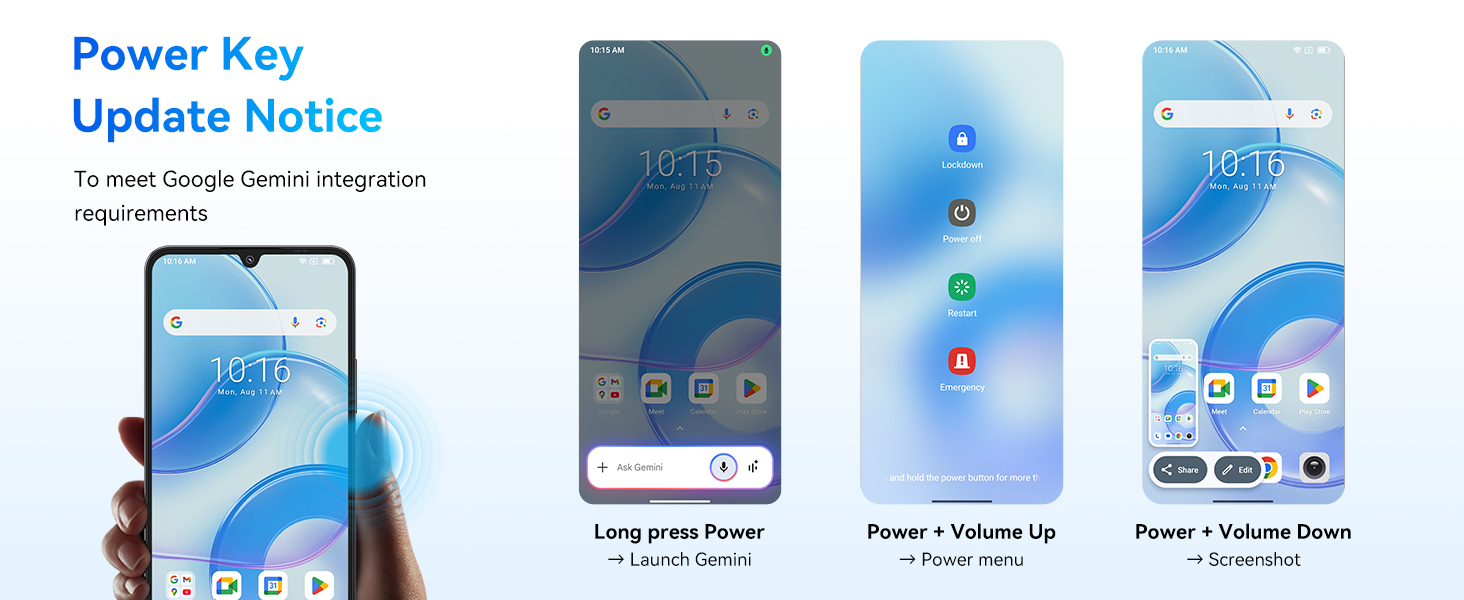
Image: Power Key Update Notice for Google Gemini integration.
6. Maintenance
6.1 Battery Care and Charging
The Blackview Shark 6 is equipped with a 5000mAh battery and supports 18W fast charging.
- Use the provided Power Adaptor (9V2A) and Micro USB Cable (Type-C) for optimal charging.
- Avoid extreme temperatures when charging or using the device.
- The phone retains approximately 80% battery capacity after over 800 charge cycles.
- AI Overnight Charging Protection: Helps prolong battery lifespan by optimizing charging patterns.
- AI Power Saving: Intelligently manages background app activity to conserve battery.
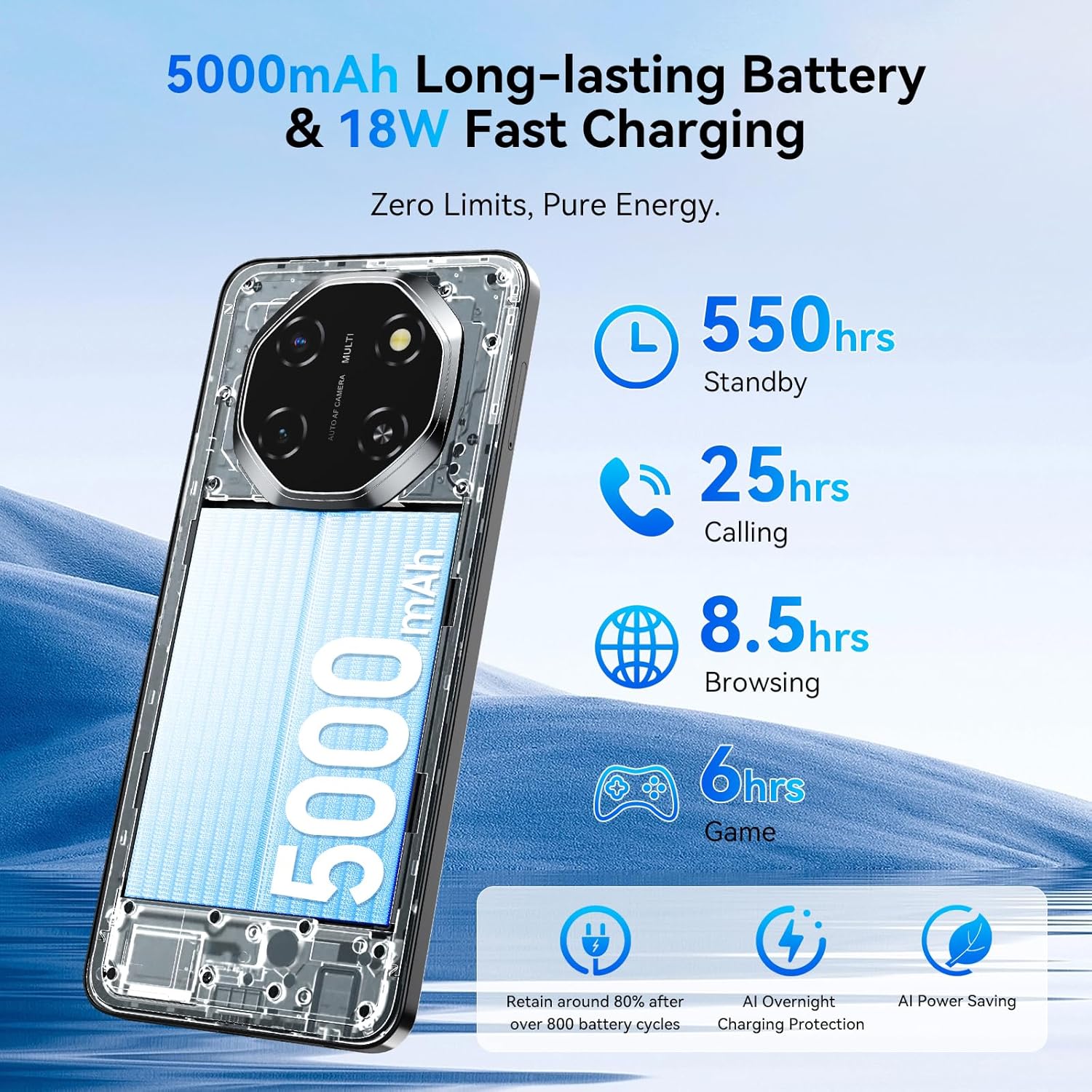
Image: 5000mAh Long-lasting Battery & 18W Fast Charging.
6.2 Software Updates
Regularly check for and install software updates to ensure your device has the latest features, security patches, and performance improvements. You can usually find this option in Settings > System > System Update.
6.3 Cleaning Your Device
Use a soft, lint-free cloth to clean the screen and body of your phone. Avoid using harsh chemicals or abrasive materials that could damage the device.
6.4 Storage Management
Your device comes with 128GB of internal storage, expandable up to 2TB via a microSD card. Regularly manage your storage to maintain optimal performance:
- Delete unnecessary files, apps, and media.
- Move large files to the microSD card.
- Utilize cloud storage services for backups.

Image: Powerful Performance: Octa-Core Processor, 12GB RAM, 128GB ROM, and 2TB Expansion.
6.5 Advanced Integrated Cooling System
The Blackview Shark 6 incorporates an advanced cooling system to manage heat during intensive tasks, ensuring stable performance.
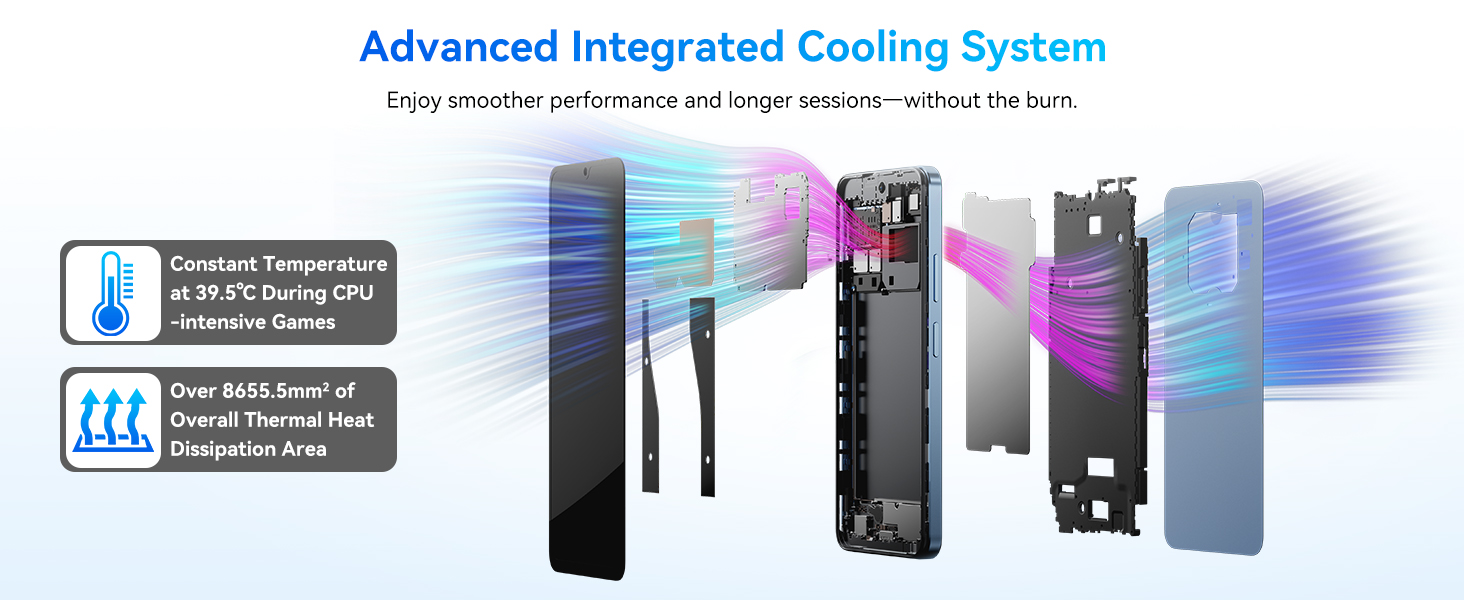
Image: Advanced Integrated Cooling System.
7. Troubleshooting
If you encounter issues with your Blackview Shark 6, refer to the following common solutions:
- Device not powering on: Ensure the battery is charged. Connect the phone to the charger for at least 15 minutes before attempting to power on again.
- Apps crashing or freezing: Close background apps, clear the app's cache (Settings > Apps > [App Name] > Storage > Clear Cache), or restart the device.
- Network connectivity issues: Check if airplane mode is off. Restart the phone. Verify SIM card insertion. Contact your mobile carrier if the issue persists.
- Slow performance: Free up storage space, close unused apps, or restart the device.
- Fingerprint/Face unlock not working: Ensure your fingers are clean and dry, or your face is well-lit and unobstructed. Re-register your biometrics if necessary.
For more complex issues, please refer to the support section or contact Blackview customer service.
8. Specifications
Detailed technical specifications for the Blackview Shark 6:
| Operating System | Android 15 (DokeOS 4.2) |
| Processor | Octa-Core (Unisoc T8100, 2.2 GHz CPU Speed) |
| RAM | 12 GB (4GB physical + 8GB virtual) |
| Internal Storage | 128 GB |
| Expandable Storage | Up to 2 TB via microSD card |
| Display | 6.88 Inches, 720 x 1604 Resolution, 120 Hz Refresh Rate |
| Rear Camera | 16 MP |
| Front Camera | 8 MP |
| Battery Capacity | 5000 mAh |
| Charging | 18W Fast Charging |
| Connectivity | 5G, Wi-Fi, Bluetooth, NFC, GPS (Built-In GPS, GLONASS, Beidou, Galileo) |
| Audio Jack | 3.5 mm |
| Dimensions | 7.36 x 3.82 x 2.2 inches (Package) |
| Item Weight | 1.15 pounds |
| Special Features | Dual SIM, Expandable Memory, Fast Charging Support, Supports USB OTG |
9. Warranty and Support
The Blackview Shark 6 comes with a 2-year warranty. Blackview provides a responsive after-sales service team to assist with any product-related inquiries or issues.
For support, please visit the official Blackview website or contact their customer service through the details provided in your warranty card or on the Blackview store page.
You can find more information and support resources at the Blackview Store on Amazon.


