
CCYLEZ CCYLEZy3odtg6n52-13
CCYLEZ 15 Inch WiFi Digital Picture Frame User Manual
Model: CCYLEZy3odtg6n52-13
1. Introduction
This user manual provides comprehensive instructions for the setup, operation, and maintenance of your CCYLEZ 15 Inch WiFi Digital Picture Frame. Please read this manual carefully before using the device to ensure proper functionality and to maximize your experience. Keep this manual for future reference.
2. Package Contents
Upon opening the package, please verify that all the following items are included and in good condition:
- 1 x Digital Picture Frame
- 1 x Adapter
- 1 x Instruction Manual
- 1 x Stand

Image: The CCYLEZ 15 Inch WiFi Digital Picture Frame with its included stand and power adapter.
3. Product Overview
The CCYLEZ 15 Inch WiFi Digital Picture Frame features a full HD touchscreen display with a 1024x768 resolution and a wide 178° viewing angle. It supports various image formats (JPG, JPEG, BMP, PNG) and MP4 video. The frame is designed for flexible placement, supporting both portrait and landscape orientations with automatic rotation, and includes built-in wall mount holes for easy installation.
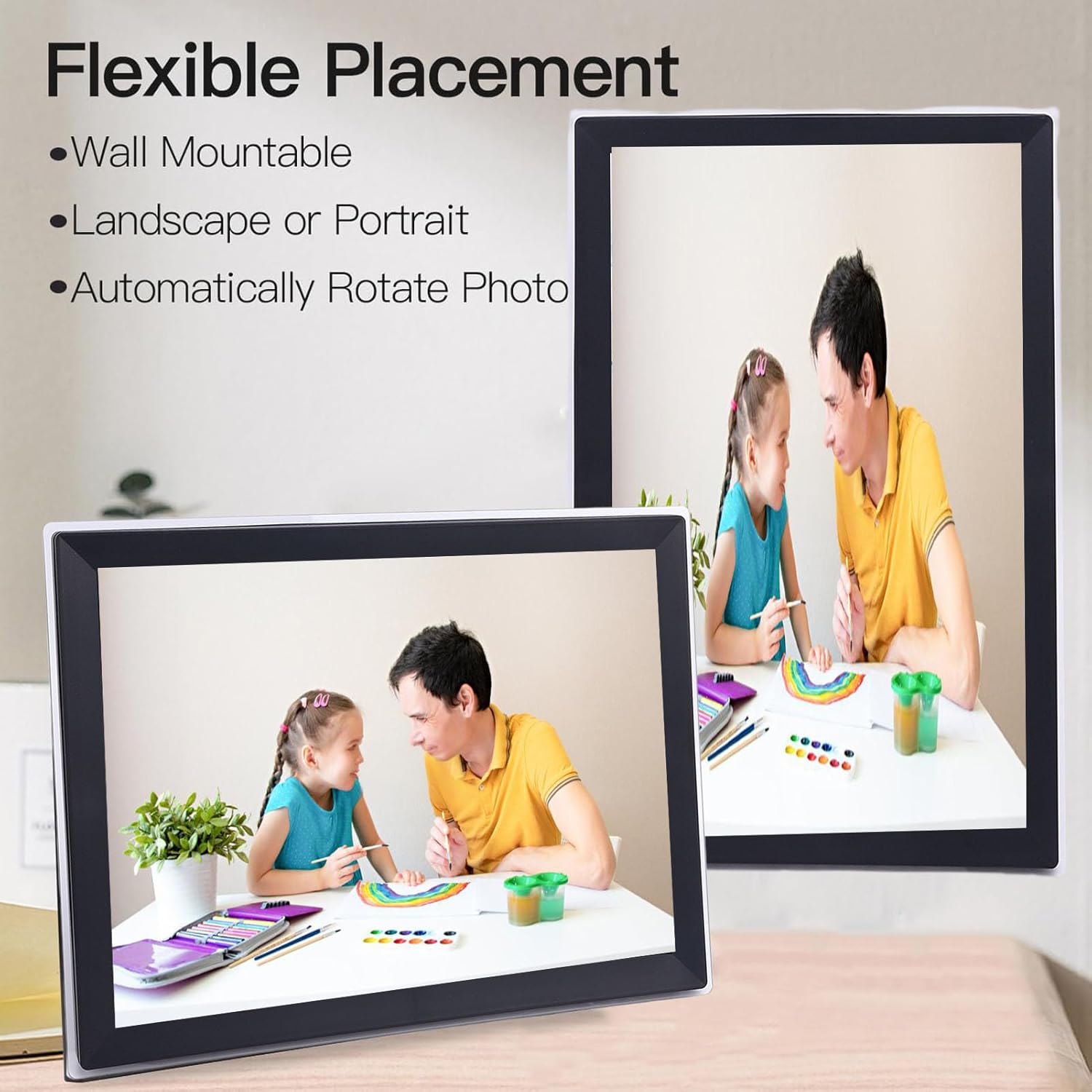
Image: The digital picture frame demonstrating its flexible placement options, including landscape and portrait orientations, and wall-mounting capability.

Image: Rear view of the digital picture frame, highlighting the various ports including USB, USB-C, 3.5mm headphone jack, DC power jack, and storage card slot.
4. Setup
4.1 Initial Setup
- Unpack the digital picture frame and all accessories from the box.
- Attach the included stand to the back of the frame, or identify the wall mount holes if you plan to wall-mount the device.
- Connect the power adapter to the DC Power Jack on the frame and plug it into a power outlet. The frame will automatically power on.
4.2 Connecting to Wi-Fi
After initial power-on, the frame will guide you through the setup process, including connecting to your Wi-Fi network. Ensure you have your Wi-Fi network name (SSID) and password ready.
- On the frame's screen, select your desired language.
- Choose your Wi-Fi network from the list of available networks.
- Enter your Wi-Fi password using the on-screen keyboard.
- Confirm the connection. Once connected, the frame will display a confirmation message.
4.3 App Installation and Pairing
The digital picture frame is designed to be easily managed via a dedicated mobile application. This app allows for remote sharing of photos and videos.
- Download the official app from your smartphone's app store (e.g., Apple App Store or Google Play Store). Refer to the on-screen instructions on the frame for the specific app name or QR code.
- Open the app and create an account if you don't have one.
- Follow the app's instructions to add a new device. The frame will display a unique connection code. Enter this code into the app to pair your device.
- Once paired, you can begin sharing memories effortlessly.
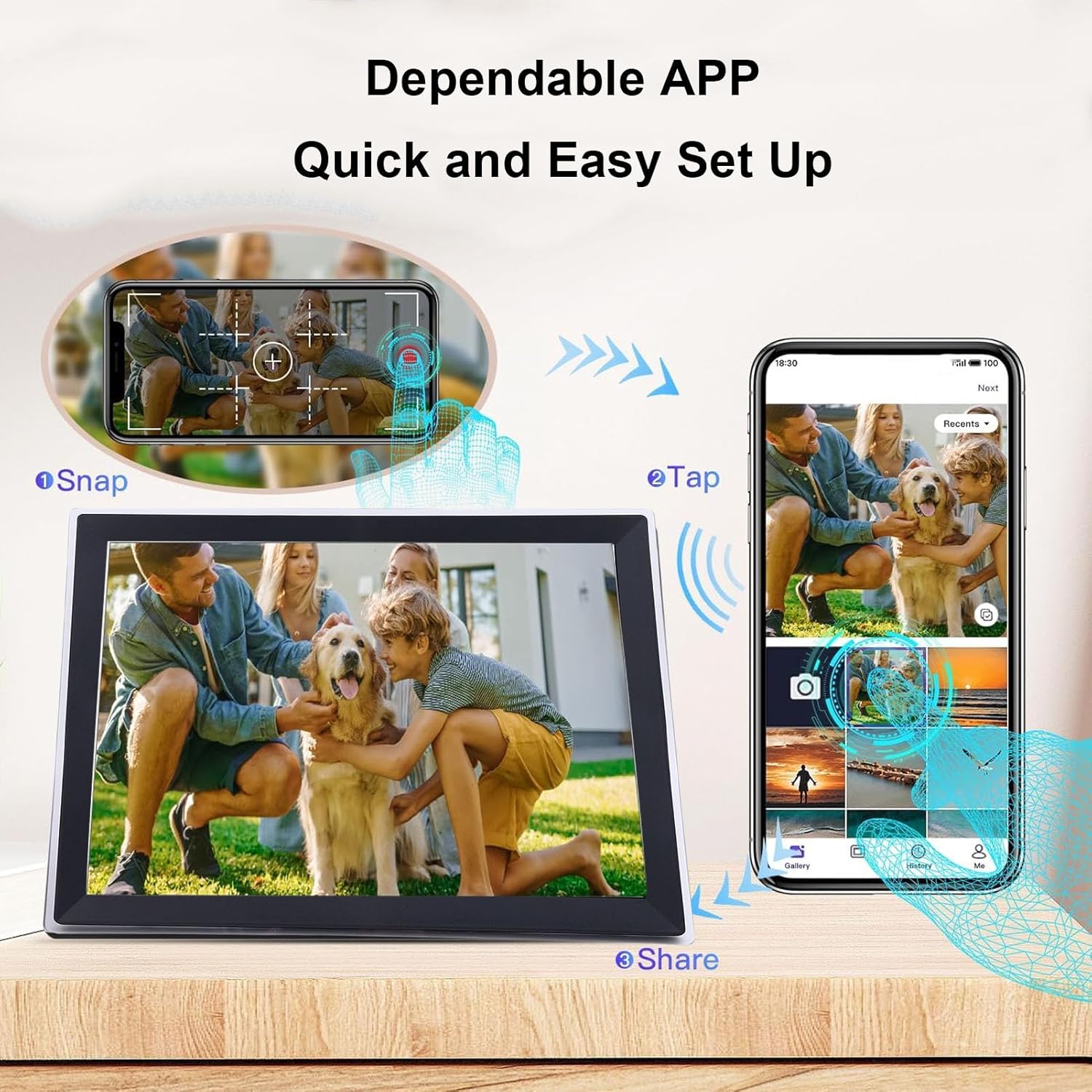
Image: Illustration of the quick and easy app setup process, demonstrating how to snap, tap, and share photos from a smartphone to the digital frame.
5. Operating Instructions
5.1 Transferring Photos and Videos
The frame supports multiple methods for transferring your media:
- Via App: The most convenient method. Use the paired mobile app to select and send photos and videos directly to your frame. You can transfer up to 100 photos at once.
- Via Email: Some models allow sending photos directly to a unique email address associated with your frame. Check your frame's settings for this feature.
- Via USB Drive: Insert a USB drive into the USB2.0 port. The frame will detect the drive, allowing you to import media.
- Via Storage Card: Insert a compatible storage card (up to 128GB, not included) into the storage card slot to import media.

Image: Visual representation of photos and videos being transmitted quickly from a smartphone to the digital picture frame, illustrating remote sharing capabilities.

Image: The digital picture frame highlighting its support for multiple users to share photos, enabling family and friends to contribute memories.
5.2 Using the Touch Screen
The 15-inch touchscreen allows for intuitive navigation and interaction with your photos and settings. Simply tap, swipe, and pinch to control the frame.
- Tap: Select items, open menus, or confirm actions.
- Swipe: Navigate through photos, menus, or settings pages.
- Pinch-to-Zoom: Zoom in or out on photos (if supported by the software).

Image: A hand interacting with the digital picture frame's touchscreen, demonstrating its intuitive touch controls for navigation and content management.
5.3 Auto-Rotation Feature
The frame automatically detects its orientation (portrait or landscape) and adjusts the displayed images accordingly, ensuring your photos are always shown correctly without manual adjustment.

Image: The digital picture frame showcasing its auto-rotation capability, displaying the same image correctly in both landscape and portrait orientations.
5.4 Storage Management
The frame comes with 32GB of built-in storage, capable of holding over 80,000 photos. Storage can be expanded using external storage cards or USB drives.
- Internal Storage: 32GB built-in.
- Storage Card Slot: Supports cards up to 128GB (card not included).
- USB Drive: Connect a USB drive for additional storage or direct playback.
Manage your stored media through the frame's settings menu to delete, organize, or transfer files between internal and external storage.
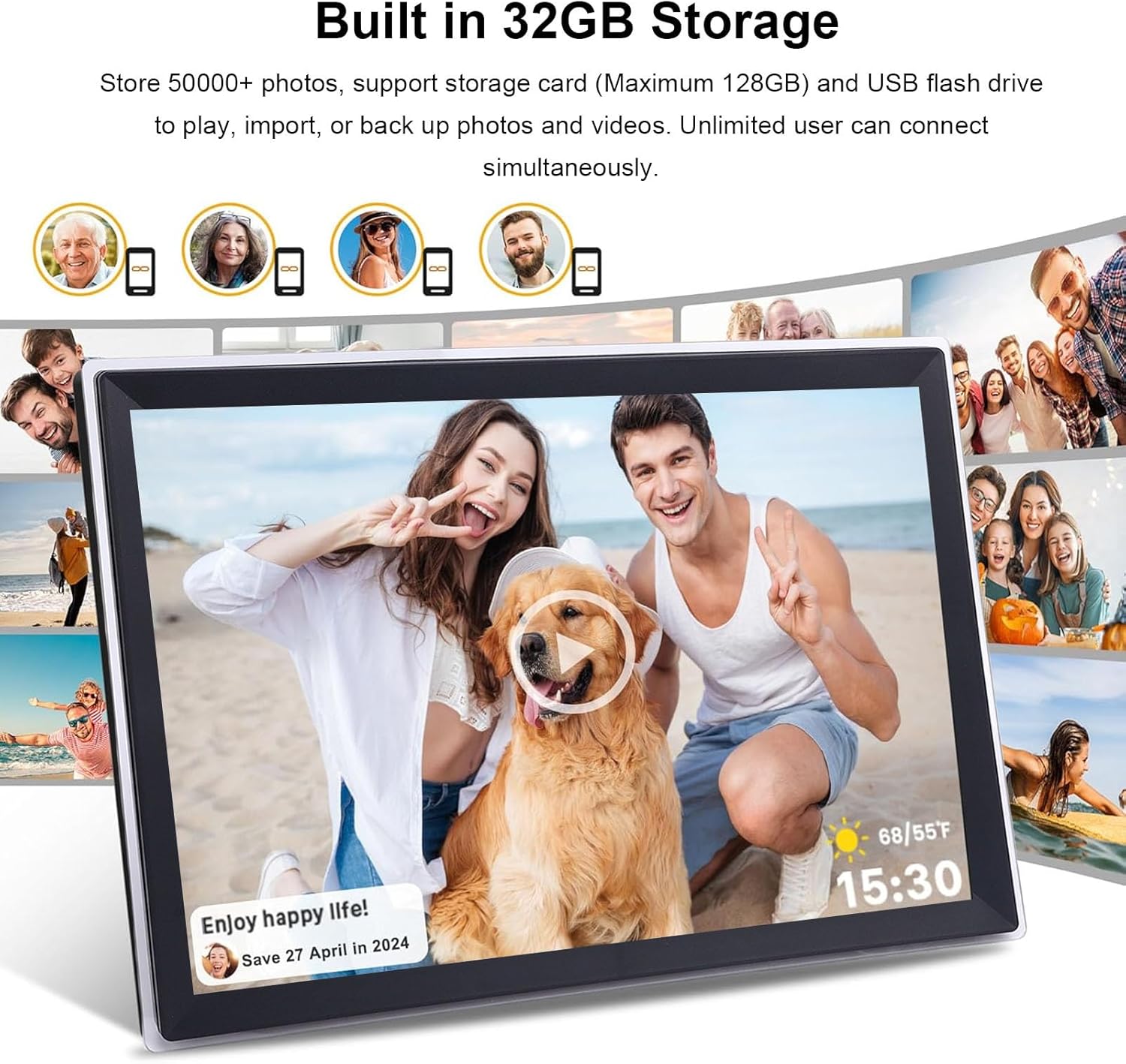
Image: The digital picture frame displaying a photo, with text indicating its 32GB built-in storage capacity and support for external storage cards and USB flash drives.
6. Specifications
| Feature | Detail |
|---|---|
| Screen Size | 15 inches Touch Screen |
| Resolution | 1024x768 FHD |
| Viewing Angle | 178° Wide Angle |
| Screen Ratio | 16:9 |
| Wi-Fi | 2.4G WiFi |
| Internal Storage | 32GB (for over 80,000 photos) |
| Expandable Storage | Storage Card Slot (up to 128GB), USB Drive |
| Interfaces | USB2.0x1, USB Cx1, 3.5mm Headphone Jackx1, DC Power Jackx1, Storage Card Slotx1 |
| Speakers | 8Ω2Wx2 |
| Product Dimensions | 15.35 x 14.17 x 0.99 inches |
| Item Weight | 4.07 pounds |
| Model Number | CCYLEZy3odtg6n52-13 |
7. Maintenance and Care
- Cleaning the Screen: Use a soft, lint-free cloth to gently wipe the touchscreen. For stubborn smudges, slightly dampen the cloth with water or a screen-safe cleaner. Avoid harsh chemicals or abrasive materials.
- Cleaning the Frame: Wipe the acrylic frame with a soft, dry cloth.
- Placement: Place the frame on a stable, flat surface or securely mount it on a wall. Avoid direct sunlight, high humidity, or extreme temperatures.
- Power Off: When not in use for extended periods, it is recommended to unplug the power adapter.
- Software Updates: Periodically check for software updates through the frame's settings or the mobile app to ensure optimal performance and new features.
8. Troubleshooting
| Problem | Possible Cause | Solution |
|---|---|---|
| Frame does not power on. | Power adapter not connected or faulty outlet. | Ensure the power adapter is securely plugged into the frame and a working power outlet. Try a different outlet. |
| Cannot connect to Wi-Fi. | Incorrect password, weak signal, or router issue. | Double-check the Wi-Fi password. Move the frame closer to the router. Restart your Wi-Fi router. Ensure it's a 2.4Ghz network. |
| Photos are not displaying. | Unsupported format, no photos transferred, or storage issue. | Ensure photos are in JPG, JPEG, BMP, or PNG format. Verify that photos have been successfully transferred to the frame's internal storage or connected external device. Check storage capacity. |
| App cannot pair with the frame. | Incorrect pairing code, network issue, or app version. | Verify the unique connection code. Ensure both the frame and your smartphone are connected to the internet. Update the app to the latest version. |
| Screen is unresponsive. | Temporary software glitch. | Unplug the power adapter, wait 10 seconds, then plug it back in to restart the frame. |
9. Warranty and Support
This product is manufactured by CCYLEZ. For any product-related inquiries, technical support, or warranty claims, please refer to the contact information provided in the original product packaging or visit the official CCYLEZ store on Amazon.
Additional protection plans are available for purchase to extend coverage beyond the standard warranty period. These plans offer extended service and support for your device.
- 2-Year Protection Plan: Available for $18.99
- 3-Year Protection Plan: Available for $25.99
- Complete Protect: Monthly plan for $16.99/month, covering eligible past and future purchases.
For more details on protection plans or to contact support, please visit the CCYLEZ Store on Amazon.
Ask a question about this manual
Ask about setup, troubleshooting, compatibility, parts, safety, or missing instructions. Manuals+ will review the question and use this page’s manual context to help answer it.