
1. Introduction
The TCL NXTPAPER 14 is a versatile Android tablet designed for a wide range of uses, from digital drawing and note-taking to multimedia consumption. It features a unique paper-like display technology for enhanced eye comfort and comes equipped with a T-PEN stylus and a protective flip case. This manual will guide you through the setup, operation, and maintenance of your device.

Image: The TCL NXTPAPER 14 tablet, showcasing its large display, included T-PEN stylus, and flip case.
2. What's in the Box
Please check the contents of your package to ensure all items are present:
- TCL NXTPAPER 14 Android Tablet
- Flip Case
- T-PEN Stylus
- USB-C Cable

Image: The TCL NXTPAPER 14 tablet with its included flip case, offering all-round protection and multiple viewing angles, and the T-PEN stylus with 4096 pressure levels.
3. Setup
3.1 Initial Charging
Before first use, fully charge your TCL NXTPAPER 14 tablet. Connect the included USB-C cable to the tablet's charging port and the other end to a compatible USB power adapter (not included). The tablet supports 33W fast charging and can be fully recharged in approximately two hours.

Image: An illustration showing the internal 10,000mAh battery of the TCL NXTPAPER 14 and its USB-C charging capability.
3.2 Powering On and Initial Configuration
- Press and hold the Power button located on the side of the tablet until the TCL logo appears.
- Follow the on-screen prompts to select your language, connect to a Wi-Fi network, and set up your Google account.
- Complete the initial setup wizard to personalize your tablet settings.
4. Operating Instructions
4.1 NXTPAPER Display Technology
The TCL NXTPAPER 14 features a 14.3-inch 2.4K display with NXTPAPER 3.0 technology, designed for eye comfort. It offers anti-glare properties, blue light filtering, and DC dimming to reduce eye strain.

Image: Diagrams illustrating how the NXTPAPER display reduces blue light and minimizes glare compared to standard tablet displays.
4.2 VersaView Display Modes
Switch between three distinct display modes using the NXTPAPER Key for optimized viewing experiences:
- Regular Mode: Provides crisp, vibrant visuals ideal for streaming, video calls, and general daily tasks.
- Ink Paper Mode: Transforms the screen into an e-reader-like display, perfect for extended reading and note-taking with reduced eye fatigue.
- Color Paper Mode: Delivers soft, low-saturation colors, suitable for digital art, comics, and creative work.

Image: The TCL NXTPAPER 14 tablet displaying its three VersaView modes: Color Paper, Regular mode, and Ink Paper, with the NXTPAPER Key highlighted.
4.3 T-PEN Stylus Usage
The included T-PEN stylus offers 4096 levels of pressure sensitivity for precise input, ideal for drawing, sketching, and note-taking. The stylus magnetically attaches to the flip case for convenient storage. Note: The tablet is not compatible with third-party styluses.
Image: A person using the T-PEN stylus to draw and take notes on the TCL NXTPAPER 14 tablet.
4.4 Multitasking and Multi-Window Efficiency
The tablet supports various multitasking features to enhance productivity:
- Floating Window: Allows applications to run in resizable windows that float above other content.
- Split Screen: Divides the screen into two sections, enabling you to use two applications simultaneously side-by-side.

Image: The TCL NXTPAPER 14 tablet demonstrating its floating window and split screen capabilities for efficient multitasking.
4.5 Camera and Audio Features
The tablet is equipped with dual front cameras (13MP + 5MP) and an 8MP rear autofocus camera, all capable of 2K video recording. Quad stereo speakers with Smart PA provide immersive, clear audio with up to 200% volume boost.

Image: The TCL NXTPAPER 14 highlighting its front and rear cameras for sharp video calls and photos, along with its quad stereo speakers for cinematic sound.
4.6 Reverse Charging
The 10,000mAh battery supports reverse charging, allowing you to power up your phone or earbuds using the tablet. An OTG cable (sold separately) is required for this function.
4.7 Cross-Device Interaction
The TCL NXTPAPER 14 supports screen mirroring and extended display modes when connected to a PC running Windows 10 or later. Both devices must be connected to the same network.
- Mirror Mode: Duplicates your tablet's display on your PC.
- Extend Mode: Uses your tablet as a secondary display for your PC, expanding your workspace.
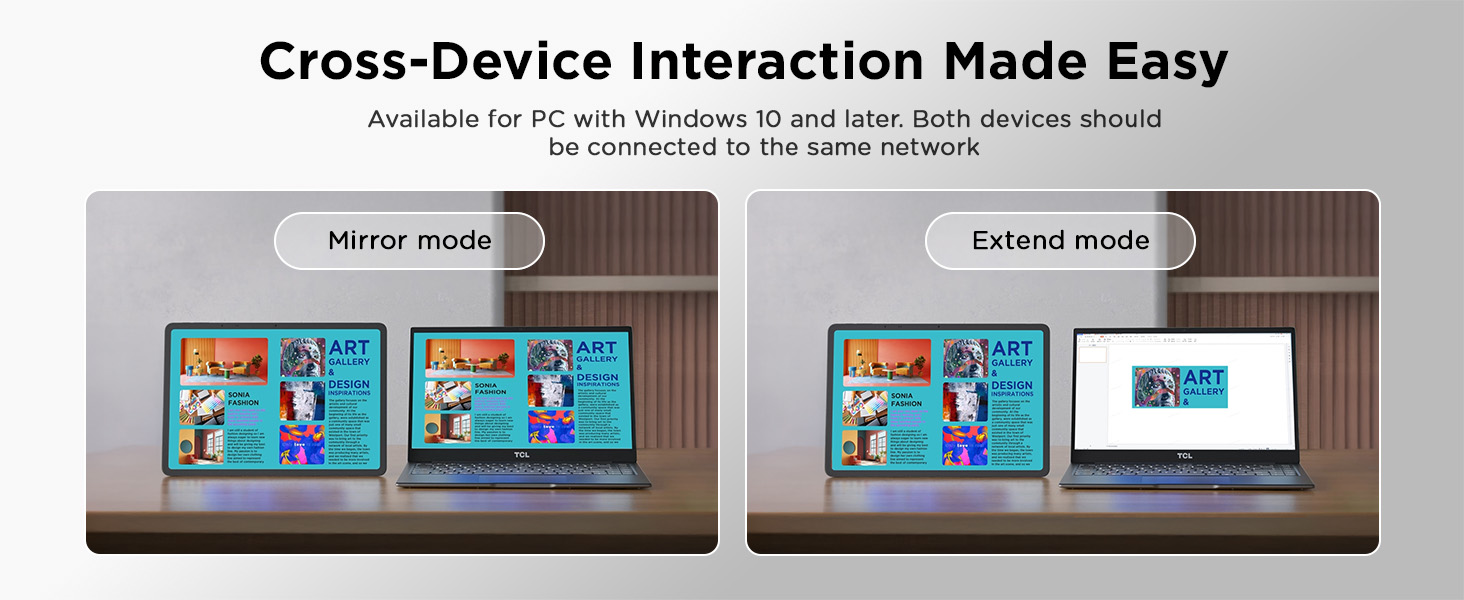
Image: The TCL NXTPAPER 14 tablet demonstrating mirror mode and extend mode when connected to a laptop, facilitating cross-device interaction.
5. Maintenance
- Cleaning: Use a soft, lint-free cloth to clean the screen and body of the tablet. Avoid abrasive materials or harsh chemicals.
- Software Updates: Regularly check for and install system updates to ensure optimal performance and security. Go to Settings > System > System update.
- Storage Management: Periodically clear unnecessary files and apps to maintain sufficient storage space and tablet speed.
- Battery Care: Avoid extreme temperatures. For long-term storage, charge the battery to around 50% to prolong its lifespan.
6. Troubleshooting
| Problem | Possible Solution |
|---|---|
| Tablet does not power on | Ensure the battery is charged. Connect to a power source and try again. If unresponsive, press and hold the Power button for 10-15 seconds to force a restart. |
| Screen is unresponsive | Restart the tablet. If the issue persists, perform a factory reset (data will be lost). |
| Wi-Fi connection issues | Restart the tablet and your Wi-Fi router. Forget the network in tablet settings and reconnect. Ensure you are within range. |
| Stylus not working | Ensure the T-PEN stylus is fully charged (if applicable, check stylus manual). Confirm it is the included T-PEN stylus, as third-party styluses are not compatible. |
| Slow performance | Close unused applications. Clear cache and temporary files. Check for system updates. Consider uninstalling rarely used apps. |
7. Specifications
| Feature | Detail |
|---|---|
| Model Name | TCL NXTPAPER 14 |
| Operating System | Android 14 |
| Screen Size | 14.3 Inches |
| Max Screen Resolution | 2400 x 1600 Pixels |
| Processor | MediaTek Helio G99 |
| RAM | 8GB (+8GB RAM expansion) |
| Internal Storage | 256GB |
| Battery Capacity | 10,000mAh |
| Fast Charging | 33W PD Capable |
| Front Cameras | 13MP + 5MP (2K video) |
| Rear Camera | 8MP Autofocus (2K video) |
| Audio | Quad Stereo Speakers with Smart PA |
| Dimensions (LxWxH) | 12.69 x 8.74 x 0.27 inches |
| Item Weight | 1.67 lbs (4.02 pounds listed in specs, using feature bullet for consistency) |
8. Warranty and Support
TCL products are covered by a limited warranty. For detailed warranty information, please refer to the official warranty card included with your product or visit the TCL official website. For technical support, product registration, or service inquiries, please contact TCL customer support.
You can also find additional resources and a downloadable PDF version of the user manual on the TCL support page or through the link provided with your purchase.
Official User Manual (PDF): Download Here


