
CITLLA K9300
CITLLA K9300 Wireless Bluetooth Keyboard User Manual
Model: K9300
Brand: CITLLA
1. Introduction
This manual provides detailed instructions for the setup, operation, and maintenance of your CITLLA K9300 Wireless Bluetooth Keyboard. The K9300 is designed for versatility, offering multiple connection options and broad compatibility with various operating systems and devices. Its full-size layout and silent scissor-switch keys aim to provide a comfortable and efficient typing experience.

Figure 1.1: Front view of the CITLLA K9300 Wireless Bluetooth Keyboard.
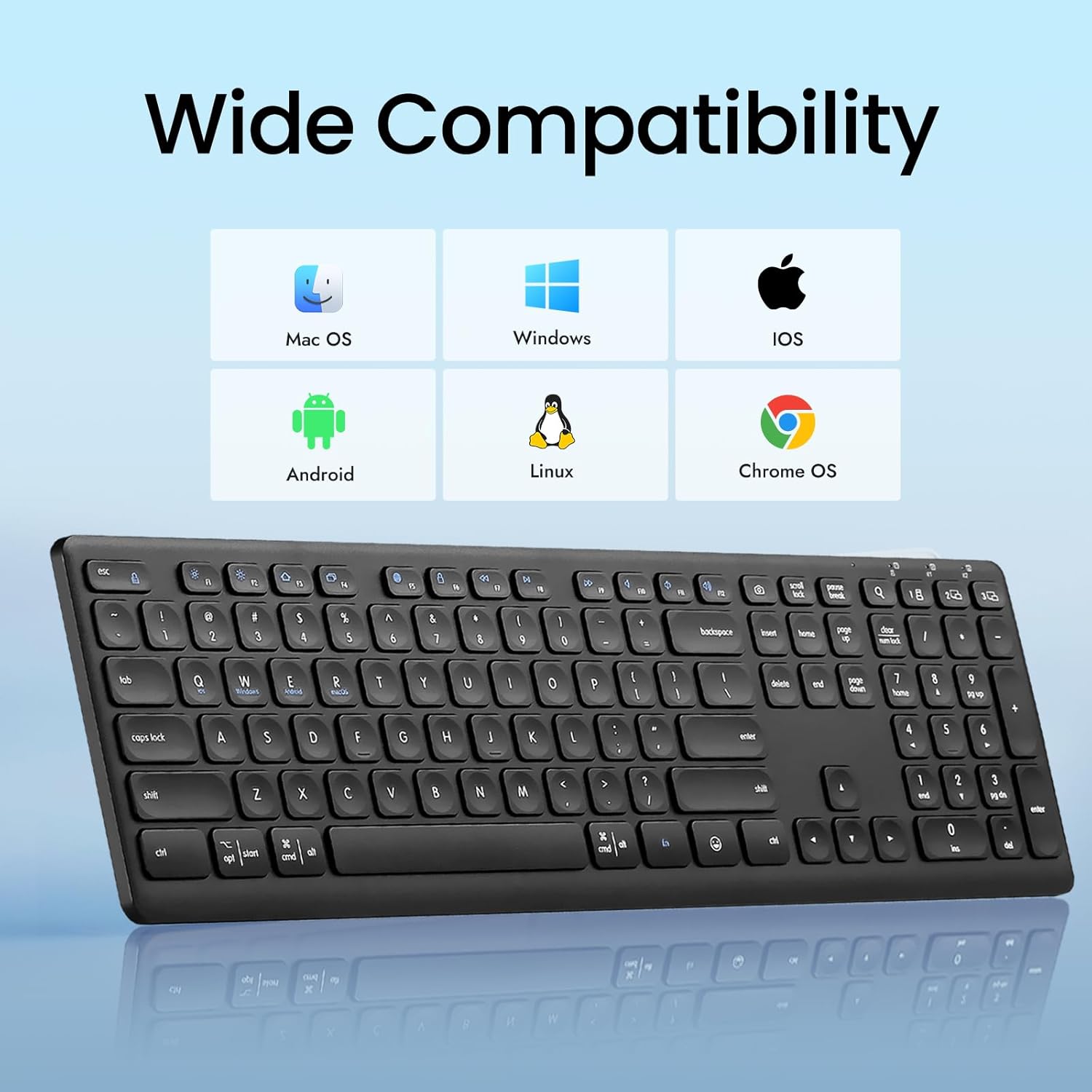
Figure 1.2: The K9300 keyboard is compatible with Mac OS, Windows, iOS, Android, Linux, and Chrome OS.
2. Package Contents
Please verify that all items are present in the package:
- CITLLA K9300 Wireless Bluetooth Keyboard
- User Manual
- 2 AAA Batteries (pre-installed or included separately)
- USB-A 2.4GHz Receiver (typically stored in the battery compartment)
3. Product Overview
The K9300 keyboard features a full-size layout with 108 keys, including a numeric keypad. It incorporates scissor-switch keys for a stable and durable typing experience, along with a silent design to minimize typing noise.
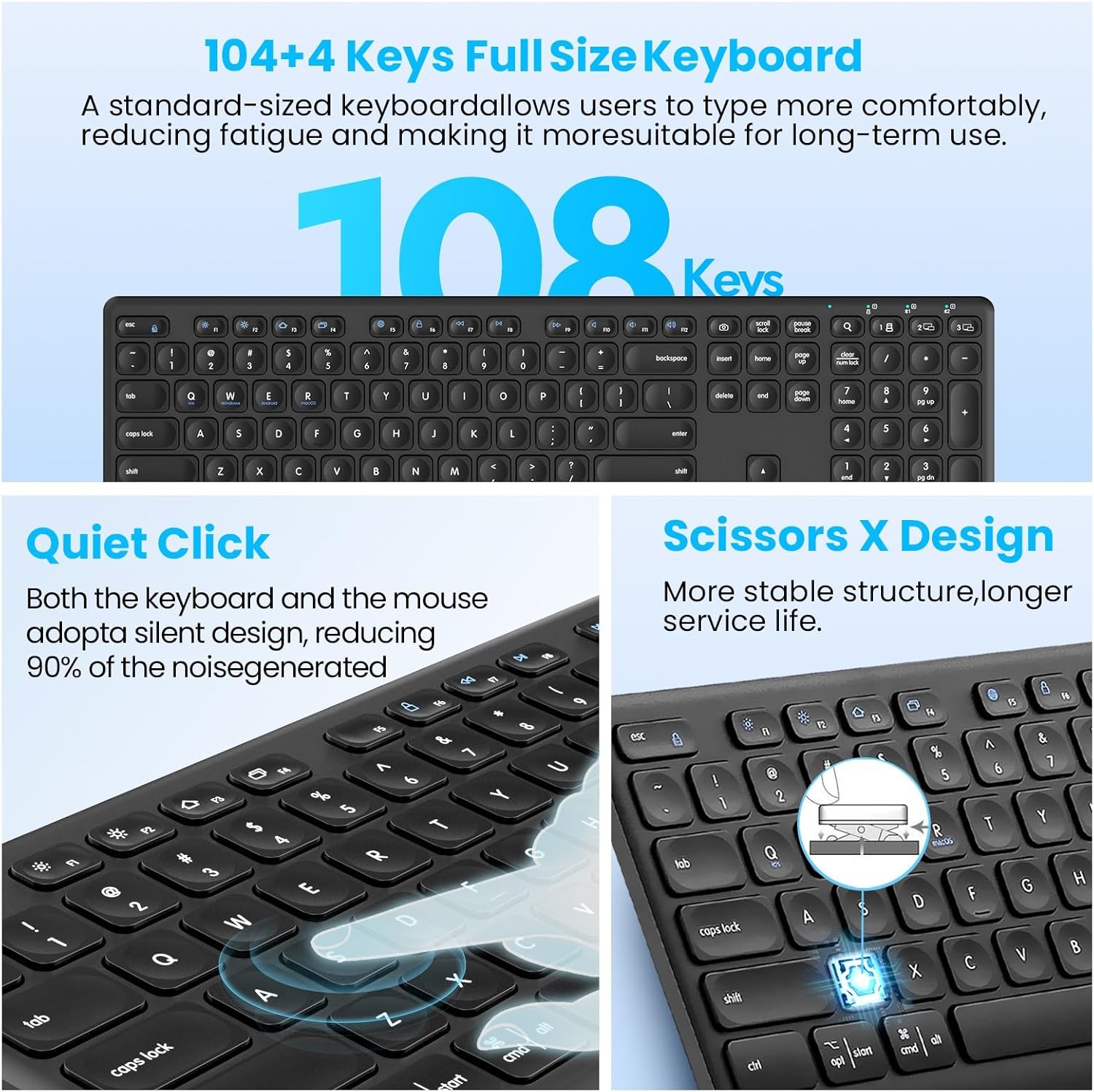
Figure 3.1: Key features of the K9300 keyboard, highlighting its full size, quiet operation, and scissor-switch mechanism.
4. Setup Instructions
4.1. Battery Installation
The K9300 keyboard requires two AAA batteries for operation. These are typically included in the package or pre-installed. If installing new batteries:
- Locate the battery compartment on the underside of the keyboard.
- Open the battery compartment cover.
- Insert two AAA batteries, ensuring correct polarity (+/-).
- Close the battery compartment cover securely.

Figure 4.1: Underside of the keyboard, indicating the battery compartment, power switch, anti-slip pads, and foldable stand.
4.2. Connection Modes
The K9300 keyboard supports three connection channels: one 2.4GHz USB receiver connection and two Bluetooth connections (BT1 and BT2). You can switch between these channels using the dedicated toggle button on the keyboard.

Figure 4.2: The keyboard offers three distinct connection channels for multi-device use.
4.2.1. 2.4GHz USB Receiver Connection
- Locate the USB-A receiver, typically stored in the keyboard's battery compartment.
- Plug the USB-A receiver into an available USB port on your computer or device.
- Turn on the keyboard using the power switch located on the side.
- Press the dedicated USB/Bluetooth toggle button on the keyboard until the indicator light for the 2.4G wireless mode is active. The keyboard should connect automatically.
4.2.2. Bluetooth Pairing (BT1 / BT2)
- Turn on the keyboard using the power switch.
- Press the dedicated USB/Bluetooth toggle button to select either Bluetooth 1 (BT1) or Bluetooth 2 (BT2) mode. The corresponding indicator light will flash.
- On your device (computer, laptop, tablet, smartphone), navigate to the Bluetooth settings.
- Search for available Bluetooth devices. The keyboard should appear as "CITLLA K9300" or similar.
- Select the keyboard to initiate pairing. Follow any on-screen prompts to complete the connection.
- Once paired, the indicator light will stop flashing and remain solid, indicating a successful connection.
5. Operating Instructions
5.1. Multi-Device Switching
The K9300 keyboard allows for quick switching between up to three connected devices (one via 2.4GHz USB receiver, two via Bluetooth). Simply press the dedicated USB/Bluetooth toggle button to cycle through the connected channels (2.4G, BT1, BT2). The active channel's indicator light will illuminate.
5.2. Adjustable Height
The keyboard is equipped with a three-level adjustable height stand to customize your typing angle for optimal comfort.
- Locate the foldable stands on the underside of the keyboard.
- Gently pull out the stands to adjust the keyboard to your desired height: low (6°), middle (10°), or high (15°).
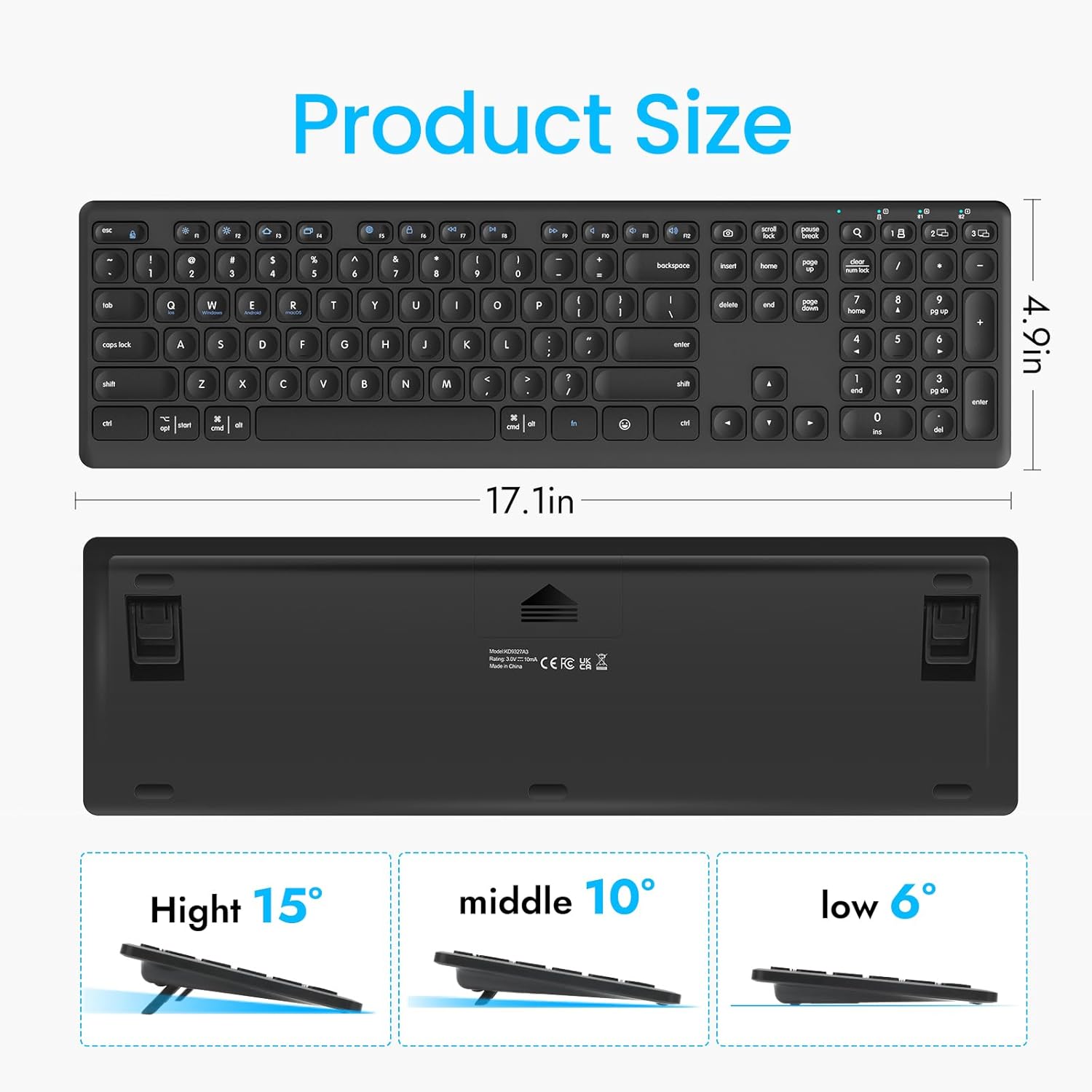
Figure 5.1: The keyboard's dimensions and three available height adjustments (6°, 10°, 15°).
5.3. Function Keys
The top row of keys (F1-F12) on the K9300 keyboard can be used as standard function keys or as multimedia/shortcut keys when combined with the Fn key. Refer to the diagram below for specific functions.

Figure 5.2: Diagram illustrating the function key combinations (Fn + F1-F12) and their respective actions.
6. Maintenance
6.1. Cleaning
To clean your keyboard, gently wipe the surface with a soft, damp cloth. Avoid using harsh chemicals or abrasive materials, as these can damage the keyboard's finish. Ensure the keyboard is powered off before cleaning.
6.2. Battery Care
If the keyboard will not be used for an extended period, it is recommended to remove the AAA batteries to prevent potential leakage and damage. Replace batteries when the low battery indicator (if present) illuminates or when performance degrades.
7. Troubleshooting
- Keyboard not connecting:
- Ensure the keyboard is powered on.
- Check battery levels and replace if necessary.
- Verify that the correct connection mode (2.4G, BT1, or BT2) is selected on the keyboard.
- For Bluetooth, ensure your device's Bluetooth is enabled and the keyboard is in pairing mode. Try re-pairing if issues persist.
- For 2.4GHz, ensure the USB receiver is securely plugged into a working USB port.
- Typing lag or dropped keystrokes:
- Ensure the keyboard is within the effective operating range (approximately 33 feet or 10 meters).
- Minimize interference from other wireless devices.
- Check battery levels.
- Keys not responding:
- Power cycle the keyboard (turn off, then on).
- Check battery levels.
- Ensure no debris is lodged under the keys.
8. Specifications
| Feature | Detail |
|---|---|
| Model Number | K9300 |
| Connectivity Technology | Bluetooth, 2.4GHz USB-A |
| Compatible Devices | Laptop, PC, Smart TV, Smartphone, Tablet |
| Operating Systems | Windows, iOS, macOS, Linux, Android, Chrome OS |
| Keyboard Description | Full Size, Multi-Functional |
| Key Type | Scissor-Switch |
| Special Feature | Quiet, Multi-Device Switching, Adjustable Height |
| Product Dimensions | 17.02 x 4.96 x 0.77 inches (43.23 x 12.60 x 1.96 cm) |
| Item Weight | 1.57 pounds (0.71 kg) |
| Batteries | 2 AAA batteries (included) |
| Material | Plastic |
9. Warranty and Support
For warranty information and customer support, please refer to the documentation included with your purchase or contact CITLLA customer service through the retailer where the product was purchased. Keep your proof of purchase for warranty claims.
Related documentsK9300

Ask a question about this manual
Ask about setup, troubleshooting, compatibility, parts, safety, or missing instructions. Manuals+ will review the question and use this page’s manual context to help answer it.