
1. Introduction
Thank you for choosing the NIMO 17.3" IPS FHD Laptop. This manual provides essential information for setting up, operating, maintaining, and troubleshooting your device. Please read it carefully to ensure optimal performance and longevity of your laptop.
The NIMO N171 laptop features a 17.3-inch Full HD IPS display, powered by an Intel Core i3-1215U processor, 8GB of DDR4 RAM, and a 256GB PCIe SSD. It comes pre-installed with Windows 11 Home and includes a backlit keyboard with a fingerprint reader for enhanced security and convenience.

Image: NIMO 17.3 inch IPS FHD Laptop, showcasing its large display and sleek design.
2. Setup
2.1 Unboxing and Initial Inspection
Carefully remove all components from the packaging. Ensure the following items are present:
- 1 x Nimo N171 Laptop
- 1 x Type-C 65W PD Fast Charger
- 1 x User Manual (this document)
- Windows 11 Home (pre-installed)
Inspect the laptop for any physical damage. If any damage is found, contact customer support immediately.
2.2 Charging the Laptop
Before first use, fully charge the laptop battery. Connect the provided 65W Type-C PD Fast Charger to the laptop's Type-C charging port and then to a power outlet. The charging indicator light will illuminate.

Image: The 65W Type-C PD Charger, illustrating its compact design and compatibility with various devices.
2.3 Initial Power On and Windows Setup
Press the power button located on the laptop. The laptop will boot up and guide you through the Windows 11 Home setup process. Follow the on-screen instructions to configure language, region, network, and user accounts.
3. Operating Instructions
3.1 Display and Visuals
The NIMO N171 features a 17.3-inch Full HD (1920x1080) IPS anti-glare display, offering wide viewing angles and vibrant colors. Adjust brightness using the function keys (Fn + Fx keys, refer to keyboard layout for specific keys).

Image: The 17.3-inch FHD IPS display, highlighting its immersive viewing experience with narrow bezels.
3.2 Keyboard and Input
The laptop is equipped with a full-size backlit keyboard and a numeric keypad. The backlight can be toggled or adjusted using dedicated function keys. The touchpad supports multi-touch gestures for navigation.

Image: Close-up of the backlit keyboard and integrated fingerprint reader on the touchpad.
3.3 Fingerprint Reader
For secure and quick login, utilize the built-in fingerprint reader located on the touchpad. Configure your fingerprint in Windows Settings > Accounts > Sign-in options.
3.4 Webcam Privacy Shield
The integrated webcam features a physical privacy shield. Slide the cover to the left to open the camera and to the right to close it, ensuring your privacy when the camera is not in use.
3.5 Connectivity Ports
The laptop offers a variety of ports for connecting peripherals and external displays:
- USB 3.2 Gen1: High-speed data transfer.
- USB 2.0: Standard USB connectivity.
- USB Type-C: For data transfer and charging (65W PD).
- Standard HDMI 1.4: Connect to external monitors or TVs.
- Micro SD Card Slot: Expand storage or transfer files from memory cards.
- Audio Jack: Connect headphones or external speakers.
- Kensington Lock Slot: For physical security.

Image: Diagram illustrating the various connectivity ports on the NIMO laptop.
3.6 Battery Management
The laptop is equipped with a large capacity battery, providing up to 7 hours of usage. For optimal battery health, avoid frequently draining the battery completely and store the laptop in a cool, dry place.

Image: Visual representation of the laptop's battery capacity and typical usage scenarios.
4. Maintenance
4.1 Cleaning
Use a soft, lint-free cloth to clean the screen and exterior surfaces. For stubborn smudges, dampen the cloth slightly with water or a screen-safe cleaner. Avoid harsh chemicals or abrasive materials.
4.2 Software Updates
Regularly check for and install Windows updates to ensure your system has the latest security patches and performance improvements. You can find updates in Windows Settings > Windows Update.
4.3 Storage Management
Periodically review and manage your 256GB SSD storage. Delete unnecessary files, uninstall unused applications, and consider cloud storage for large files to maintain optimal system performance.
5. Troubleshooting
This section addresses common issues you might encounter with your NIMO laptop.
- Laptop does not power on: Ensure the charger is properly connected and the battery has sufficient charge. Try holding the power button for 10-15 seconds to perform a hard reset.
- Screen is blank or flickering: Restart the laptop. If connected to an external display, try disconnecting and reconnecting the HDMI cable.
- Wi-Fi or Bluetooth connectivity issues: Check if Wi-Fi/Bluetooth is enabled in Windows settings. Restart your router or the laptop. Update network drivers if necessary.
- Slow performance: Close unnecessary applications. Check for background processes consuming high resources (Task Manager). Ensure sufficient free storage space on the SSD.
- Keyboard or touchpad not responding: Restart the laptop. Ensure no external devices are interfering.
If you encounter persistent issues not covered here, please refer to the Warranty and Support section for assistance.
6. Specifications
Detailed technical specifications for the NIMO N171 Laptop:
| Feature | Specification |
|---|---|
| Brand | NIMO |
| Model Name | Nimo N171G |
| Screen Size | 17.3 Inches |
| Screen Resolution | 1920 x 1080 pixels (FHD) |
| Processor | Intel Core i3-1215U (6 Cores, up to 4.4 GHz) |
| RAM | 8 GB DDR4 (3200 MHz) |
| Hard Drive | 256 GB PCIe SSD |
| Graphics Coprocessor | Integrated Graphics (Intel) |
| Operating System | Windows 11 Home |
| Wireless Type | 802.11a/b/g/n/ac (Wi-Fi 6) |
| Bluetooth | Bluetooth 5.2 |
| USB Ports | 1x USB 2.0, 3x USB 3.0, 2x USB Type-C (1 for PD charging) |
| HDMI Port | HDMI 2.1 |
| Webcam | 2 MP Rear Webcam Resolution (with privacy shield) |
| Special Features | Fingerprint Reader, Backlit Keyboard, HD Audio, Memory Card Slot, Numeric Keypad |
| Average Battery Life | 5-7 Hours |
| Item Weight | 4.6 pounds |
| Product Dimensions | 15.66 x 9.99 x 0.74 inches |
7. Warranty and Support
NIMO is committed to providing high-quality products and customer satisfaction.
7.1 Manufacturer's Warranty
Your NIMO laptop is covered by a comprehensive 2-Year Manufacturer's Warranty from Nimo Direct Inc. This warranty covers defects in materials and workmanship under normal use. Please retain your proof of purchase for warranty claims.

Image: Illustration of NIMO's 2-year support commitment.
7.2 90-Day Hassle-Free Returns
Nimo Direct Inc. offers a 90-Day Return Policy. If you are not satisfied with your purchase, you may return the product within 90 days from the date of purchase. Please refer to the return policy details provided at the time of purchase or contact customer support.
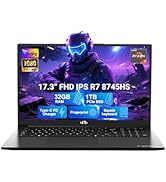
Image: Visual representation of the 90-day return policy.
7.3 Customer Assistance
For any product-related questions, technical support, or warranty claims, please contact our professional customer service team:
- Email: service@nimopc.com
- Phone: Refer to your product packaging or NIMO's official website for current phone support numbers.
- Online: Visit the official NIMO website for FAQs and additional support resources.
Our dedicated support team is available to assist you and resolve any issues promptly.

Image: Depiction of NIMO's professional customer assistance team.
