
GYVCBREU B0F997G5D1
GYVCBREU Car Radio for Toyota Tacoma 2016-2023 User Manual
Model: B0F997G5D1
1. Introduction
This manual provides detailed instructions for the installation, operation, and maintenance of your GYVCBREU Car Radio for Toyota Tacoma 2016-2023. Please read this manual thoroughly before using the product to ensure proper function and safety. Keep this manual for future reference.
2. Product Overview
The GYVCBREU Car Radio is an advanced infotainment system designed specifically for Toyota Tacoma models from 2016 to 2023. It features a 13.8-inch 2K display, Android 13 operating system, 8GB RAM, 128GB ROM, wireless CarPlay, Android Auto, GPS navigation, Wi-Fi, Bluetooth 5.0, FM/AM radio, and supports OEM camera and steering wheel controls.
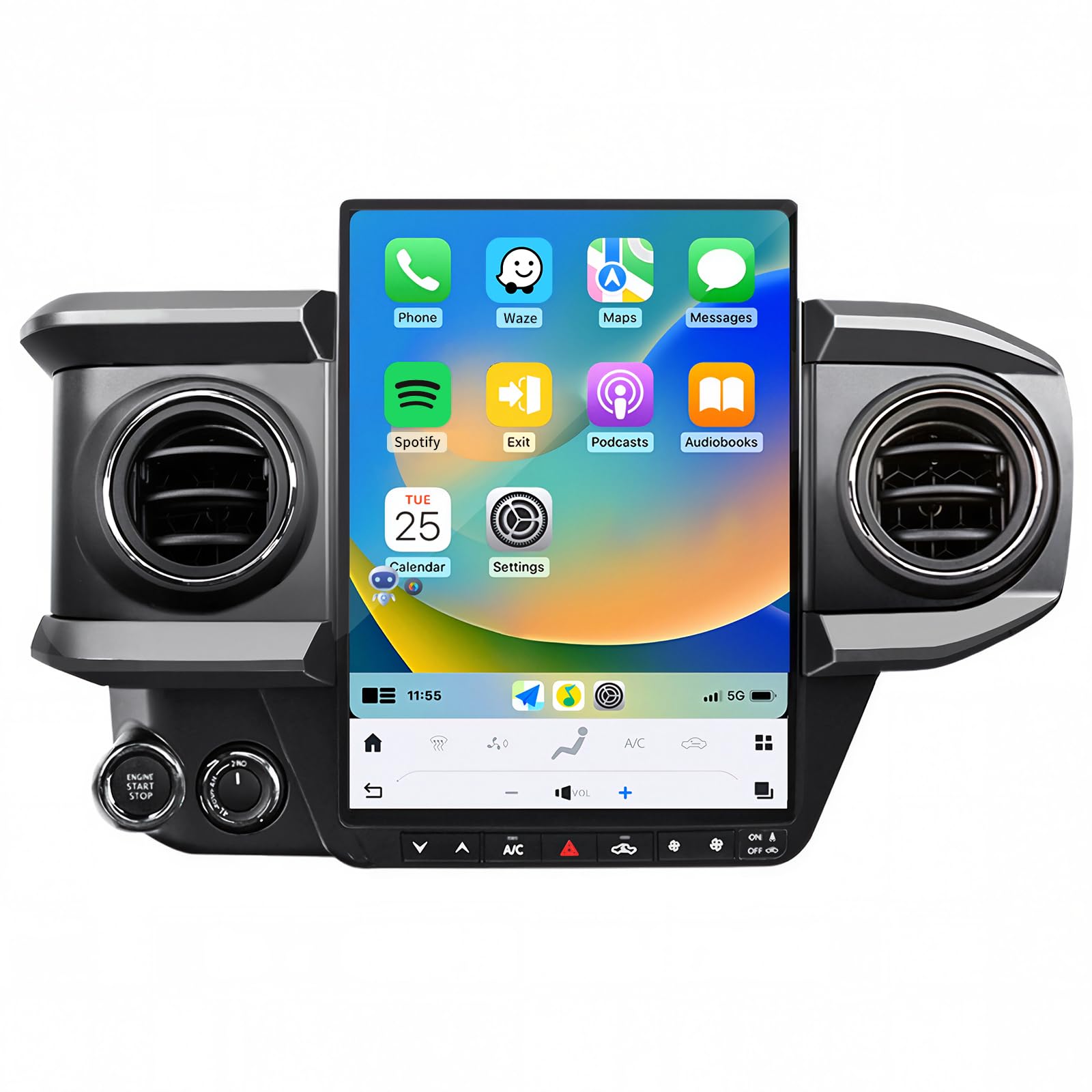
Image: The GYVCBREU Car Radio with its large 13.8-inch screen integrated into a Toyota Tacoma dashboard, showing the user interface.
3. Specifications
| Feature | Detail |
|---|---|
| Operating System | Android 13 |
| Processor | 8-Core Qualcomm CPU |
| Memory (RAM) | 8GB |
| Storage (ROM) | 128GB |
| Display Size | 13.8 Inches |
| Display Resolution | 1920x1440 (2K) HD IPS Touchscreen |
| Connectivity | Wi-Fi, 4G Module Support, Bluetooth 5.0 |
| Navigation | GPS (Online/Offline Maps) |
| Audio Features | AM/FM/RDS Radio, 48-Band EQ, Subwoofer Support, Built-in HiFi, DSP |
| Integration | Wireless CarPlay, Android Auto, OEM Camera Support, Steering Wheel Control (SWC) |
| Vehicle Service Type | Car (Toyota Tacoma 2016-2023) |
| Item Weight | 2 pounds |
| Package Dimensions | 15 x 15 x 5 inches |
4. Setup and Installation
The GYVCBREU Car Radio is designed for plug-and-play installation in compatible Toyota Tacoma models (2016-2023). While the kit includes necessary components, professional installation is recommended if you are unfamiliar with car audio systems.
4.1 Compatibility Check
Before installation, ensure your vehicle is a Toyota Tacoma model year 2016-2023. If unsure, compare your car's central control panel with the images provided or contact customer support with a photo of your dashboard.

Image: Comparison of a Toyota Tacoma dashboard before and after the GYVCBREU Car Radio installation, showing the integrated large screen.
4.2 Basic Installation Steps (General Guide)
- Disconnect Battery: Always disconnect the vehicle's negative battery terminal before starting any electrical work.
- Remove Old Unit: Carefully remove the existing car radio and trim panels. Refer to your vehicle's service manual for specific instructions.
- Connect Wiring Harness: Connect the provided wiring harness to your vehicle's existing wiring. Ensure all connections are secure.
- Install GPS Antenna: Mount the GPS antenna in a location with a clear view of the sky, typically on the dashboard or under the windshield.
- Connect USB/Auxiliary Cables: Route any USB or auxiliary input cables to a convenient location within the cabin.
- Mount New Unit: Secure the GYVCBREU Car Radio into the dashboard opening.
- Reconnect Battery: Reconnect the negative battery terminal.
- Test Functionality: Power on the unit and test all functions (radio, navigation, Bluetooth, etc.).
5. Operating Instructions
5.1 Power On/Off
The unit powers on automatically with the vehicle's ignition. To manually power off or restart, press and hold the power button (if available) or use the system settings menu.
5.2 Touchscreen Navigation
The 13.8-inch HD IPS touchscreen supports multi-touch gestures. Swipe left/right to navigate between home screens, tap icons to launch applications, and use pinch-to-zoom for maps.

Image: Visual comparison highlighting the clarity of the 1920x1440 HD IPS touchscreen versus a 1080p display.
5.3 Wireless CarPlay & Android Auto
Connect your smartphone wirelessly for seamless integration of CarPlay or Android Auto. This allows access to navigation, music, calls, and messages directly from the car radio display.
- Enable Bluetooth & Wi-Fi: On your smartphone, ensure Bluetooth and Wi-Fi are enabled.
- Pair Device: On the car radio, go to Bluetooth settings and pair with your phone.
- Launch Car Auto App: Open the "Car Auto" application on the car radio.
- Connect: Follow the on-screen prompts to connect to CarPlay or Android Auto.
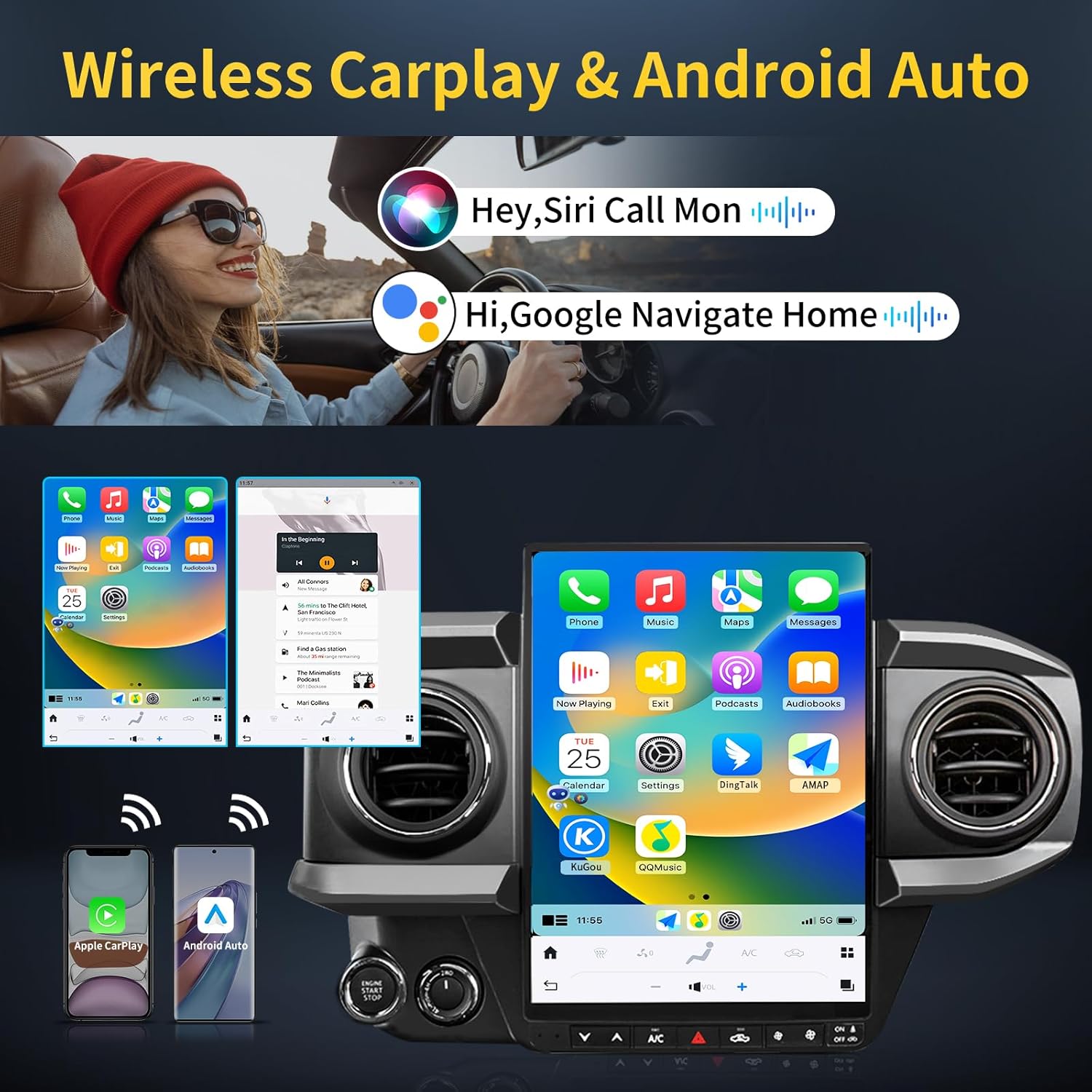
Image: The car radio screen displaying the Wireless CarPlay and Android Auto interfaces, showing smartphone integration.
Video: Demonstration of connecting a smartphone to the car radio for CarPlay functionality, showing the steps to pair via Bluetooth and launch the Car Auto app.
5.4 GPS Navigation
The unit supports online and offline GPS navigation. Pre-installed map applications are available, and you can download others from the Play Store. Real-time traffic updates are available with an internet connection.

Image: The car radio displaying a detailed GPS navigation map with route information.
5.5 Bluetooth 5.0
Connect your phone via Bluetooth for hands-free calling and audio streaming. Access your phone's contacts and call history directly from the car radio.

Image: The car radio screen showing Bluetooth connectivity for hands-free calls and music playback.
5.6 Audio Features (FM/AM/RDS, DSP, EQ)
Tune into FM/AM radio stations with RDS support. Utilize the built-in Digital Sound Processor (DSP) and 48-band equalizer to customize your audio experience. The system supports subwoofer output and Hi-Fi audio.
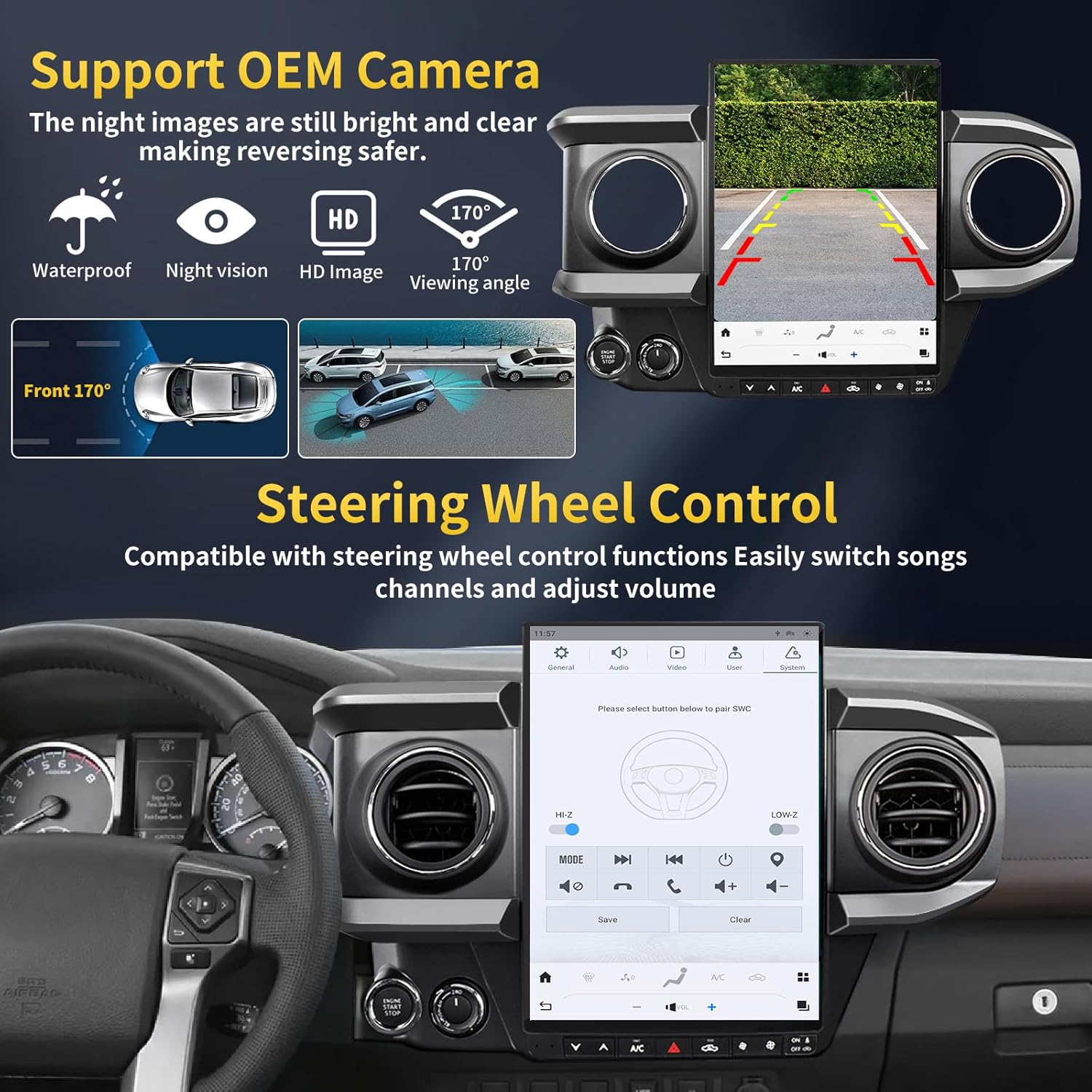
Image: The car radio displaying the FM/AM/RDS radio interface and the DSP sound effect settings with equalizer adjustments.
5.7 Steering Wheel Control (SWC)
The unit supports your vehicle's original steering wheel controls. This allows you to adjust volume, change tracks, and answer calls without taking your hands off the wheel. Configuration may be required in the system settings.

Image: The car radio screen showing the interface for configuring steering wheel controls, with a view of a steering wheel.
5.8 OEM Camera Support
The car radio integrates with your vehicle's original OEM camera, providing a clear view for safer parking and reversing, even in low-light conditions.

Image: The car radio screen displaying the view from an OEM camera, showing parking guidelines.
5.9 Split Screen Display
Utilize the split-screen feature to run two applications simultaneously, such as navigation and music playback, enhancing multitasking capabilities.

Image: The car radio screen demonstrating the split-screen functionality, with a navigation app on one side and a media player on the other.
6. Maintenance
- Screen Cleaning: Use a soft, lint-free cloth to clean the touchscreen. For stubborn smudges, lightly dampen the cloth with water or a screen-safe cleaner. Avoid harsh chemicals.
- Software Updates: Periodically check for system software updates through the device settings to ensure optimal performance and access to new features.
- Avoid Extreme Temperatures: Do not expose the unit to extreme temperatures for prolonged periods, as this can affect performance and lifespan.
- Cable Connections: Ensure all cables remain securely connected. Loose connections can lead to intermittent issues.
7. Troubleshooting
| Problem | Possible Cause | Solution |
|---|---|---|
| Unit does not power on. | Loose power connection, blown fuse, vehicle battery issue. | Check power cables and fuses. Ensure vehicle battery is charged. Consult a professional if issues persist. |
| No sound from speakers. | Volume too low, mute activated, incorrect audio source, loose speaker wires. | Increase volume, check mute status, select correct audio source. Verify speaker connections. |
| GPS signal lost or inaccurate. | Antenna obstruction, poor satellite reception, outdated maps. | Ensure GPS antenna has a clear view of the sky. Update map data. |
| Bluetooth connection issues. | Device not paired, Bluetooth off on phone/unit, interference. | Ensure Bluetooth is enabled on both devices and paired correctly. Restart both devices. |
| CarPlay/Android Auto not connecting. | Incorrect setup, phone compatibility, app issues. | Verify all steps in section 5.3. Ensure phone OS is up-to-date. Try restarting the "Car Auto" app. |
| Touchscreen unresponsive. | Temporary software glitch, screen damage. | Restart the unit. If the problem persists, contact customer support. |
8. Warranty and Support
Your GYVCBREU Car Radio comes with a 12-month warranty policy and lifetime technical support. Additionally, a 30-day money-back guarantee is provided.
For any assistance with assembly, operation, or other issues, please reach out to our professional technical team. You can contact the seller, AUTOPARTS-999, directly through the Amazon platform by visiting their storefront and using the "Ask a question" feature.

Image: Visual guide on how to contact the seller, AUTOPARTS-999, for technical support via Amazon.