
Introduction
Thank you for choosing the Yoidesu MP3 Player. This device is designed to provide a versatile portable audio experience, featuring Bluetooth 5.4, HiFi sound quality, FM radio, e-book reading, and voice recording capabilities. This manual will guide you through the features and functions of your new MP3 player.
Package Contents
Please check the package for the following items:
- 1 x Yoidesu MP3 Player
- 1 x User Manual
- 1 x USB Cable (Type-C)
- Optional: 1 x Small Memory Card (if included in your specific package)
Product Overview
The Yoidesu MP3 Player is a compact and lightweight device, measuring approximately 92 x 39.8 x 8mm and weighing about 26g. It features a 2.01-inch screen and intuitive controls for easy navigation through its various functions.

Image: Front view of the Yoidesu MP3 Player displaying its main menu interface with various function icons.

Image: The Yoidesu MP3 Player highlighting its versatile functions, including music, e-books, FM radio, recording, and more.
The device supports a wide range of audio formats including MP3, WMA, WAV, APE, FLAC, AAC-LC, M4A, and OGG. It also supports AVI video format (240x288 resolution) and TXT e-book format.
Setup
1. Charging the Device
Before initial use, fully charge the MP3 player. Connect the provided USB Type-C cable to the charging port on the device and the other end to a USB power adapter (not included) or a computer's USB port.

Image: The Yoidesu MP3 Player connected to a USB-C charging cable.
A full charge typically takes approximately 2 hours. The built-in 500mAh Li-ion polymer battery provides up to 48 hours of music playback on a single charge.
2. Powering On/Off
- To Power On: Press and hold the Power button until the screen illuminates.
- To Power Off: Press and hold the Power button until the device shuts down.
3. Inserting a Memory Card
The MP3 player supports memory card expansion up to 128GB (memory card not included). Locate the memory card slot on the side of the device and gently insert a compatible microSD card until it clicks into place.
4. Connecting to a Computer
To transfer files, connect the MP3 player to your computer using the provided USB Type-C cable. The device will appear as a removable disk drive, allowing you to drag and drop music, video, e-book, and picture files.
Operating Instructions
1. Basic Navigation
Use the directional buttons (Up, Down, Left, Right) and the central 'OK' button to navigate through menus and select options. The 'M' button typically accesses menu options or returns to the previous screen, while the 'Back' button (often a curved arrow) goes back one step.
2. Music Playback
From the main menu, select 'Music'. You can browse your music by artist, album, genre, or folder. The player supports HiFi lossless sound quality for an enhanced listening experience.
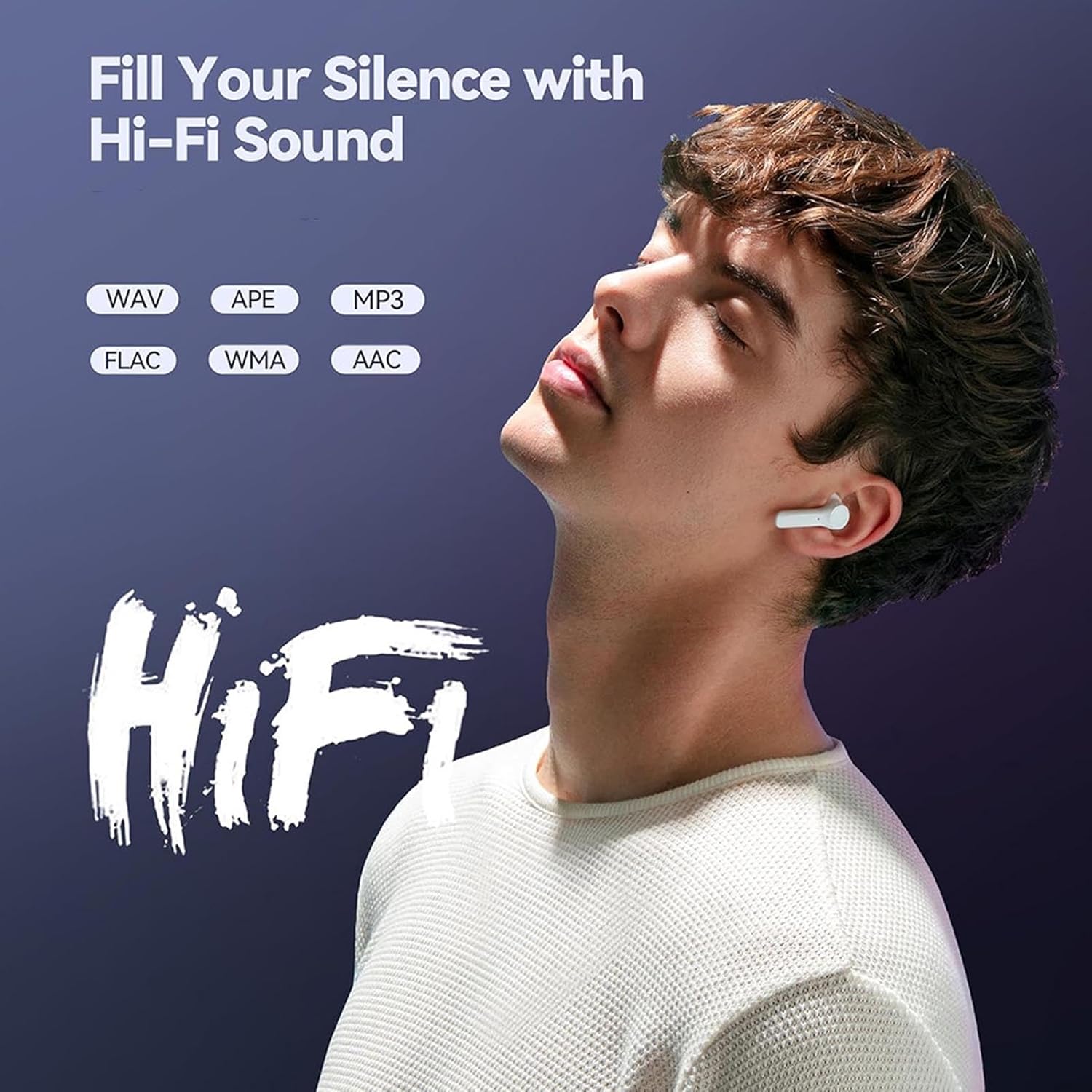
Image: Demonstrating Hi-Fi sound quality with supported audio formats.
The device includes a 3.5mm headphone jack for wired headphones (not included).
3. Bluetooth Connection
The MP3 player features Bluetooth 5.4 for stable wireless audio transmission. To connect to Bluetooth headphones or speakers:
- Go to the 'Bluetooth' menu in the device settings.
- Turn on Bluetooth.
- Ensure your Bluetooth headphones or speaker are in pairing mode.
- Select your device from the list of available devices to pair.
Note: The Bluetooth function only supports connection to Bluetooth headphones and Bluetooth speakers. It does not support connection to smartphones or other MP3 players.
4. FM Radio
To use the FM radio function, you must connect wired headphones (not included) to the 3.5mm jack, as they act as the antenna.

Image: A user enjoying FM radio with wired headphones connected to the MP3 player.
- Connect wired headphones.
- From the main menu, select 'FM Radio'.
- Use the navigation buttons to scan for stations or manually tune to a frequency.
5. Video Playback
The MP3 player supports AVI format videos with a resolution of 240x288. Transfer compatible video files to the device's 'Video' folder.

Image: The Yoidesu MP3 Player screen showing video content.
- From the main menu, select 'Video'.
- Browse and select the video file you wish to play.
6. E-Book Reader
The device supports TXT format e-books. Transfer your e-book files to the 'E-Book' folder on the player.
- From the main menu, select 'E-Book'.
- Choose the TXT file you want to read.
7. Voice Recorder
The built-in voice recorder captures audio with lossless sound quality.
- From the main menu, select 'Record'.
- Follow the on-screen prompts to start, pause, and save recordings.
8. Other Functions
The Yoidesu MP3 Player also includes additional utilities such as a calendar, stopwatch, and alarm clock, accessible through the main menu or settings.
Maintenance
- Cleaning: Use a soft, dry cloth to clean the device. Avoid using liquid cleaners or abrasive materials.
- Storage: Store the MP3 player in a cool, dry place away from direct sunlight and extreme temperatures.
- Battery Care: To prolong battery life, avoid fully discharging the battery frequently. Charge the device regularly, even if not in use for extended periods.
- Water Resistance: This device is not water-resistant. Avoid exposure to liquids.
Troubleshooting
Device will not power on:
- Ensure the battery is charged. Connect the device to a power source and allow it to charge for at least 10 minutes before attempting to power on again.
- Press and hold the Power button for an extended period (5-10 seconds) to ensure it's not just in a sleep state.
Cannot transfer files to the device:
- Ensure the USB cable is securely connected to both the MP3 player and the computer.
- Try a different USB port on your computer or a different USB cable.
- Verify that the device is recognized as a removable disk drive by your computer.
Bluetooth connection issues:
- Ensure the Bluetooth device (headphones/speaker) is in pairing mode.
- Make sure the MP3 player's Bluetooth is enabled and scanning for devices.
- Confirm that you are attempting to connect to a Bluetooth headphone or speaker, as other device types are not supported.
- Move the devices closer to each other to ensure they are within range.
FM Radio not working:
- Ensure wired headphones are connected to the 3.5mm audio jack, as they serve as the antenna for the FM radio.
- Try rescanning for stations in the FM Radio menu.
Specifications
| Item Type | MP3 Player |
| Material | ABS |
| Dimensions (L x W x T) | Approx. 92 x 39.8 x 8mm / 3.62 x 1.57 x 0.31in |
| Weight | Approx. 26 g / 0.9 oz |
| Color | White |
| Battery | Built-in 500mAh Li-ion Polymer Battery |
| Screen | 2.01 inch screen |
| Bluetooth Version | Bluetooth 5.4 |
| Charging Port | Type-C |
| Sound Port | 3.5mm Headphone Jack |
| Video Resolution/Format | 240x288, AVI format |
| E-book Format | TXT |
| Supported Operating Systems | For Vista, for OS X 10, 12 above |
| Software Language | English, French, German, Russian, Spanish, Korean |
| Item Model Number | Yoidesuged7ihacvs-13 |
Warranty and Support
For warranty information and customer support, please refer to the documentation provided with your purchase or contact the manufacturer directly. Details regarding warranty periods and service procedures are typically included with the product packaging or available on the official Yoidesu website.