
1. Product Overview
The Spedal AL851 is a versatile 3-in-1 portable display audio system designed for vehicles. It integrates wireless Apple CarPlay and Android Auto, along with direct video streaming capabilities for popular services like YouTube and Netflix. The device features a 10.26-inch 2.5D curved touchscreen, dual Wi-Fi, dual Bluetooth, and supports various audio output methods. It also includes a 1080P backup camera for enhanced safety.

Image: The Spedal AL851 portable display audio system, showcasing its main interface with icons for navigation, music, and video streaming applications.
2. Package Contents
Please verify that all items are present in the package:
- Spedal AL851 Main Unit
- 1.2m AUX Audio Cable
- 6m Backup Camera Cable
- 3.5m Cigarette Lighter Socket Charger
- Adhesive Mount
- Rear Camera
- User Manual (this document)

Image: A visual representation of the Spedal AL851's dimensions and a clear display of all components included in the product package, such as the main unit, cables, charger, and mount.
3. Setup and Installation
3.1 Mounting the Device
Use the provided adhesive mount to securely attach the Spedal AL851 to your vehicle's dashboard. Ensure the mounting surface is clean and dry for optimal adhesion. Position the device so it does not obstruct your view while driving.
3.2 Power Connection
Connect the device to your vehicle's cigarette lighter socket using the 3.5m charger. The system supports DC12-24V, making it compatible with various vehicle types including sedans, SUVs, and trucks.
3.3 Backup Camera Installation
The 1080P backup camera is IP67 waterproof and can be installed outside the vehicle. Connect the camera to the main unit using the 6m cable. For automatic parking assist display, connect the camera's red trigger wire to your vehicle's reverse light circuit. When the vehicle is put into reverse, the display will automatically switch to the camera view.

Image: A diagram showing how to connect the backup camera to the Spedal AL851 system, including the trigger wire connection to the reverse light for automatic activation.
4. Operating Instructions
4.1 Initial Power On and Interface
Once powered on, the device will display its main interface. The system runs on a closed Android OS with pre-installed applications. New applications cannot be installed beyond the pre-existing selection, which includes Disney+, YouTube, Prime Video, Spotify, TikTok Lite, U-NEXT, and TVer.

Image: The Spedal AL851's home screen, displaying a grid of pre-installed entertainment and navigation applications.
4.2 Wireless CarPlay and Android Auto Connection
The device supports wireless Apple CarPlay (iOS 10 or later) and Android Auto (Android 11 or later). It is not compatible with Xiaomi and AQUOS smartphones.
- Ensure Bluetooth and Wi-Fi are enabled on your smartphone.
- On the AL851, navigate to the CarPlay or Android Auto section.
- Pair your smartphone with the AL851 via Bluetooth. Follow the on-screen prompts on both devices to confirm the connection.
- Once paired, the system will automatically establish a Wi-Fi connection for CarPlay or Android Auto functionality.

Image: A visual guide detailing the steps to connect an iPhone to the Spedal AL851 for CarPlay functionality, showing phone and device screens.
Image: A visual guide detailing the steps to connect an Android phone to the Spedal AL851 for Android Auto functionality, showing phone and device screens.
4.3 Dual Wi-Fi and Split Screen Functionality
The AL851 features a dual Wi-Fi module, allowing you to use CarPlay/Android Auto and stream video content (e.g., YouTube, Netflix) simultaneously without disconnecting CarPlay. The split-screen function divides the display into two areas.
- To activate split-screen, tap the dedicated split-screen button on the interface.
- To return to full-screen mode, slide the central split button.
- The side menu can be adjusted to appear on the left or right via the settings.
- Note: CarPlay will automatically reconnect within a few seconds when switching between split-screen and full-screen modes.
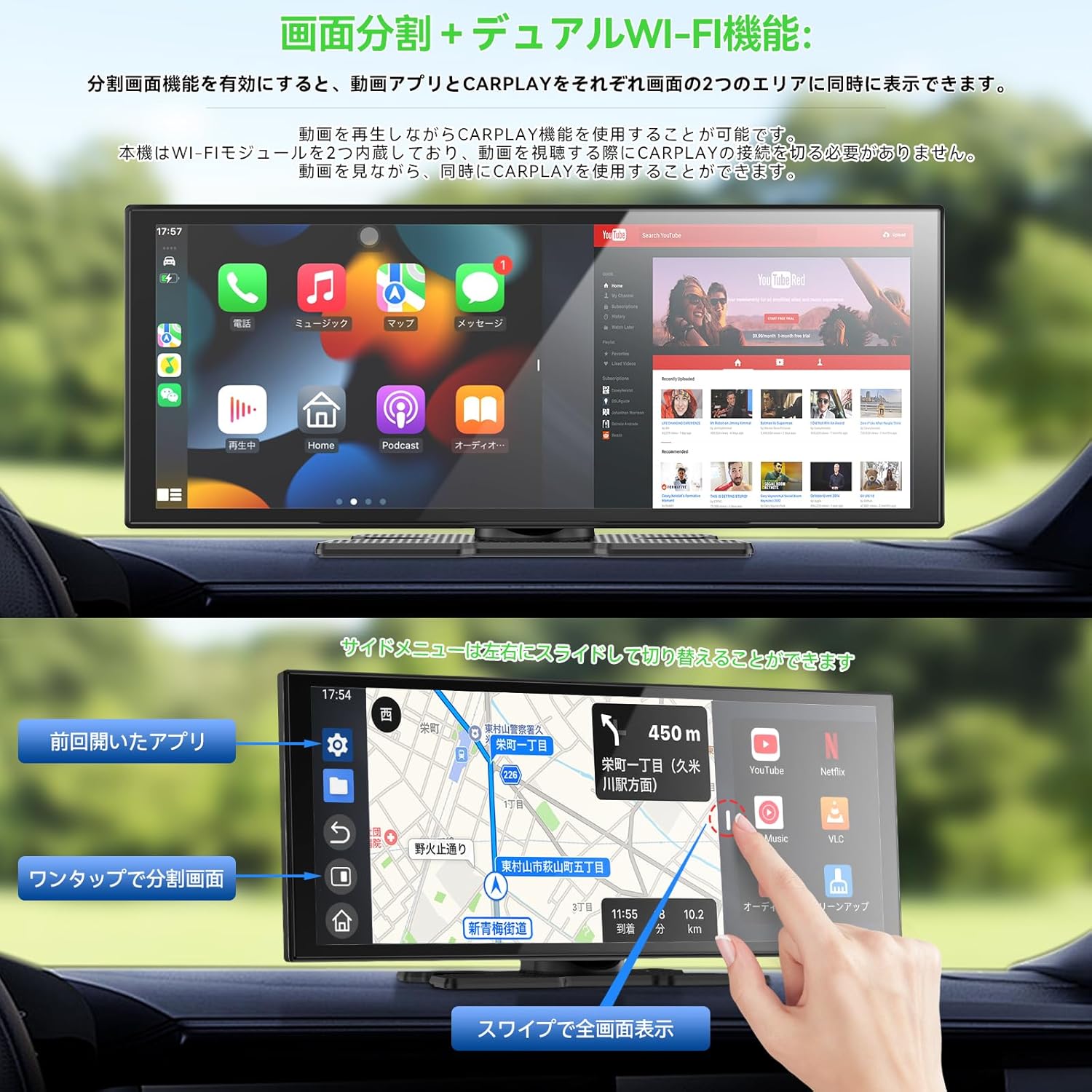
Image: The Spedal AL851 screen in split-screen mode, demonstrating simultaneous display of a video streaming application and a CarPlay navigation map.
4.4 Audio Output Methods
The AL851 offers four ways to output audio:
- Built-in Speaker: Audio is played directly through the device's integrated speaker.
- Bluetooth Connection: When using CarPlay or Android Auto, connect your smartphone to your vehicle's Bluetooth system. Audio will then play through your vehicle's speakers. The AL851's dual Bluetooth channels allow simultaneous connection of your smartphone (input) and your car's audio system (output).
- FM Transmitter: Activate the FM function on the AL851 and set a frequency. Tune your car radio to the same FM frequency, and audio will be transmitted to your vehicle's speakers.
- AUX Output: Connect the provided AUX audio cable from the AL851 to your vehicle's AUX port. Audio will then play through your vehicle's speakers.
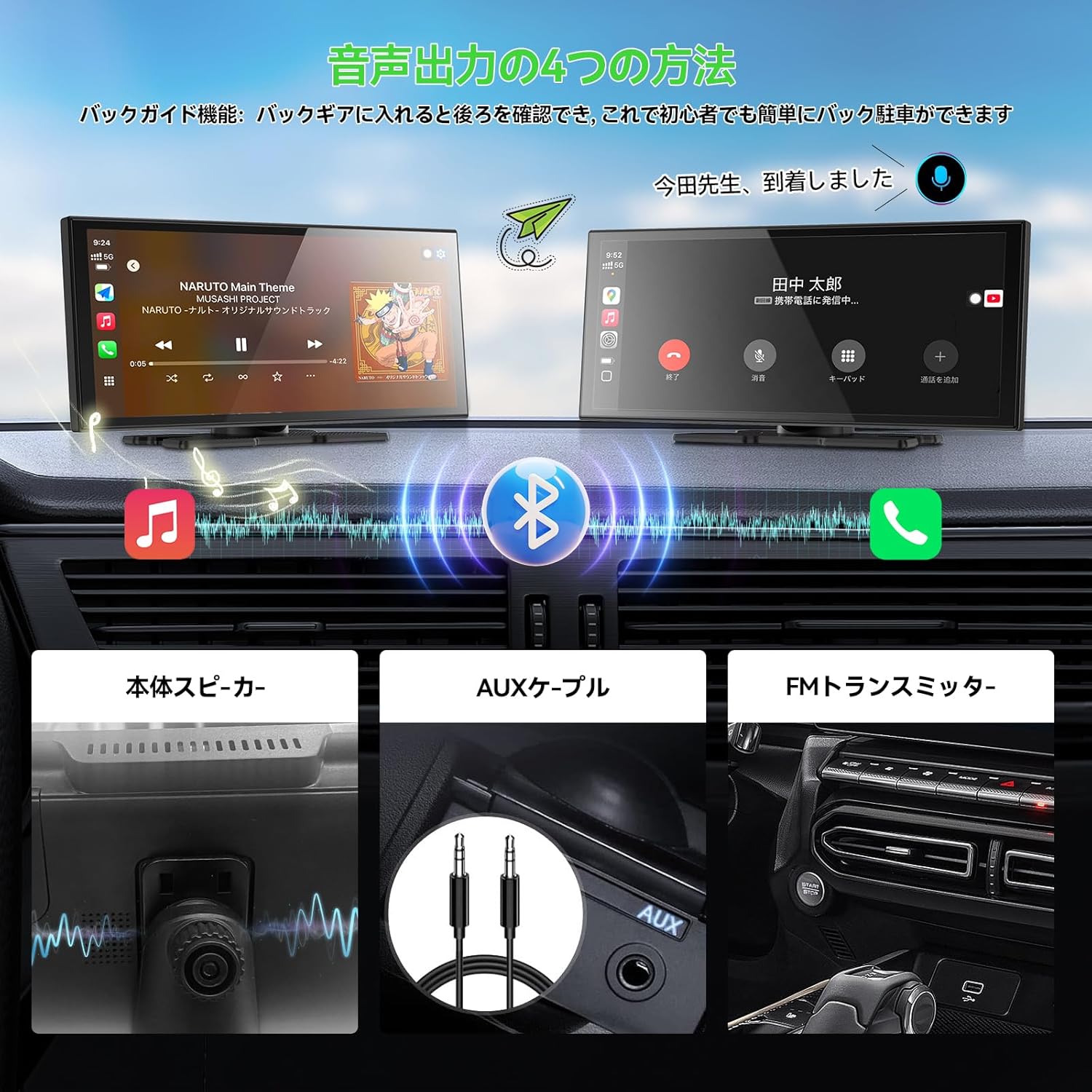
Image: A visual explanation of the four audio output options available on the Spedal AL851, showing connections for built-in speaker, Bluetooth, FM transmitter, and AUX cable.
4.5 Media Player Function
The device can play music and video files stored on a Micro SD card (not included). Supported formats include:
- Video Formats (VLC Player): MP4, AVI, MKV, FLV, 3GP, MOV, WMV
- Video Resolutions: 720P, 1080P, 2K
- Audio Formats: MP3, WAV, DVAudio, Wavpack

Image: The Spedal AL851's media player interface, demonstrating its capability to play various media types from a Micro SD card.
5. Maintenance
5.1 Software Updates (OTA)
The AL851 supports Over-The-Air (OTA) updates. You can check for and perform updates directly from the device's settings screen. Connect the device to a shared hotspot or a Wi-Fi network to initiate a one-click update. This method is faster and more convenient than traditional TF card updates.

Image: A graphic illustrating the OTA (Over-The-Air) update process for the Spedal AL851, emphasizing its ease and speed.
6. Troubleshooting
6.1 Common Issues and Solutions
- No Power: Ensure the cigarette lighter charger is securely connected and the vehicle's power outlet is functioning.
- CarPlay/Android Auto Not Connecting: Verify your smartphone's Bluetooth and Wi-Fi are on. Check compatibility (iOS 10+ for iPhone, Android 11+ for Android; not compatible with Xiaomi/AQUOS). Try restarting both the device and your phone.
- No Audio Output: Check the selected audio output method (built-in speaker, Bluetooth, FM transmitter, AUX). Ensure volume levels are adequate on both the AL851 and your car's audio system. For FM transmitter, confirm the frequencies match. For AUX, ensure the cable is properly connected.
- Backup Camera Not Displaying: Confirm the camera is properly connected to the main unit and the trigger wire is correctly wired to the reverse light.
- Split Screen Reconnection Delay: It is normal for CarPlay to automatically reconnect within a few seconds when switching between split-screen and full-screen modes.
7. Specifications
| Brand | Spedal |
| Model Number | AL851 |
| Display Size | 10.26 inches |
| Display Resolution | 1280 x 720 pixels |
| Touchscreen Type | Capacitive 2.5D Curved |
| RAM | 2GB |
| ROM | 32GB |
| Wi-Fi Support | 2.4GHz / 5GHz (Dual Wi-Fi) |
| Bluetooth Version | 5.0 (Dual Bluetooth) |
| CarPlay/Android Auto | Wireless (iOS 10+, Android 11+) |
| Backup Camera | 1080P Full HD, 120° FOV, IP67 Waterproof |
| Power Input | DC12-24V |
| Product Dimensions (D x W x H) | 28 x 5 x 10 cm |
| Color | Black |
| Country of Origin | China |

Image: A detailed diagram illustrating the physical dimensions of the Spedal AL851 display unit.
8. Warranty and Support
8.1 Warranty Information
This product comes with a 1-year warranty from the date of purchase. Please retain your proof of purchase for warranty claims. The warranty covers manufacturing defects and malfunctions under normal use.
8.2 Customer Support
For technical assistance, troubleshooting, or warranty inquiries, please contact Spedal customer support through the retailer where you purchased the product or visit the official Spedal website for contact information.
9. Important Notes
- The Android system on this device is restricted; new applications cannot be installed beyond the pre-installed ones.
- Not compatible with Xiaomi and AQUOS smartphones for CarPlay/Android Auto.
- A Micro SD card is required for media playback and is not included with the product.
- The device does not include a dashcam (drive recorder) function.
10. Product Video Guide
Watch this video for a visual guide on connecting your smartphone, using the split-screen feature, and playing media files on the Spedal AL851.
Video: A demonstration of the Spedal AL851's key features, including wireless CarPlay/Android Auto connection, split-screen functionality, and media playback from a USB drive.