
SOOMFON CN002-BN1
SOOMFON Stream Controller SE User Manual
Model: CN002-BN1
1. Introduction
The SOOMFON Stream Controller SE is a versatile control deck designed for content creators, streamers, and gamers. It features 6 customizable LCD macro keys, 3 changeover buttons, and 3 knobs, providing tactile control and visual feedback for various applications. This manual provides comprehensive instructions for setting up, operating, and maintaining your Stream Controller SE.

Image: The SOOMFON Stream Controller SE, a black device with six square LCD keys and three rotary knobs, designed for stream control.
2. What's in the Box
Upon unboxing your SOOMFON Stream Controller SE, please verify that all the following items are included:
- Stream Controller SE x1
- USB 2.0 Type-A to Type-C Cable x1
- User Manual x1
- Removable Adhesive x1

Image: The packaging contents of the Stream Controller SE, including the device, USB-C cable, user manual, and removable adhesive.
3. Setup Guide
3.1 Connecting the Device
- Connect the provided USB-C cable to the Stream Controller SE.
- Connect the other end of the USB-A cable to an available USB port on your PC or Mac.
- The device is compatible with Windows 10 (64-bit or higher) and MacOS Catalina 10.15 (or higher).
3.2 Software Installation
The SOOMFON Stream Controller SE requires dedicated software for full functionality and customization. The software is designed for easy installation and operation.
- Download the latest software from the official SOOMFON website (refer to the included user manual for the specific URL).
- Follow the on-screen instructions to complete the installation.
- Once installed, launch the software to begin customizing your Stream Controller SE.
3.3 Using the Removable Stand
The Stream Controller SE comes with a removable 40° stand, allowing you to adjust the viewing angle for optimal comfort and visibility. You can also use the included removable adhesive to secure the device to your desktop, preventing slippage even without the stand.
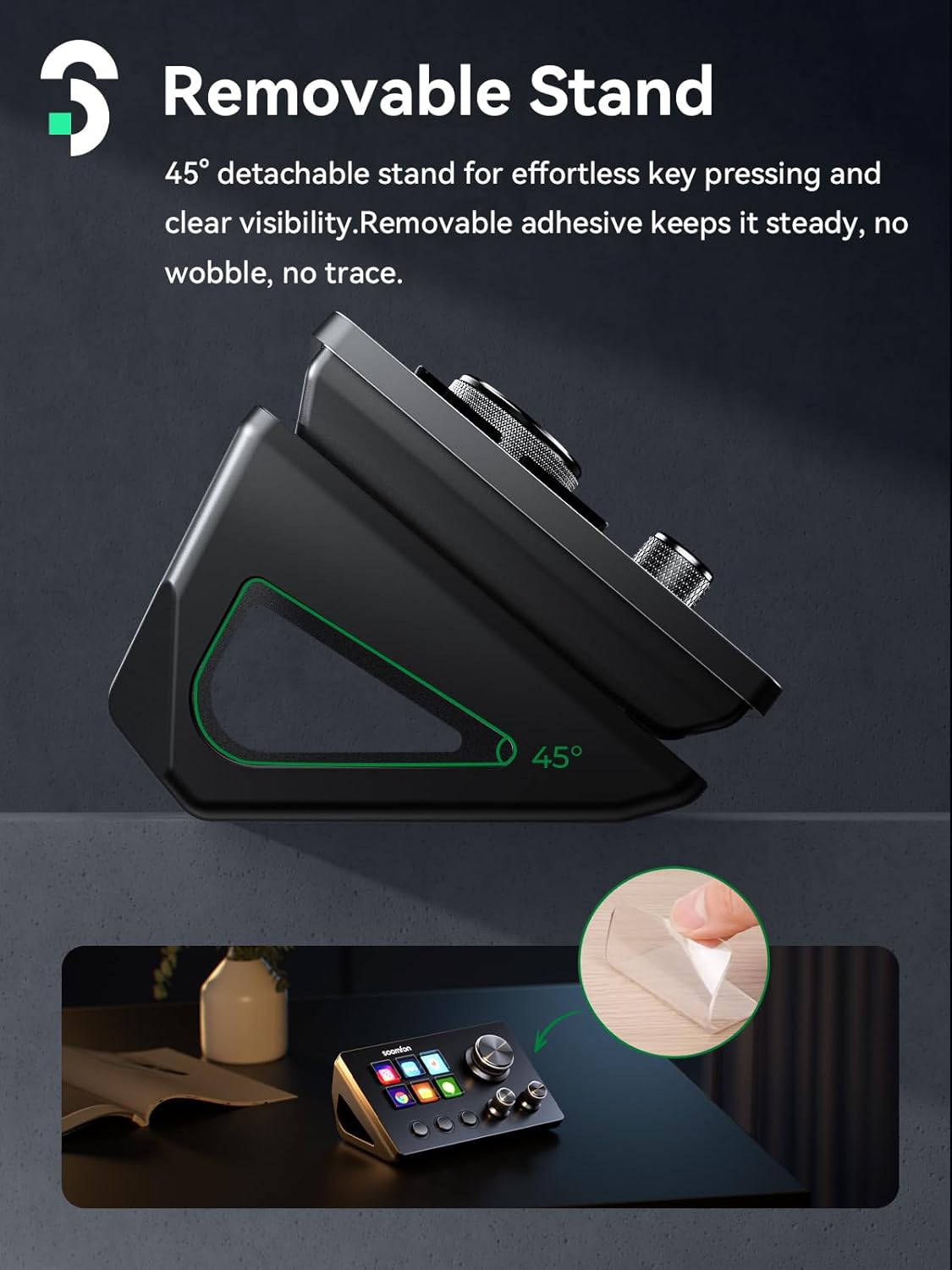
Image: The Stream Controller SE shown with its removable 40-degree stand, illustrating how it can be positioned for use, and a separate image showing the removable adhesive being applied to a surface.
4. Operation
4.1 Customizable LCD Keys
The Stream Controller SE features 6 fully customizable LCD buttons. These buttons provide tactile control and visual feedback, allowing you to assign and trigger various actions with a single press. You can customize the icons displayed on each key through the software.
4.2 Changeover Buttons and Knobs
In addition to the LCD keys, the device includes 3 changeover buttons and 3 rotatable knobs:
- Changeover Buttons: These buttons can be configured to switch between different pages or profiles of key assignments (e.g., previous page, next page, home page in a default scene).
- Rotatable Knobs: The knobs allow for precise control over settings such as volume, brightness, hotkeys, and mouse controls. Their functions are fully customizable within the software.

Image: An illustration detailing the functions of the Stream Controller SE's components: knobs for adjustment (volume, brightness), three round buttons for access (switching scenes), and LCD keys for activation (custom actions).
4.3 Multi-Step Actions
One of the powerful features of the Stream Controller SE is its ability to assign multiple actions to a single button. This allows you to execute complex sequences of commands with just one tap, making it an efficient multitasking tool for various workflows.
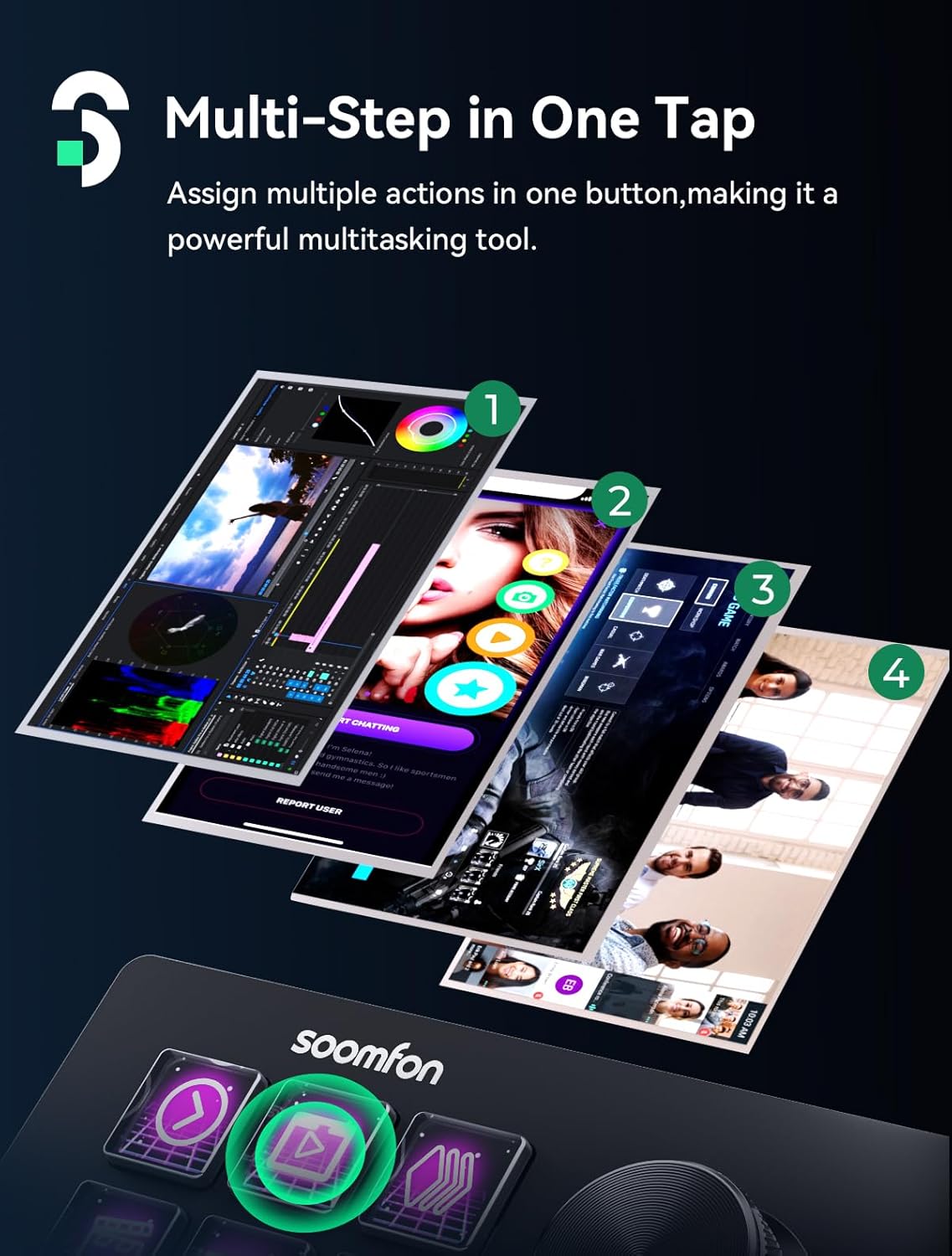
Image: A visual representation of the "Multi-Step in One Tap" feature, showing how a single button press can trigger a sequence of four different actions or applications.
4.4 Wide Compatibility and Plugins
The Stream Controller SE offers integrated support for a wide range of leading software and platforms, including OBS Studio, Twitch, YouTube, Discord, Spotify, and Voicemod. It also features an extensive plugins marketplace, providing configuration files, icons, and applications that can be customized for various scenarios and functions.

Image: A graphic illustrating the wide range of compatible applications and plugins for the Stream Controller SE, including logos for OBS, Twitch, YouTube, Spotify, Discord, and many others.
4.5 Customizable Key Icons
Personalize your Stream Controller SE by customizing the icons displayed on each LCD key. This allows you to create as many keyboard layouts as you like, tailoring the device to your specific needs and preferences for different tasks or applications.
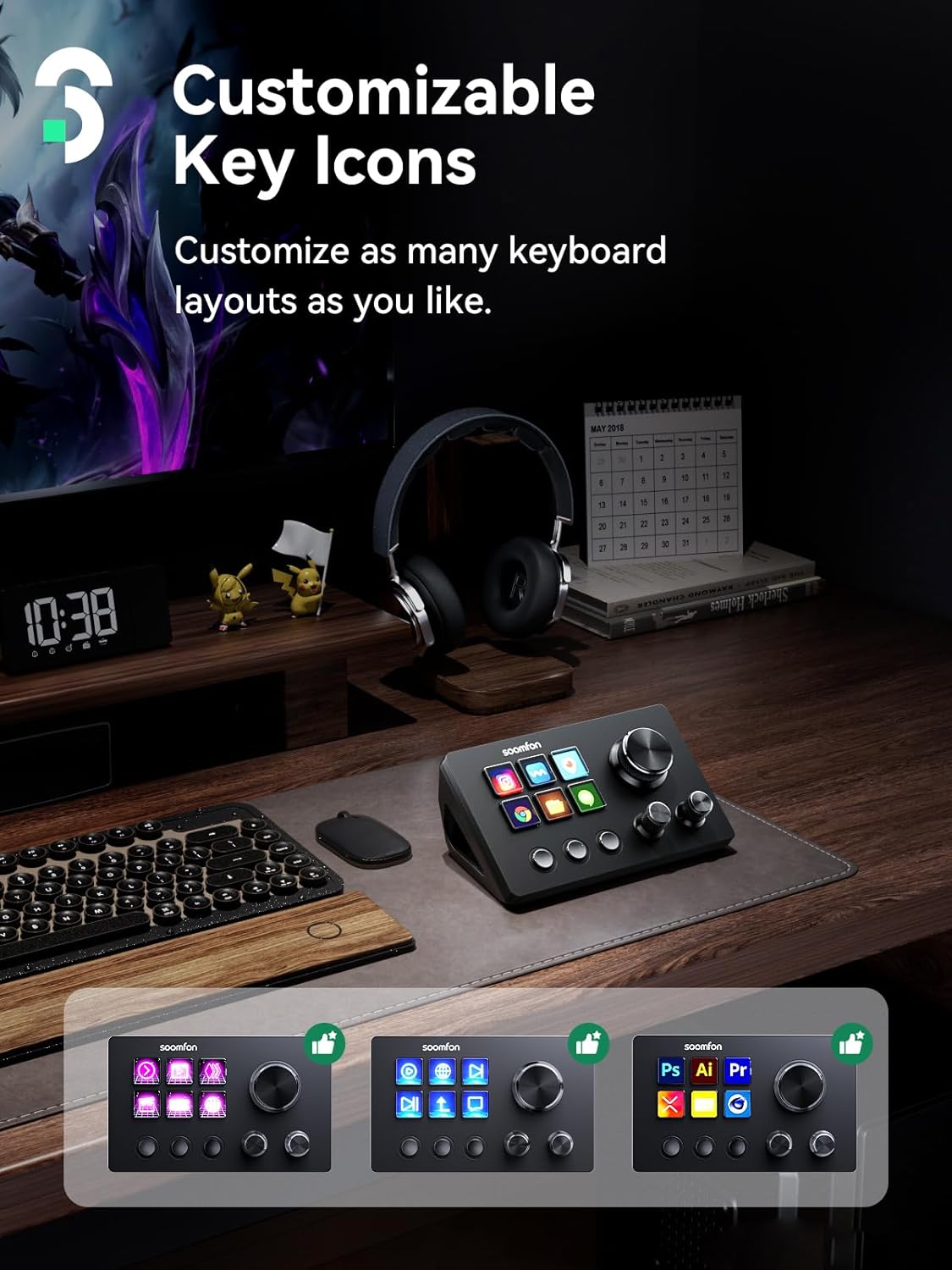
Image: The Stream Controller SE on a desk setup, with three examples below showing different customizable key icon layouts on the device's LCD keys.
4.6 Application Scenarios
The SOOMFON Stream Controller SE is designed for a variety of applications, enhancing efficiency and control in different professional and creative fields:
- Live Streaming: Manage scenes, audio, and overlays seamlessly.
- Game Programming: Streamline development workflows with custom macros.
- Media Editing: Accelerate video and audio editing tasks with quick access to tools.

Image: A collage showing the Stream Controller SE being used in various professional settings: live streaming, game programming, and media editing.
5. Maintenance
To ensure the longevity and optimal performance of your SOOMFON Stream Controller SE, follow these maintenance guidelines:
- Cleaning: Use a soft, dry, lint-free cloth to clean the device. For stubborn marks, slightly dampen the cloth with water. Avoid using harsh chemicals, abrasive cleaners, or solvents.
- Storage: Store the device in a cool, dry place away from direct sunlight and extreme temperatures.
- Handling: Avoid dropping the device or subjecting it to strong impacts. Do not attempt to disassemble the unit, as this will void the warranty.
6. Troubleshooting
This section addresses common issues you might encounter with your Stream Controller SE.
Common Issues and Solutions:
- Device Not Recognized:
- Ensure the USB-C cable is securely connected to both the device and your computer.
- Try connecting to a different USB port on your computer.
- Restart your computer.
- Verify that the latest software and drivers are installed.
- Keys Not Responding:
- Check the software to ensure that actions are correctly assigned to the keys.
- Restart the Stream Controller SE software.
- Ensure no other conflicting software is running.
- Spotify Plugin Not Working:
- Please note that the Spotify plugin feature requires a Spotify Premium user account. Ensure your account is active and has Premium status.
If you encounter any issues during setup or use that are not covered here, please do not hesitate to contact our customer support team for assistance.
7. Specifications
| Feature | Detail |
|---|---|
| Model Name | Stream Controller |
| Item Model Number | CN002-BN1 |
| Brand | SOOMFON |
| Item Weight | 10.8 ounces |
| Package Dimensions | 6.26 x 5.75 x 2.24 inches |
| Color Name | Black |
| Compatible Devices | Laptop, PC |
| Connector Type | USB-C |
| Hardware Interface | USB |
| Supported Software | OBS Studio |
| Number of Keyboard Keys | 6 (LCD Macro Keys) |
| Hardware Platform | PC/Mac |
| Special Feature | 6 Macro Keys |
| Connectivity Technology | USB-C |
8. Warranty and Support
SOOMFON stands behind the quality of its products. The Stream Controller SE comes with a 2-year product guarantee.
For any inquiries, technical assistance, or warranty claims, please contact our customer support team. Our team is available 24/7 to assist you with anything you need, ensuring a prompt response within 24 hours.
You can find contact information on the official SOOMFON website or in the included user manual.
Related documentsCN002-BN1


Ask a question about this manual
Ask about setup, troubleshooting, compatibility, parts, safety, or missing instructions. Manuals+ will review the question and use this page’s manual context to help answer it.