
1. Introduction
This manual provides detailed instructions for the installation, operation, and maintenance of your ZSUS X79 VG2 Motherboard Bundle. This bundle includes the ZSUS X79 VG2 Motherboard, an Intel Xeon E5 2689 C2 processor, and 16GB of DDR3 1600MHz ECC RAM. Please read this manual thoroughly before proceeding with installation to ensure proper setup and optimal performance.
2. Product Overview
The ZSUS X79 VG2 Motherboard is designed to support LGA2011 V1/V2 series processors, offering a robust platform for demanding computing tasks. It features dual-channel DDR3 memory support, NVMe M.2 storage capabilities, and multiple expansion slots.
2.1. Key Components
- ZSUS X79 VG2 Motherboard: Features an LGA2011 socket, H61 chipset, 4 DDR3 memory slots, 2 PCIe x16 slots, 1 PCIe x1 slot, 1 NVMe M.2 port, and 4 SATA2.0 ports.
- Intel Xeon E5 2689 C2 CPU: An 8-core, 16-thread processor with a base frequency of 2.6GHz (up to 3.6GHz turbo), 20MB L3 Cache, and LGA2011 socket compatibility.
- 16GB DDR3 1600MHz ECC RAM: High-performance Error-Correcting Code (ECC) memory, suitable for server and workstation environments, ensuring data integrity.
2.2. Motherboard Layout
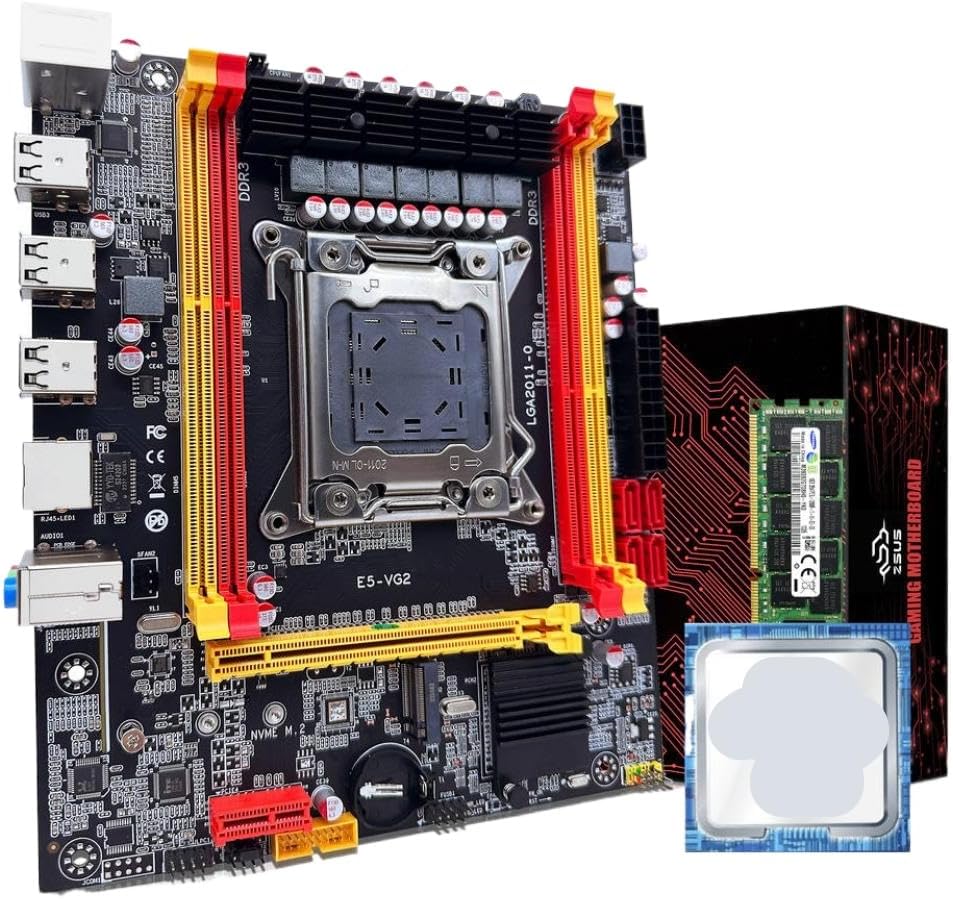
Figure 1: ZSUS X79 VG2 Motherboard Bundle. This image displays the motherboard with its LGA2011 CPU socket, four DDR3 RAM slots, PCIe slots, and various connectors. The included Xeon E5 2689 C2 CPU and 16GB DDR3 ECC RAM module are also visible alongside the product packaging.
Familiarize yourself with the various components and connectors on the motherboard before installation. Key areas include the CPU socket, RAM slots, PCIe expansion slots, SATA ports, M.2 slot, and I/O panel connectors.
3. Setup and Installation
Before beginning installation, ensure your workspace is clean, well-lit, and free of static electricity. Use an anti-static wrist strap if available. Handle components by their edges to avoid touching sensitive contacts.
3.1. CPU Installation
- Prepare the Socket: Gently lift the CPU retention lever on the LGA2011 socket. Open the metal load plate.
- Insert CPU: Carefully align the Intel Xeon E5 2689 C2 CPU with the LGA2011 socket. Ensure the triangular marker on the CPU matches the marker on the socket. Lower the CPU straight down without forcing it.
- Secure CPU: Close the metal load plate and push the retention lever back into its locked position until it clicks.
- Apply Thermal Paste: Apply a small amount of thermal paste (not included) to the center of the CPU's integrated heat spreader (IHS).
- Install CPU Cooler: Mount a compatible LGA2011 CPU cooler (not included) according to its manufacturer's instructions. Ensure it makes firm contact with the CPU.
3.2. RAM Installation
- Open Latches: Open the retention clips at both ends of the DDR3 memory slots.
- Align RAM: Align the 16GB DDR3 1600MHz ECC RAM module with a memory slot, ensuring the notch on the module matches the key in the slot. For dual-channel operation, refer to the motherboard's silkscreen for recommended slot pairing (typically alternating slots).
- Insert RAM: Press down firmly on both ends of the RAM module until the retention clips snap into place.
- Verify: Ensure both clips are fully closed and the RAM module is securely seated.
3.3. NVMe M.2 SSD Installation (Optional)
- Locate M.2 Slot: Identify the NVMe M.2 slot on the motherboard.
- Remove Standoff Screw: Unscrew the small standoff screw from the M.2 slot.
- Insert M.2 SSD: Insert your NVMe M.2 SSD (not included) into the slot at a 30-degree angle, ensuring the gold contacts are fully seated.
- Secure SSD: Gently push the SSD down and secure it with the standoff screw.
3.4. SATA Device Installation (Optional)
- Connect Data Cable: Connect one end of a SATA data cable (not included) to a SATA2.0 port on the motherboard and the other end to your SATA hard drive or SSD (not included).
- Connect Power Cable: Connect a SATA power cable from your power supply (not included) to the SATA device.
3.5. Power Supply Connections
- 24-pin ATX Power: Connect the main 24-pin ATX power connector from your power supply to the corresponding port on the motherboard.
- 8-pin EPS/CPU Power: Connect the 8-pin EPS (CPU) power connector from your power supply to the 1x8PIN port near the CPU socket.
3.6. Front Panel and Peripheral Connections
- Front Panel Connectors: Connect the power switch, reset switch, HDD LED, and power LED cables from your PC case to the front panel header on the motherboard. Refer to the motherboard's silkscreen for correct pin assignments.
- USB Headers: Connect front panel USB 2.0 cables to the USB 2.0 headers on the motherboard.
- Audio Header: Connect the front panel audio cable to the audio header.
- Expansion Cards: Install any PCIe expansion cards (e.g., graphics card, network card) into the available PCIe x16 or PCIe x1 slots.
4. Operating Instructions
After completing all hardware installations, you can proceed with powering on your system.
- Initial Power On: Ensure all cables are securely connected. Connect your monitor, keyboard, and mouse. Turn on the power supply switch, then press the power button on your PC case.
- BIOS/UEFI Setup: During startup, repeatedly press the designated key (commonly DEL, F2, or F10) to enter the BIOS/UEFI setup utility. Here you can configure boot order, system time, and other hardware settings.
- Operating System Installation: Insert your operating system installation media (USB drive or DVD) and follow the on-screen prompts to install your preferred operating system.
- Driver Installation: After OS installation, install all necessary drivers for the motherboard chipset, network, audio, and any other installed components. Drivers are typically available on the manufacturer's website.
5. Maintenance
Regular maintenance helps ensure the longevity and stable operation of your system.
- Dust Removal: Periodically clean dust from inside your PC case, especially from CPU coolers, case fans, and heatsinks, using compressed air. Ensure the system is powered off and unplugged before cleaning.
- BIOS/Firmware Updates: Check the manufacturer's website for updated BIOS/firmware versions. Follow their instructions carefully when performing updates.
- Driver Updates: Keep your system drivers updated to ensure compatibility and optimal performance.
- Cable Management: Ensure internal cables are neatly routed to improve airflow and prevent interference.
6. Troubleshooting
If you encounter issues, refer to the following common troubleshooting steps:
- No Power:
- Check if the power supply is switched on and properly connected to the motherboard (24-pin and 8-pin connectors).
- Ensure the front panel power switch cable is correctly connected to the motherboard header.
- No Display:
- Verify that the monitor is connected to the graphics card (if installed) or the motherboard's integrated graphics port (if applicable and CPU supports it).
- Reseat the RAM modules. Incorrectly seated RAM is a common cause of no display.
- Ensure the graphics card is properly seated in its PCIe slot and has adequate power connections.
- System Instability/Crashes:
- Check CPU and GPU temperatures. Overheating can cause instability.
- Ensure RAM modules are compatible and correctly installed.
- Run memory diagnostic tools to check for RAM errors.
- Verify all power connections are secure.
- Operating System Not Booting:
- Check BIOS/UEFI settings for correct boot order.
- Ensure the storage drive (SSD/HDD) containing the OS is properly connected and detected.
- If using an NVMe M.2 drive, ensure it is correctly installed and recognized in BIOS.
7. Specifications
| Component | Specification |
|---|---|
| Motherboard Model | ZSUS X79-VG2 |
| CPU Socket | LGA2011 V1/V2 series processor |
| Chipset | H61 series |
| CPU Included | Intel Xeon E5 2689 C2 (8 Cores / 16 Threads) |
| CPU Base Frequency | 2.6GHz (up to 3.6GHz Turbo) |
| CPU L3 Cache | 20MB |
| Memory Type | DDR3 ECC REG (Server Memory) |
| Memory Frequency | 1600MHz (Supports 1066/1333/1600/1866MHz) |
| Memory Capacity | 1 x 16GB (Max 128GB across 4 slots) |
| Memory Slots | 4 x DDR3 (Dual Channel) |
| Audio Interface | 1 (MIC-IN, LINE OUT, LINE IN) |
| Ethernet | Realtek Gigabit Ethernet |
| USB Interfaces (Rear) | 6 x USB 2.0 |
| USB Headers (Internal) | 1 (supports 2 x USB 2.0 ports) |
| PCIe Slots | 2 x PCIe x16, 1 x PCIe x1 |
| SATA Ports | 4 x SATA2.0 |
| M.2 Port | 1 x NVMe M.2 |
| Power Interface | 1 x 8-pin EPS, 1 x 24-pin ATX |
| Dimensions | 217mm x 187mm |
8. Warranty and Support
For warranty information and technical support, please refer to the documentation provided with your purchase or contact the manufacturer, TJKTSLVA, directly. Keep your proof of purchase for warranty claims.
Manufacturer: TJKTSLVA
