
Introduction
This manual provides detailed instructions for the installation, operation, and maintenance of your Vorally 9-inch Android Car Radio. This unit is designed for Ford Fusion and Mondeo models from 2013 to 2019. Please read this manual thoroughly before use to ensure proper functionality and safety. Keep this manual for future reference.
Setup and Installation
1. Package Contents
Before beginning installation, verify that all components are present in the package:
- 9-inch Android Head Unit
- Power Cable
- USB Conversion Cable
- 2 USB Cables
- Camera Input Cable
- RCA Input/Output Cables
- GPS Antenna
- Instruction Manual
- Canbus Box
- Radio Adapter
- Installation Tools (plastic pry tools, screws)

Image: Components included in the Vorally car radio package.
2. Wiring Diagram
Refer to the following diagram for correct wiring connections. Ensure all connections are secure before powering on the unit.

Image: Detailed wiring connections for the car radio.
- Connect the reversing detection cable (H) to the camera input (I).
- Connect the backup camera positive wire (J) and the backup lamp positive pole (K) to the positive pole of the vehicle's backup lamp.
- Connect the backup camera ground wire (L) to a grounding point or leave unconnected if not required by the camera.
- Connect the main power cable to the vehicle's harness.
- Connect the GPS antenna to the designated port on the head unit and position it for optimal signal reception.
- Connect USB cables for external devices as needed.
3. Physical Installation
Carefully remove the original car stereo and install the new Vorally head unit using the provided mounting frame and tools. Ensure all cables are properly routed and secured to prevent interference or damage.

Image: Vorally car radio installed in a Ford Fusion Mondeo dashboard.
Operating Instructions
1. Basic Operation
The unit runs on Android 13 and features a 9-inch HD touchscreen display. Navigate through applications by touching the icons on the screen. Swipe left or right to access additional screens or menus.
2. Wireless CarPlay & Android Auto
Connect your smartphone wirelessly to access CarPlay or Android Auto features. This allows for seamless integration of your phone's apps, navigation, music, and calls directly on the car radio display.
- Ensure Bluetooth and Wi-Fi are enabled on your smartphone.
- On the car radio, select the CarPlay or Android Auto application.
- Follow the on-screen prompts to pair your device.
- Once connected, you can use voice commands (Siri or Google Assistant) for hands-free operation.
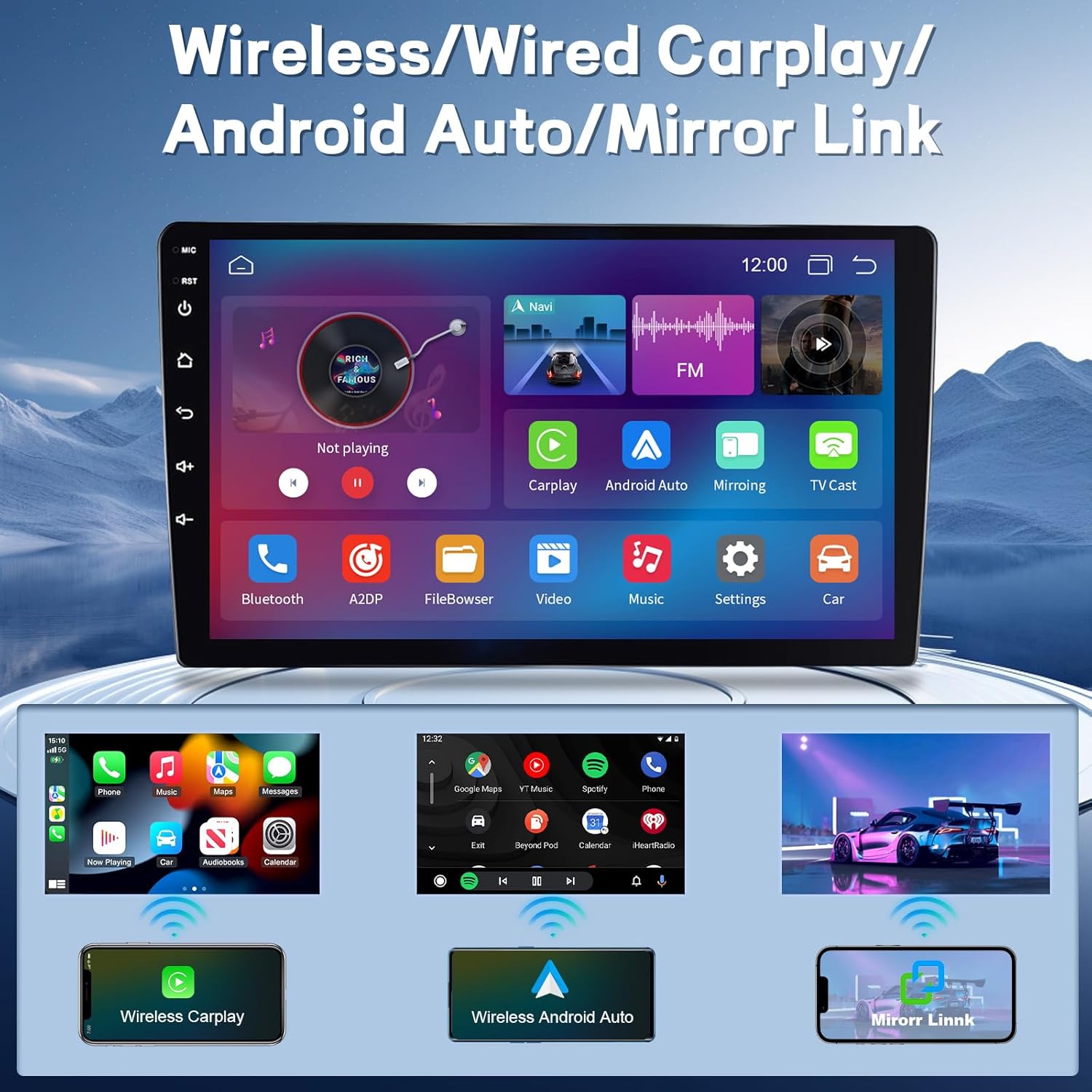
Image: Wireless CarPlay, Android Auto, and Mirror Link features.
3. GPS Navigation & WiFi Connection
The unit comes with pre-installed North American maps and supports online navigation apps. The built-in WiFi hotspot allows for internet connectivity.
- GPS Navigation: Tap the 'Navigation' icon to launch the GPS application. Ensure the GPS antenna is properly installed for accurate positioning.
- WiFi Connection: Go to 'Settings' > 'Network & Internet' > 'Wi-Fi' to connect to an available Wi-Fi network or enable the hotspot feature.

Image: GPS navigation and voice control interface.
4. Bluetooth Calls & Audio Features
Pair your smartphone via Bluetooth for hands-free calling and audio streaming. The integrated DSP (Digital Sound Processor) allows for audio customization.
- Bluetooth Pairing: Go to 'Settings' > 'Connected devices' > 'Bluetooth' to pair your phone.
- DSP: Access the 'DSP' or 'Equalizer' settings to adjust sound patterns and audio output.
- FM Radio: Select the 'FM' application to listen to radio broadcasts. The unit supports RDS (Radio Data System) for station information.

Image: FM radio and Bluetooth interface with split screen functionality.
5. Steering Wheel Control (SWC)
The unit supports your vehicle's original steering wheel controls, allowing you to manage functions without taking your hands off the wheel.
- Access the 'Steering Learn' or 'SWC Settings' menu in the system settings.
- Follow the on-screen instructions to map your steering wheel buttons to the corresponding functions on the car radio.
6. Backup Camera
When properly connected, the backup camera automatically displays a crystal-clear image on the screen when the vehicle is in reverse gear, aiding in safer parking.
- Ensure the backup camera is correctly wired according to the diagram in the Setup section.
- The display will automatically switch to the camera view when reverse gear is engaged.
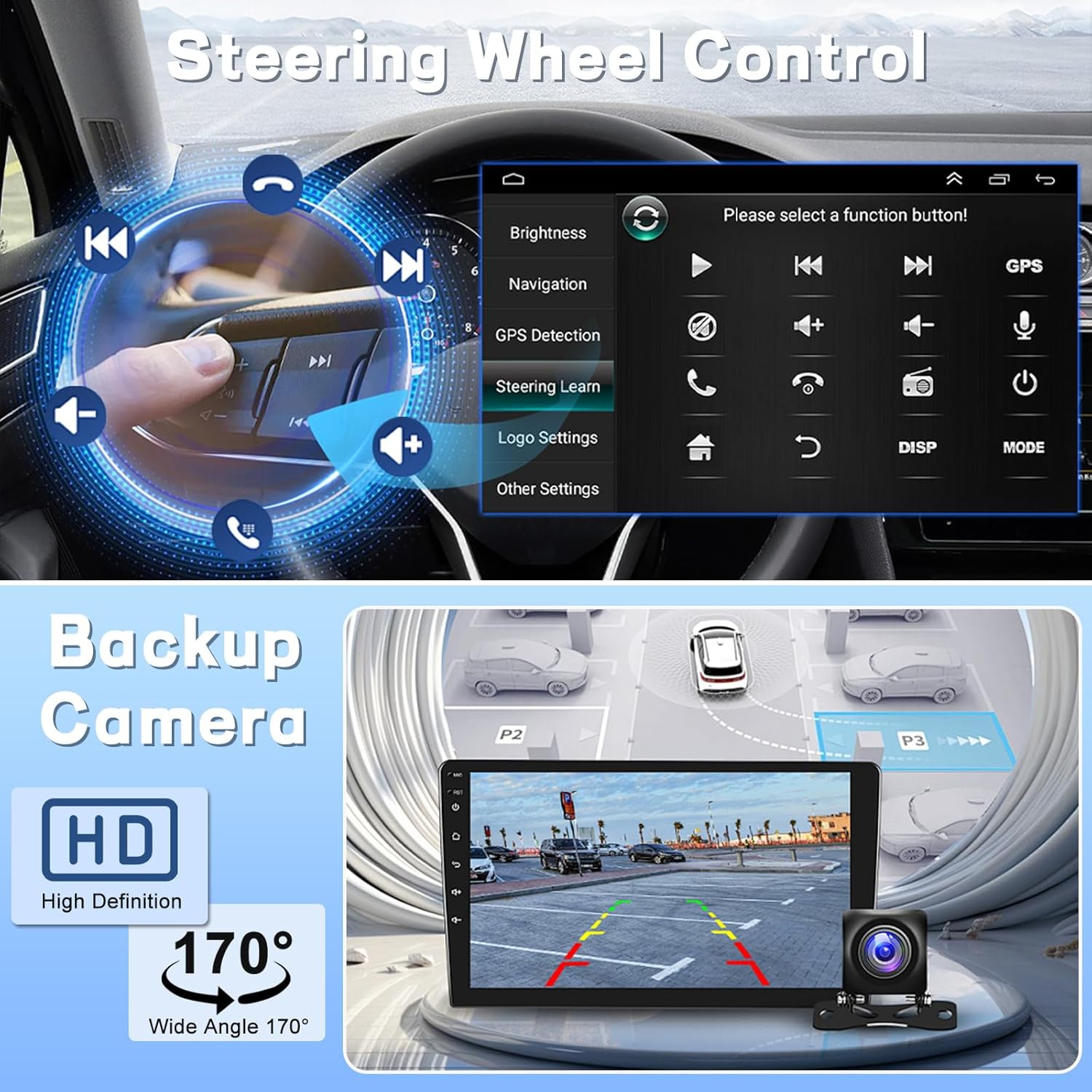
Image: Steering wheel control interface and backup camera view.
7. Split Screen Function
The split screen feature allows you to run two applications simultaneously on the display, such as navigation and music playback.
- Open the first application you wish to use.
- Press and hold the 'Recent Apps' button or swipe up from the bottom of the screen (depending on Android version) to enter split-screen mode.
- Select the second application to display alongside the first.
Maintenance
To ensure the longevity and optimal performance of your car radio, follow these maintenance guidelines:
- Cleaning: Use a soft, dry cloth to clean the screen and exterior. Avoid abrasive cleaners or solvents that may damage the surface.
- Software Updates: Periodically check for system updates in the 'Settings' menu to ensure you have the latest features and security patches.
- Environmental Conditions: Avoid exposing the unit to extreme temperatures, direct sunlight for prolonged periods, or excessive moisture.
- Cable Connections: Regularly check all cable connections to ensure they are secure and free from damage.
Troubleshooting
If you encounter issues with your Vorally car radio, refer to the following common problems and solutions:
- No Power: Check all power connections and the vehicle's fuse box. Ensure the unit is properly grounded.
- No Sound: Verify speaker connections, volume settings, and audio output mode. Check if the mute function is active.
- GPS Not Working: Ensure the GPS antenna is connected and positioned with a clear view of the sky. Check GPS settings in the system menu.
- Bluetooth Connectivity Issues: Ensure Bluetooth is enabled on both the car radio and your smartphone. Delete previous pairings and try reconnecting.
- Touchscreen Unresponsive: Try restarting the unit. If the issue persists, a factory reset might be necessary (note: this will erase all user data).
- Backup Camera Not Displaying: Check the camera input cable connection and ensure the reversing detection cable is correctly wired to the vehicle's reverse light signal.
For further assistance, please contact customer support as detailed in the Warranty & Support section.
Specifications
| Feature | Detail |
|---|---|
| Product Dimensions | 16.14 x 12.6 x 5.51 inches |
| Item Weight | 4.63 pounds |
| Item Model Number | VIKA-CHANZHM-145C |
| Manufacturer | Vorally |
| Connectivity Technology | Bluetooth, USB, Wi-Fi |
| Controller Type | Touch Screen |
| Special Features | GPS Navigation, Voice Assistant, Bluetooth, WiFi, With CarPlay & Android Auto |
| Compatible Devices | Smartphone, Tablet, Rearview Camera |
| Connector Type | 3.5mm Jack, USB |
| Audio Output Mode | Stereo |
| Surround Sound Channel Configuration | 5.1 |
| Video Encoding | MKV, RMVB, AVI, MP4, MDV |
Warranty & Support
Vorally is committed to providing high-quality products and customer satisfaction.
1. Warranty Information
- 30 Days: Exchange or Return Policy.
- 365 Days: Product Warranty.
- 24/7: Warranty Support.

Image: Vorally Warranty & Service details.
2. Customer Support
For technical assistance, installation help, or any product-related inquiries, please contact our support team:
- Email: yutaidaloralus@outlook.com
- Amazon Support: If purchased on Amazon, you can contact the seller directly through your order details page by clicking on the seller's name ('Vorally') and then 'Ask a question'.

Image: Guide to contacting Vorally customer support on Amazon.