
Introduction
This manual provides detailed instructions for the installation, operation, and maintenance of your Enbrighten Vibe Smart Plug-in Outlet with Motion Sensor, Model 62721. This device integrates a smart plug with a wireless motion sensor, offering Matter-compatible smart home control for various indoor appliances and lighting.

Image: The Enbrighten Vibe Smart Plug-in Outlet and its accompanying wireless motion sensor. The plug features a polarized outlet and a Matter QR code for easy setup.
Safety Information
- Indoor Use Only: This device is designed for indoor use in dry locations. Do not expose to water or moisture.
- Electrical Rating: Do not exceed the electrical ratings of 120VAC, 12A, 1440W.
- Polarized Outlet: Ensure proper insertion into a polarized outlet.
- Battery Safety: The motion sensor requires three AAA batteries (not included). Follow battery polarity markings and dispose of used batteries responsibly.
- Children: Keep out of reach of children.
Package Contents
- Enbrighten Vibe Smart Plug-in Outlet (1)
- Wireless Motion Sensor (1)
- User Manual (This document)
Setup
1. Download the Enbrighten App
Download the free Enbrighten app from the Apple App Store or Google Play Store. This app is required for initial setup and advanced features.
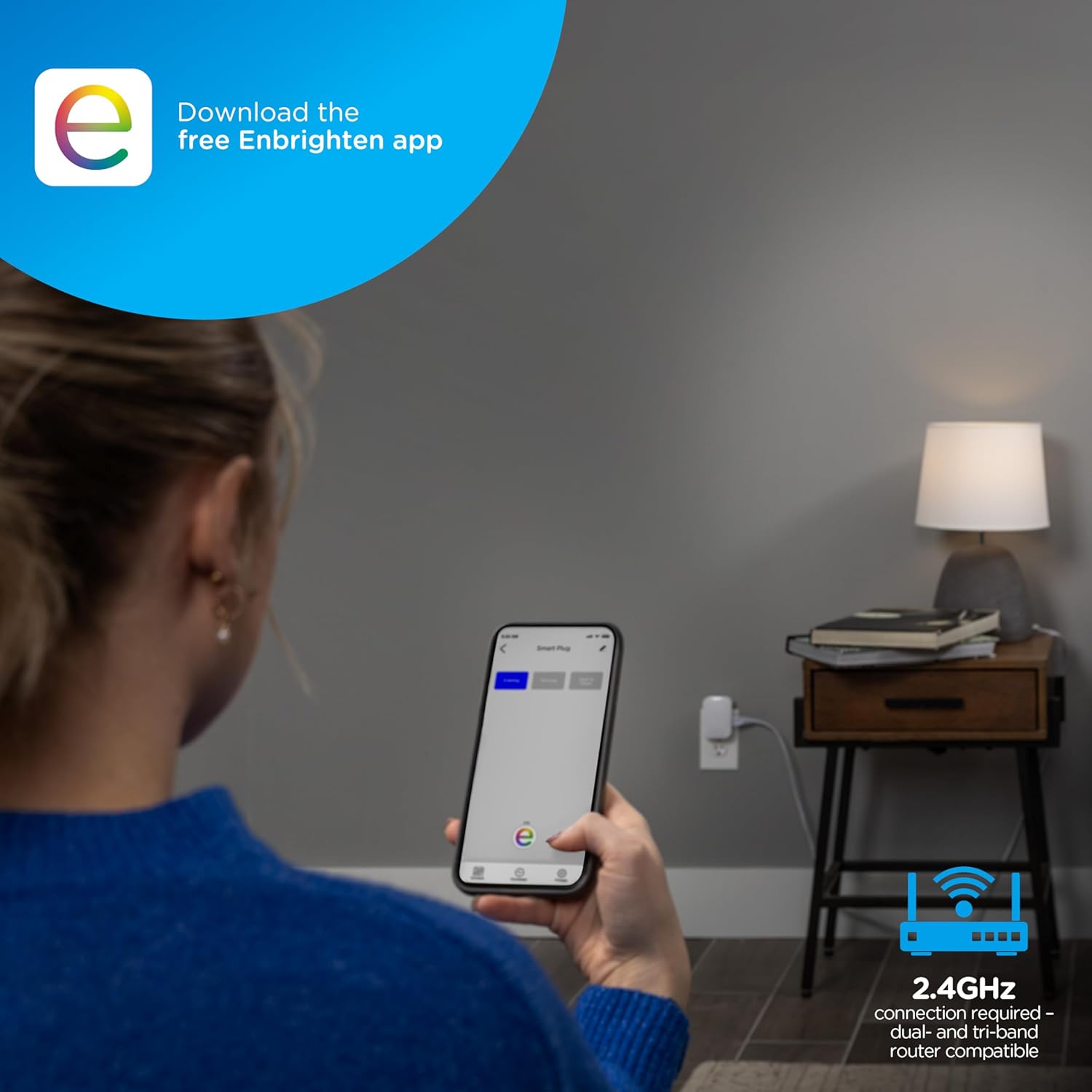
Image: A person using a smartphone to download the Enbrighten app while the smart plug is plugged into a wall outlet.
2. Connect to Wi-Fi
Ensure your home Wi-Fi network is 2.4GHz. The smart plug requires a 2.4GHz connection for proper operation. Dual-band and tri-band routers are compatible.
3. Pair the Smart Plug
- Plug the Enbrighten Vibe Smart Plug into a standard indoor wall outlet.
- Open the Enbrighten app and follow the on-screen instructions to add a new device.
- Scan the Matter QR code located on the side of the smart plug or manually enter the Matter pairing code (MT:8ETB70D-035S8V3NP10) when prompted.
- Complete the pairing process within the app.
4. Install Motion Sensor Batteries
- Open the battery compartment on the wireless motion sensor.
- Insert three AAA batteries (not included), observing the correct polarity.
- Close the battery compartment securely.
5. Position the Motion Sensor
Place the motion sensor in an area where it can effectively detect movement within a 20ft. range. Avoid placing it near heat sources or in direct sunlight, which can affect performance.
Operating Instructions
1. Basic Plug Operation
Once paired, you can control the smart plug directly through the Enbrighten app. Tap the device icon to turn the connected appliance ON or OFF. The plug also features a manual ON/OFF button.
2. Using the Motion Sensor
The wireless motion sensor automatically activates connected items when movement is detected within its 20ft. range. The connected device will turn off approximately 10 minutes after movement ceases. This feature can be configured within the Enbrighten app.
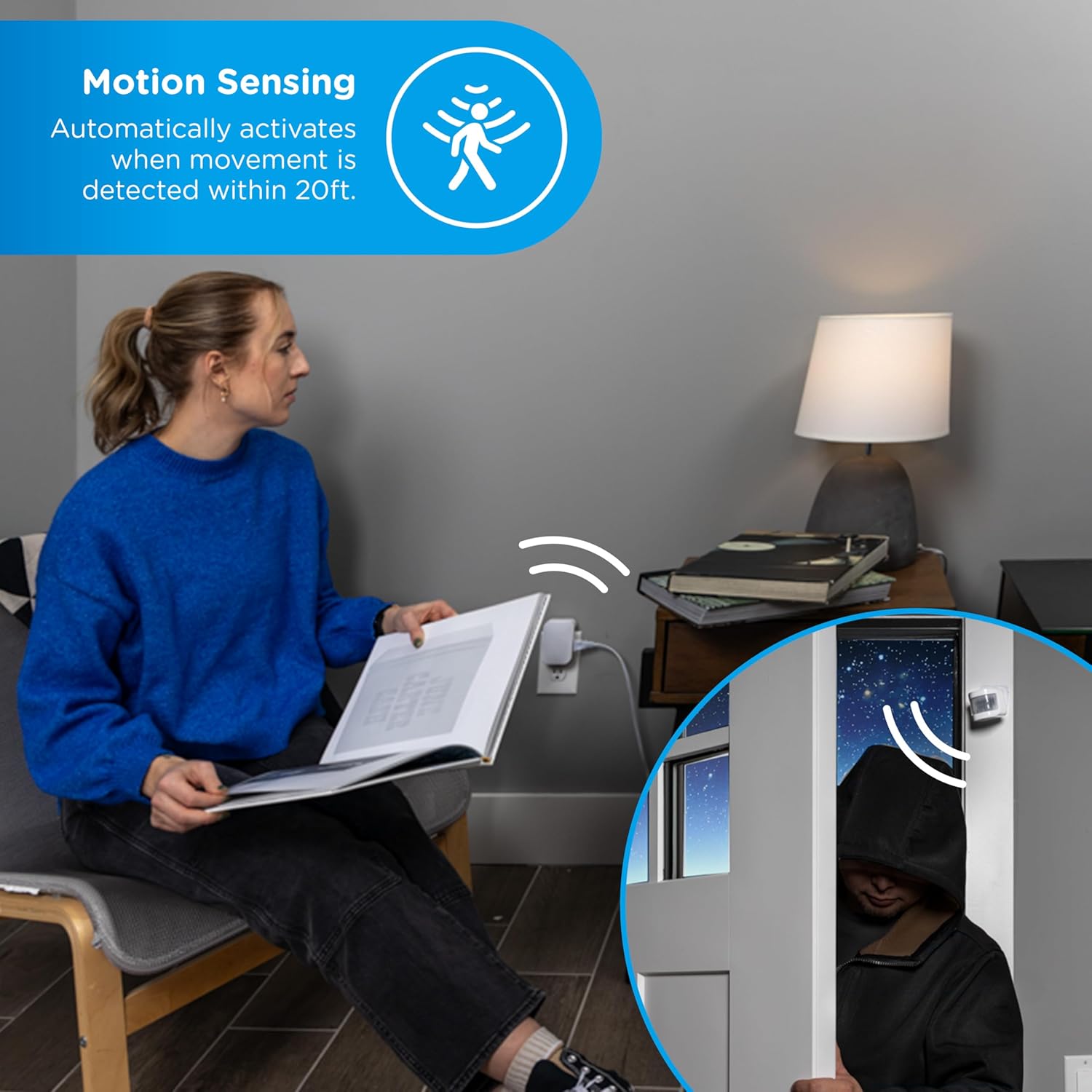
Image: A visual representation of the motion sensor detecting movement, automatically activating a connected device. The image shows a person reading and a separate scene of a person entering a room, triggering the sensor.
3. Voice Control
The Enbrighten Vibe Smart Plug is compatible with Amazon Alexa and Google Assistant. Once integrated with your preferred voice assistant (no hub required for basic voice commands), you can control the plug using voice commands such as "Alexa, turn on the reading light" or "Hey Google, turn off the fan."

Image: A woman relaxing on a couch, using voice commands to control a smart device. Logos for Matter, Alexa, and Google Home indicate compatibility.
4. Schedules and Automations
Utilize the Enbrighten app to create custom schedules and automations. You can set devices to turn ON/OFF at specific times, days, or based on other factors like weather or location. This allows for personalized control of your lighting and appliances.
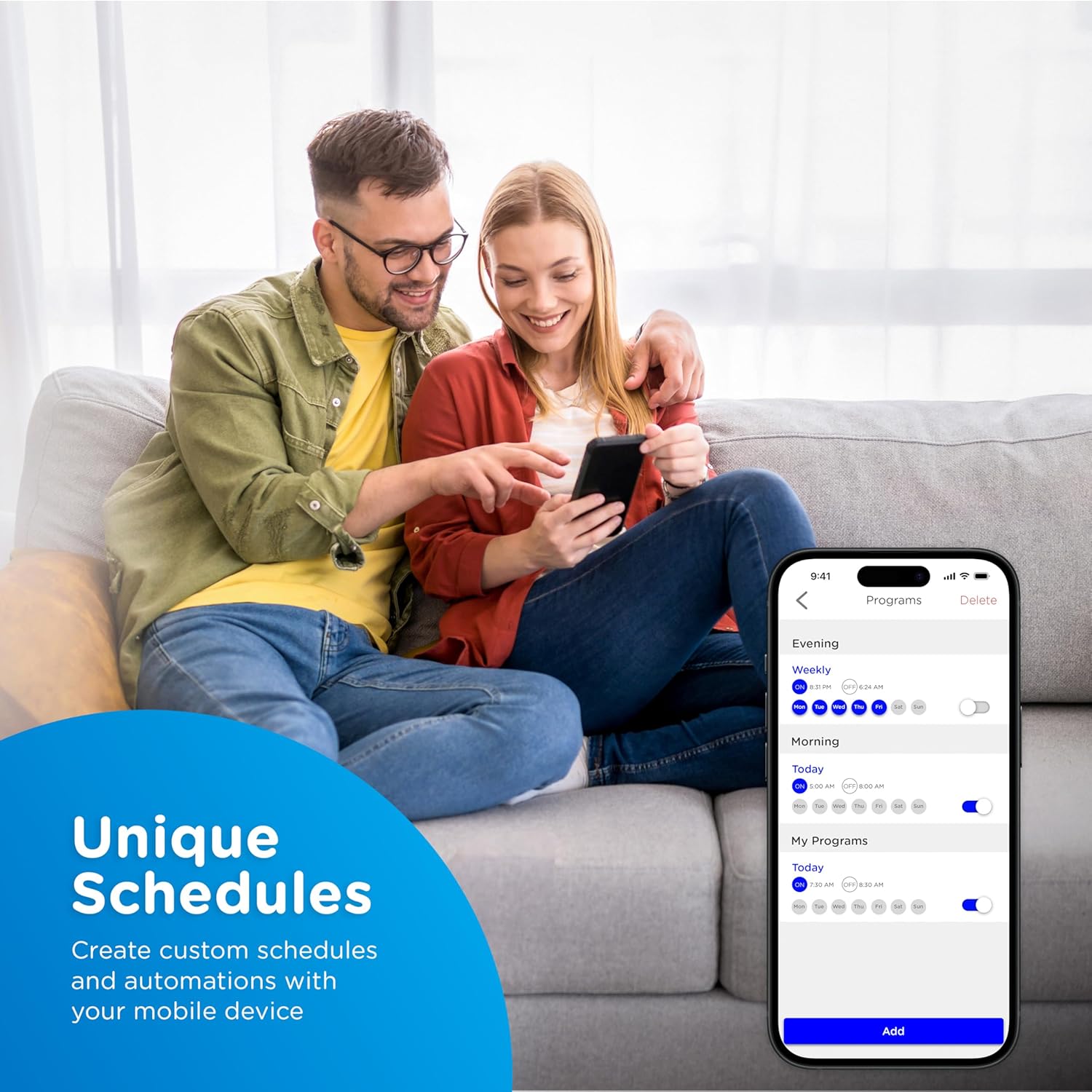
Image: A couple viewing a mobile app interface displaying options for creating custom schedules and automations for smart devices.
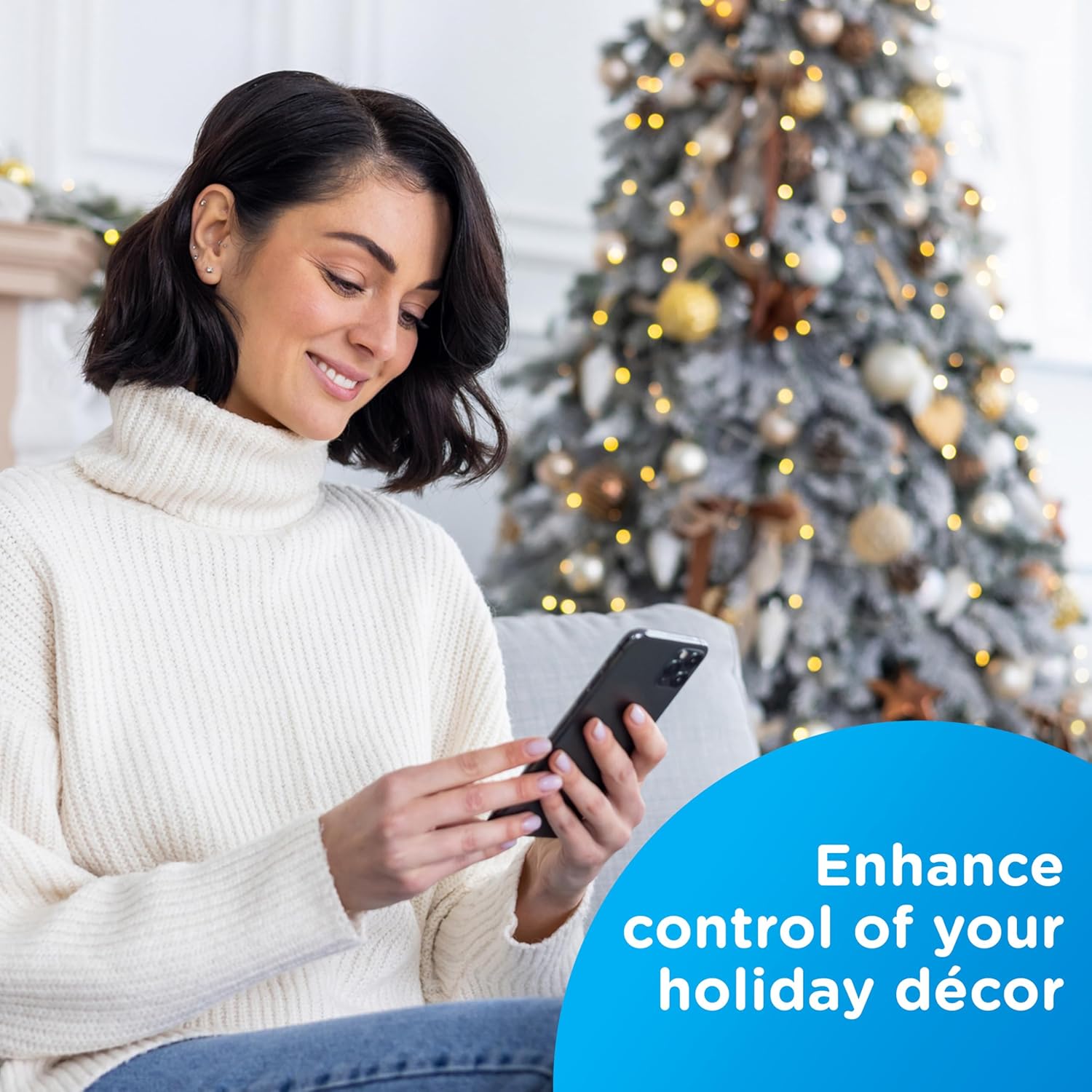
Image: A woman using her smartphone to control holiday decorations connected to a smart plug, demonstrating enhanced control.
Maintenance
Cleaning
Wipe the smart plug and motion sensor with a soft, dry cloth. Do not use harsh chemicals or abrasive cleaners.
Motion Sensor Battery Replacement
When the motion sensor's battery level is low, you may receive a notification in the Enbrighten app. Replace the three AAA batteries by opening the battery compartment and inserting new batteries with correct polarity. Dispose of old batteries according to local regulations.
Troubleshooting
- Device Not Connecting:
- Ensure your Wi-Fi network is 2.4GHz.
- Verify the smart plug is within range of your Wi-Fi router.
- Restart your router and try pairing again.
- Confirm correct Matter QR code or pairing code entry.
- Motion Sensor Not Detecting:
- Check if the AAA batteries are correctly installed and have sufficient charge.
- Ensure the sensor is placed in an optimal location, free from obstructions and not facing direct heat sources.
- Verify the motion detection settings within the Enbrighten app.
- Voice Control Issues:
- Confirm the smart plug is properly linked to your Amazon Alexa or Google Home account.
- Check your internet connection.
- Ensure your voice commands are clear and match the device name in your smart home app.
- Resetting the Device:
- Refer to the Enbrighten app or the product's support page for specific factory reset instructions, as this may vary.
Specifications
| Feature | Specification |
|---|---|
| Model Number | 62721 |
| Operation Mode | ON-OFF |
| Current Rating | 12 Amps |
| Operating Voltage | 120 Volts (AC) |
| Contact Type | Normally Open |
| Connector Type | Plug In |
| Switch Type | Push Button |
| Terminal | Screw |
| Material | Plastic |
| Item dimensions (L x W x H) | 4.13 x 4.57 x 3.32 inches |
| Motion Sensor Range | Up to 20ft. |
| Motion Sensor Batteries | 3x AAA (not included) |
| Wireless Connectivity | 2.4GHz Wi-Fi, Matter |
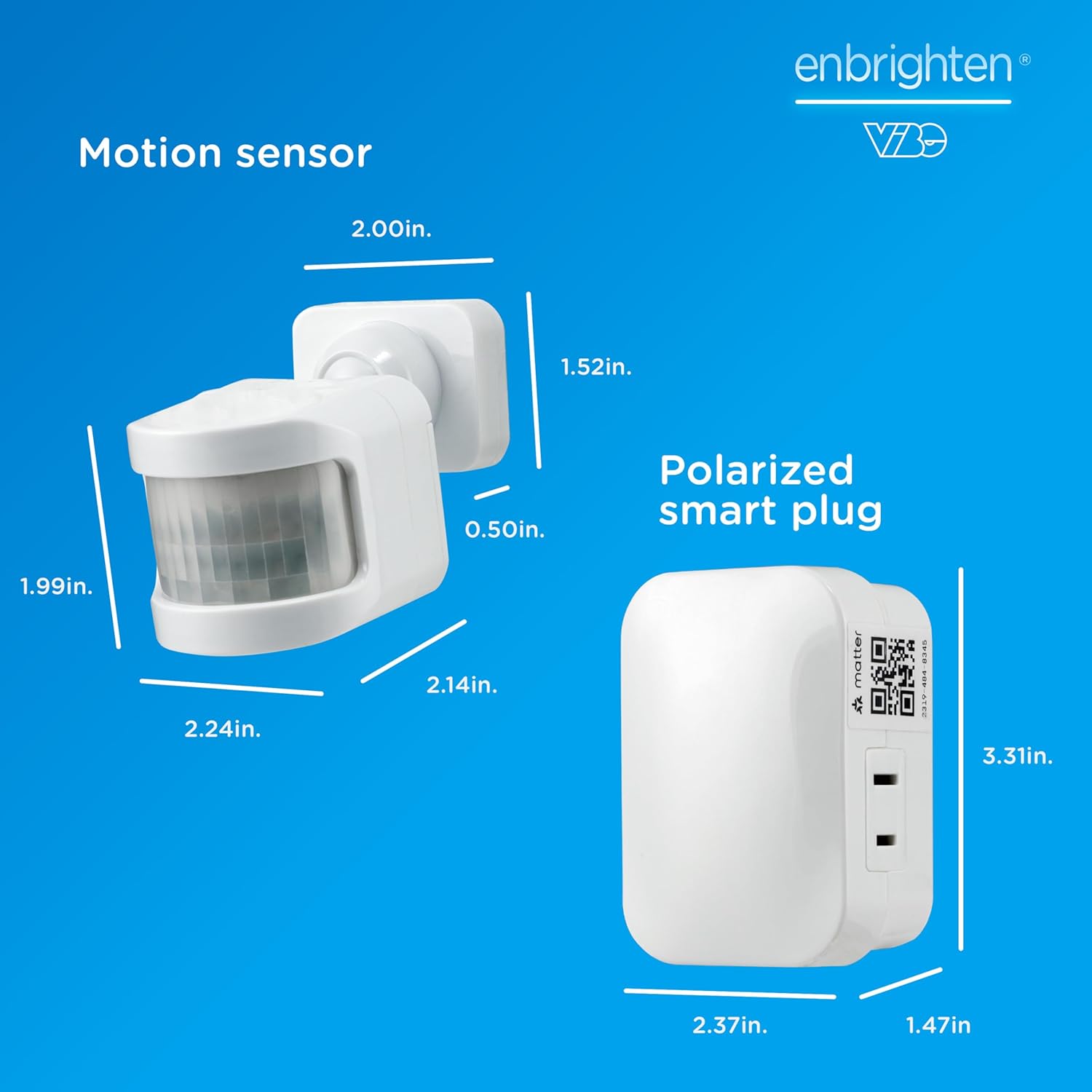
Image: Detailed dimensions for both the Enbrighten Vibe Smart Plug and the wireless motion sensor.
Warranty
Enbrighten products are backed by a limited warranty. For specific warranty terms and conditions, please refer to the warranty information provided with your purchase or visit the official Enbrighten website.
Support
For technical support, troubleshooting assistance, or to access additional resources, please visit the Enbrighten support website or contact customer service. You can find contact information on the Enbrighten website: Enbrighten Store on Amazon.