
1. Introduction
The AKEEYO P1 Dash Cam is designed to record your driving journey with high clarity. This manual provides detailed instructions for installation, operation, and maintenance to ensure optimal performance of your device. It features 1080P HD resolution, WiFi connectivity, G-Sensor for emergency recording, loop recording, Wide Dynamic Range (WDR), and a 24-hour parking mode when connected with a hardwire kit.
2. Package Contents
Please check the package for the following items:
- AKEEYO P1 Dash Cam
- Power Cable (USB Car Charger)
- Mini USB Hardwire Kit (for 24H Parking Mode, may be sold separately)
- 64GB MicroSD Card (may be included or sold separately)
- User Manual
3. Product Overview
Familiarize yourself with the components of your AKEEYO P1 Dash Cam.
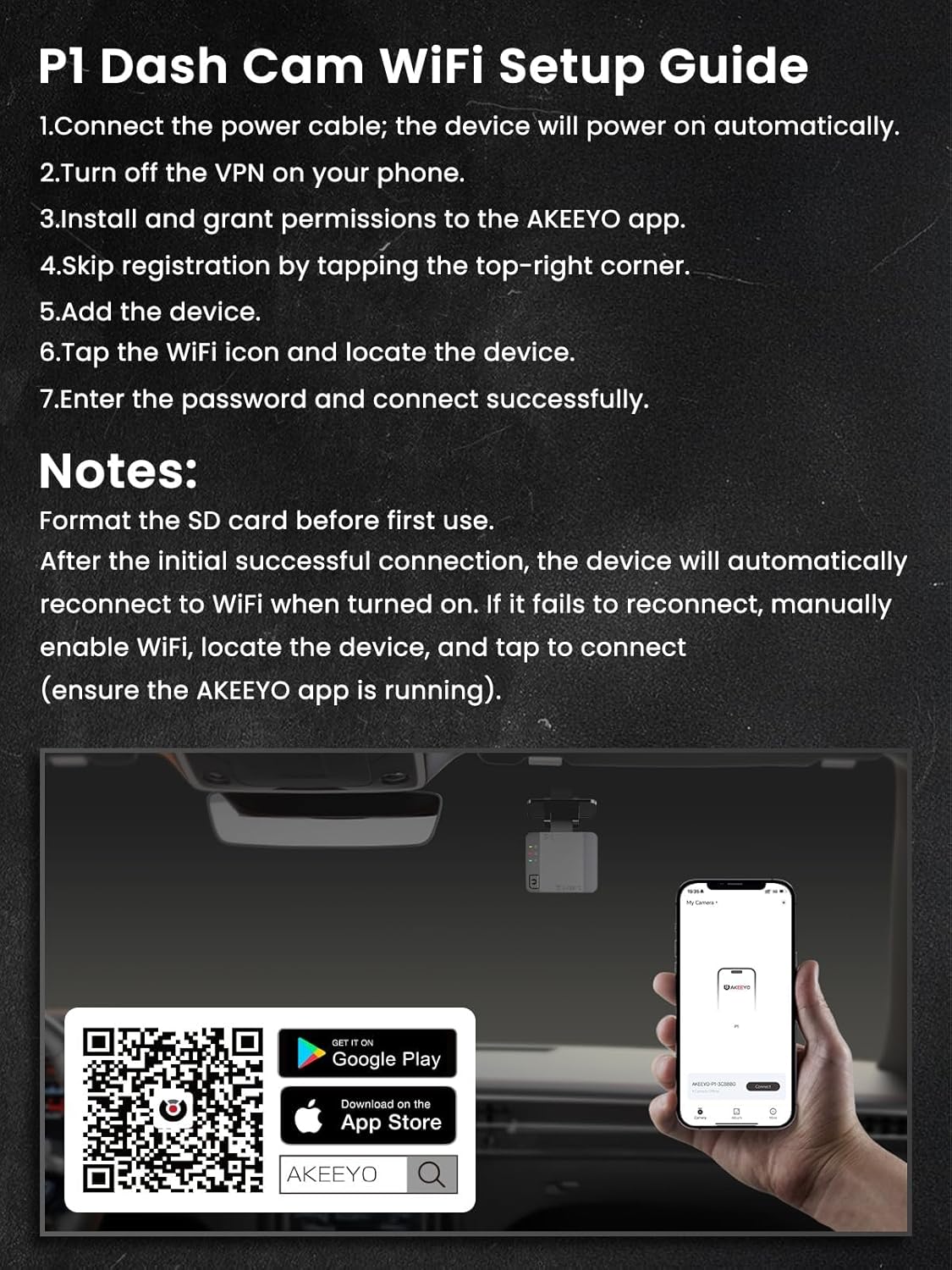
Image 3.1: Front view of the AKEEYO P1 Dash Cam. This image shows the compact design of the camera, suitable for discreet placement on the windshield.

Image 3.2: Side view of the AKEEYO P1 Dash Cam, highlighting its compact profile and mounting bracket.
4. Setup and Installation
4.1 MicroSD Card Installation
The dash cam requires a MicroSD card (Class 10 or higher) for recording. A 64GB card is often recommended or included.
- Ensure the dash cam is powered off.
- Locate the MicroSD card slot on the device.
- Insert the MicroSD card with the gold contacts facing the correct direction until it clicks into place.
- Once powered on, format the SD card through the dash cam's settings or the AKEEYO app for first use. This ensures compatibility and optimal performance.

Image 4.1: A 64GB MicroSD card, illustrating the type of storage required for the dash cam.
4.2 Dash Cam Mounting and Power Connection
Mount the dash cam in a position that does not obstruct your view of the road.
- Clean the windshield area where you intend to mount the dash cam.
- Attach the dash cam to the windshield using the provided adhesive mount or suction cup. Ensure it is securely fixed.
- Route the power cable discreetly along the edge of the windshield and dashboard to the car's USB port or cigarette lighter socket.
- For 24-hour parking mode functionality, connect the dash cam using a Mini USB hardwire kit (ASIN: B0DXQ1PGK1, sold separately) to your car's fuse box. Refer to the hardwire kit's specific instructions for installation.
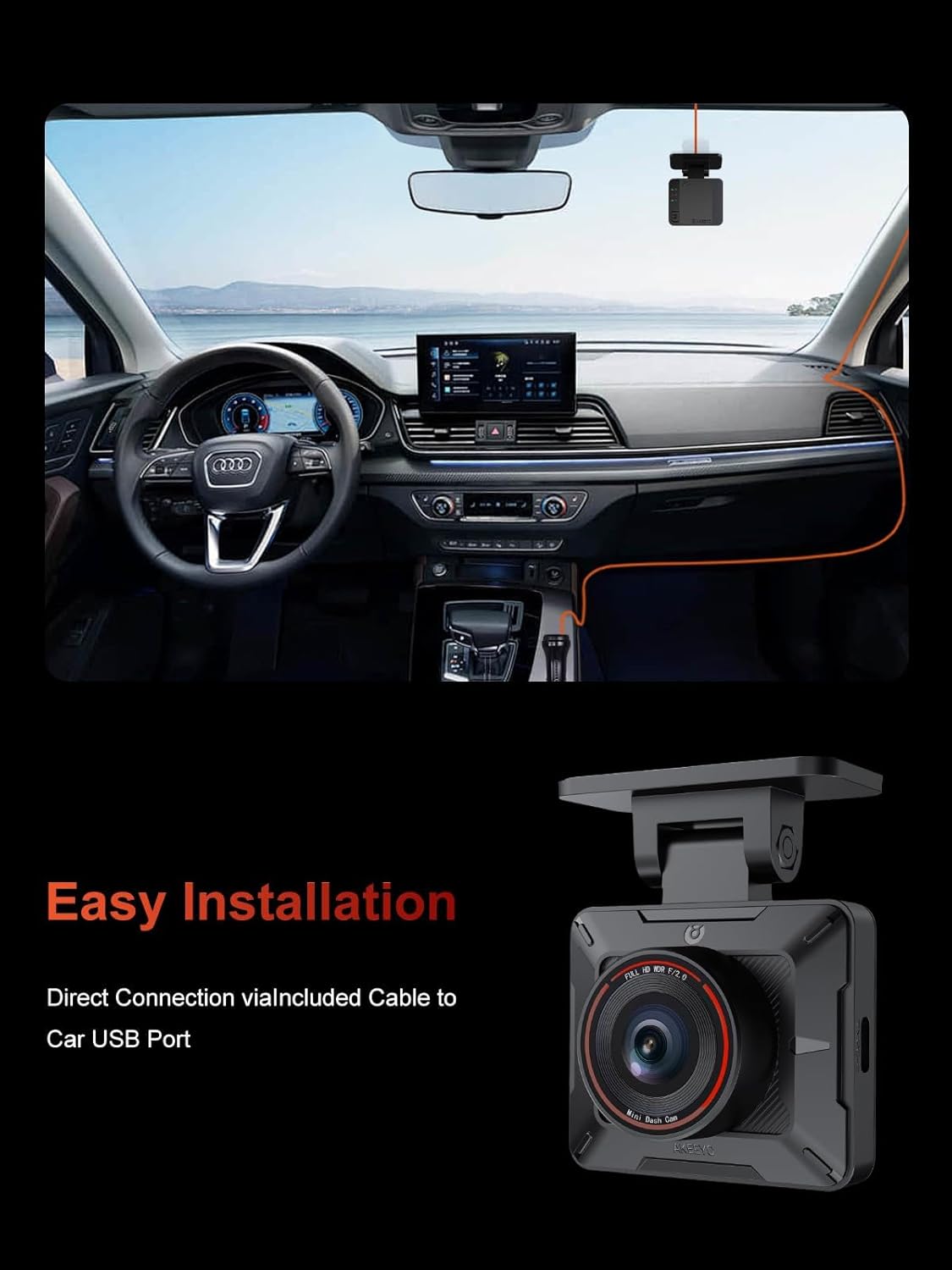
Image 4.2: Example of a dash cam installed in a car, showing cable routing for a neat setup.

Image 4.3: A Mini USB hardwire kit, used for connecting the dash cam directly to the car's power system for continuous power and parking mode.
4.3 WiFi Setup and App Connection
The AKEEYO P1 Dash Cam can be controlled and its footage accessed via a smartphone app.
- Connect the power cable; the device will power on automatically.
- Turn off any VPN on your phone, as it may interfere with connectivity.
- Install and grant necessary permissions to the AKEEYO app. You can download it from the App Store or Google Play, or by scanning the QR code below.
- Skip registration by tapping the top-right corner in the app.
- Add the device within the app.
- Tap the WiFi icon on your phone and locate the dash cam's WiFi network.
- Enter the password (usually found in the dash cam's settings or default is '12345678') and connect successfully.

Image 4.4: WiFi setup guide for the AKEEYO P1 Dash Cam, showing steps and QR codes for app download. The app can also be found at https://www.6zhentan.com/app/akeeyo/index.html.
Important Notes:
- Format the SD card before first use for optimal performance.
- After the initial successful connection, the device will automatically reconnect to WiFi when turned on. If it fails to reconnect, manually enable WiFi, locate the device, and tap to connect (ensure the AKEEYO app is running in the background).
5. Operating Instructions
5.1 Automatic Recording
Once powered on, the dash cam automatically begins recording. Recordings are saved to the MicroSD card.
5.2 Loop Recording
The dash cam records video in continuous loops (e.g., 1, 3, or 5-minute segments). When the MicroSD card is full, the oldest unlocked files are overwritten by new recordings. This ensures continuous recording without manual intervention.
5.3 G-Sensor (Emergency Recording)
The built-in G-Sensor detects sudden impacts or collisions. When triggered, it automatically locks the current video segment, preventing it from being overwritten by loop recording. These locked files are stored in a separate folder on the MicroSD card.
5.4 24-Hour Parking Mode
When the dash cam is connected via a hardwire kit (sold separately), it can monitor your vehicle even when parked. This mode typically offers:
- Collision Detection: If an impact is detected while parked, the dash cam will automatically record and lock the footage.
- Time-Lapse Recording: Some models record at a low frame rate to conserve power and storage space while continuously monitoring.
5.5 Using the AKEEYO App
The AKEEYO app allows you to:
- View live footage from the dash cam.
- Browse, download, and delete recorded videos and photos.
- Adjust dash cam settings (e.g., video resolution, loop recording duration, G-Sensor sensitivity, parking mode settings).
- Format the MicroSD card.
6. Maintenance
Regular maintenance ensures the longevity and optimal performance of your dash cam.
- Cleaning: Gently wipe the lens with a soft, lint-free cloth to ensure clear recordings. Do not use abrasive cleaners.
- MicroSD Card: Format the MicroSD card regularly (e.g., once a month) to prevent data corruption and maintain recording efficiency. Replace the card if you notice frequent errors or degraded performance.
- Firmware Updates: Check the AKEEYO website or app periodically for firmware updates. Updates can improve performance, add features, or fix bugs. Follow the provided instructions carefully when updating firmware.
- Temperature: Avoid exposing the dash cam to extreme temperatures for extended periods.
7. Troubleshooting
If you encounter issues, refer to the following common problems and solutions:
- Dash Cam Not Powering On:
- Check if the power cable is securely connected to both the dash cam and the car's power source.
- Ensure the car's power outlet (cigarette lighter or USB port) is functional.
- If using a hardwire kit, verify the fuse connections.
- WiFi Connection Issues:
- Ensure your phone's VPN is turned off.
- Restart both the dash cam and your phone.
- Make sure you are within close proximity to the dash cam.
- Re-enter the WiFi password carefully.
- Recording Errors or Freezing:
- Format the MicroSD card.
- Ensure you are using a Class 10 or higher MicroSD card.
- Try a different MicroSD card to rule out card issues.
- Check for and install any available firmware updates.
- Poor Video Quality:
- Clean the dash cam lens.
- Ensure the protective film has been removed from the lens.
- Check video resolution settings in the app; ensure it's set to 1080P.
8. Specifications
| Model | AKEEYO P1 |
| Video Resolution | 1920x1080P HD |
| Connectivity | WiFi |
| Storage | MicroSD Card (Class 10 or higher, up to 64GB recommended) |
| Features | G-Sensor, Loop Recording, WDR, 24H Parking Mode (with hardwire kit) |
| Power Input | Mini USB |
9. Warranty and Support
Your satisfaction is important to AKEEYO. For any questions, technical support, or warranty inquiries, please feel free to contact us anytime. Refer to your purchase documentation for specific warranty terms and conditions.
Contact Information: Please visit the AKEEYO official website or refer to your product packaging for the most up-to-date contact details.


