
1. Product Overview
This manual provides instructions for the assembly, operation, and maintenance of your DEVAISE AMGZ L-Shaped Gaming Desk. This desk is designed to provide a functional and ergonomic workspace for gaming or office use, featuring integrated power outlets, USB charging ports, LED lighting, and a monitor stand.

Image 1.1: The DEVAISE AMGZ L-Shaped Gaming Desk, showcasing its design and features with a monitor, keyboard, and other accessories.

Image 1.2: The DEVAISE AMGZ L-Shaped Gaming Desk integrated into a modern room setup, demonstrating its aesthetic and functional placement.
Key Features:
- Smart LED Lights: Control 31 lighting modes and 60,000 colors via an app to reduce eye strain and enhance the environment.
- Ergonomic Monitor Stand: A raised stand promotes better posture by positioning the screen at eye level.
- Integrated Power Outlets: Features 2 AC outlets and 2 USB charging ports for convenient power access for up to 4 devices.
- Heavy-Duty Build: Engineered for strength, supporting up to 110 lbs on the desktop.
- Storage Shelf: An integrated storage shelf provides additional space for organization.
2. Assembly Instructions
Before beginning assembly, ensure all components are present and undamaged. It is recommended to assemble the desk in the room where it will be used.
2.1. Package Contents
Verify that your package contains all the parts listed in the included visual guide. If any parts are missing or damaged, please contact customer support.
2.2. Required Tools
- Screwdriver (usually included or standard Phillips head)
- Allen Wrench (usually included)
2.3. Assembly Steps
- Unpack Components: Carefully remove all parts from the packaging and lay them out on a clean, soft surface (e.g., a blanket or carpet) to prevent scratches.
- Identify Parts: Refer to the numbered parts and the visual guide provided in your package to identify each component.
- Assemble Frame: Begin by assembling the metal frame components according to the visual instructions. Ensure all screws are tightened securely but do not overtighten until the entire frame is assembled.
- Attach Desktop Panels: Secure the desktop panels to the assembled frame. Pay attention to the orientation for the L-shape configuration.
- Install Monitor Stand: Attach the elevated monitor stand to the designated area on the desktop.
- Install Storage Shelf: Secure the lower storage shelf components.
- Install Power Outlets: Integrate the recessed power strip into its designated slot on the desktop. Ensure the power cord is routed safely.
- Install LED Lights: Attach the LED light strips as indicated in the visual guide. Connect them to the smart controller.
- Final Tightening: Once all components are in place, go back and securely tighten all screws.
- Position Desk: Carefully move the assembled desk to its desired location.
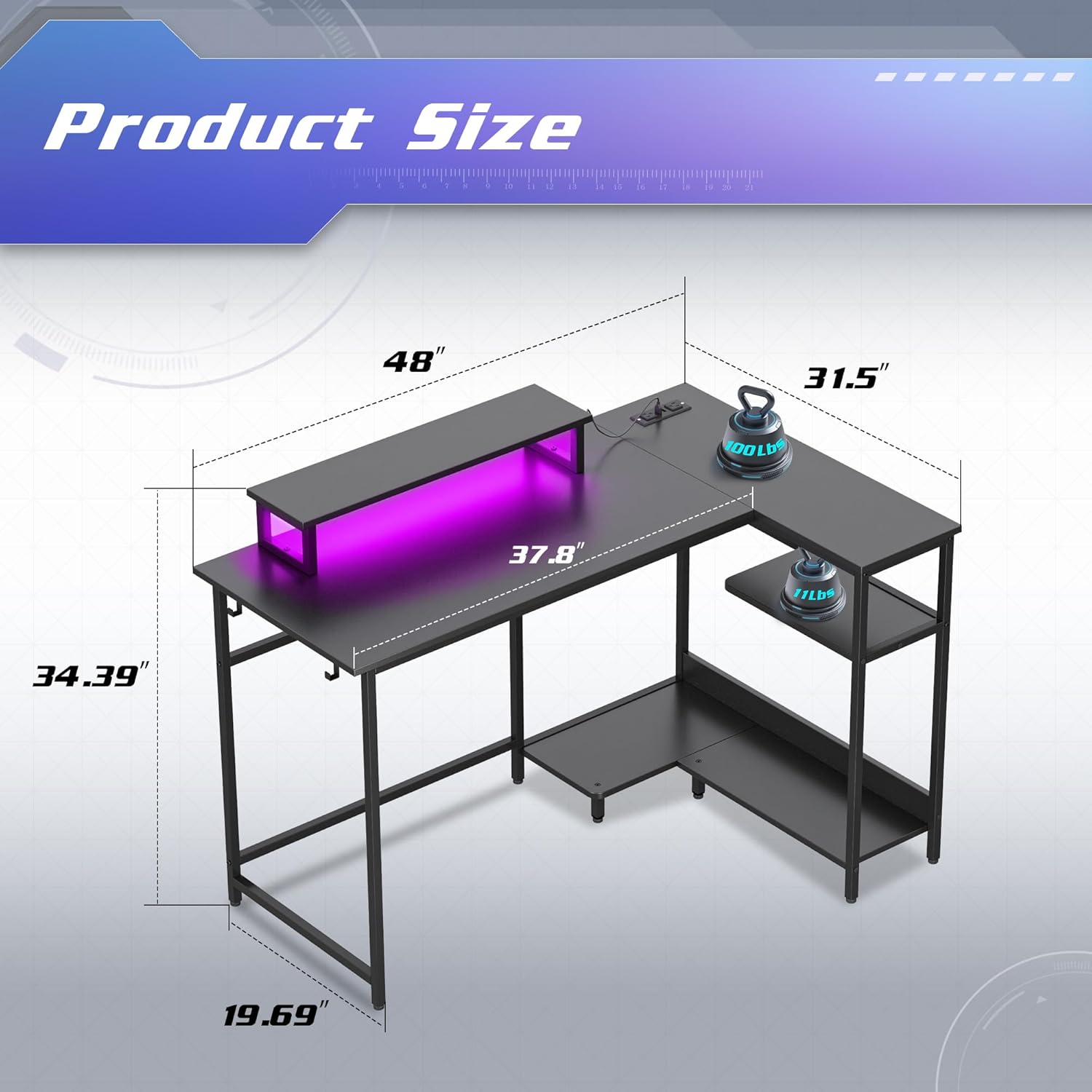
Image 2.1: Dimensions of the DEVAISE AMGZ L-Shaped Gaming Desk, showing measurements for length, width, and height of various sections.
3. Operating Instructions
3.1. Using the Smart LED Lights
The integrated LED lights can be controlled via a dedicated mobile application.
- Download App: Scan the QR code provided in the LED light instruction manual (or search for the specified app name) on your smartphone.
- Connect: Follow the in-app instructions to connect your smartphone to the desk's LED smart controller via Bluetooth or Wi-Fi.
- Control Functions:
- Select from 31 lighting modes.
- Choose from 60,000 colors using the palette switch.
- Activate music rhythm mode for dynamic lighting.
- Set timers for automatic light control.
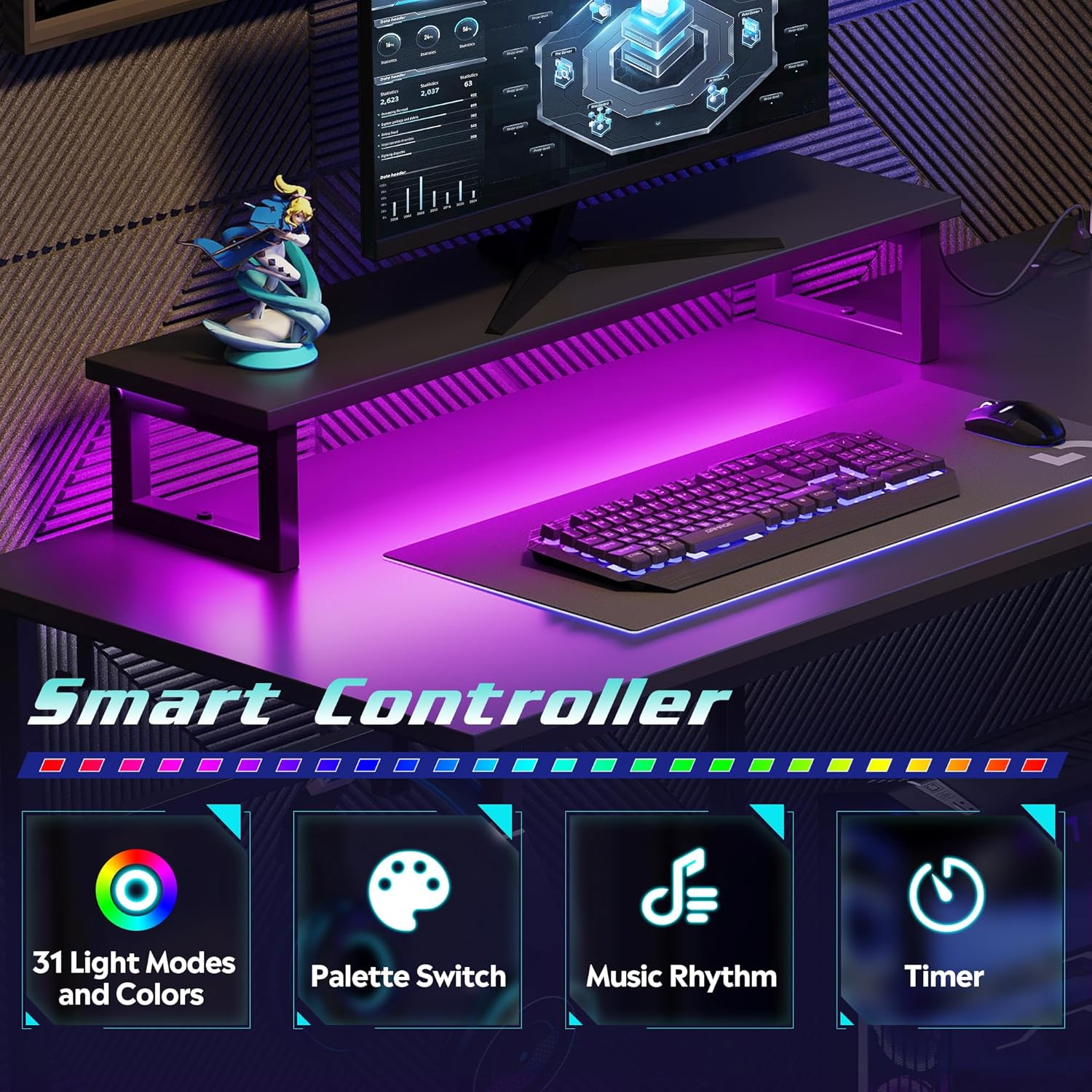
Image 3.1: Visual representation of the smart controller features, including 31 light modes and colors, palette switch, music rhythm, and timer functions.
3.2. Using the Integrated Power Outlets and USB Ports
The desk includes a recessed power strip with 2 AC outlets and 2 USB charging ports.
- Connect to Wall Outlet: Plug the desk's main power cord (4.9-foot) into a standard wall electrical outlet.
- AC Outlets: Use the 125V/12A AC outlets for devices such as monitors, computers, or lamps.
- USB Ports: Use the 5V/2.1A USB ports to charge smartphones, tablets, or other USB-powered devices.
Caution: Do not overload the power strip. Ensure the total power consumption of connected devices does not exceed the rated capacity.

Image 3.2: Close-up view of the recessed power strip, highlighting the two AC outlets and two USB charging ports, along with the 4.9-foot power cord.
3.3. Utilizing the Ergonomic Monitor Stand
The elevated monitor stand is designed to raise your screen to an optimal eye level, promoting better posture and reducing neck and back strain.
- Place your monitor directly on the stand.
- Adjust your seating position to ensure your eyes are level with the top third of your monitor screen.
- The space beneath the monitor stand can be used for storing a keyboard, mouse, or other small accessories when not in use.

Image 3.3: Comparison illustrating the benefits of an elevated monitor stand for maintaining proper ergonomic posture versus a monitor placed directly on the desk.
4. Maintenance
4.1. Cleaning
- Desktop Surface: Wipe the desktop with a soft, damp cloth. For stubborn marks, use a mild, non-abrasive cleaner. Avoid harsh chemicals that may damage the laminated finish.
- Metal Frame: Clean the metal frame with a damp cloth. Dry immediately to prevent rust.
- LED Lights: Gently wipe the LED strips with a dry, soft cloth to remove dust. Do not use liquids directly on the lights.
- Power Outlets: Ensure the power strip is unplugged from the wall before cleaning. Use a dry cloth to wipe the surface. Do not spray liquids directly into the outlets or USB ports.
4.2. General Care
- Regularly check all screws and fasteners to ensure they remain tight. Retighten as necessary to maintain stability.
- Avoid placing excessively hot or cold items directly on the desktop without protective coasters.
- Do not exceed the maximum weight capacity of 110 lbs on the desktop.
- Keep the desk away from direct sunlight and excessive moisture to prolong its lifespan.
5. Troubleshooting
5.1. LED Lights Not Working
- Check Power: Ensure the desk's main power cord is securely plugged into a functional wall outlet.
- Check Connections: Verify that the LED light strips are properly connected to the smart controller and that the controller is receiving power.
- App Connection: Confirm that your smartphone app is correctly paired with the smart controller. Try restarting the app or re-pairing the device.
- Controller Functionality: If the lights still do not work, the smart controller may be faulty. Contact customer support.
5.2. Power Outlets/USB Ports Not Functioning
- Check Main Power: Ensure the desk's main power cord is firmly plugged into a live wall outlet. Test the wall outlet with another device.
- Overload: Disconnect all devices from the power strip. If it starts working, you may have overloaded it. Reduce the number of connected devices.
- Internal Connection: Verify that the recessed power strip is securely seated in its slot and its internal connection to the main power cord is intact.
- Faulty Unit: If the issue persists, the power strip may be faulty. Contact customer support.
5.3. Desk Instability
- Tighten Screws: Re-check and tighten all assembly screws.
- Level Surface: Ensure the desk is placed on a flat, level surface. Adjust any leveling feet if present.
- Even Load: Distribute weight evenly across the desktop.
6. Specifications
| Feature | Detail |
|---|---|
| Brand | DEVAISE |
| Model Number | AMGZ |
| Colour | Black |
| Product Dimensions | 118.11 x 149.86 x 74.68 cm (46.5 x 59 x 29.4 inches) |
| Desk Design | L-Shape Computer Desk |
| Material | Engineered Wood, Metal |
| Top Material Type | Engineered Wood |
| Finish Type | Laminated |
| Item Weight | 21.98 kg (48.46 lbs) |
| Special Features | Monitor Stand, Smart LED Lights, Recessed Power Outlets (2 AC, 2 USB) |
| AC Outlets | 2 (125V/12A) |
| USB Ports | 2 (5V/2.1A) |
| Power Cord Length | 4.9 feet |
| Desktop Weight Capacity | 110 lbs |
7. Warranty and Support
DEVAISE is committed to providing quality products and customer satisfaction.
7.1. Product Warranty
Specific warranty details are typically provided with your purchase documentation. Please refer to the warranty card or contact DEVAISE customer support for information regarding warranty coverage and terms.
7.2. Customer Support
If you encounter any problems with missing or damaged pieces during assembly, or if you experience any issues with the product's functionality, please do not hesitate to contact DEVAISE customer support. Our team is available to assist you.
For support, please visit the official DEVAISE website or refer to the contact information provided in your product packaging.

