
Edifier G1000 II
Edifier G1000 II Desktop Computer Speakers User Manual
Model: G1000 II
1. Introduction
The Edifier G1000 II Desktop Computer Speakers are designed to provide immersive audio for gaming, movies, and music. Featuring a 2.5-inch full-range driver, enhanced bass, multiple EQ modes, dynamic RGB lighting, and versatile connectivity options, these speakers are suitable for various desktop setups.
2. What's in the Box
Upon unboxing your Edifier G1000 II speakers, please ensure all components are present:
- Speaker × 2 (Left and Right)
- 3.5mm Audio Cable × 1
- USB-A to USB-C Adapter × 1
- Quick Start Guide × 1
- Warranty Card × 1

Image: Contents of the Edifier G1000 II speaker box, showing the two speakers, 3.5mm audio cable, USB-A to USB-C adapter, and quick start guide.
Video: An unboxing demonstration of the Edifier G1000 II speakers, showing the process of opening the box and revealing the included components.
3. Product Features
3.1. 2.5" Full-Range Driver & Enhanced Bass
The speakers are equipped with a 2.5-inch full-range driver featuring a 16-core high-magnetic system, delivering immersive spatial audio. The integrated racetrack bass reflex port is designed to deepen low frequencies, providing enhanced bass response for various audio content.

Image: An exploded view illustrating the 2.5-inch 16-core magnetic driver, highlighting its low distortion, high power, and wide dynamics.

Image: A cutaway view of the speaker, detailing the racetrack bass reflex port designed to minimize port noise and boost low frequencies for clear sound.
3.2. Triple EQ Modes
Three expertly tuned presets allow you to optimize audio for specific scenarios: Music, Gaming, and Movie. These modes enhance sound quality and immersion tailored to your content.
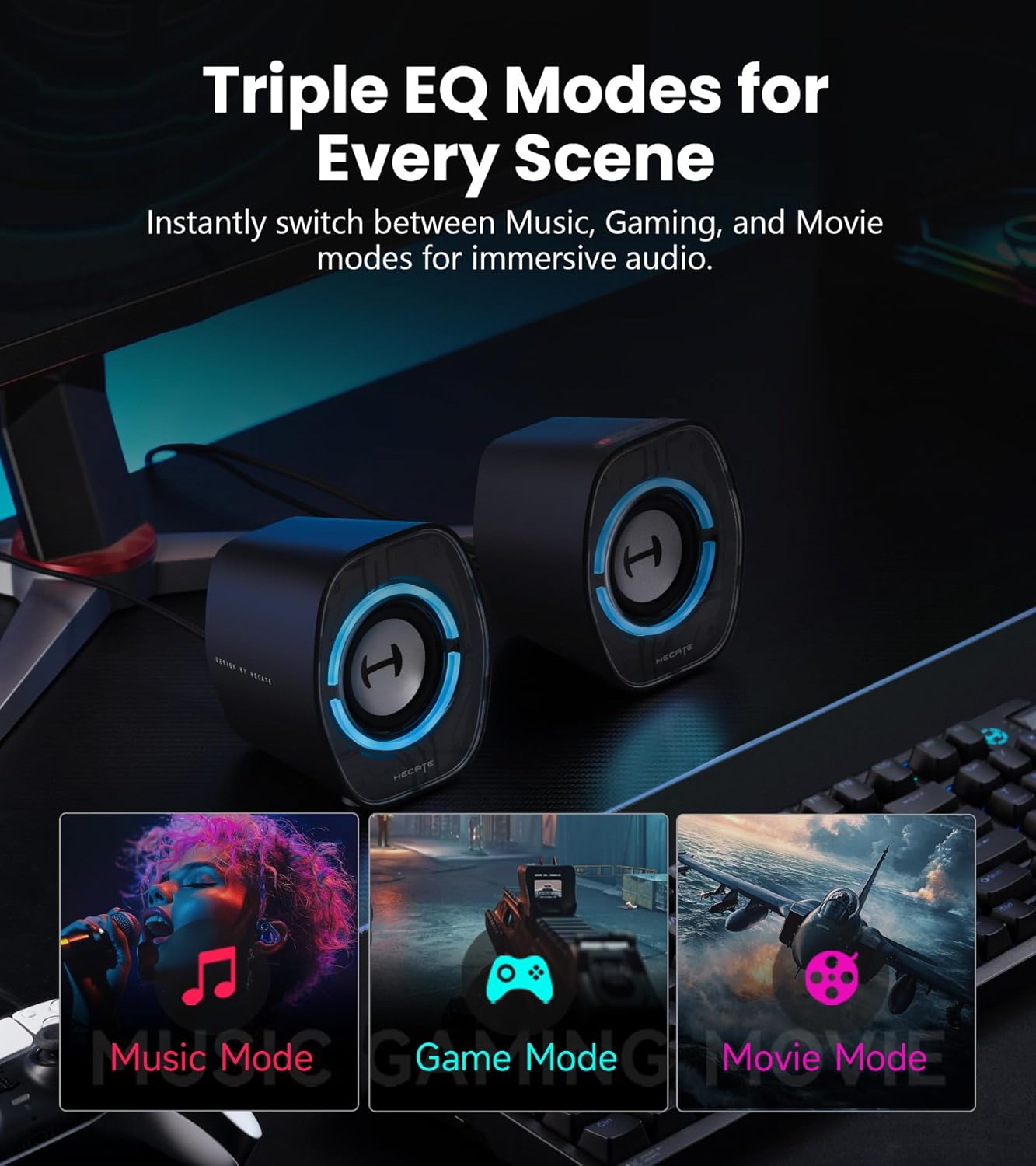
Image: Visual representation of the three distinct EQ modes (Music, Gaming, Movie) available for the speakers, designed for immersive audio experiences.
3.3. Dynamic RGB Lighting
The speakers feature 9 dynamic RGB lighting modes, including static, breathing, and color cycle effects. These customizable lighting options allow you to personalize your setup's aesthetic.

Image: The speaker showcasing its dynamic RGB lighting, with options for 'On', 'Breathing', 'Gradient', and 'Ambient light off' modes, controllable via the app.
3.4. Easy Button Controls & App Customization
Top-mounted buttons provide quick access to EQ modes, volume adjustments, lighting effects, and input mode selection. Further customization and sound tuning are available through the EDIFIER ConneX App.

Image: A detailed view of the soft silicone buttons located on the top of the speaker, offering tactile feedback for easy control.
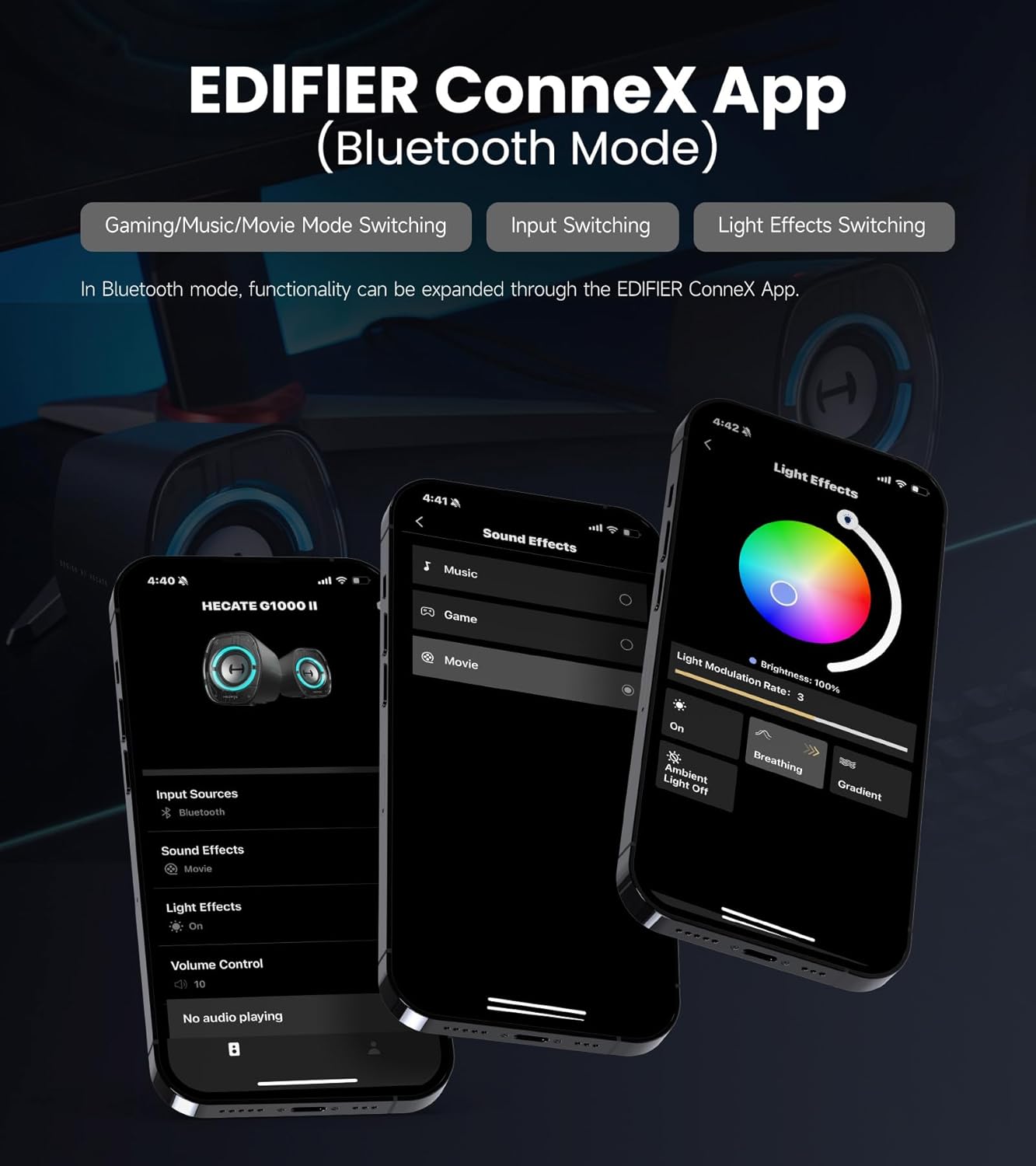
Image: Screenshots demonstrating the EDIFIER ConneX App interface, showing options for gaming/music/movie switching, input switching, and light effects switching in Bluetooth mode.
3.5. Triple Connectivity & Universal Compatibility
The speakers offer versatile connection options including Bluetooth 5.4 (with ≤40ms low latency), USB-C/USB-A, and 3.5mm AUX. This ensures compatibility with a wide range of devices such as PCs, laptops, tablets, and gaming consoles.

Image: A visual guide to the triple connectivity options (Bluetooth 5.4, USB, AUX) and their compatibility with various devices like phones, iPads, laptops, desktops, PS4, and Switch.
3.6. Compact Design
With dimensions of 4.02"D x 4.72"W x 3.62"H, the speakers feature an ultra-slim design that fits easily on most desks, including compact setups. A 10°-tilted baffle helps reduce desk reflections, and anti-slip pads ensure stability.

Image: The compact design of the speakers on a desktop, with measurements indicating their small footprint (3.6-inch width, 4.7-inch height, 4-inch depth).

Image: Close-up details of the speakers, showcasing the transparent cover with mirrored embossing, the 10-degree tilted design, and custom anti-slip pads for stability.
4. Setup Instructions
4.1. Placement
Place the left and right speakers on your desktop, ensuring they are positioned to create an optimal stereo soundstage. The 10° tilted baffle is designed to direct sound towards your listening position.
4.2. Connecting to a Power Source
Connect the speakers to a USB power source using the provided USB-C cable. If your device only has USB-A ports, use the included USB-A to USB-C adapter.
4.3. Audio Connection Options
Choose one of the following methods to connect your audio source:
- Bluetooth Connection:
- Press the 'G' button on the top of the speaker to switch to Bluetooth mode (indicated by a blue light).
- On your device (PC, laptop, tablet, phone), enable Bluetooth and search for 'EDIFIER G1000 II'.
- Select the speaker to pair. Once connected, the blue light will remain steady.
- USB-C Connection:
- Connect the USB-C cable from your computer's USB-C port to the speaker.
- The speakers will be recognized as an audio output device. Select 'EDIFIER G1000 II' as your audio output in your device's sound settings.
- 3.5mm AUX Connection:
- Use the provided 3.5mm audio cable to connect your audio source (e.g., PC, gaming console) to the AUX input port on the speaker.
- Press the 'G' button to switch to AUX mode (indicated by a green light).
5. Operating Instructions
5.1. Power On/Off
The speakers power on automatically when connected to a power source. To turn them off, disconnect the power cable.
5.2. Volume Control
Use the + and - buttons on the top of the speaker to adjust the volume. You can also control the volume from your connected device.
5.3. Changing EQ Modes
Press the 'G' button briefly to cycle through the three EQ modes: Music, Gaming, and Movie. Each mode is optimized for a different audio experience.
5.4. Adjusting RGB Lighting
Press and hold the 'G' button to cycle through the 9 dynamic RGB lighting modes. You can also turn the lighting off. For more advanced customization, use the EDIFIER ConneX App.
5.5. Using the EDIFIER ConneX App
Download the EDIFIER ConneX App from your device's app store. Ensure your speakers are connected via Bluetooth. The app allows for:
- Customized sound tuning.
- Switching between Gaming/Music/Movie modes.
- Changing input sources.
- Adjusting light effects and brightness.
6. Maintenance
To ensure the longevity and optimal performance of your Edifier G1000 II speakers, follow these maintenance guidelines:
- Cleaning: Use a soft, dry cloth to wipe the speaker surfaces. Avoid using abrasive cleaners, waxes, or solvents.
- Environment: Keep the speakers away from direct sunlight, heat sources, and excessive moisture. Ensure proper ventilation around the speakers.
- Handling: Avoid dropping or subjecting the speakers to strong impacts. Do not attempt to disassemble the speakers, as this will void the warranty.
7. Troubleshooting
If you encounter issues with your Edifier G1000 II speakers, refer to the following common problems and solutions:
| Problem | Possible Cause | Solution |
|---|---|---|
| No sound | Incorrect input mode selected. Volume too low. Loose cable connection. | Press the 'G' button to cycle through input modes. Increase volume on speakers and device. Check all cable connections. |
| Bluetooth connection fails | Speakers not in pairing mode. Device Bluetooth off. Interference. | Ensure speakers are in Bluetooth mode (blue light). Turn Bluetooth off and on on your device. Move closer to speakers. |
| RGB lighting not working | Lighting turned off. | Press and hold the 'G' button to cycle through lighting modes or use the EDIFIER ConneX App to enable. |
| Sound distortion | Volume too high. Poor audio source quality. | Reduce volume. Test with a different audio source. |
8. Specifications
| Feature | Detail |
|---|---|
| Model Name | G1000 II |
| Speaker Type | Multimedia |
| Special Feature | Auto EQ |
| Recommended Uses | For Computers |
| Unit Count | 2.0 Count |
| Color | Black |
| Product Dimensions | 4.02"D x 4.72"W x 3.62"H |
| Item Weight | 1.76 pounds (0.8 Kilograms) |
| Speaker Size | 2.5 Inches |
| Signal-to-Noise Ratio | 80 dB |
| UPC | 875674008443 |
| Manufacturer | EDIFIER ENTERPRISES |
| Speaker Maximum Output Power | 32 Watts |
| Connectivity Technology | Bluetooth 5.4, USB-C, 3.5mm AUX |
| Mounting Type | Tabletop Mount |
| Material | Plastic |
9. Warranty and Support
Your Edifier G1000 II speakers come with a manufacturer's warranty. Please refer to the included Warranty Card for specific terms and conditions. For technical support, troubleshooting assistance beyond this manual, or warranty claims, please contact Edifier customer service or visit the official Edifier website.
You can find more information and support resources on the Edifier Store on Amazon.
Related documentsG1000 II


Ask a question about this manual
Ask about setup, troubleshooting, compatibility, parts, safety, or missing instructions. Manuals+ will review the question and use this page’s manual context to help answer it.