
1. Product Overview
The OMOTON Wireless Keyboard for Mac is designed for seamless compatibility with Mac OS 10.10 or later, including MacBook, MacBook Pro, MacBook Air, Mac Pro, Mac Mini, and iMac. It features both 2.4G wireless and dual Bluetooth connectivity, allowing connection to up to two devices simultaneously. The keyboard boasts a durable forged metal frame, an ultra-thin design, adjustable 7-color backlighting, and a built-in rechargeable battery for extended use. Its ergonomic design promotes comfortable typing.

Figure 1: OMOTON Wireless Keyboard, showcasing its full-size layout and backlit keys.
2. Setup and Connection
2.1. 2.4G Wireless Connection
- Locate the 2.4G receiver (Type-C and USB-A dual interface) included with your keyboard.
- Plug the appropriate end of the receiver (Type-C or USB-A) into an available port on your Mac device.
- Turn on the keyboard. The keyboard will automatically connect to your device via the 2.4G channel.

Figure 2: The 2.4G receiver features both Type-C and USB-A interfaces for broad compatibility.

Figure 3: Diagram illustrating the 2.4G and Bluetooth connection options.
2.2. Bluetooth Connection (BT1 / BT2)
The keyboard supports two independent Bluetooth channels (BT1 and BT2) for connecting to two different devices simultaneously.
- Turn on the keyboard.
- Press the BT1 or BT2 key to select the desired Bluetooth channel. The indicator light for the selected channel will flash rapidly.
- On your Mac device, go to System Settings > Bluetooth and select "Bluetooth Keyboard" from the list of available devices.
- Once connected, the indicator light on the keyboard will turn off.
- To switch between connected devices, simply press the BT1 or BT2 key.

Figure 4: The keyboard supports seamless switching between two Mac devices using dedicated Bluetooth channels.
3. Operating Instructions
3.1. Backlight Adjustment
The keyboard features a 7-color backlight with 3 adjustable brightness levels. Use the dedicated backlight key (often labeled with a sun icon or similar) to cycle through colors and brightness settings.
- Press the backlight key once to turn on the backlight.
- Continue pressing the backlight key to cycle through the 7 available colors.
- To adjust brightness, press the backlight key in combination with the Fn key (refer to keyboard layout for specific key combination if not intuitive). There are typically three brightness levels (low, medium, high) and an off setting.
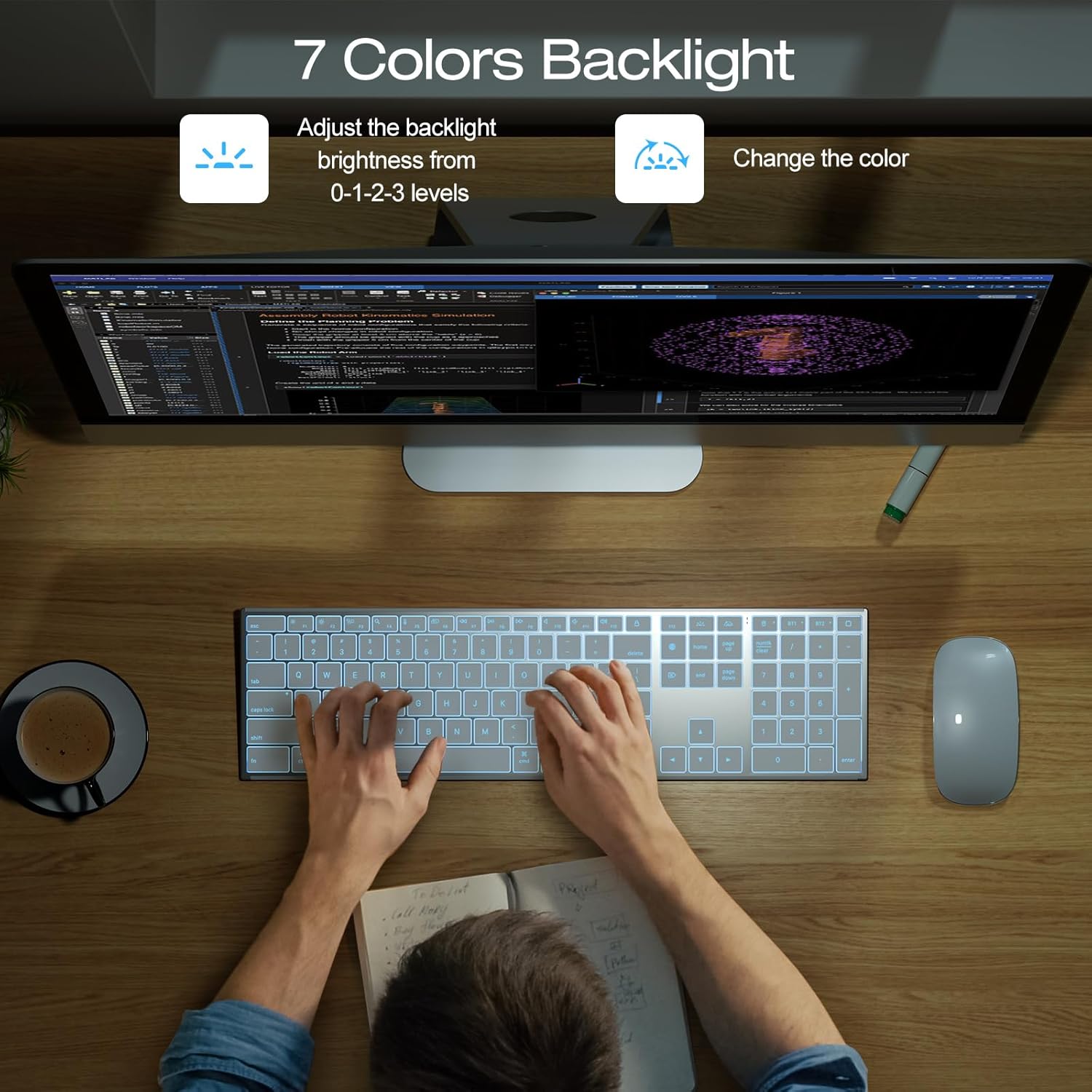
Figure 5: The keyboard's 7-color backlight enhances visibility and user experience in various lighting conditions.
3.2. Mac-Specific Key Layout
The keyboard is designed with a US Mac layout, including function keys optimized for macOS. These keys provide quick access to system functions such as brightness control, Mission Control, media playback, and volume adjustment.

Figure 6: The keyboard's ergonomic design and Mac-specific layout provide a comfortable and efficient typing experience.
3.3. Charging the Keyboard
The keyboard features a built-in rechargeable battery. When the battery is low, the indicator light may flash or the keyboard may become unresponsive. Connect the keyboard to a power source using the provided USB-C cable.
- Plug the USB-C end of the cable into the keyboard's charging port.
- Plug the USB-A end of the cable into a USB power adapter or a computer's USB port.
- The charging indicator light will illuminate during charging and turn off when fully charged.

Figure 7: The keyboard features a convenient USB-C charging port for easy recharging.
4. Maintenance
To ensure the longevity and optimal performance of your OMOTON Wireless Keyboard, follow these maintenance guidelines:
- Cleaning: Use a soft, lint-free cloth to wipe the keyboard surface. For stubborn dirt, slightly dampen the cloth with water or a mild, non-abrasive cleaner. Avoid excessive moisture.
- Storage: Store the keyboard in a cool, dry place away from direct sunlight and extreme temperatures.
- Battery Care: To preserve battery life, avoid fully discharging the battery frequently. Recharge the keyboard when the low battery indicator appears. If storing for an extended period, charge the battery to about 50% before storage.
- Avoid Liquids: Do not expose the keyboard to liquids. In case of spills, immediately disconnect the keyboard and allow it to dry completely before re-using.
5. Troubleshooting
If you encounter issues with your OMOTON Wireless Keyboard, refer to the following common troubleshooting steps:
- Keyboard not connecting:
- Ensure the keyboard is turned on and fully charged.
- For 2.4G connection, ensure the receiver is securely plugged into a working USB port.
- For Bluetooth connection, ensure Bluetooth is enabled on your device and the keyboard is in pairing mode (indicator flashing). Try forgetting the device on your Mac and re-pairing.
- Try connecting to a different USB port or a different device to rule out port or device issues.
- Backlight not working or dim:
- Ensure the keyboard has sufficient battery charge.
- Press the backlight key to cycle through brightness levels and colors.
- Keys are unresponsive or sticky:
- Clean the keys and surrounding areas to remove any debris.
- Restart the keyboard and your connected device.
- Lag or delayed input:
- Ensure the keyboard is within the effective range of your device (typically 10 meters for Bluetooth/2.4G).
- Minimize interference from other wireless devices.
- Ensure your device's operating system is up to date.
6. Specifications

Figure 8: The keyboard's ultra-thin profile and compact dimensions.
| Feature | Detail |
|---|---|
| Brand | OMOTON |
| Model | White-US Layout |
| Connectivity Technology | 2.4G (Type-C and USB A Interface), Bluetooth (Dual Bluetooth Channels) |
| Compatible Devices | Laptop (Mac OS 10.10 or later, MacBook, iMac, etc.) |
| Keyboard Description | Ultra-thin Design, Full Size |
| Special Feature | Ergonomic, Wireless, Backlit (7 colors, 3 levels) |
| Material | Metal (Forged Metal Frame) |
| Number of Keys | 104 |
| Color | White |
| Power Source | Battery Powered (1 Lithium Ion battery included) |
| Item Weight | 1.76 pounds |
| Package Dimensions | 17.2 x 6.3 x 1.14 inches |
| Date First Available | May 15, 2025 |
7. Warranty and Support
For warranty information, technical support, or customer service inquiries, please refer to the contact details provided on the product packaging or visit the official OMOTON website. Keep your purchase receipt for warranty claims.
Official OMOTON Store: https://www.amazon.com/stores/OMOTON/page/95DC2DDF-8699-41F6-BCED-841AB2EA1505


