
1. Setup and Installation
The Redragon K636LGR Mechanical Gaming Keyboard is designed for plug-and-play functionality, requiring no additional drivers for basic operation.
1.1 Connecting the Keyboard
Connect the Type-C end of the provided cable to the keyboard's port and the USB-A end to an available USB port on your computer (PC or Laptop). The keyboard will be automatically recognized by your operating system.

Image: The Redragon K636LGR keyboard connected via its USB-C port.
1.2 System Compatibility
This keyboard is compatible with a wide range of operating systems, including Windows 7, 8, 10, 11, Vista, XP, Chrome OS, Linux, macOS, and iOS systems. It is suitable for use with PCs, laptops, and tablets.
2. Operating Instructions
The Redragon K636LGR keyboard offers various customizable features, including backlighting, macro programming, and multimedia controls.
2.1 Backlight Settings
The keyboard features customizable RGB backlighting with multiple patterns and brightness levels.
- FN + ALT + R: Switch between 9 different backlight patterns.
- FN + CTRL + R: Save the current backlight setting.
- FN + ESC: Restore backlighting to factory default settings.
- FN + ↑: Increase backlight brightness.
- FN + ↓: Decrease backlight brightness.
- FN + ← / →: Adjust the speed of light rotation or animation.
2.2 Pre-set Lighting Modes for Gaming
The keyboard includes 8 pre-set lighting modes optimized for popular gaming genres. Press FN + [Number] to activate these modes:
- FN + 1: FPS Mode (A, S, D, W, arrow keys, ESC keys light up).
- FN + 2: CF Mode (A, S, D, W, Ctrl, Shift, Alt, Space, R, G, Q, E, B, 1-5, Tab, F1-F3, PrintScreen keys light up).
- FN + 3: COD Mode (Q, W, E, R, T, A, S, D, F, G, Shift, Ctrl, Alt, Space, 1-7, C, Left Shift keys light up).
- FN + 4: RTS Mode (Q, W, E, R, T, A, S, D, G, F, H, K, L, Z, X, N, M, Ctrl, Alt, Shift, Space, 1-0, Left Shift, Alt keys light up).
- FN + 5: LOL Mode (Q, W, E, R, D, F, G, V, B, Left Ctrl, Left Alt, Tab, Space, 1-6, Esc keys light up).
- FN + 6: Car Race Mode (A, S, D, W, R, arrow keys, Ctrl, Shift, Alt keys light up).
- FN + 7: NBA Mode (A, S, D, W, F, R, V, C, Left Ctrl, Left Alt, Space, arrow keys, Z, X, C, V, 1234 keys light up).
- FN + 8: LOL Mode (Q, W, E, R, D, F, B, 1-6 keys light up).

Image: Examples of pre-set gaming backlight modes on the Redragon K636LGR keyboard.
2.3 Key Function Introduction (Macro Recording)
The keyboard supports macro recording for enhanced efficiency in gaming and work.
- FN + L1/L2: Select a macro profile (L1 or L2).
- FN + Home: Enter macro recording mode.
- Press the desired keys to record your macro sequence.
- FN + End: Save the recorded macro and exit recording mode.
- FN + L1/L2: Play the recorded macro.
- FN + PGUP: Delete the recorded macro.
2.4 Multimedia Key Functions
Access various multimedia functions using the FN key in combination with the F-keys:
- FN + F1: Open Computer
- FN + F2: Open Search
- FN + F3: Open Calculator
- FN + F4: Open CD Player
- FN + F5: Previous Track
- FN + F6: Next Track
- FN + F7: Play/Pause
- FN + F8: Stop CD Playback
2.5 Advanced Customization with Software
The Redragon K636LGR supports professional software for full customization of keys, light effects, and macros. This allows for personalized key assignments and more efficient workflow or gaming.

Image: The Redragon software interface for customizing keyboard functions and lighting.
2.6 Anti-Ghosting and Win Key Lock
The keyboard features full anti-ghosting on all keys, ensuring every keystroke is registered accurately, even during rapid, simultaneous presses. To prevent accidental interruptions during gaming, the Windows key can be locked.
- FN + WIN: Lock/Unlock the Windows key.
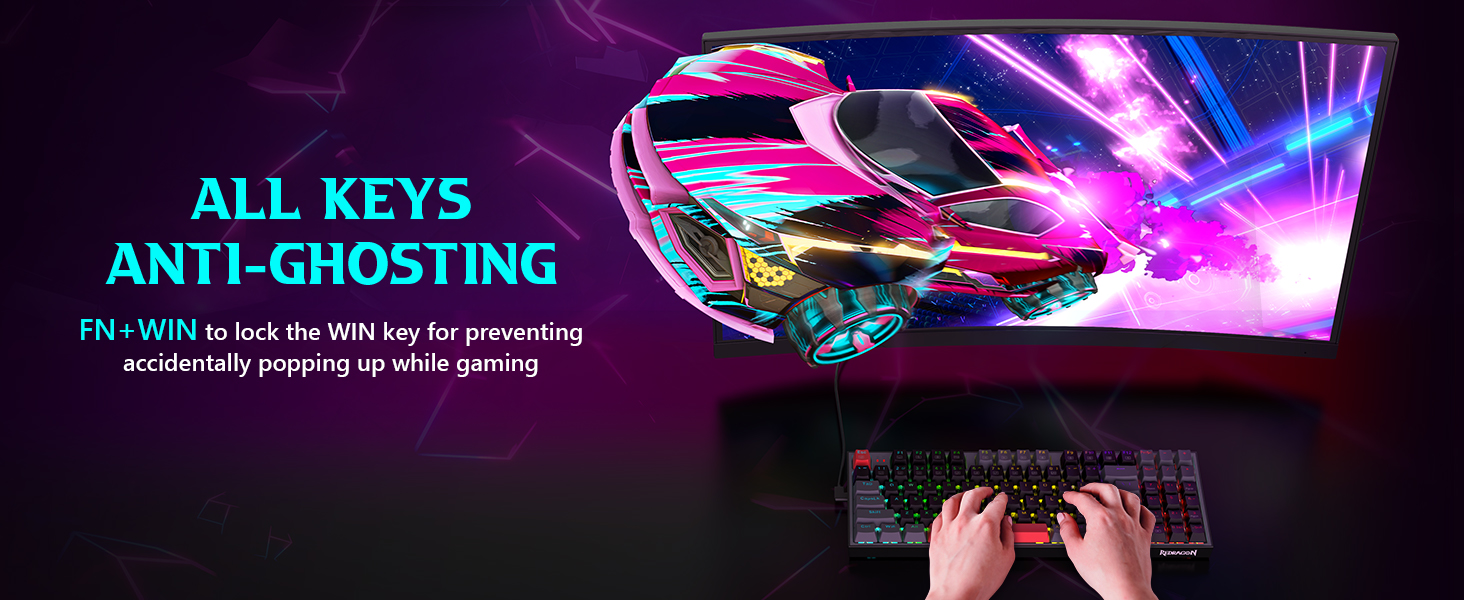
Image: User interacting with the keyboard during a gaming session, highlighting anti-ghosting.
3. Maintenance
Proper maintenance ensures the longevity and optimal performance of your mechanical keyboard.
3.1 Hot-Swappable Switches
The Redragon K636LGR features hot-swappable switches, allowing users to easily replace individual switches without soldering. This enables customization of typing feel and simplifies maintenance if a switch malfunctions. The keyboard supports 3-pin switches.

Image: The hot-swappable design of the Redragon K636LGR, with switches and keycaps detached.
3.2 Keycap and Switch Removal
To remove keycaps or switches, use the included 2-in-1 keycap and switch puller tool. Gently pull upwards on the keycap to remove it. For switches, use the switch puller to grasp the switch firmly and pull straight up. When installing, align the switch pins with the sockets and press down until it clicks into place. Ensure keycaps are pressed down evenly.

Image: Included keycap and switch puller tool with spare switches and keycaps.
3.3 Cleaning
Regularly clean your keyboard to prevent dust and debris buildup. Use a soft brush or compressed air to remove particles from between the keys. For deeper cleaning, remove keycaps and wipe them with a damp cloth. Ensure the keyboard is unplugged before cleaning.
4. Troubleshooting
If you encounter issues with your Redragon K636LGR keyboard, refer to the following common troubleshooting steps:
- Keyboard Not Responding: Ensure the USB cable is securely connected to both the keyboard and the computer. Try plugging the keyboard into a different USB port or a different computer to rule out port or system issues.
- Backlight Issues: If backlighting is not working or behaving unexpectedly, try resetting the backlight settings to factory defaults by pressing FN + ESC. Check backlight brightness levels using FN + ↑ / ↓.
- Keys Not Registering: For individual keys, consider if the switch might be faulty. Utilize the hot-swappable feature to replace the switch with one of the spares provided. Ensure keycaps are properly seated.
- Macro Problems: If macros are not recording or playing back correctly, ensure you are following the correct recording procedure (Section 2.3). Try deleting and re-recording the macro.
- Software Issues: If using the customization software, ensure it is the latest version and compatible with your operating system. Reinstalling the software may resolve conflicts.
5. Specifications
Detailed technical specifications for the Redragon K636LGR Mechanical Gaming Keyboard:
| Feature | Detail |
|---|---|
| Brand | Redragon |
| Model Name | K636LGR |
| Connectivity Technology | USB-C (Wired) |
| Keyboard Description | Mechanical |
| Switch Type | Red Switches (Hot-Swappable, 3-pin support) |
| Layout | 94-Key Compact Layout with Numeric Pad |
| Special Features | Backlit, Customizable Display Keys, Programmable Keys, Anti-Ghosting |
| Compatible Devices | Laptop, PC |
| Material | Plastic |
| Item Weight | 1.83 pounds |
| Package Dimensions | 15.35 x 6.85 x 2.17 inches |
6. Warranty and Support
Redragon provides a comprehensive warranty and dedicated customer support for the K636LGR Mechanical Gaming Keyboard.
6.1 Warranty Information
This product comes with a 24-Month Warranty from the date of purchase. This warranty covers manufacturing defects and ensures product reliability under normal use. Please retain your proof of purchase for warranty claims.
6.2 Customer Support
Should you encounter any issues or have questions regarding your Redragon K636LGR keyboard, please do not hesitate to contact Redragon customer service. Our support team is committed to providing assistance within 24 hours.
For support, please visit the official Redragon website or refer to the contact information provided with your product packaging.


