
Introduction
The FUNSNAP Capture5 Gimbal Stabilizer is designed to provide smooth, stable video recording with your smartphone. Featuring a 3-axis stabilization system, AI tracking capabilities, an integrated fill light, and a remote control, it enhances your mobile videography experience. This manual provides comprehensive instructions for setting up, operating, and maintaining your Capture5 gimbal.
What's in the Box

Image: All components included in the FUNSNAP Capture5 Gimbal Stabilizer package.
- C05 Gimbal x 1
- Remote Controller x 1
- Mini Tripod x 1
- AI Tracker x 1
- User Manual x 1
- Type C Charging Cable x 1
- Fill Light x 1
Product Overview
Familiarize yourself with the main components of your FUNSNAP Capture5 Gimbal Stabilizer.


Setup
1. Charging the Gimbal
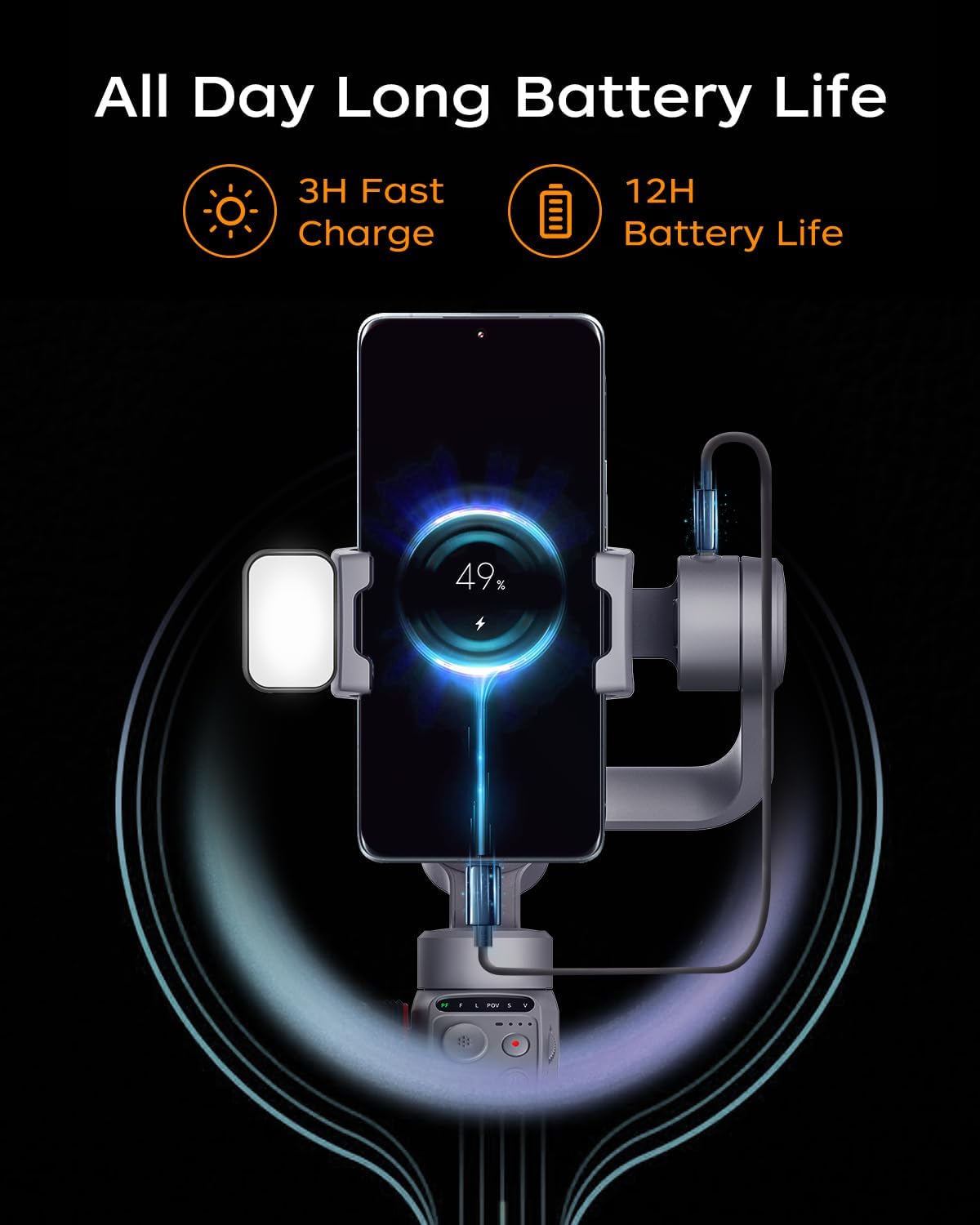
Before first use, fully charge the gimbal. Connect the Type-C charging cable to the gimbal's charging port and a USB power adapter (not included). The battery indicator lights will show charging status. A full charge takes approximately 3 hours and provides up to 13 hours of operation.

Image: The gimbal connected to a charging cable, indicating battery status.
2. Mounting Your Smartphone
- Unfold the gimbal.
- Extend the phone clamp and securely place your smartphone in the center. Ensure the phone's camera is not obstructed. The gimbal supports smartphones up to 500g.
- Adjust the phone's position in the clamp to achieve balance. The phone should remain level when the gimbal is powered off.
3. Attaching Accessories
- AI Tracker: Attach the AI tracker to the designated slot on the gimbal.
- Fill Light: The magnetic fill light can be attached to the top of the phone clamp.
- Mini Tripod: Screw the mini tripod into the 1/4-inch thread at the bottom of the gimbal handle for stable placement.
4. Powering On/Off
Press and hold the power button for 3 seconds to power on or off the gimbal. The gimbal will automatically calibrate upon startup.
Operating Instructions
Basic Controls
The FUNSNAP Capture5 features intuitive controls for easy operation.
- Joystick: Controls the pan and tilt movements of the smartphone.
- Control Wheel: Adjusts roll axis rotation, focus, and the magnetic fill light's cold/warm light and RGB settings.
- Mode Button: Switches between different gimbal modes (e.g., Pan Follow, Lock Mode).
- Record Button: Starts and stops video recording or takes photos.
- M Button: Switches between horizontal and vertical shooting modes.
AI Tracking
The integrated AI Vision Sensor allows for face and body tracking without requiring a Bluetooth connection or a dedicated app. Simply activate the AI tracker, and it will automatically follow your subject.

Image: The gimbal actively tracking a person, illustrating its AI tracking capability.
Gesture Control
Utilize hand gestures to control recording functions. Specific gestures can initiate recording, stop recording, or customize composition within the Capture2 APP.

Image: Visual guide for gesture controls, including start, stop, and custom composition gestures.
Remote Control
The included remote control allows you to operate the gimbal from a distance of up to 33 feet, providing flexibility for various shooting scenarios.

Image: A person using the remote control to operate the gimbal from a distance.
Fill Light Adjustment
The magnetic fill light offers adjustable brightness, color temperature (cold/warm light), and RGB settings via the control wheel, allowing you to optimize lighting for your shots.
Image: The fill light demonstrating different brightness and color temperature settings.
Shooting Modes
The Capture2 APP (available for download) unlocks various shooting modes, including panorama, wide-angle, cinematic, live-streaming, time-lapse, and motion-lapse. It also allows optimization of your phone's native camera settings.
Video: Demonstration of the FUNSNAP Capture5 Gimbal Stabilizer in use for various shooting scenarios, showcasing its stabilization and tracking features.
Video: Another demonstration of the FUNSNAP Capture5 Gimbal Stabilizer capturing smooth footage in different outdoor settings.
Key Features
- AI Vision Sensor with Magnetic Fill Light: Advanced AI tracking for face/body without app or Bluetooth, combined with an adjustable magnetic fill light.
- Smart Anti-Shake Technology: Professional 3-axis stabilization (Smart 8.0/9.0 Anti-Shake) to eliminate shaking and ensure stable video.

Image: A visual comparison demonstrating the superior stability achieved with the FUNSNAP Capture5 Gimbal versus handheld footage.
- Extended Battery Life: 2600mAh battery provides up to 10-13 hours of continuous shooting, ideal for long sessions.
- Wide Compatibility: Supports a broad range of smartphones, including large and foldable models, compatible with 99% of smartphones on the market.

Image: An array of different smartphone models, illustrating the wide compatibility of the gimbal.

Image: A table detailing specific smartphone models and their supported camera functions with the gimbal.
- 360° Rotation: Offers 360-degree unlimited rotation for immersive visual effects.

Image: The gimbal performing a 360-degree rotation, creating a dynamic visual effect.
Maintenance
- Cleaning: Use a soft, dry cloth to clean the gimbal. Avoid using liquid cleaners or solvents.
- Storage: When not in use, fold the gimbal and store it in its protective case in a cool, dry place.
- Battery Care: To prolong battery life, fully charge the gimbal at least once every three months if stored for extended periods.
- Avoid Overloading: Do not mount smartphones heavier than the specified 500g payload to prevent damage to the motors.
Troubleshooting
- Gimbal not powering on:
- Ensure the battery is charged. Connect the gimbal to a power source using the Type-C cable and try again after a few minutes.
- Gimbal is unstable or vibrating:
- Check if the smartphone is properly balanced in the clamp. The phone should remain level when the gimbal is off. Recalibrate the gimbal if necessary (refer to the app or manufacturer's website for calibration steps).
- AI Tracker not working:
- Ensure the AI tracker is securely attached and powered on. Verify there are no obstructions between the tracker and the subject. If issues persist, the AI tracker might be faulty (as noted in some user reviews, it can be delicate).
- Remote control not responding:
- Check the remote control's battery. Ensure it is paired correctly with the gimbal (refer to pairing instructions in the full manual or app).
- Phone not fitting in clamp:
- Verify your phone's dimensions and weight are within the gimbal's specifications (max 500g payload). Remove any bulky cases if necessary.
Specifications
| Brand | FUNSNAP |
| Model | Capture5 (C05) |
| Product Dimensions | 2.5"D x 3.5"W x 8"H (Folded: 8.0 x 3.5 x 2.5 inches) |
| Item Weight | 12.8 ounces |
| Compatible Devices | Smartphones (up to 500g payload) |
| Battery Capacity | 2600mAh (up to 10-13 hours operating time) |
| Charging Time | Approx. 3 hours |
| Remote Control Range | Up to 33 feet |
Warranty and Support
For warranty information, technical support, or service inquiries, please contact FUNSNAP Official customer service. Refer to the product packaging or the official FUNSNAP website for contact details.
Online Resources:
- Visit the FUNSNAP Store on Amazon for product updates and additional information.
- Check the Capture2 APP for tutorial videos and advanced features.


