
iRobot Y051020
iRobot Roomba Combo 2 Essential Robot Auto Empty Vac & Mop User Manual
Model: Y051020 | Brand: iRobot
Introduction
The iRobot Roomba Combo 2 Essential Robot is designed to provide comprehensive floor cleaning by combining vacuuming and mopping functionalities. This device features an AutoEmpty dock for convenient debris disposal and smart navigation for efficient cleaning of various floor types. It is equipped with a 4-Stage Cleaning System and offers customizable cleaning options.
What's in the Box
Verify that all components are present before initial setup.
- iRobot Roomba Combo 2 Essential Robot
- AutoEmpty Dock
- Washable Microfiber Mop Pad
- Power Cord
- User Manual (this document)
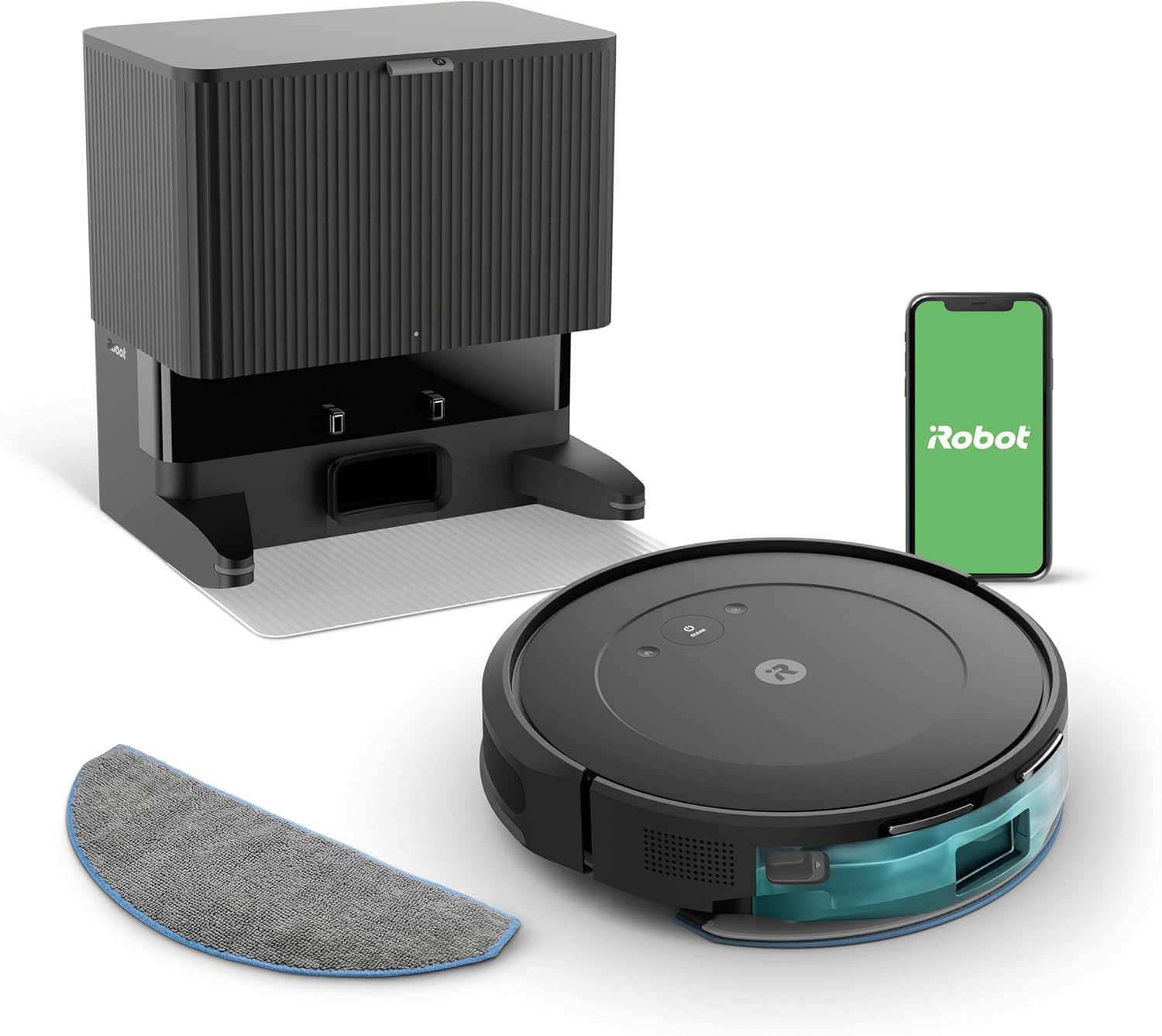
Figure 1: Main components of the iRobot Roomba Combo 2 Essential Robot system, including the robot, the auto-empty base, and a mop pad.
Setup Guide
Initial Placement and Charging
- Unpack the Robot and Dock: Carefully remove all components from the packaging.
- Choose a Location for the AutoEmpty Dock: Place the dock on a hard, level surface against a wall, ensuring there are no obstacles within 1.5 feet (0.5 meters) on either side and 4 feet (1.2 meters) in front. Ensure it is near a power outlet.
- Connect Power: Plug the power cord into the AutoEmpty Dock and then into a wall outlet.
- Charge the Robot: Place the Roomba Combo 2 Essential Robot onto the charging contacts of the AutoEmpty Dock. Ensure the robot is properly seated and the charging indicator lights illuminate. Allow the robot to fully charge before its first use (approximately 3 hours).
Connecting to the iRobot Home App
The iRobot Home App is essential for full functionality, including scheduling, customizing cleaning preferences, and monitoring cleaning progress.
- Download the App: Download the iRobot Home App from your device's app store (available for iOS and Android).
- Create an Account: Open the app and follow the on-screen instructions to create an iRobot account or log in if you already have one.
- Add Your Robot: Select "Add a Robot" and choose your Roomba Combo 2 Essential model.
- Connect to Wi-Fi: Follow the app's instructions to connect your robot to your home Wi-Fi network. Important: The robot requires a 2.4 GHz Wi-Fi network for setup and operation. Ensure your phone is also connected to a 2.4 GHz network during the setup process. After setup, your phone can return to a 5 GHz network if desired, but the robot must remain on 2.4 GHz.
- Complete Setup: The app will guide you through any remaining setup steps, including naming your robot.

Figure 2: The iRobot Roomba Combo 2 Essential Robot showing the removable water tank for mopping functionality.
Operating Instructions
Starting a Cleaning Cycle
You can start a cleaning cycle using the button on the robot or through the iRobot Home App.
- Using the Robot Button: Press the CLEAN button on the top of the robot once to start a cleaning cycle. Press it again to pause, and a third time to send the robot back to its dock.
- Using the iRobot Home App: Open the app and tap the "CLEAN" button. You can also set schedules, select specific rooms (if mapping is complete), and adjust cleaning preferences.
Vacuuming and Mopping Functionality
The Roomba Combo 2 Essential features a 4-Stage Cleaning System that vacuums and mops simultaneously. This system includes a special brush for edge cleaning, ensuring thorough dirt and dust removal.
- Mopping Setup: To enable mopping, fill the water tank with clean water and attach the washable microfiber mop pad. The robot uses a micro pump to control water flow and keep the pad uniformly moist.
- Customized Cleaning: The iRobot Home App allows you to select from 4 levels of suction power and 3 different water level options for mopping, providing a customized cleaning experience for various floor types.
Automatic Emptying and Charging
- AutoEmpty Dock: The robot automatically empties its dustbin into an enclosed bag within the AutoEmpty dock. This bag can hold up to 60 days of dirt and debris, reducing the frequency of manual emptying.
- Recharge and Resume: The robot can clean for up to 120 minutes on a single charge. When its battery is low, it automatically returns to its charging station. Once sufficiently recharged, it will resume the cleaning task from where it left off.
Smart Navigation and App Features
- Methodical Cleaning: The robot navigates methodically in neat rows, ensuring comprehensive coverage of your home. Sensors help it navigate around furniture and prevent falls down stairs.
- iRobot Home App: The app provides features such as "Clean While I'm Away," suggested cleaning schedules, and a "Clean Map" report, allowing you to monitor cleaning progress and history.

Figure 3: The iRobot Roomba Combo 2 Essential Robot actively cleaning a wooden floor, demonstrating its operational capability.
Maintenance and Care
Regular maintenance ensures optimal performance and extends the lifespan of your Roomba Combo 2 Essential Robot.
Cleaning the Mop Pad
- After Each Mopping Cycle: Remove the microfiber mop pad from the robot.
- Washing: The mop pad is washable. Rinse it thoroughly under running water until clean. For deeper cleaning, it can be machine washed according to the instructions on the pad's label.
- Drying: Allow the mop pad to air dry completely before reattaching it to the robot or storing it. The pad is reusable for up to 30 uses.
Emptying the AutoEmpty Dock Bag
- The AutoEmpty dock's enclosed bag holds up to 60 days of dirt and debris. Monitor the bag full indicator on the dock or in the iRobot Home App.
- When the bag is full, carefully remove it from the dock and dispose of it. Replace with a new iRobot AutoEmpty bag.
Cleaning Brushes and Sensors
- Main Brushes: Periodically remove hair and debris from the main cleaning brushes. Use the cleaning tool provided (if applicable) or scissors to cut away tangled hair.
- Side Brush: Check the side brush for tangled hair or debris and clean as needed.
- Sensors: Wipe the cliff sensors (located on the underside of the robot) and charging contacts (on both the robot and the dock) with a clean, dry cloth to ensure proper operation.

Figure 4: The underside of the iRobot Roomba Combo 2 Essential Robot, illustrating the main brushes, side brush, and the attachment point for the mop pad.
Troubleshooting
This section addresses common issues you might encounter with your Roomba Combo 2 Essential Robot.
| Problem | Possible Cause | Solution |
|---|---|---|
| Robot not charging | Poor contact with charging dock; dirty charging contacts; dock not powered. | Ensure robot is properly seated on dock. Clean charging contacts on both robot and dock with a dry cloth. Verify dock is plugged in and receiving power. |
| Robot not starting or stopping unexpectedly | Low battery; tangled brushes/wheels; sensor obstruction; software glitch. | Charge the robot fully. Clean main brushes, side brush, and wheels. Wipe all sensors. Perform a robot reboot (refer to app for specific instructions). |
| Poor cleaning performance | Full dustbin/bag; dirty filters; worn brushes; mop pad not wet enough. | Check and replace AutoEmpty dock bag if full. Clean or replace filters. Clean or replace brushes. Ensure water tank is filled and mop pad is clean and properly attached. Adjust water level settings in the app. |
| Robot getting stuck frequently | Obstacles; dark surfaces (cliff sensors); tangled cords. | Clear obstacles from the cleaning path. Use virtual walls or barriers for problem areas. Ensure no loose cords are present. |
| Cannot connect to Wi-Fi | Incorrect Wi-Fi password; 5 GHz network; router issues. | Double-check Wi-Fi password. Ensure you are connecting to a 2.4 GHz network. Reboot your router. Move robot closer to router during setup. |
Technical Specifications
| Brand | iRobot |
| Model Name | Y051020 |
| Color | Black |
| Battery Life | 120 minutes |
| Item Weight | 12 Kilograms (26.4 pounds) |
| Water Tank Capacity | 400 Milliliters |
| Power Source | Battery Powered |
| Product Dimensions | 11.7 x 10.5 x 11.6 inches |
| UPC | 724129255577 |
| Batteries Required | 1 Lithium Ion battery |
Warranty and Support
For warranty information, please refer to the warranty card included with your product or visit the official iRobot website. As this is a renewed product, warranty terms may differ from new products. Please consult your retailer or the Amazon Renewed program details for specific warranty coverage.
For technical support, troubleshooting assistance beyond this manual, or to order replacement parts, please contact iRobot Customer Care or visit their official support portal. You can typically find contact information on the iRobot website or within the iRobot Home App.
iRobot Official Website: www.irobot.com
Related documentsY051020


Ask a question about this manual
Ask about setup, troubleshooting, compatibility, parts, safety, or missing instructions. Manuals+ will review the question and use this page’s manual context to help answer it.