1. Introduction
Thank you for choosing the zmart 11.26-inch Dash Cam 4K Car DVR. This device integrates advanced features such as 4K front recording, 1080P rear recording, CarPlay, Android Auto, GPS navigation, and voice control, all accessible via an intuitive touchscreen interface. This manual provides essential information for proper installation, operation, and maintenance to ensure optimal performance and longevity of your device.
Key Features:
- 11.26-inch IPS Touchscreen Display (1920x720 resolution)
- 4K (3840x2160P) Front Camera Recording
- 1080P (1920x1080P) Rear Camera Recording (Optional)
- CarPlay and Android Auto Support
- Apple AirPlay and Android Mirroring
- GPS Navigation
- Voice Control (Siri/Google Assistant)
- Audio Modes: SPK, FM, AUX, Bluetooth 5.0
- Parking Monitoring and Motion Detection
- Supports up to 256GB external memory
2. Setup
2.1 Package Contents
Before installation, please verify that all components are present:
- zmart 11.26-inch Dash Cam Unit
- Car Charger (Cigarette Lighter Power Cord)
- AUX Cable
- Monitor Base(s)
- Front Camera
- 1080P Rear Camera (if included with your model)
- User Manual

Figure 2.1: Included components of the zmart Dash Cam package.
2.2 Power Connection
It is crucial to use the provided cigarette lighter power cord to ensure sufficient voltage for the device. Do not use a standard data cable to power on the unit. Insufficient voltage from a data cable can lead to repeated restarts, failure to power on, or potential damage to the device's motherboard.
- Connect the Type-C end of the power cable to the device.
- Insert the other end of the power cable into your car's cigarette lighter interface.

Figure 2.2: Proper power connection using the dedicated car charger. Avoid using phone charging cables.
2.3 Mounting the Device
Securely attach the dash cam unit to your dashboard using the provided monitor base(s). Ensure the unit is positioned to provide a clear view of the road ahead without obstructing your driving visibility.

Figure 2.3: Dash cam mounted on the dashboard, showing the main screen.
2.4 Camera Installation
Install the front camera to capture the road ahead. If your model includes a rear camera, install it at the rear of your vehicle for comprehensive coverage. Ensure both cameras have an unobstructed view.

Figure 2.4: Dual channel recording setup with front 4K and rear 1080P cameras.

Figure 2.5: Wide-angle coverage provided by the front (170°) and rear (140°) lenses.
3. Operating Instructions
3.1 Power On/Off
The device will automatically power on when your vehicle starts and power off when the ignition is turned off, provided it is connected via the cigarette lighter power cord.
3.2 Touchscreen Interface
The 11.26-inch intelligent display provides a large, clear interface for easy interaction. Navigate through menus and applications by tapping the icons on the screen.

Figure 3.1: Main interface with various applications and settings.
3.3 CarPlay & Android Auto
Connect your smartphone to enable CarPlay or Android Auto functionalities. This allows you to access navigation, music, calls, and messages directly from the dash cam's display.
Note on Bluetooth for CarPlay: CarPlay's Bluetooth cannot directly connect to your car radio's Bluetooth. The device supports dual Bluetooth mode. Once your smartphone is connected to CarPlay, it can then connect to your car radio's Bluetooth.

Figure 3.2: GPS Navigation and Music Playback via CarPlay/Android Auto.
3.4 Voice Control
Utilize Siri or Google Assistant for hands-free operation. Activate voice control to manage navigation, make calls, play music, and more.
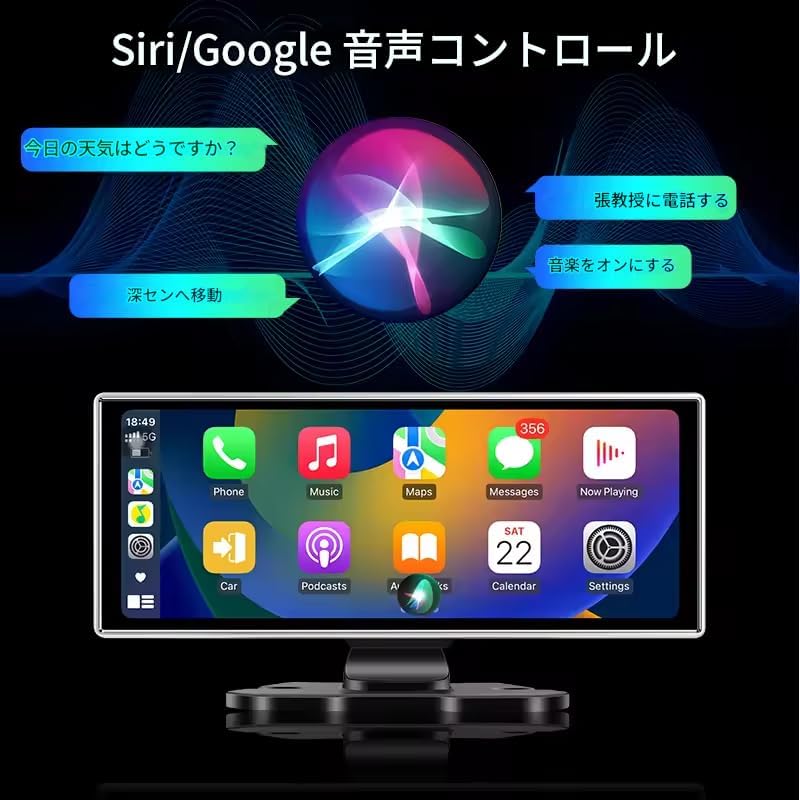
Figure 3.3: Siri/Google Voice Control interface.
3.5 Recording Features
The dash cam supports continuous loop recording with its 4K front camera and 1080P rear camera. Ensure a compatible external memory card (up to 256GB) is inserted for recording storage.
3.6 Parking Monitoring & Motion Detection
When enabled, these features allow the dash cam to automatically record incidents while your vehicle is parked, providing security surveillance.
4. Maintenance
To ensure the longevity and optimal performance of your zmart Dash Cam, follow these maintenance guidelines:
- Cleaning: Gently wipe the screen and camera lenses with a soft, lint-free cloth. Avoid using abrasive cleaners or solvents that could damage the surfaces.
- Temperature: Avoid exposing the device to extreme temperatures, both hot and cold, for extended periods.
- Storage: If storing the device for a long time, disconnect it from power and store it in a cool, dry place.
- Firmware Updates: Periodically check the manufacturer's website for any available firmware updates to ensure your device has the latest features and bug fixes.
5. Troubleshooting
5.1 Unresponsive or Blank Screen
If the touchscreen is unresponsive or does not display correctly, screen calibration may be required.
Screen Calibration Procedure:
- Press the screen simultaneously with five fingers.
- A '+' symbol will appear in the upper left corner of the screen.
- Click the '+' symbol to complete the screen calibration.
5.2 Power Issues (Device Not Turning On or Screen Flickers)
Ensure the device is powered using the provided cigarette lighter power cord. Using a data cable or an inadequate power source can lead to insufficient voltage, causing the device to repeatedly restart, fail to power on, or damage the motherboard.
If the issue persists, check the power connection and ensure the car's cigarette lighter socket is functioning correctly.
5.3 Rear Camera Compatibility
This product is only compatible with the rear camera specifically designed for this model (T313D) and supplied by the store. Other rear cameras are not supported.
6. Specifications
| Feature | Specification |
|---|---|
| Display Size | 11.26 inches |
| Display Type | LCD |
| Display Resolution | 1920x720 IPS |
| Front Camera Resolution | 4K (3840x2160P) |
| Rear Camera Resolution (Optional) | 1080P (1920x1080P) |
| Max External Memory | 256 GB |
| Control Method | Touch |
| Connectivity | Bluetooth 5.0, FM, AUX |
| Supported Phone Connection Modes | CarPlay, Android Auto, Apple AirPlay, Android Mirror |
| Supported Languages | English, Chinese (Simplified/Traditional), Japanese, French, German, Italian, Spanish, Russian, Polish, Portuguese, Korean |
| Special Features | Touchscreen, Waterproof |
| Product Dimensions | 6 length x 27 width x 13 height cm |
| Package Size | 31 x 17.5 x 11.5 cm; 1.28 kg |
7. Warranty & Support
The manufacturer offers a free resend service for issues such as damage during logistics, non-human-caused damage, power failure, or screen flickering. Please contact customer support for assistance with these issues.
For further support or inquiries, please refer to the contact information provided with your purchase or visit the official zmart website.


