
Introduction
The Renogy BT-1 Bluetooth Module is designed to enhance the monitoring and control capabilities of compatible Renogy solar charge controllers. This module enables wireless communication between your solar system and the Renogy DC Home smartphone application, providing real-time data and allowing for parameter adjustments.
It connects directly to the RJ12 communication port of your charge controller, offering a convenient and efficient way to manage your solar power system from a distance.
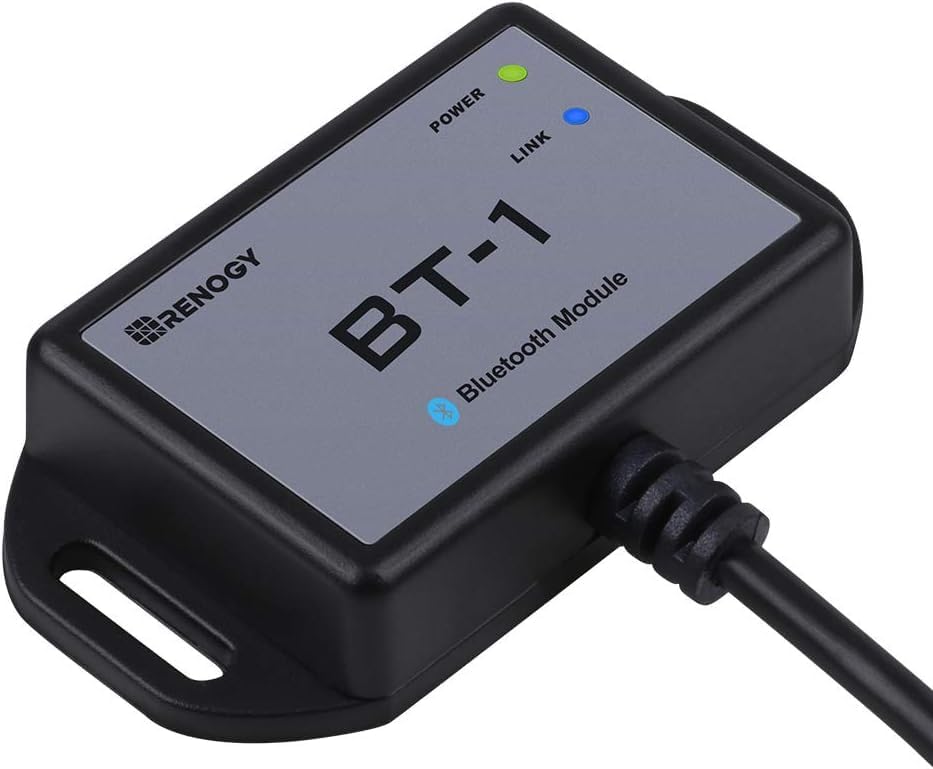
Image: The Renogy BT-1 Bluetooth Module, a compact device with "POWER" and "LINK" LED indicators, and a connected RJ12 cable.
Safety Information
- Ensure the module is connected to compatible Renogy solar charge controllers only. Refer to your charge controller's manual for compatibility.
- Do not expose the module to extreme temperatures outside its operating range (-20°C to 85°C / -4°F to 185°F).
- Avoid physical damage to the module and its cable. Do not attempt to open or modify the device.
- Keep the module away from water and moisture, despite its IP54 rating, to prevent damage.
- Disconnect power to the charge controller before connecting or disconnecting the BT-1 module to prevent electrical hazards.
Product Features
- Wireless Monitoring: Real-time tracking of solar power, battery voltage, and charging status via Bluetooth 4.2/BLE technology.
- Extended Range: Wireless control from up to 25 meters (82 feet) away, ideal for various solar setups.
- App Control: Compatible with the Renogy DC Home App (iOS/Android) for comprehensive system management and parameter adjustments.
- Low Power Consumption: Ultra-low standby consumption of only 0.04W, powered directly through the RJ12 communication port.
- Durable Design: IP54 dustproof and waterproof housing, designed for extreme climate durability.
- LED Indicators: Dual LED indicators for power and Bluetooth connection status.
- Broad Compatibility: Works with Renogy Rover, Wanderer, and Adventurer series charge controllers, and RS232 protocol devices.

Image: An illustration highlighting the embedded Bluetooth chip within the Renogy BT-1 module, emphasizing high efficiency and low energy consumption.
Specifications
| Attribute | Value |
|---|---|
| Model | BT-1 |
| Communication Port Type | RJ12 |
| Wireless Technology | Bluetooth 4.2 / BLE |
| Wireless Range | Up to 25m (82ft) |
| Standby Power Consumption | 0.04W |
| Operating Temperature | -20°C to 85°C (-4°F to 185°F) |
| Ingress Protection (IP) Rating | IP54 |
| Dimensions | 67.3 x 35 x 14 mm (2.7 x 1.4 x 0.6 inch) |
| Cable Length | 5.0 m (16.4 ft) |
| Item Weight | 4.5 ounces |
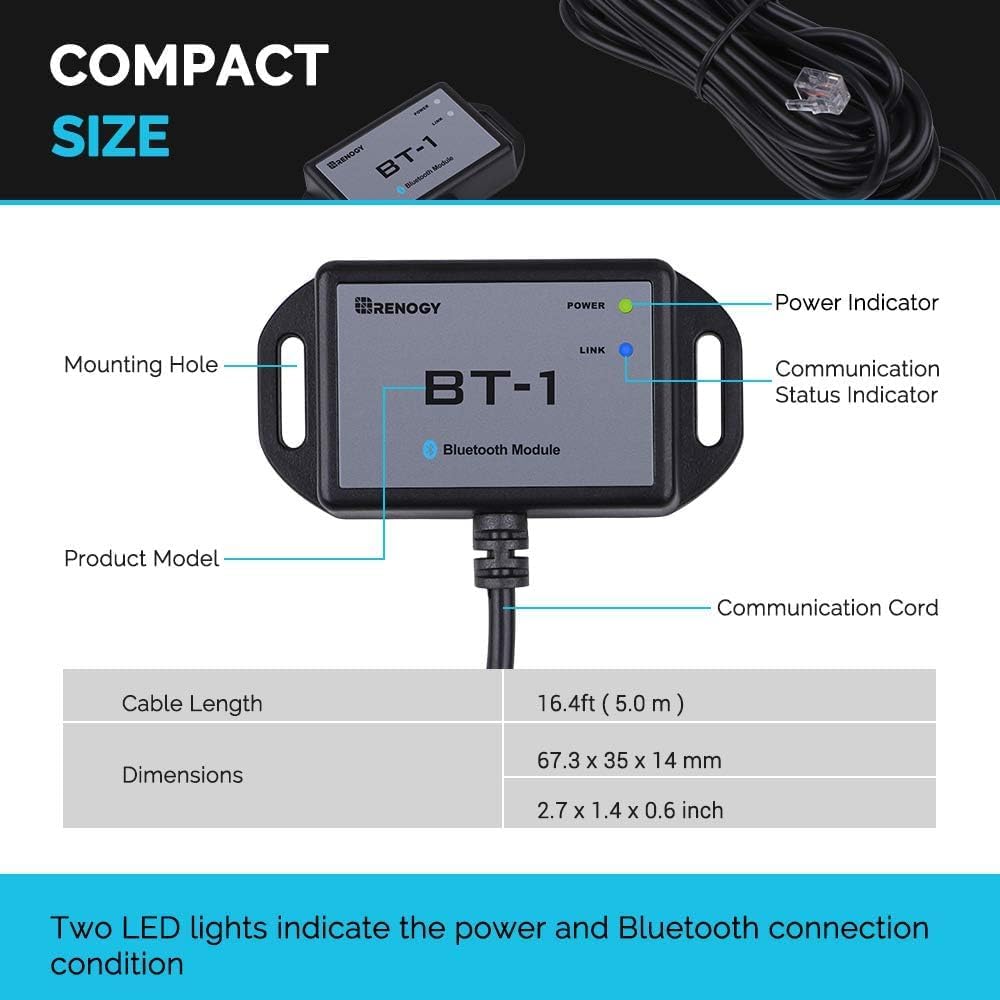
Image: A diagram of the Renogy BT-1 module showing its compact size, dimensions, cable length, and labeling its components: Power Indicator, Communication Status Indicator, Product Model, and Communication Cord.
Setup Guide
1. Compatibility Check
Ensure your Renogy solar charge controller is compatible with the BT-1 module. The BT-1 is designed to work with Renogy Rover, Wanderer, and Adventurer series charge controllers that feature an RJ12 communication port.
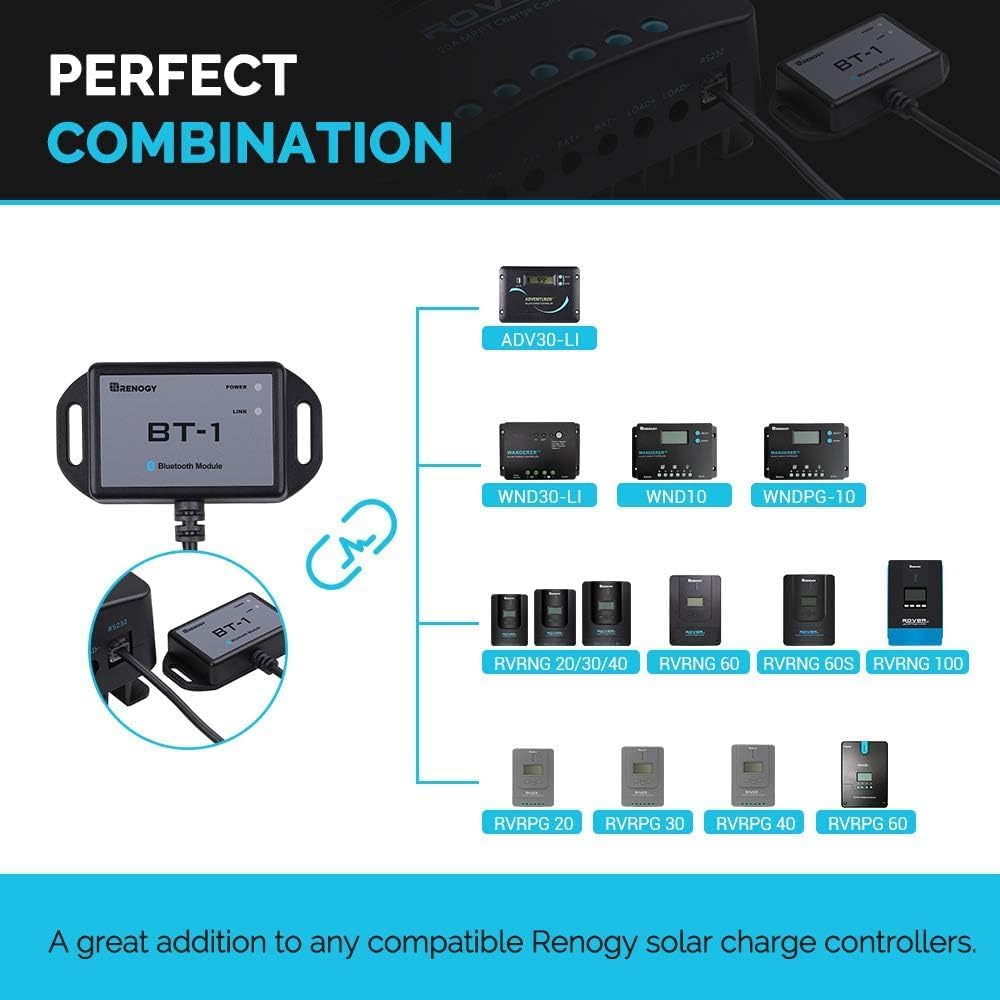
Image: A visual representation showing the Renogy BT-1 module and its compatibility with various Renogy charge controllers, including ADV30-LI, Wanderer, WND10, WNDPG-10, and different Rover models (RVRNG, RVRRPG).
2. Physical Connection
- Power Off: Before connecting, ensure your solar charge controller is powered off and disconnected from all power sources (solar panels and battery).
- Locate RJ12 Port: Identify the RJ12 communication port on your Renogy solar charge controller. This port typically resembles a telephone jack.
- Connect BT-1: Plug the RJ12 communication cable from the BT-1 module firmly into the RJ12 port on your charge controller. The connection is plug-and-play.
- Secure Placement: Place the BT-1 module in a secure location, utilizing its mounting holes if desired, ensuring it is within the desired wireless range for your monitoring device.

Image: A close-up view demonstrating the Renogy BT-1 module's RJ12 cable being plugged into the corresponding port on a Renogy Rover 20A MPPT Charge Controller, illustrating the plug-and-play connection.
3. Power On and Indicator Check
- Restore Power: Reconnect your solar charge controller to its power sources. The BT-1 module will draw power directly from the controller.
- Check Indicators: Observe the LED indicators on the BT-1 module:
- POWER LED (Green): Should illuminate steadily, indicating the module is receiving power.
- LINK LED (Blue): Will blink when searching for a Bluetooth connection and illuminate steadily once connected to the Renogy DC Home App.
4. Renogy DC Home App Installation
- Download App: Download the "Renogy DC Home" application from the Apple App Store (for iOS devices) or Google Play Store (for Android devices).
- Open App: Launch the Renogy DC Home App on your smartphone or tablet.
- Pair Device: Follow the in-app instructions to search for and pair with your BT-1 Bluetooth Module. Ensure Bluetooth is enabled on your mobile device.
Operating Instructions
Monitoring System Data
Once the BT-1 module is successfully paired with the Renogy DC Home App, you can access real-time data from your solar charge controller. The app provides a user-friendly interface to view critical system parameters.
- Solar Panel Data: Monitor voltage, current, and power output from your solar panels.
- Battery Status: View battery voltage, current, state of charge (SOC), and temperature.
- Load Information: If applicable, monitor the status and power consumption of connected DC loads.
- Historical Data: Access logs of energy generation and consumption over time.

Image: A smartphone screen displaying the Renogy DC Home App interface, showing real-time monitoring data such as solar panel voltage, current, battery voltage, and temperature, alongside the BT-1 module.
Adjusting Parameters
The Renogy DC Home App also allows you to modify certain parameters of your compatible charge controller, providing flexibility in managing your solar system. This may include:
- Battery type settings.
- Charging voltage thresholds (e.g., float voltage, boost voltage).
- Load control settings (if supported by the controller).
- Setting custom voltage alerts.
Refer to the Renogy DC Home App's in-app help or the specific charge controller's manual for detailed instructions on parameter adjustments.

Image: Two smartphone screens displaying different views within the Renogy DC Home App. One shows detailed monitoring data, and the other shows a summary with energy generation and carbon dioxide savings, connected to a Renogy Rover charge controller.
Maintenance
The Renogy BT-1 Bluetooth Module requires minimal maintenance. Follow these guidelines to ensure its longevity:
- Cleaning: Gently wipe the module with a dry, soft cloth to remove dust. Do not use harsh chemicals or abrasive cleaners.
- Connection Check: Periodically inspect the RJ12 cable and port for any signs of wear or damage. Ensure the connection remains secure.
- Environmental Protection: While IP54 rated, avoid prolonged exposure to direct sunlight, extreme moisture, or corrosive environments to maximize lifespan.
- Firmware Updates: Keep the Renogy DC Home App updated to the latest version to ensure optimal performance and compatibility with the BT-1 module.
Troubleshooting
| Problem | Possible Cause | Solution |
|---|---|---|
| BT-1 POWER LED is off. | No power from charge controller; loose connection. | Ensure the charge controller is powered on. Check the RJ12 cable connection to both the BT-1 and the controller. |
| BT-1 LINK LED is blinking but not connecting. | Bluetooth not enabled on phone; app not open; module out of range; interference. | Enable Bluetooth on your device. Open the Renogy DC Home App and initiate pairing. Move closer to the module. Reduce potential interference from other electronic devices. |
| App shows "Device Not Found" or "Disconnected". | Module not powered; Bluetooth connection lost; app issue. | Verify POWER LED is on. Re-pair the device in the app. Restart the app or your mobile device. Ensure the BT-1 is within range. |
| Incorrect data displayed in app. | Outdated app version; communication error. | Update the Renogy DC Home App to the latest version. Disconnect and reconnect the BT-1 module. Restart the app. |
Warranty and Support
For warranty information and technical support regarding your Renogy BT-1 Bluetooth Module, please refer to the official Renogy website or contact Renogy customer service directly.
You can typically find support contact details, FAQs, and additional resources on the Renogy support page:
When contacting support, please have your product model (BT-1) and any relevant purchase information ready.


