
Introduction
This manual provides essential information for setting up, operating, maintaining, and troubleshooting your HP 27" FHD Touch-Screen All-in-One Computer. Please read these instructions carefully to ensure proper use and longevity of your device.
Setup
1. Unpacking and Placement
Carefully remove all components from the packaging. Ensure you have the All-in-One computer, power adapter, wireless keyboard, and wireless mouse. Place the computer on a stable, flat surface with adequate ventilation around the unit.

Image: The HP All-in-One computer with its wireless keyboard and mouse, ready for setup.

Image: A side view of the HP All-in-One computer, showcasing its slim design.
2. Connecting Power
Connect the power adapter to the power port on the back of the All-in-One computer, then plug the power cord into a wall outlet.
3. Connecting Peripherals
The HP All-in-One computer features various ports for connectivity:
- USB-C (5Gbps signaling rate): For modern USB-C devices.
- USB-A (5Gbps signaling rate): Two ports for high-speed USB devices.
- USB 2.0 Type-A: Two ports for standard USB devices like the wireless keyboard/mouse receiver.
- HDMI Out: To connect an external display.
- RJ-45 (Ethernet): For wired network connection.
- Headphone/Microphone Combo Jack: For audio input/output.
Insert the wireless receiver for the keyboard and mouse into an available USB-A port. Power on the keyboard and mouse if they have an on/off switch.

Image: Detailed view of the rear ports including USB-C, USB-A, HDMI Out, RJ-45, and Headphone/Microphone combo jack.
4. Initial Boot and Windows 11 Setup
Press the power button, usually located on the side or back of the display. The computer will boot up, and you will be guided through the Windows 11 initial setup process. Follow the on-screen instructions to configure your language, region, network, and user account.
Operating
1. Touchscreen Functionality
Your HP All-in-One computer features a responsive touchscreen. You can interact with Windows 11 and applications directly using touch gestures. Common gestures include tapping to select, swiping to scroll, and pinch-to-zoom.
2. Keyboard and Mouse Usage
The included wireless keyboard and mouse provide traditional input methods. Ensure they are powered on and connected via their USB receiver. The keyboard features a standard QWERTY layout.
3. Windows 11 Basics
Familiarize yourself with the Windows 11 interface. The Start menu provides access to applications and settings. The taskbar displays open applications and system icons. For detailed information on Windows 11, refer to Microsoft's official documentation.
4. Webcam Usage
The integrated webcam is located at the top of the display. It can be used for video calls, online meetings, and other applications requiring camera input. Ensure privacy settings are configured according to your preferences in Windows 11 settings.

Image: A user engaged in a video call on the HP All-in-One computer, demonstrating its use in a home office setting.
Maintenance
1. Cleaning the Device
To clean the screen, use a soft, lint-free cloth lightly dampened with water or a screen-cleaning solution. Avoid harsh chemicals. For the exterior, use a soft, dry cloth. Ensure the computer is powered off and unplugged before cleaning.
2. Software Updates
Regularly check for and install Windows updates and HP driver updates to ensure optimal performance and security. These can be accessed through Windows Settings > Windows Update.
3. Storage Management
Periodically review your stored files and applications. Delete unnecessary files to free up disk space. Utilize cloud storage or external drives for backups of important data.
Troubleshooting
Common Issues and Solutions:
- No Power: Ensure the power cord is securely connected to both the computer and the wall outlet. Test the outlet with another device.
- No Display: Check power connections. If an external monitor is connected, ensure the correct input source is selected on the monitor.
- Keyboard/Mouse Not Responding: Verify the wireless receiver is plugged into a USB port. Check battery levels in the keyboard and mouse. Re-pair devices if necessary.
- Slow Performance: Close unnecessary applications. Check for background updates. Consider running a disk cleanup or antivirus scan.
- Network Connectivity Issues: For Wi-Fi, ensure you are connected to the correct network and the password is correct. For wired Ethernet, check the cable connection to the RJ-45 port and your router.
If issues persist, consult the HP support website or contact customer service.
Specifications
| Feature | Detail |
|---|---|
| Brand | HP |
| Model Name | HP All In One (Ultra 7 155U) |
| Operating System | Windows 11 |
| CPU Model | Intel Core Ultra 7 155U (12 Cores, up to 4.8 GHz) |
| Graphics | Intel Iris Xe Graphics (Integrated) |
| RAM | 16GB DDR5 RAM (Expandable up to 64GB) |
| Storage | 1TB SSD + 512GB Docking Station Set (Total 1.5TB) |
| Display | 27-inch FHD (1920x1080) Touch IPS LED, Anti-glare, 300 nits |
| Connectivity | Wi-Fi 6, Bluetooth, Ethernet |
| Ports | 1x USB-C, 4x USB-A, 1x HDMI Out, 1x RJ-45, 1x Headphone/Mic Combo |
| Dimensions (W x D x H) | 24.11 x 7.34 x 20.35 inches |
| Weight | 24.5 Pounds |
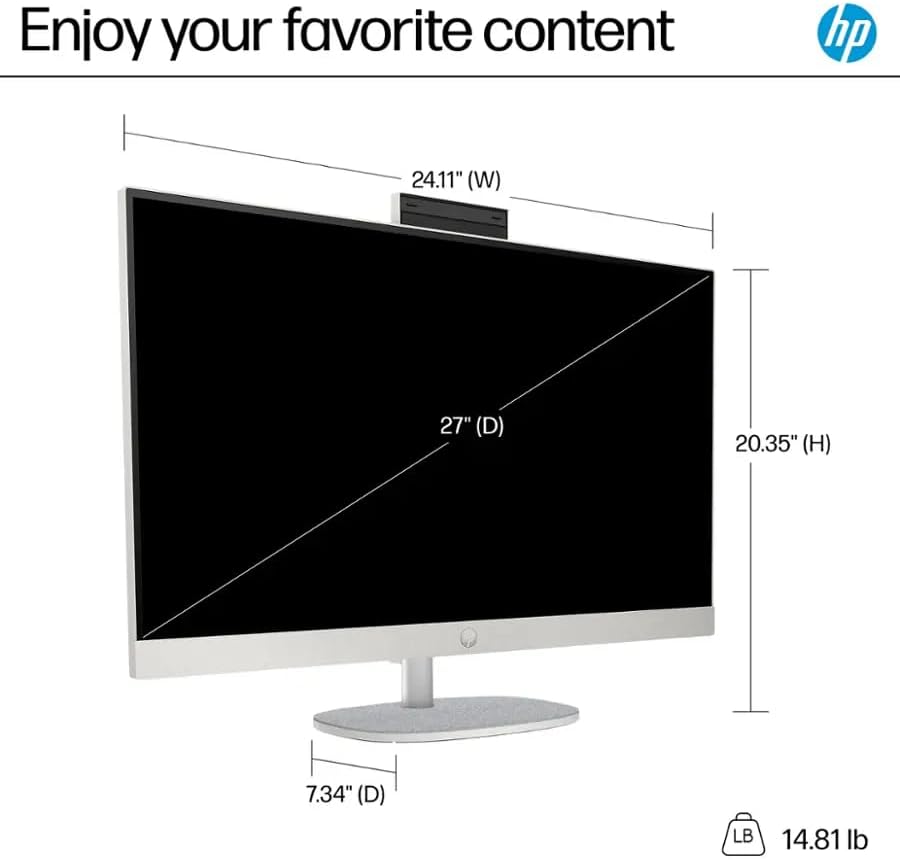
Image: A diagram illustrating the width, depth, and height of the HP All-in-One computer.
Warranty
This HP All-in-One computer typically comes with a 1-Year Manufacturer's Warranty. For specific terms and conditions, please refer to the warranty documentation included with your product or visit the official HP support website. Extended protection plans may be available for purchase separately.
Support
For further assistance, technical support, or to download drivers and software updates, please visit the official HP Support website. You can typically find support resources by searching for your product model (Ultra 7 155U) on the HP website.
HP Support Website: https://support.hp.com