
Pixio PX248PROV2
Pixio PX248 PRO V2 24-inch Gaming Monitor User Manual
Brand: Pixio | Model: PX248PROV2
Introduction
This manual provides essential information for the safe and efficient use of your Pixio PX248 PRO V2 24-inch Gaming Monitor. Please read it thoroughly before operating the device and retain it for future reference. The Pixio PX248 PRO V2 features a 24-inch FHD 1080p Fast IPS panel, a 200Hz refresh rate, and a 1ms GTG response time, designed for a responsive and immersive visual experience.
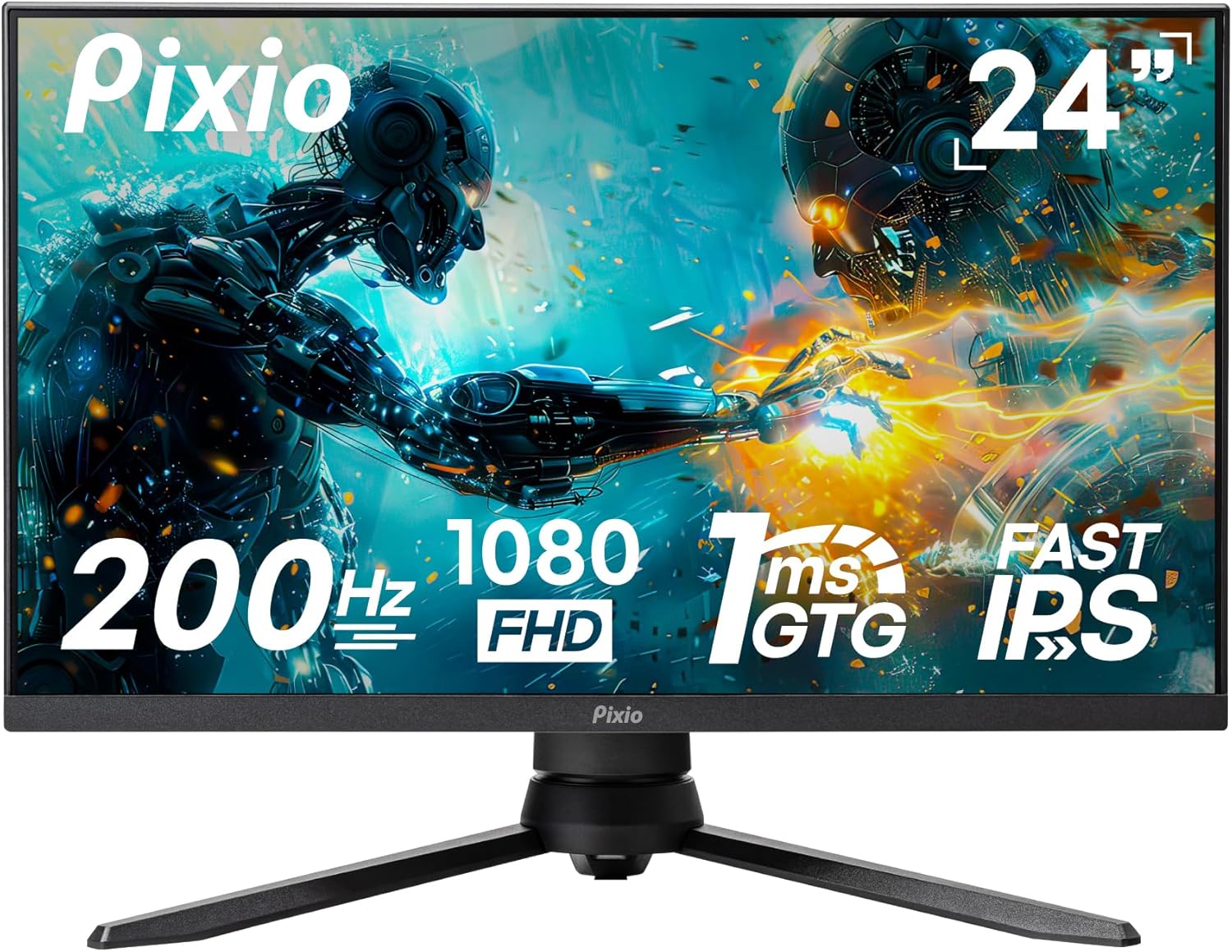
Image: Front view of the Pixio PX248 PRO V2 24-inch Gaming Monitor, highlighting its 200Hz refresh rate, 1080p FHD resolution, 1ms GTG response time, and Fast IPS panel technology.
Safety Information
- Ensure the monitor is placed on a stable, level surface to prevent accidental falls.
- Do not block ventilation openings. Proper airflow is essential to prevent overheating.
- Use only the power adapter supplied with the monitor.
- Keep the monitor away from water, moisture, and direct sunlight.
- Avoid placing heavy objects on the power cord or monitor cables.
- Disconnect the power cable from the outlet before cleaning the monitor.
Package Contents
Verify that all items are present in the package:
- Pixio PX248 PRO V2 Monitor
- Monitor Stand (Base and Neck)
- Power Adapter
- DisplayPort Cable
- User Manual (this document)
Setup
Monitor Assembly
Follow these steps to assemble the monitor stand or prepare for VESA mounting:
- Carefully remove the monitor and stand components from the packaging.
- Attach the stand neck to the monitor panel. Ensure it clicks securely into place or is fastened with screws if provided.
- Attach the stand base to the stand neck. Tighten the thumb screw or screws from the bottom of the base.
- For VESA mounting (100x100mm), remove the stand from the monitor panel. Attach your VESA-compatible mount to the four screw holes on the back of the monitor.

Image: Diagram illustrating the adjustable features of the monitor stand, including tilt, height adjustment, swivel, and pivot capabilities for ergonomic positioning.

Image: Technical drawing showing the dimensions of the Pixio PX248 PRO V2 monitor and the location of the 100x100mm VESA mount points on the rear panel.
Connecting to Devices
Connect your computer or other devices to the monitor using the appropriate cables:
- DisplayPort (DP 1.2): For optimal performance, including 200Hz refresh rate and Adaptive Sync, use the DisplayPort cable.
- HDMI (HDMI 2.0): Connect devices using HDMI cables. The monitor has two HDMI 2.0 ports.
- Earphone Jack: Connect headphones or external speakers to this port for audio output.

Image: Close-up view of the Pixio PX248 PRO V2 monitor's rear input panel, showing two HDMI 2.0 ports, one DisplayPort 1.2, an earphone jack, and the DC power input.
Power Connection
Connect the power adapter to the monitor's DC input port, then plug the adapter into a power outlet.
Operating
On-Screen Display (OSD) Menu
The monitor features an intuitive OSD menu for adjusting various settings. Use the joystick or buttons located on the monitor (typically on the back or bottom right) to navigate and select options.
- Press Joystick: Access OSD menu.
- Move Joystick Up/Down: Navigate through menu options.
- Move Joystick Left/Right: Adjust values or enter sub-menus.
- Press Joystick (again): Confirm selection.
Key Features and Settings
- Refresh Rate (200Hz): The monitor supports a 200Hz refresh rate for smoother motion. Ensure your graphics card and connection type (DisplayPort recommended) support this setting. Adjust in your operating system's display settings.

Image: Visual comparison demonstrating the difference in motion clarity between 200Hz, 75Hz, and 60Hz refresh rates, highlighting the smoother experience at 200Hz.
- Response Time (1ms GTG): The 1ms Gray-to-Gray (GTG) response time minimizes motion blur and ghosting. This setting is typically enabled by default or can be adjusted in the OSD menu under 'Overdrive' or 'Response Time' settings.
- Adaptive Sync: This technology synchronizes the monitor's refresh rate with your graphics card's frame rate, eliminating screen tearing and stuttering. Enable Adaptive Sync in the OSD menu and ensure it is also enabled in your graphics card's control panel.

Image: Side-by-side comparison showing the visual difference between Adaptive Sync ON and Adaptive Sync OFF, illustrating how Adaptive Sync eliminates screen tearing for smoother gameplay.
- HDR (High Dynamic Range): HDR enhances contrast and color accuracy, providing a more vibrant and realistic image. Enable HDR in the OSD menu and in your operating system's display settings if your content supports it.

Image: A vibrant scene displayed on the Pixio PX248 PRO V2 monitor, demonstrating the enhanced contrast and color depth provided by HDR technology.
- Color Settings: The Fast IPS panel offers wide viewing angles and accurate colors. Adjust brightness, contrast, color temperature, and gamma settings via the OSD menu to suit your preference. The monitor supports 133.9% sRGB and 100% DCI-P3 color spaces.

Image: A colorful abstract image displayed on the Pixio PX248 PRO V2 monitor, illustrating the vivid and lifelike color reproduction of the Fast IPS panel.
- Low Blue Light: This feature reduces blue light emissions to minimize eye strain during extended use. Activate or adjust the Low Blue Light setting in the OSD menu.

Image: A user wearing headphones, looking at the monitor with the 'Low Blue Light' feature enabled, indicating reduced eye strain for prolonged viewing.
- On-Screen Crosshair: For competitive gaming, an on-screen crosshair can be enabled via the OSD menu to assist with aiming.

Image: A first-person shooter game displayed on the monitor, with an on-screen crosshair overlay visible, demonstrating the aiming assistance feature.
Maintenance
- Cleaning the Screen: Gently wipe the screen with a soft, lint-free cloth. For stubborn marks, dampen the cloth slightly with water or a non-ammonia, non-alcohol based screen cleaner. Do not spray cleaner directly onto the screen.
- Cleaning the Casing: Use a soft, dry cloth to wipe the monitor casing. Avoid abrasive cleaners.
- Storage: If storing the monitor for an extended period, place it in its original packaging or a protective cover in a cool, dry place.
Troubleshooting
- No Power: Ensure the power adapter is securely connected to both the monitor and a working power outlet. Check if the power indicator light is on.
- No Signal: Verify that the video cable (DisplayPort or HDMI) is correctly connected to both the monitor and your device. Ensure the correct input source is selected in the OSD menu.
- Flickering Screen: Check the video cable connection. Try a different cable or port. Ensure your graphics card drivers are up to date. If Adaptive Sync is enabled, try disabling it temporarily.
- Image Distortion/Blurry: Adjust the resolution and refresh rate in your operating system's display settings to match the monitor's native resolution (1920x1080) and desired refresh rate (up to 200Hz).
- No Audio: Ensure speakers or headphones are properly connected to the earphone jack. Check the volume settings on both the monitor (OSD menu) and your connected device. Verify that the correct audio output device is selected in your operating system.
Specifications
| Feature | Specification |
|---|---|
| Brand | Pixio |
| Model Number | PX248PROV2 |
| Screen Size | 24 Inches |
| Panel Type | Fast IPS |
| Resolution | FHD 1080p (1920 x 1080) |
| Refresh Rate | 200Hz |
| Response Time | 1ms GTG |
| Aspect Ratio | 16:9 |
| Image Brightness | 380 Candela |
| Connectivity | 2x HDMI 2.0, 1x DisplayPort 1.2, Earphone Jack |
| USB Ports | 2 (Total) |
| Voltage | 12 Volts |
| Product Dimensions | 11 x 21 x 19 inches |
| Item Weight | 13.42 pounds |
| VESA Compatibility | 100x100mm |
Warranty and Support
For warranty information and technical support, please refer to the official Pixio website or contact their customer service. You can also find additional resources and the original PDF user manual here.
Related documentsPX248PROV2


Ask a question about this manual
Ask about setup, troubleshooting, compatibility, parts, safety, or missing instructions. Manuals+ will review the question and use this page’s manual context to help answer it.