
1. Introduction
Thank you for purchasing the ZEBRONICS Juke BAR 200A Soundbar. This manual provides essential information for the safe and correct operation of your device. Please read it thoroughly before use and retain it for future reference.
Package Contents
- Sound Bar - 1 unit
- Subwoofer - 1 unit
- QR Code Guide - 1 unit
- Power Adapter - 1 unit
- Remote Control - 1 unit
2. Safety Instructions
To ensure safe operation and prevent damage, please observe the following safety precautions:
- Do not expose the device to rain or moisture.
- Do not block any ventilation openings.
- Place the device on a stable, flat surface.
- Use only the power adapter supplied by the manufacturer.
- Do not open the casing; refer all servicing to qualified personnel.
- Keep the device away from direct sunlight, heat sources, and strong magnetic fields.
- Clean only with a dry cloth.
3. Product Overview
The ZEBRONICS Juke BAR 200A is a compact soundbar system designed to enhance your audio experience. It features a soundbar with dual drivers and a dedicated subwoofer for powerful bass.
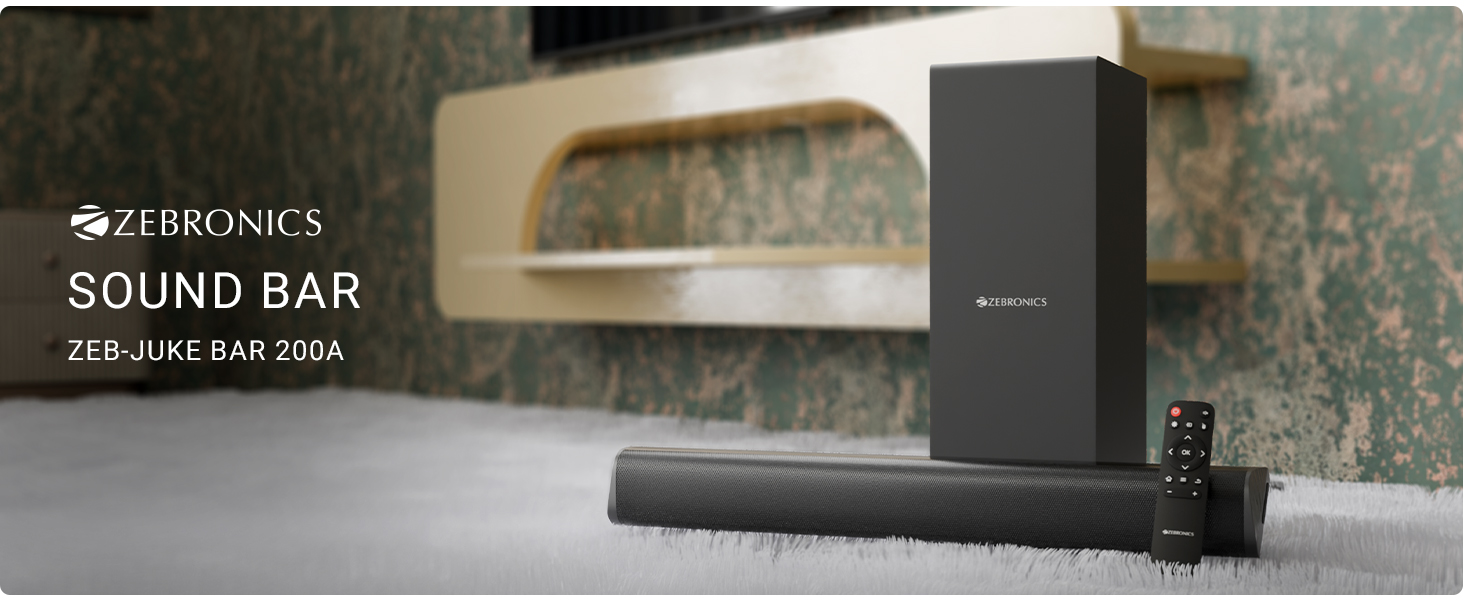
Figure 3.1: ZEBRONICS Juke BAR 200A Soundbar, Subwoofer, and Remote Control. This image displays the complete sound system, including the main soundbar unit, the separate subwoofer, and the remote control, providing a visual representation of all primary components.
Key Features
- 90W RMS Output: Delivers powerful and clear audio.
- Dual Driver Soundbar: Equipped with 5.08cm x 2 drivers for balanced sound.
- 11.43cm Subwoofer: Provides deep, rich bass.
- Multi-connectivity: Supports Bluetooth v5.1, HDMI ARC, and USB.
- Dolby Audio Decoding: Built-in Dolby Digital and Dolby Digital+ decoding for versatile audio.
- Wall Mountable: Designed for flexible placement options.
- Remote Control: Full control over audio settings.

Figure 3.2: Soundbar Media and Volume Controls and Remote Control. This image highlights the physical control buttons on the soundbar for power, volume up, and volume down, alongside a detailed view of the included remote control, illustrating all available buttons for comprehensive audio management.

Figure 3.3: Soundbar Rear Panel with Connectivity Ports. This image provides a close-up view of the soundbar's rear panel, clearly labeling the HDMI ARC, USB, DC IN, and SW OUT ports, essential for understanding connection options.
4. Setup
4.1 Placement
Place the soundbar on a stable surface in front of your television or mount it on the wall below your TV. Position the subwoofer on the floor, ideally near the soundbar, for optimal bass performance.
4.2 Connecting the Subwoofer
Connect the subwoofer to the soundbar using the provided SW OUT cable. Ensure a secure connection.
4.3 Power Connection
- Connect the power adapter to the DC IN port on the soundbar.
- Plug the power adapter into a suitable wall outlet.
4.4 Audio Connections
Choose one of the following methods to connect your audio source:
- HDMI ARC: For optimal audio quality and control, connect an HDMI cable from your TV's HDMI ARC port to the HDMI ARC port on the soundbar. This allows your TV remote to control the soundbar's volume.
- Bluetooth: For wireless connection, refer to the "Bluetooth Pairing" section in Operating Instructions.
- USB: Insert a USB drive containing audio files into the USB port for direct playback.
5. Operating Instructions
5.1 Power On/Off
- Press the Power button on the soundbar or remote control to turn the unit on or off.
- The LED indicator on the soundbar will illuminate when powered on.
5.2 Input Mode Selection
Press the Input button on the remote control to cycle through available input modes: Bluetooth (BT), HDMI ARC, and USB.
5.3 Bluetooth Pairing
- Turn on the soundbar and select Bluetooth mode. The LED indicator will flash, indicating pairing mode.
- Enable Bluetooth on your mobile device or computer and search for "ZEB-JUKE BAR 200A".
- Select the device to pair. Once connected, the LED indicator will glow steadily.
5.4 Volume Control
- Use the Volume Up (+) and Volume Down (-) buttons on the soundbar or remote control to adjust the volume.
- Press the Mute button on the remote to mute or unmute the audio.
5.5 USB Playback
Insert a USB flash drive into the USB port. The soundbar will automatically switch to USB mode and begin playing compatible audio files. Use the remote control for playback functions (Play/Pause, Next/Previous Track).
6. Wall Mounting
The ZEBRONICS Juke BAR 200A is designed to be wall-mountable. Ensure you use appropriate screws and wall plugs for your wall type. It is recommended to consult a professional for wall mounting to prevent damage or injury.
- Measure the distance between the mounting holes on the back of the soundbar.
- Mark the corresponding positions on the wall.
- Drill holes and insert wall plugs (if necessary).
- Secure the soundbar to the wall using suitable screws.
7. Maintenance
- Cleaning: Use a soft, dry cloth to clean the surfaces of the soundbar and subwoofer. Do not use liquid cleaners or abrasive materials.
- Storage: If storing the unit for an extended period, disconnect it from power and store it in a cool, dry place.
- Ventilation: Ensure that the ventilation openings are not blocked to prevent overheating.
8. Troubleshooting
| Problem | Possible Cause | Solution |
|---|---|---|
| No power | Power adapter not connected or faulty outlet. | Check power connections. Try a different outlet. |
| No sound | Incorrect input mode, low volume, or incorrect cable connection. | Select the correct input mode. Increase volume. Check audio cables. |
| Bluetooth not connecting | Soundbar not in pairing mode, device too far, or previously paired. | Ensure soundbar is in BT pairing mode. Move device closer. Forget device on your phone and re-pair. |
| Remote control not working | Low battery or obstruction. | Replace remote batteries. Ensure no obstructions between remote and soundbar. |
9. Specifications
| Feature | Detail |
|---|---|
| Model Name | Zeb - Juke Bar 200A |
| Speaker Type | Soundbar with Subwoofer |
| Total Output Power | 90 Watts RMS (Soundbar: 20W x 2, Subwoofer: 50W) |
| Subwoofer Diameter | 11.43 Centimetres |
| Soundbar Driver Size | 5.08cm x 2 |
| Connectivity | Bluetooth v5.1, HDMI ARC, USB |
| Surround Sound Channel | 2.1 |
| Audio Decoding | Dolby Digital, Dolby Digital+ |
| Control Method | Remote, Control Buttons |
| Product Dimensions | 6.3D x 50W x 6.3H Centimeters (Soundbar) |
| Item Weight | 2.5 kg |
| Included Components | Sound Bar, Subwoofer, QR Code Guide, Power Adapter, Remote |
10. Warranty Information
This product is covered by a manufacturer's warranty. Please refer to the QR Code Guide included in your package or visit the official ZEBRONICS website for detailed warranty terms and conditions. Retain your purchase receipt as proof of purchase for warranty claims.
For extended warranty options, please check with your retailer or the ZEBRONICS official channels.
11. Support
For technical assistance, product inquiries, or service requests, please contact ZEBRONICS customer support:
- Official Website: www.zebronics.com
- Customer Service: Refer to the QR Code Guide or the official website for the latest contact information (phone numbers, email support).
Please have your product model number (Juke BAR 200A) and purchase details ready when contacting support.


