
roborock Q5 Max+
Roborock Q5 Max+ Robot Vacuum User Manual
Model: Q5 Max+ | Brand: Roborock
Introduction
The Roborock Q5 Max+ is an advanced robot vacuum designed to provide efficient and hands-free floor cleaning. Featuring powerful 5500 Pa suction, an innovative DuoRoller Brush, and precise PreciSense LiDAR Navigation, it ensures thorough cleaning across various floor types. With its self-empty dock, you can enjoy up to 7 weeks of cleaning without manual dust disposal. This manual provides essential information for setting up, operating, maintaining, and troubleshooting your Roborock Q5 Max+.
1. Setup
1.1 What's in the Box
Before you begin, ensure all components are present in the packaging:
- Q5 Max+ Robot Vacuum
- Auto-Empty Dock
- Power Cable
- Dustbin
- Dust Bag x 2 (one pre-installed)
- Side Brush x 1
- User Manual (this document)
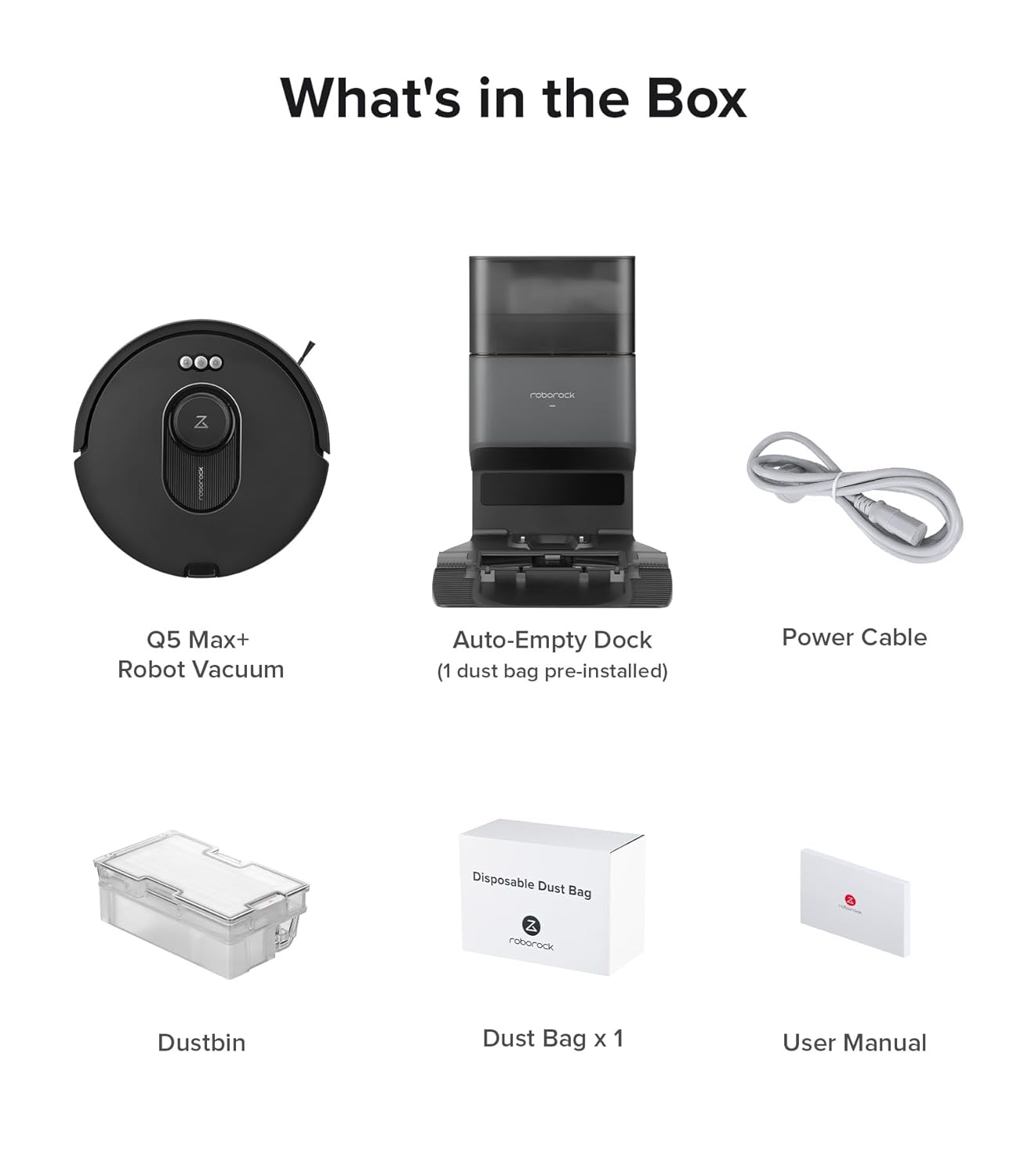
Figure 1.1: Package Contents
1.2 Dock Placement and Initial Setup
Place the Auto-Empty Dock on a hard, level surface against a wall, ensuring there are no obstacles within 0.5 meters (1.6 feet) to either side and 1.5 meters (4.9 feet) in front. Connect the power cable to the dock and plug it into a power outlet. Ensure the robot vacuum is placed on the dock for its initial charge.
Important Note:
- The Roborock Q5 Max+ robot vacuum only supports 2.4G WiFi. Ensure your router uses this frequency. If your home primarily uses a 5 GHz band, consider setting up a dual-band router or switching to a 2.4 GHz network for optimal performance.

Figure 1.2: Robot Vacuum and Dock
1.3 Connecting to the App
For full functionality and smart features, download the Roborock app and connect your robot vacuum:
- Download the "Roborock" app from your mobile app store.
- Reset WiFi on the robot by pressing and holding the designated buttons until you hear the "Resetting WiFi" alert. The reset is complete when the WiFi indicator flashes slowly.
- Open the app, tap "Search for device," and follow the in-app instructions to add your Q5 Max+.


Figure 1.3: App Connection Steps
2. Operating Your Robot Vacuum
2.1 Starting and Stopping Cleaning
To start a cleaning cycle, press the Power button on the robot or use the Roborock app. To pause cleaning, press any button on the robot or use the app. To send the robot back to the dock, press the Dock button on the robot or use the app.
2.2 Navigation and Mapping
The Q5 Max+ utilizes PreciSense LiDAR Navigation to create detailed 3D maps of your home. This allows for quick and accurate navigation, ensuring thorough and efficient cleaning. The robot adapts seamlessly to different environments and supports multi-level mapping for homes with multiple floors.

Figure 2.1: Smart LiDAR Navigation in action
2.3 Suction Power and DuoRoller Brush
Equipped with 5500 Pa HyperForce suction power, the Q5 Max+ effectively captures dust and debris from various floor types, including hardwood, tile, and carpet. The advanced DuoRoller Brush efficiently cleans dirt, pet hair, and human hair, with a design that helps reduce tangling.

Figure 2.2: Powerful Suction

Figure 2.3: DuoRoller Brush
2.4 App and Voice Control
The Roborock app provides comprehensive control over your Q5 Max+. You can set emptying modes, adjust suction intensity, define smart suggestions for No-Go Zones, schedule cleaning, and create custom routines. The Q5 Max+ also syncs seamlessly with Alexa, Apple Siri, and Google Home, allowing you to initiate cleaning or adjust settings effortlessly using voice commands.

Figure 2.4: Customized Cleaning via App

Figure 2.5: Voice Control for Hands-Free Cleaning
3. Maintenance
3.1 Self-Emptying Dock and Dust Bag
The Auto-Empty Dock features 2x2.5L dust bags, providing up to 7 weeks of hands-free cleaning. When the dust bag is full, the app will notify you. Replace the dust bag as needed to maintain optimal performance and filtration efficiency.

Figure 3.1: Hassle-Free Self-Emptying
3.2 Cleaning the DuoRoller Brush
Regularly inspect and clean the DuoRoller Brush to remove tangled hair and debris. Use the cleaning tool provided to cut and remove any hair wrapped around the brushes. This ensures consistent cleaning performance.
3.3 Cleaning the Dustbin and Filter
Even with the self-empty dock, it is recommended to periodically remove and clean the robot's internal 770ml dustbin. Tap out debris and rinse the dustbin with water if necessary (ensure it is completely dry before reinserting). The filter should also be cleaned regularly by tapping it against a trash can to remove dust. Replace the filter every 3-6 months depending on usage.
4. Troubleshooting
If you encounter issues with your Roborock Q5 Max+, refer to the following common problems and solutions:
| Problem | Possible Cause | Solution |
|---|---|---|
| Robot does not turn on or charge. | Low battery; Dock not powered; Poor contact with charging pins. | Ensure the dock is plugged in. Clean charging contacts on both robot and dock. Place robot correctly on dock. |
| Robot gets stuck frequently. | Obstacles; Loose cables; Dark surfaces. | Clear obstacles. Use No-Go Zones in the app. Ensure sufficient lighting. |
| Poor cleaning performance. | Full dustbin; Clogged filter; Tangled brush. | Empty dustbin. Clean or replace filter. Clean DuoRoller Brush. |
| Cannot connect to Wi-Fi. | Incorrect Wi-Fi band (5GHz); Incorrect password; Router issues. | Ensure 2.4GHz Wi-Fi. Re-enter password. Restart router and robot. |
For more detailed troubleshooting, please refer to the full user manual available on the Roborock support website.
5. Specifications
| Feature | Detail |
|---|---|
| Model Name | Q5 Max+ |
| Suction Power | 5500 Pa HyperForce |
| Navigation System | PreciSense LiDAR |
| Dustbin Capacity (Robot) | 770 ml |
| Dust Bag Capacity (Dock) | 2.5 L (up to 7 weeks hands-free) |
| Maximum Vacuuming Area | 3,767 sqft |
| Maximum Runtime | 240 minutes |
| Battery Type | Lithium Ion (included) |
| Connectivity | 2.4G WiFi, App Control, Voice Control (Alexa, Siri, Google Home) |
| Product Dimensions (Robot) | 13.9 x 13.8 x 3.8 inches |
| Product Weight (Robot) | 7.5 Pounds |

Figure 5.1: Key Performance Metrics
6. Warranty and Support
Roborock products are designed for reliability and performance. For warranty information, technical support, or service inquiries, please visit the official Roborock website or contact their customer service directly. Keep your purchase receipt as proof of purchase for warranty claims.
Official Roborock Website: www.roborock.com
Related documentsQ5 Max+


Ask a question about this manual
Ask about setup, troubleshooting, compatibility, parts, safety, or missing instructions. Manuals+ will review the question and use this page’s manual context to help answer it.