
1. Introduction
Welcome to the user manual for your BNCF NewBook 11 2-in-1 Tablet PC. This device combines the portability of a tablet with the functionality of a laptop, powered by Windows 11 Pro. It features an Intel Twin Lake N150 processor, 12GB LPDDR5 RAM, and a 256GB NVMe SSD, all designed to provide a seamless and efficient computing experience. This manual will guide you through the setup, operation, and maintenance of your new device.

Figure 1: BNCF NewBook 11 in laptop mode, showcasing its sleek design.
2. Setup
2.1 Unboxing and Initial Inspection
Carefully remove all components from the packaging. Inspect the device and accessories for any signs of damage. If any items are missing or damaged, please contact customer support.
Video 1: Unboxing and initial setup of a similar 2-in-1 tablet, demonstrating the components.
2.2 Charging the Device
Before first use, fully charge your NewBook 11. Connect the provided power adapter to one of the Type-C ports on the device and then to a power outlet. The charging indicator light will show the charging status.
2.3 Powering On and Initial Windows Setup
Press and hold the power button located on the side of the device until the screen lights up. Follow the on-screen instructions to complete the Windows 11 Pro initial setup, including language selection, network connection, and user account creation.
3. Operating Instructions
3.1 Understanding the 2-in-1 Design
The BNCF NewBook 11 offers versatile usage modes:
- Laptop Mode: Attach the magnetic keyboard for a traditional laptop experience, ideal for typing and productivity.
- Tablet Mode: Detach the keyboard or fold it back 360 degrees to use the device as a standalone tablet for touch-based interactions.
- Stand Mode: Use the integrated stand (or keyboard cover acting as a stand) to prop up the display for media consumption or presentations.

Figure 2: The NewBook 11 demonstrating its flexibility across different usage modes.
Video 2: Demonstration of the 2-in-1 functionality and various modes of a similar tablet.
3.2 Performance and Multitasking
The BNCF NewBook 11 is equipped with a 13th-generation Intel Twin Lake N150 processor and 12GB LPDDR5 RAM, ensuring smooth performance for a wide range of tasks. Its multi-core design (up to 3.6GHz) and Intel Thread Director technology minimize lag during multi-app usage.

Figure 3: Visual representation of the Intel Twin Lake N150 processor and its performance benefits.
The 256GB PCIe NVMe SSD provides high-speed storage, optimizing file operations and application launches. This durable storage solution is designed for stable performance even in challenging environments, with robust encryption for privacy protection.

Figure 4: Illustration of LPDDR5 RAM benefits, including speed and power efficiency.
3.3 Display Features
The 11-inch Full HD IPS display with in-cell technology offers vibrant colors and clear visuals. Its high-brightness panel reduces outdoor glare, and the anti-reflective coating ensures comfortable viewing even near windows. The display is designed to minimize eye strain during prolonged use.

Figure 5: The 11-inch FHD IPS display, emphasizing visual quality and user comfort.
3.4 Keyboard and Input
The integrated Japanese JIS layout keyboard allows for immediate and comfortable typing without external accessories. It supports seamless switching between tablet and laptop modes, enhancing productivity for document creation and email.

Figure 6: The NewBook 11 with its detachable keyboard, ready for typing.
3.5 Connectivity
The device features Wi-Fi 6 and Bluetooth 5.0 for stable and fast wireless connections. It includes two Type-C ports (for charging and data transfer), USB 3.0, a TF card slot, Micro HDMI, and a 3.5mm audio jack, providing versatile connectivity for various peripherals and external displays.

Figure 7: Wi-Fi 6 connectivity for a fast and stable internet experience.
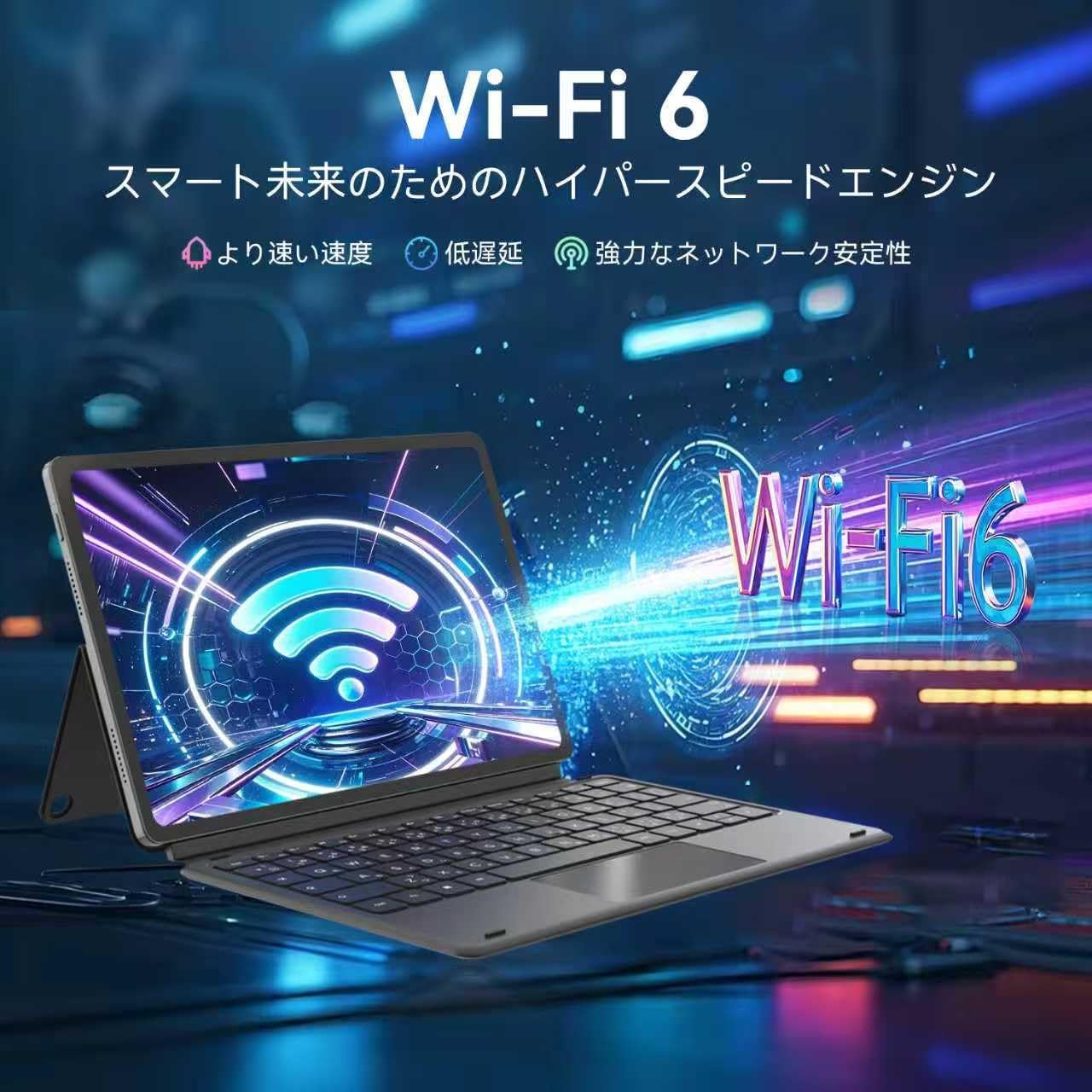
Figure 8: Side view highlighting the multiple connectivity ports available on the device.
3.6 Cameras
The NewBook 11 features a 5MP front camera and an 8MP rear camera, providing clear image quality for online meetings, document scanning, and casual photography. Features like distortion correction and noise suppression enhance usability.

Figure 9: Dual cameras (5MP front, 8MP rear) for clear photos and video calls.
3.7 Operating System
The device comes pre-installed with Windows 11 Pro, offering enhanced security and productivity features. This includes Snap Layouts for efficient multitasking, TPM 2.0 with automatic encryption for robust defense, and WSL2 compatibility for running Linux and Windows apps concurrently.

Figure 10: The Windows 11 Pro operating system, optimized for productivity and security.
4. Maintenance
4.1 Cleaning the Device
To clean the screen, use a soft, lint-free cloth specifically designed for electronics. For the body, a slightly damp cloth can be used. Avoid harsh chemicals or abrasive materials.
4.2 Battery Care
To prolong battery life, avoid extreme temperatures and fully discharging the battery frequently. It is recommended to keep the battery charge between 20% and 80% for optimal longevity.
4.3 Software Updates
Regularly check for and install Windows updates to ensure your device has the latest security patches and performance improvements. Go to Settings > Windows Update to manage updates.
5. Troubleshooting
| Problem | Possible Cause | Solution |
|---|---|---|
| Device does not power on | Low battery, power button issue | Connect to charger and try again. Press and hold power button for 10-15 seconds. |
| Slow performance | Too many apps open, low storage, outdated software | Close unnecessary applications. Free up storage space. Check for Windows updates. |
| Wi-Fi connection issues | Router problem, incorrect password, device settings | Restart your router. Verify Wi-Fi password. Check network settings on the device. |
| Keyboard not responding | Improper connection, software glitch | Ensure the keyboard is securely attached. Restart the device. |
6. Specifications
- Brand: BNCF
- Model Name: NewBook 11
- Form Factor: 2-in-1
- Color: Gray
- Product Dimensions: 25.7 x 16.8 x 1 cm
- Item Weight: 1.66 Kilograms
- Screen Size: 11 Inches
- Display Resolution: 1920x1200 Pixels (FHD IPS)
- CPU Brand: Intel
- CPU Type: Intel Mobile CPU (Twin Lake N150)
- CPU Speed: 3.6 GHz (Max)
- Processor Count: 4
- RAM Size: 12 GB
- Memory Type: LPDDR5
- Hard Disk Size: 256 GB
- Hard Disk Type: SSD (PCIe NVMe)
- Graphics Coprocessor: Intel UHD Graphics
- Graphics Card Type: Integrated
- Wireless Type: 802.11a/b/g/n, 802.11ax (Wi-Fi 6)
- Communication Format: BT 5.0, Wi-Fi
- USB Ports: 2x USB 3.0 (Type-C), 2x USB 2.0
- HDMI Ports: 1 (Micro HDMI)
- Front Camera Resolution: 5 MP
- Rear Camera Resolution: 8 MP
- Operating System: Windows 11 Pro
- Battery: 2 Non-standard batteries (included), 34.2 Watt Hours
7. Warranty and Support
For warranty information and technical support, please refer to the warranty card included in your product packaging or visit the official BNCF website. Ensure you have your product model number and purchase date available when contacting support.