
1. Introduction
This manual provides essential information for setting up, operating, maintaining, and troubleshooting your new Auusda T160R 16-inch laptop. This device is designed for productivity and entertainment, featuring a Ryzen 5 3500U processor, 32GB RAM, and a 1TB SSD, running on Windows 11 Pro.
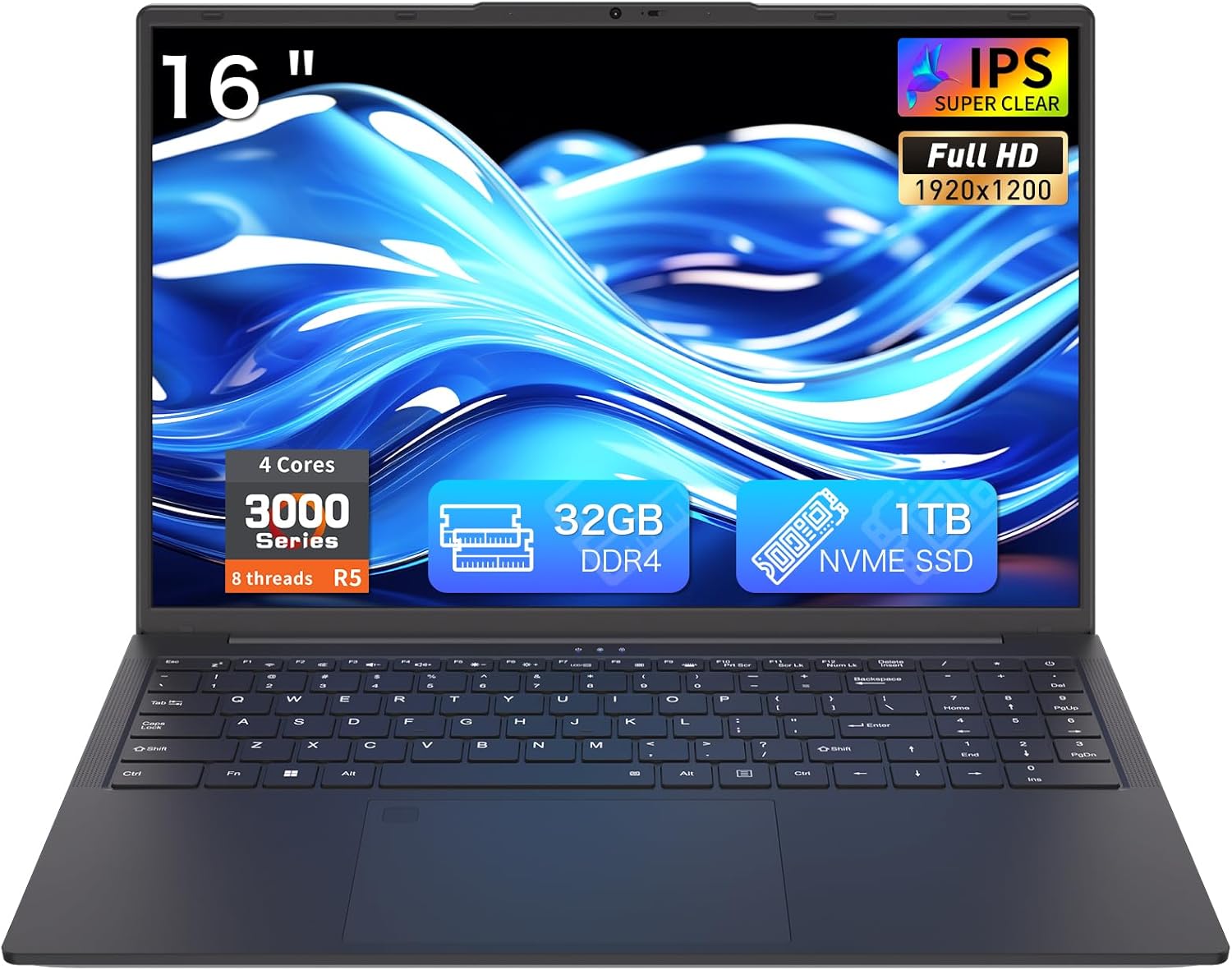
Figure 1: Auusda T160R 16-inch Laptop. This image displays the laptop from the front, highlighting its 16-inch screen, 32GB RAM, 1TB SSD, and Ryzen 5 processor.
2. Setup
2.1 Unboxing and Initial Inspection
Carefully remove all components from the packaging. The box should contain:
- Auusda T160R Laptop
- Power Adapter (19V/3.42A, 3.5 mm plug)
- User Manual (this document)
- Keyboard Cover
Inspect the laptop and accessories for any signs of damage. If any components are missing or damaged, contact customer support immediately.
Video 1: Unboxing a similar Auusda laptop model. This video demonstrates the unboxing process and initial setup steps, which are generally applicable to the T160R model.
2.2 Initial Power On
- Connect the power adapter to the DC3.5mm power port on the left side of the laptop and plug it into a power outlet.
- Open the laptop lid.
- Press the power button, usually located on the top right of the keyboard or side.
- Follow the on-screen instructions to complete the Windows 11 Pro setup.
3. Components Overview
Familiarize yourself with the key components of your Auusda T160R laptop:

Figure 2: Key features of the Auusda T160R laptop, including the Ryzen 5 3500U CPU, 32GB DDR4 RAM, 1TB SSD, 16-inch FHD IPS display, fingerprint unlock, Wi-Fi 6, Bluetooth 5.3, and 5000mAh battery.
3.1 Processor and Memory
The laptop is equipped with a Ryzen 5 3500U 4C8T (2.1-3.7GHz) processor and 32GB DDR4 RAM, providing smooth performance for multitasking and various applications.

Figure 3: Diagram illustrating the Ryzen 5 3500U processor with 4 cores, 8 threads, 12W TDP, and a maximum frequency of 3.7GHz.
3.2 Display
Enjoy visuals on a 16-inch FHD+ (1920x1200) IPS display with narrow bezels and a 180° hinge for flexible viewing. It includes a 720p HD webcam for video calls.

Figure 4: The laptop's 16-inch FHD+ IPS display showcasing vibrant colors and wide viewing angles.
3.3 Keyboard and Touchpad
The laptop features a full-size backlit keyboard for comfortable typing in various lighting conditions, a numeric keypad, and an integrated touchpad with a fingerprint reader for secure login.

Figure 5: Close-up of the full-size backlit keyboard and the integrated fingerprint reader on the touchpad.
3.4 Ports and Connectivity
The Auusda T160R offers comprehensive connectivity options:
- USB-C Port: Supports 65W fast charging, data transfer, and display output.
- USB-A Ports: Three USB-A ports for connecting peripherals.
- HDMI: Standard HDMI port for external displays.
- SD Card Slot: Supports up to 2TB microSD cards for expanded storage.
- Wireless: Wi-Fi 6 and Bluetooth 5.0 for fast and reliable wireless connections.
- Audio Jack: 3.5mm audio jack with microphone support.

Figure 6: Detailed diagram showing the various ports on the laptop, including USB, HDMI, SD card slot, and DC-in jack.
4. Operating Instructions
4.1 Power On/Off
- To Power On: Open the lid or press the power button.
- To Shut Down: Click the Start button, then Power, and select 'Shut down'.
- To Restart: Click the Start button, then Power, and select 'Restart'.
- To Sleep: Close the lid or click the Start button, then Power, and select 'Sleep'.
4.2 Keyboard and Touchpad Usage
- Backlit Keyboard: Press the Fn + F9 keys to toggle the keyboard backlight on or off.
- Fingerprint Reader: Use the integrated fingerprint reader on the touchpad for quick and secure login. Follow Windows Hello setup instructions to configure your fingerprint.
- Touchpad Gestures: The touchpad supports standard Windows gestures for navigation and control.
4.3 Display and Webcam
- 180° Hinge: The display can be opened flat to 180 degrees, facilitating screen sharing and collaboration.
- Webcam Privacy Shutter: Slide the physical shutter located above the webcam to cover or uncover the camera, ensuring your privacy during video calls or when the camera is not in use.
4.4 External Device Connectivity
Connect external devices using the available ports:
- USB Devices: Plug USB drives, mice, or other peripherals into the USB-A ports.
- External Display: Use the HDMI port or the USB-C port (with a compatible adapter/cable) to connect an external monitor.
- SD Card: Insert an SD card into the dedicated slot for additional storage or data transfer.
- Audio: Connect headphones or external speakers to the 3.5mm audio jack.
Video 2: Overview of the Auusda 16-inch laptop's features, including its display, keyboard, and connectivity options.
5. Maintenance
5.1 Battery Care
- To maximize battery life, avoid fully discharging the battery frequently.
- Store the laptop in a cool, dry place when not in use for extended periods.
- Use only the provided power adapter for charging.
5.2 Storage Management
- Regularly delete unnecessary files to free up space on the 1TB PCIe SSD.
- Utilize the SD card slot for additional storage (supports up to 2TB microSD).
- Consider external storage solutions for large media files or backups.
5.3 Cleaning and Cooling
- Use a soft, lint-free cloth to clean the screen and exterior. Avoid harsh chemicals.
- Ensure the laptop's vents are clear of obstructions to allow for proper airflow and efficient cooling.
6. Troubleshooting
If you encounter any issues with your laptop, try the following basic troubleshooting steps:
- No Power: Ensure the power adapter is securely connected and the outlet is working. Try a different outlet.
- Screen Issues: If the screen is blank, try adjusting the brightness or connecting an external monitor to check if the display is faulty.
- Slow Performance: Close unnecessary applications, check for background updates, or restart the laptop.
- Connectivity Problems: For Wi-Fi or Bluetooth issues, try toggling them off and on, or restarting your router/modem.
For more complex issues, refer to the online support resources or contact customer service.
7. Specifications
| Feature | Specification |
|---|---|
| Brand | Auusda |
| Model Name | T160R |
| Screen Size | 16 Inches |
| Screen Resolution | 1920 x 1200 pixels (FHD+) |
| Processor | Ryzen 5 3500U (2.1 GHz, up to 3.7 GHz) |
| RAM | 32 GB DDR4 |
| Hard Drive | 1 TB PCIe SSD |
| Graphics Coprocessor | AMD Radeon RX Vega 8 |
| Operating System | Windows 11 Pro |
| Wireless Type | 5 GHz Radio Frequency, 802.11ax (Wi-Fi 6), Bluetooth 5.0 |
| USB Ports | 3x USB 3.0, 1x USB-C (full-featured) |
| Battery | 11.4V 5000mAh / 57Wh Li-Po |
| Item Weight | 3.970 LBS (1.8 kg) |
| Product Dimensions | 14.07″ × 9.65″ × 0.72″ |
| Special Features | Backlit Keyboard, Fingerprint Reader, Webcam Privacy Shutter |
8. Warranty and Support
Your Auusda T160R laptop comes with a two-year coverage for materials and workmanship. Additionally, a 100-day trial is included.
For customer support, you can reach out via email:
Email: Auusda.ltd@gmail.com
7/24 customer support is available to assist you with any questions or issues.


