1. Introduction
Thank you for choosing the UCOCARE A90 Mini Wireless Security Camera. This manual provides essential information for the proper installation, operation, and maintenance of your device. Please read it thoroughly before use and retain it for future reference.
Package Contents
Verify that all items listed below are included in your package:
- Security Camera (2 units for 2-pack)
- Mounting Bracket
- Charging Cable
- Pack of Screws
- User Manual (this document)
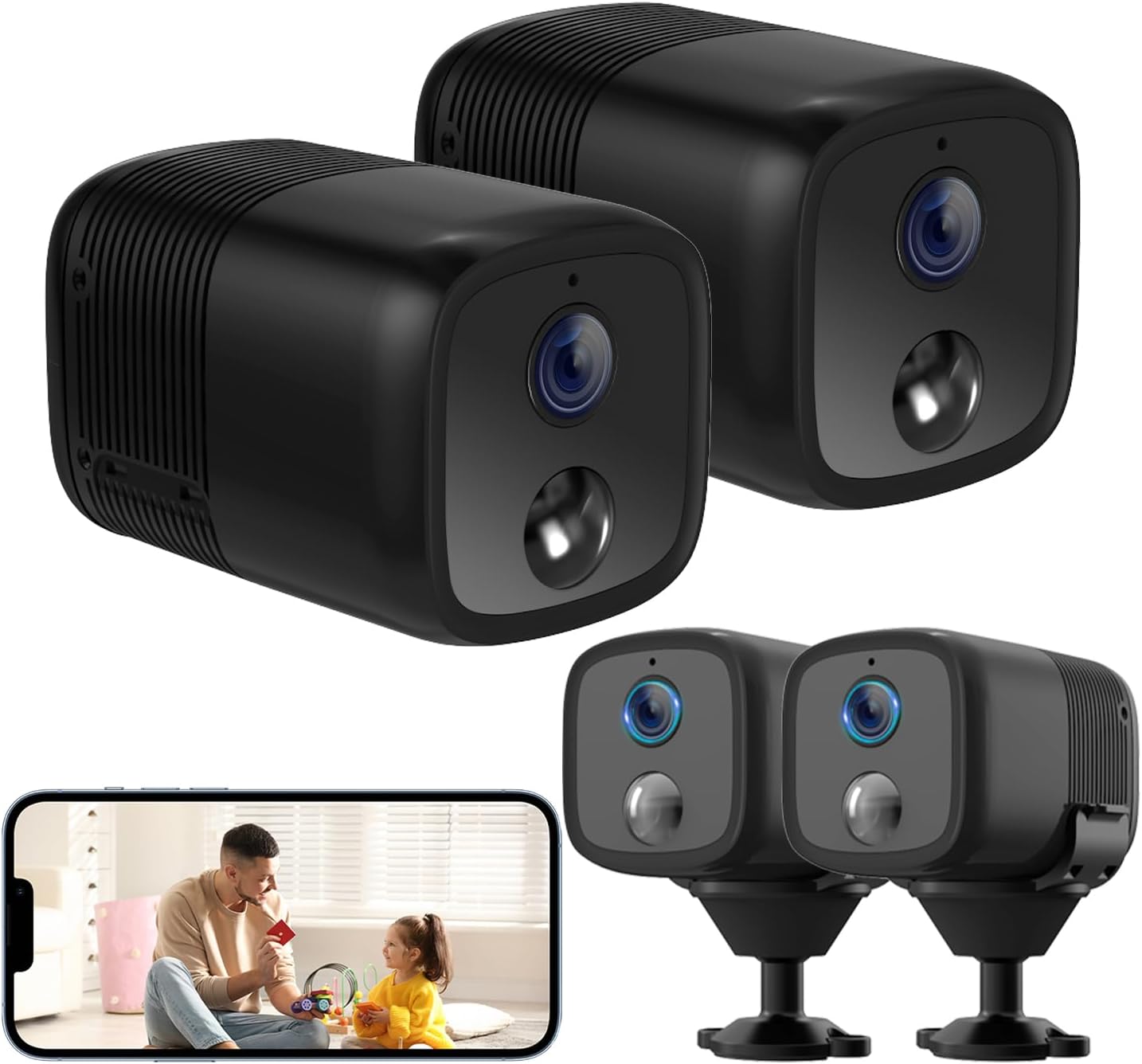
Image: Two UCOCARE A90 mini wireless security cameras, one showing a live view on a smartphone screen.
2. Product Overview
The UCOCARE A90 is a compact, battery-powered wireless security camera designed for versatile indoor and outdoor monitoring. It offers high-definition video, extended battery life, and smart detection features.
Key Features
- 2K Clear Video & 160° Wide-Angle Coverage: Captures detailed footage with a broad field of view.
- 5200mAh Battery Life: High-capacity rechargeable battery with low-power technology for extended operation.
- 33ft IR Night Vision: Provides clear visibility in complete darkness.
- Smart Motion Detection: Advanced algorithms reduce false alarms and send instant notifications.
- Flexible Storage Options: Supports Micro SD card (up to 128GB, not included) and a 7-day loop cloud event video feature.
- Remote Viewing & Multi-user Access: Monitor from anywhere and share access with family members.
- Smart Home Integration: Compatible with Google Home and Amazon Alexa.
- Wireless Setup & Easy Operation: Connects to 2.4GHz Wi-Fi for quick installation.

Image: UCOCARE A90 camera on a stand with icons representing its features.
Battery Technology
The camera is equipped with a 5200mAh rechargeable battery and low-power technology, significantly extending its operational time between charges.

Image: Illustration of the UCOCARE A90 camera highlighting its 5200mAh battery and low-power technology.
3. Setup Guide
3.1 Charging the Camera
Before initial use, fully charge the camera using the provided charging cable and a standard USB power adapter (not included). The charging indicator light will typically change color to indicate a full charge.
3.2 App Installation
Download the companion mobile application (e.g., CloudEdge) from your device's app store (App Store for iOS, Google Play Store for Android). Follow the on-screen instructions to create an account.
3.3 Connecting to Wi-Fi
- Ensure your smartphone is connected to a 2.4GHz Wi-Fi network. The camera does not support 5GHz Wi-Fi.
- Open the app and select 'Add Device' or the '+' icon.
- Follow the in-app instructions to power on the camera and put it into pairing mode.
- Scan the QR code displayed on your phone with the camera lens, or follow alternative pairing methods provided by the app.
- Wait for the camera to connect to your Wi-Fi network. A confirmation message will appear in the app.

Image: Diagram illustrating 2.4GHz Wi-Fi connectivity for the camera.
3.4 Mounting the Camera
The compact design and included flexible mounting bracket allow for versatile installation. You can place it on a flat surface, or mount it to walls, ceilings, or other surfaces using the provided screws or 3M adhesive stickers.

Image: The UCOCARE A90 camera's compact size and various installation options.
4. Operating Instructions
4.1 Live View
Once connected, open the app to access the live video feed from your camera. You can view the 2K HD video in real-time from anywhere with an internet connection.
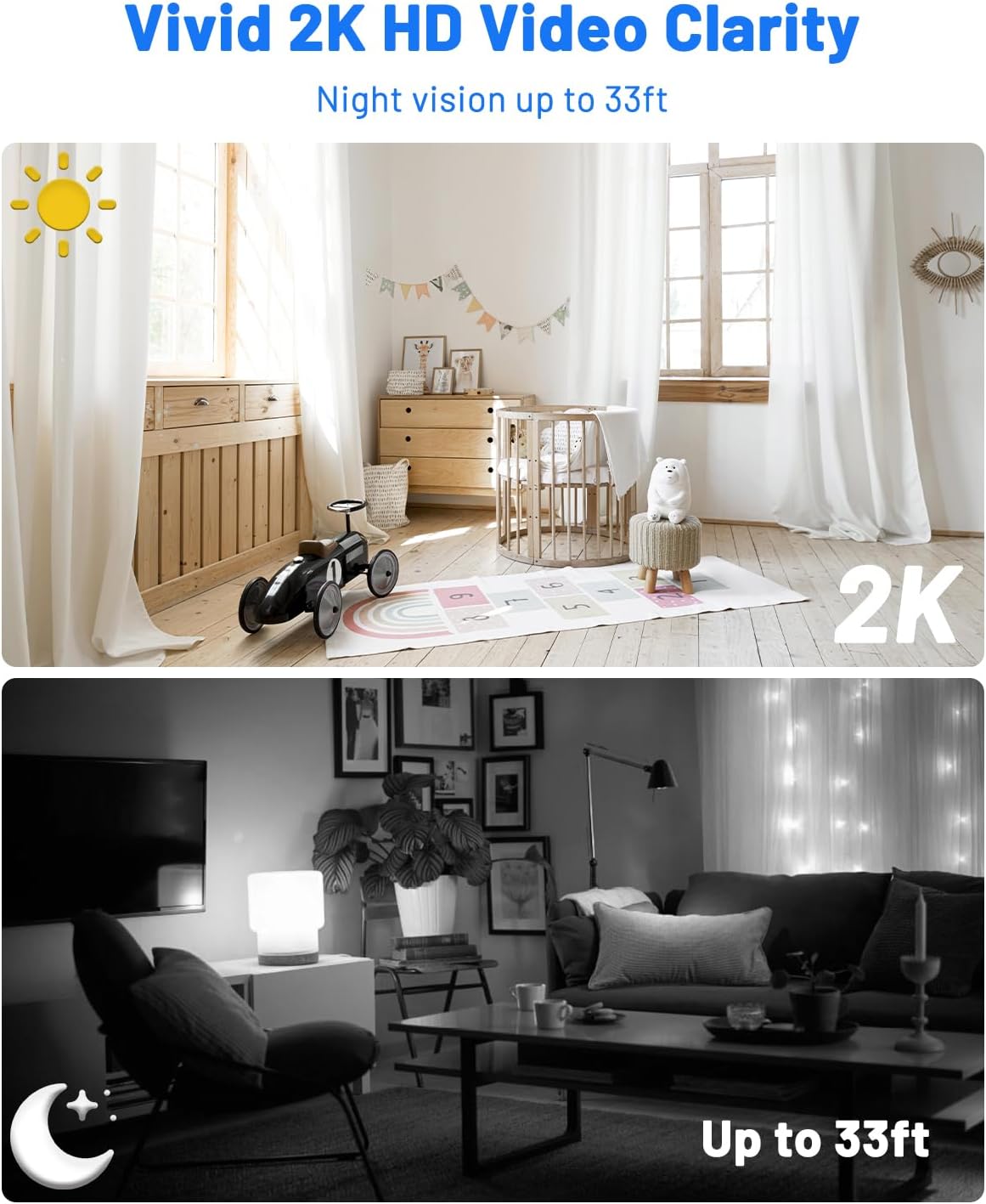
Image: Day and night vision comparison demonstrating 2K HD video clarity and 33ft night vision.
4.2 Motion Detection & Alerts
The camera uses advanced algorithms to detect moving events and sends instant notifications to your phone. You can customize sensitivity levels, alert time periods, and detection zones within the app to minimize false alarms.

Image: Precision smart detection and alerts, showing a person detected and an alert message.

Image: Customizing detection zones and sensitivity levels.

Image: Setting an alert time schedule within the app.
4.3 Night Vision
The camera automatically switches to IR night vision in low-light conditions, providing clear black-and-white video up to 33 feet.
4.4 Storage Options
The UCOCARE A90 offers two storage methods:
- Micro SD Card: Insert a Micro SD card (up to 128GB, not included) into the designated slot for local storage of motion-detected event videos.
- Cloud Storage: A 7-day loop cloud event video feature is available (manually activated via the app) for added security. Videos are protected with AES128 encryption.

Image: Secure and flexible video storage options.
4.5 Remote Access & Sharing
View live footage and recorded events remotely through the app. You can also share access to the camera with up to 5 simultaneous viewers by scanning a QR code or adding accounts.

Image: Remote viewing and real-time response.

Image: Sharing camera access with multiple users.
4.6 Smart Home Integration
The camera integrates with Google Home and Amazon Alexa, allowing for voice control and real-time viewing on compatible smart displays.

Image: Hands-free control with Alexa and Google Assistant.
5. Maintenance
5.1 Cleaning
Use a soft, dry cloth to clean the camera lens and body. Avoid using harsh chemicals or abrasive materials that could damage the device.
5.2 Battery Care
To prolong battery life, avoid exposing the camera to extreme temperatures. Recharge the battery when the low battery indicator appears.
5.3 Firmware Updates
Periodically check the mobile application for available firmware updates. Keeping your camera's firmware up-to-date ensures optimal performance and security.
6. Troubleshooting Common Issues
| Problem | Possible Cause | Solution |
|---|---|---|
| Camera won't turn on | Low battery; Faulty charging cable/adapter | Charge the camera fully; Try a different charging cable/adapter. |
| Cannot connect to Wi-Fi | Incorrect Wi-Fi password; 5GHz Wi-Fi network; Camera too far from router | Verify password; Ensure connection to 2.4GHz Wi-Fi; Move camera closer to router. |
| Motion detection not working | Detection sensitivity too low; Detection zone not set correctly; Camera offline | Adjust sensitivity in app; Configure detection zones; Check Wi-Fi connection. |
| Poor video quality | Weak Wi-Fi signal; Dirty lens | Improve Wi-Fi signal strength; Clean the camera lens. |
| Cannot access cloud storage | Cloud service not activated; Internet connection issue | Activate cloud service in app; Check internet connectivity. |
7. Technical Specifications
| Feature | Specification |
|---|---|
| Model Name | A90 |
| Video Capture Resolution | 2K |
| Viewing Angle | 160 Degrees |
| Night Vision Range | 33 Feet |
| Battery Capacity | 5200 Milliamp Hours (Lithium Ion) |
| Connectivity Protocol | Wi-Fi (2.4GHz only) |
| Storage | Micro SD (up to 128GB), Cloud Storage |
| Compatible Devices | Smartphone (Android, iOS), Amazon Alexa, Google Assistant |
| Dimensions (L x W x H) | 2.36 x 1.46 x 1.46 inches |
| Item Weight | 10.1 ounces |
| Material | Plastic |
| Indoor/Outdoor Usage | Indoor, Outdoor |
8. Warranty & Support
8.1 Warranty Information
UCOCARE products are manufactured to high-quality standards. For specific warranty details, please refer to the warranty card included with your product or visit the official UCOCARE website. Keep your purchase receipt as proof of purchase for warranty claims.
8.2 Customer Support
If you encounter any issues or have questions regarding your UCOCARE A90 camera, please contact our customer support team. You can find contact information on the official UCOCARE website or through the mobile application.
Privacy and Security
UCOCARE prioritizes your privacy. All video data is protected with AES128 encryption, ensuring that your local and cloud storage are secure. Access is granted only to authorized users.

Image: Illustration representing data privacy and security.


