
1. Introduction
Thank you for choosing the ProtoArc EM15 Bluetooth Wireless Mouse. This compact and versatile mouse is designed to enhance your productivity across multiple devices with its seamless connectivity options and ergonomic design. Please read this manual carefully to ensure proper use and optimal performance.
2. Package Contents
- ProtoArc EM15 Wireless Mouse
- USB-C Receiver (stored in mouse)
- USB-A Receiver (stored in mouse)
- USB-C Charging Cable
- User Manual
3. Product Overview
Familiarize yourself with the various buttons and ports on your ProtoArc EM15 mouse:

- Left/Right Buttons: Standard mouse click functions.
- Scroll Wheel: For vertical scrolling.
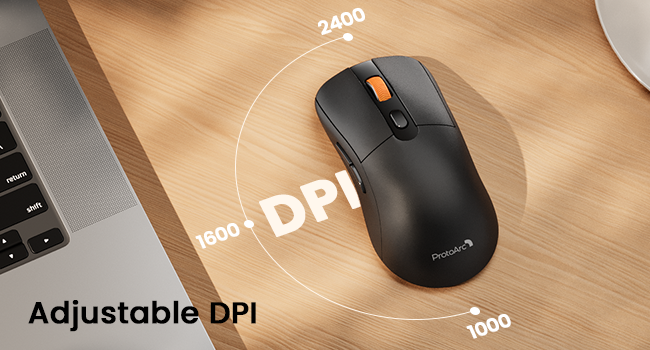
- DPI Switch: Adjusts cursor sensitivity (1000/1600/2400 DPI).
- Forward/Backward Buttons: Navigate web pages or documents. (Note: Not compatible with Mac OS systems for navigation.)
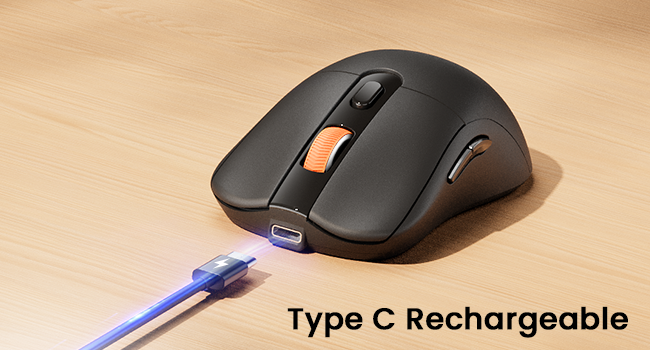
- Type C Charging Port: Located at the front of the mouse for recharging.
- Power Switch: Turns the mouse ON/OFF.
- Mode Switch Button: Cycles between USB, Type-C, and Bluetooth connection modes. LED indicators show the active mode.
- Receiver Storage: Dedicated compartment on the bottom for USB-A and USB-C receivers.
4. Setup
4.1 Charging the Mouse
The ProtoArc EM15 mouse features a built-in Lithium Ion battery. To charge:
- Connect the provided USB-C charging cable to the Type C Charging Port on the front of the mouse.
- Connect the other end of the cable to a USB power source (e.g., computer USB port, wall adapter).
- A full charge typically takes 1-2 hours and provides approximately 15 days of use or 200 days of standby time.
4.2 Connecting to Devices
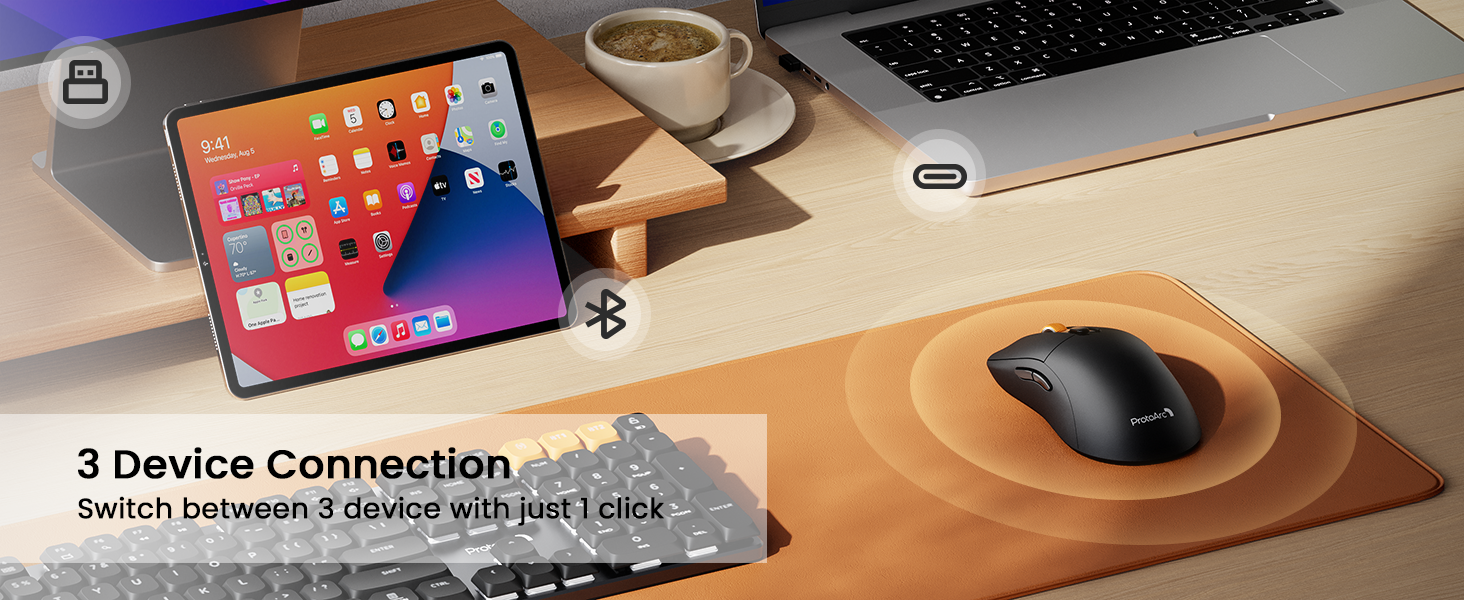
The EM15 mouse supports simultaneous connection to three different devices via Bluetooth, USB-A, and USB-C receivers. You can switch between connected devices with a single button.
Using USB-A or USB-C Receiver:
- Locate the receiver compartment on the bottom of the mouse.
- Gently slide open the cover and remove the desired receiver (USB-A or USB-C).
- Plug the receiver into an available USB-A or USB-C port on your computer or device.
- Turn on the mouse using the Power Switch on the bottom.
- Press the Mode Switch Button on the bottom until the corresponding LED indicator for the receiver (e.g., blue for USB-C, red for USB-A) lights up. The mouse should connect automatically.
Using Bluetooth:
- Turn on the mouse using the Power Switch on the bottom.
- Press the Mode Switch Button on the bottom until the Bluetooth LED indicator (e.g., flashing blue) lights up, indicating it's in pairing mode.
- On your device (laptop, tablet, PC), go to Bluetooth settings and search for new devices.
- Select "ProtoArc EM15" from the list of available devices to pair.
- Once paired, the LED indicator on the mouse will become solid.
4.3 Official Product Video: Multi-Device Connectivity
5. Operating the Mouse
5.1 Adjustable DPI for Smooth Movement
The EM15 mouse offers adjustable DPI (Dots Per Inch) levels to customize cursor sensitivity and tracking speed. This allows for precise control across various surfaces and tasks.
- Press the DPI Switch button (located below the scroll wheel) to cycle through the available DPI settings: 1000, 1600, and 2400.
- Each press will change the sensitivity, allowing you to find the optimal speed for your work or gaming needs.

5.2 Quiet Click and Ergonomic Design
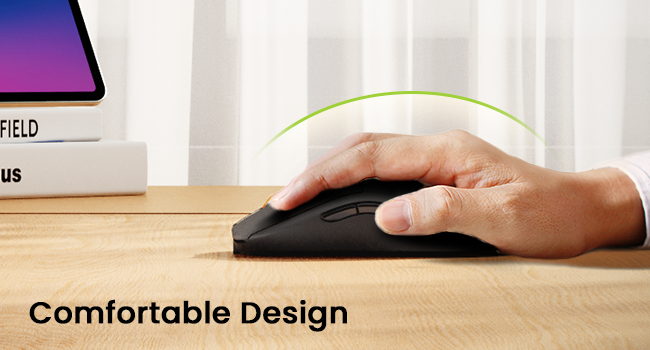
The EM15 mouse features silent click buttons (left and right click) to minimize noise, making it ideal for quiet environments. Its slim and ergonomic design provides maximum support and comfort for extended use.

6. Maintenance
- Cleaning: Use a soft, dry cloth to clean the mouse. Avoid using harsh chemicals or abrasive materials.
- Storage: When not in use, store the mouse in a cool, dry place. Ensure receivers are securely stored in their compartment to prevent loss.
- Battery Care: To prolong battery life, avoid fully discharging the mouse frequently. Charge it when the battery indicator is low.
7. Troubleshooting
7.1 Connection Issues
- Mouse not responding: Ensure the mouse is turned ON and fully charged. Check that the correct connection mode (USB, Type-C, or Bluetooth) is selected via the Mode Switch Button.
- Receiver not detected: Ensure the USB-A or USB-C receiver is firmly plugged into your device's port. Try a different USB port.
- Bluetooth pairing failure: Make sure your device's Bluetooth is enabled and the mouse is in pairing mode (flashing LED). Remove any previous pairings of the mouse from your device's Bluetooth list and try pairing again.
7.2 Performance Issues
- Cursor erratic or slow: Adjust the DPI setting using the DPI Switch button. Ensure the mouse is used on a clean, suitable surface.
- Forward/Backward buttons not working: These buttons may not be compatible with all operating systems or applications. Specifically, they are not compatible with Mac OS for navigation.
8. Specifications
| Feature | Detail |
|---|---|
| Model | EM15 |
| Brand | ProtoArc |
| Connectivity Technology | 2.4G Wireless, Bluetooth, Type C Wireless |
| Movement Detection Technology | Optical |
| DPI Levels | 1000/1600/2400 |
| Special Features | Ergonomic Design, Lightweight, Portable, Rechargeable, Soundless (Quiet Click) |
| Battery Type | Built-in Lithium Ion |
| Charging Time | Approx. 1-2 hours |
| Usage Time | Approx. 15 days (active use) |
| Standby Time | Approx. 200 days |
| Compatibility | Windows 7/8/10/XP, Vista, Mac OS X 10.10 or later, Type-C devices, tablets, cellphones, Macbook, Macbook Pro, iMac, iMac Pro, Chromebook |
| Item Weight | 7 ounces |
| Package Dimensions | 5.28 x 4.49 x 2.72 inches |
9. Warranty & Support
For warranty information or technical support, please refer to the contact details provided in your product packaging or visit the official ProtoArc website. Keep your purchase receipt for warranty claims.


