
Introduction
Thank you for purchasing the Fisher FBX390 Portable Bluetooth Speaker. This manual provides essential information for setting up, operating, and maintaining your speaker. Please read it thoroughly before use to ensure optimal performance and longevity of your device. This speaker combines powerful audio with dynamic lighting, True Wireless Stereo (TWS) capabilities, and IPX4 water resistance, making it suitable for various environments.
Package Contents
- Fisher FBX390 Portable Bluetooth Speaker
- Power Cable
- Quick Start Guide
- Warranty Card
Product Overview
Familiarize yourself with the components and controls of your Fisher FBX390 speaker.

Front view of the Fisher FBX390 Portable Bluetooth Speaker, showcasing its grille and overall design.

Top view of the speaker, highlighting the control panel with buttons for mode, volume, play/pause, power, and AUX input.
Control Buttons and Ports:
- M (Mode Button): Press to switch between Bluetooth, FM Radio, and AUX input modes.
- - (Volume Down / Previous Track): Press briefly to decrease volume. Press and hold to go to the previous track.
- Play/Pause Button: Press to play or pause audio. In FM mode, press and hold to auto-scan for stations.
- + (Volume Up / Next Track): Press briefly to increase volume. Press and hold to go to the next track.
- Power Button: Press and hold to turn the speaker on or off.
- AUX Input: For connecting external audio devices via a 3.5mm audio cable.
- Charging Port: For connecting the power cable to charge the speaker.
Setup
Initial Charging
Before first use, fully charge the speaker. Connect the provided power cable to the charging port on the speaker and plug the other end into a suitable power source. The charging indicator light will illuminate. Once fully charged, the light may change color or turn off, depending on the model. A full charge provides up to 5 hours of playtime.
Operating Instructions
Power On/Off
- To turn on: Press and hold the Power Button until you hear an audible prompt or see the indicator lights activate.
- To turn off: Press and hold the Power Button again until the speaker powers down.
Bluetooth Pairing
- Ensure the speaker is powered on and in Bluetooth mode. If not, press the 'M' (Mode) button to switch to Bluetooth mode. The speaker will enter pairing mode, indicated by a flashing LED light.
- On your mobile device (smartphone, tablet, etc.), enable Bluetooth and search for available devices.
- Select "FBX390" from the list of devices.
- Once paired, the speaker will emit a confirmation sound, and the LED light will stop flashing.
- You can now play audio from your device through the speaker.
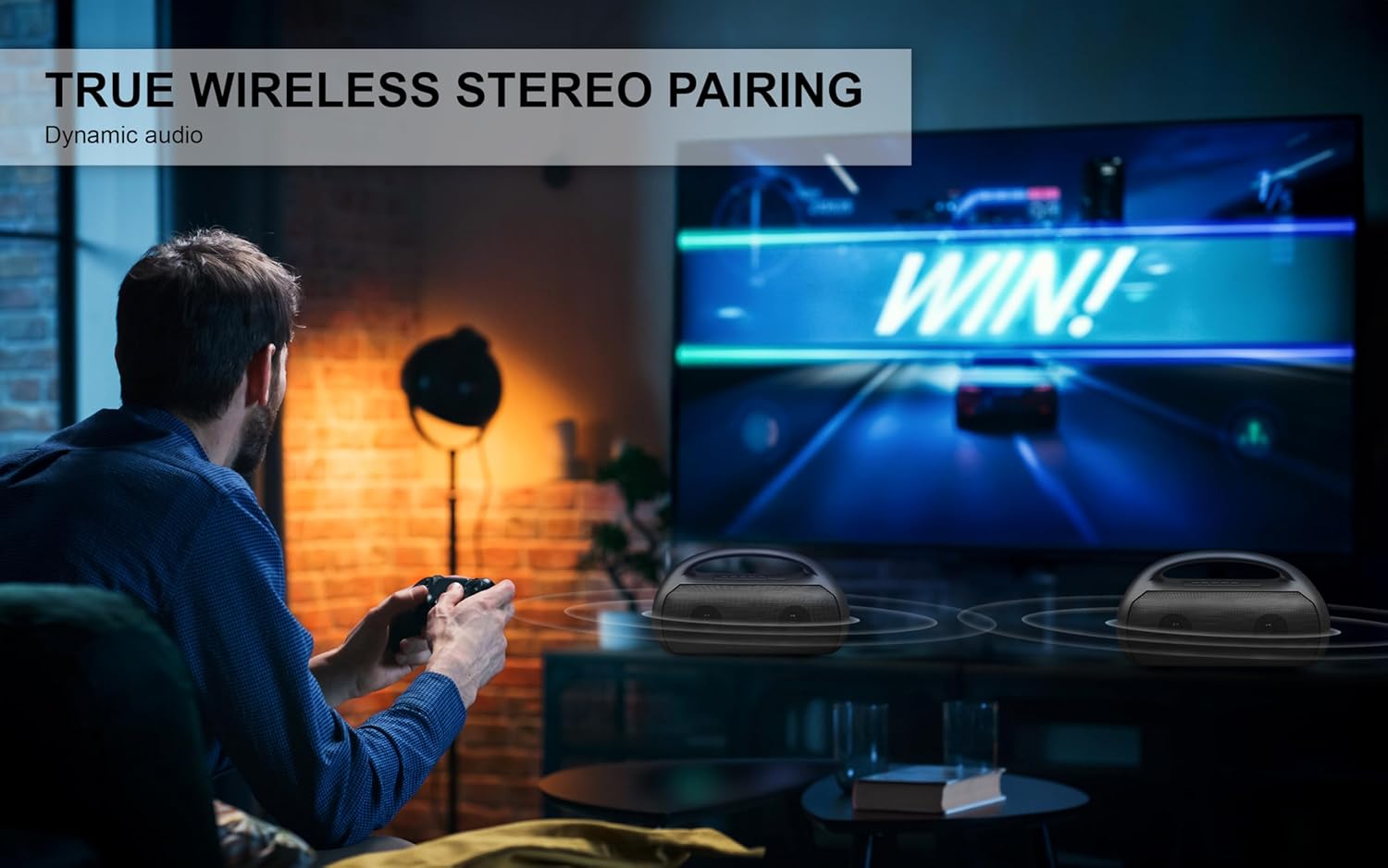
Image depicting the speaker connecting wirelessly via Bluetooth 5.3 to various devices like smartphones, tablets, computers, and laptops, also showing USB, TF Card, and AUX input options.
True Wireless Stereo (TWS) Pairing
To achieve a stereo sound experience, you can pair two FBX390 speakers together.
- Ensure both FBX390 speakers are powered on and in Bluetooth mode, but not yet connected to any device.
- On one of the speakers (this will be your primary speaker), press and hold the Play/Pause button for a few seconds until you hear a pairing tone.
- The two speakers will automatically connect to each other. A confirmation sound will indicate successful TWS pairing.
- Now, connect your mobile device to the primary speaker via Bluetooth as described in the "Bluetooth Pairing" section.
- Audio will now play in stereo across both speakers.

A user enjoying a game with two Fisher FBX390 speakers wirelessly paired for an immersive True Wireless Stereo sound experience.
FM Radio
- Press the 'M' (Mode) button to switch to FM Radio mode.
- Press and hold the Play/Pause button to initiate an automatic scan for available FM stations. The speaker will save detected stations.
- Use the '-' and '+' buttons to navigate between saved stations.
RGB Lights
The speaker features dynamic RGB lights that synchronize with the music. The lights automatically activate when the speaker is turned on. Specific controls for changing light modes or turning them off may vary; refer to the Quick Start Guide for detailed instructions if available.

Side view of the speaker, illustrating the dynamic RGB lighting feature.
AUX Input
To play audio from a device without Bluetooth:
- Connect one end of a 3.5mm audio cable (not included) to the AUX input port on the speaker.
- Connect the other end to the audio output jack of your external device.
- Press the 'M' (Mode) button to switch to AUX mode.
- Control playback and volume directly from your connected device.
Charging
The speaker is equipped with a 1500mAh battery, providing up to 5 hours of playback time on a single charge. When the battery is low, the speaker may indicate this with an audible alert or a flashing LED. Connect the speaker to a power source using the provided power cable to recharge. Charging time may vary.
Maintenance
- Cleaning: Use a soft, dry cloth to clean the speaker's exterior. Do not use abrasive cleaners or solvents.
- Water Resistance: The speaker has an IPX4 water resistance rating, meaning it is protected against splashing water from any direction. It is not designed to be submerged in water. Ensure the charging port cover is securely closed when exposed to water.
- Storage: Store the speaker in a cool, dry place away from direct sunlight and extreme temperatures.
- Battery Care: To prolong battery life, avoid fully discharging the battery frequently. Charge the speaker regularly, even if not in use for extended periods.

A person relaxing by a pool with the Fisher FBX390 speaker, demonstrating its suitability for outdoor environments due to its water resistance.
Troubleshooting
| Problem | Possible Cause | Solution |
|---|---|---|
| Speaker does not turn on. | Battery is depleted. | Charge the speaker fully. |
| Cannot pair via Bluetooth. | Speaker is not in pairing mode or too far from device. | Ensure speaker is in Bluetooth pairing mode. Move device closer to speaker (within 33ft). Turn off and on Bluetooth on your device. |
| No sound. | Volume too low, incorrect mode, or device not playing. | Increase speaker and device volume. Ensure correct mode (Bluetooth/AUX/FM) is selected. Check if audio is playing on the connected device. |
| TWS pairing fails. | Speakers already connected to a device or too far apart. | Ensure both speakers are disconnected from other devices. Place speakers close to each other. Follow TWS pairing steps carefully. |
Specifications
| Feature | Detail |
|---|---|
| Model Name | FBX390 |
| Speaker Type | Single Speaker (with TWS capability) |
| Connectivity Technology | Bluetooth 5.3 |
| Wireless Range | Up to 33 feet (10 meters) |
| Speaker Output Power | 10W RMS (20W Peak) |
| Frequency Response | 80Hz-18kHz |
| Battery Capacity | 1500mAh |
| Playtime | Up to 5 hours |
| Water Resistance | IPX4 |
| Dimensions (W x H x D) | 13.64" x 8.1" x 5.58" |
| Item Weight | 3.13 Pounds |
| Included Components | Power Cable, Quick Start Guide, Warranty Card |

Diagram showing the dimensions of the Fisher FBX390 speaker: 13.64 inches (W) x 8.1 inches (H) x 5.58 inches (D).
Warranty and Support
This Fisher FBX390 Portable Bluetooth Speaker comes with a Limited Warranty. Please refer to the included Warranty Card for detailed terms and conditions, including coverage period and how to make a claim. For technical support or customer service inquiries, please contact the manufacturer or retailer where you purchased the product. Keep your proof of purchase for warranty purposes.


