
1. Introduction
The ECOVACS DEEBOT T50 PRO OMNI Gen2 is an advanced robotic vacuum and mop cleaner designed to provide comprehensive floor cleaning. This manual provides essential information for setting up, operating, maintaining, and troubleshooting your device to ensure optimal performance and longevity.

Figure 1.1: The ECOVACS DEEBOT T50 PRO OMNI Gen2 robot and its accompanying OMNI Station.
2. Setup
2.1 Unboxing and Placement
Carefully remove all components from the packaging. Ensure all protective films and packing materials are removed from the robot and the OMNI Station. Place the OMNI Station against a wall in an open area, ensuring there are no obstacles within 1.5 meters in front and 0.5 meters on either side.
2.2 Initial Charging
Place the DEEBOT onto the OMNI Station. Ensure the charging contacts align. The robot will begin charging automatically. For first-time use, fully charge the robot before operation.
2.3 App Installation and Pairing
- Download the ECOVACS HOME app from your device's app store.
- Create an account or log in.
- Follow the in-app instructions to add your DEEBOT T50 PRO OMNI Gen2. This typically involves scanning a QR code on the robot and connecting to your home Wi-Fi network.
2.4 Initial Mapping
After successful pairing, initiate a mapping run through the app. The robot will navigate your home to create a detailed map, which is crucial for efficient cleaning and advanced features. The dToF LiDAR module and AIVI 3D 3.0 OMNI-Approach technology enable precise and rapid mapping.

Figure 2.1: The DEEBOT utilizes TrueMapping 2.0 for quick and efficient home mapping.
2.5 Filling Water Tanks and Detergent
Fill the clean water tank on the OMNI Station with tap water. If desired, add the recommended ECOVACS detergent solution to the designated compartment. The OMNI Station features automatic detergent addition for convenience.
3. Operating the DEEBOT
3.1 Cleaning Modes
The DEEBOT T50 PRO OMNI Gen2 offers various cleaning modes accessible via the ECOVACS HOME app:
- Vacuum Only: For dry debris removal.
- Mop Only: For wet cleaning.
- Vacuum & Mop: Simultaneous vacuuming and mopping.
- Vacuum then Mop: Completes vacuuming first, then proceeds with mopping.
3.2 Edge Cleaning and Obstacle Avoidance
The TruEdge 2.0 technology allows the side brush to extend dynamically, reaching deep into corners and maintaining a 1mm proximity to edges for 100% coverage. The AIVI 3D 3.0 OMNI-Approach with 3D structured light and RGB camera enables real-time recognition and identification of obstacles, using their contours for precise edge cleaning and avoidance.

Figure 3.1: TruEdge 2.0 ensures thorough cleaning along walls and in corners.

Figure 3.2: AIVI 3D 3.0 technology allows the robot to recognize and avoid obstacles effectively.
3.3 Suction Power and ZeroTangle 2.0
With 21,000 Pa of suction power, the DEEBOT effectively removes dirt and debris. The ZeroTangle 2.0 technology, featuring triple V-shaped structures, actively collects, lifts, and untangles hair, ensuring a 0% tangle rate even with long hair.

Figure 3.3: Powerful suction and tangle-free brush system for efficient cleaning.
3.4 Mopping System
The OZMO TURBO 2.0 mopping system features two high-speed rotating pads (180 rotations/min) to remove stubborn stains. The automatic mop lifting function raises the pads by up to 9mm when detecting carpets, preventing them from getting wet.

Figure 3.4: The mopping system effectively removes stains and protects carpets.
3.5 Smart Control and Monitoring
Control your DEEBOT using the ECOVACS HOME app, YIKO voice assistant, Google Home, or Amazon Alexa. The app allows for customized cleaning schedules, zone cleaning, and real-time video monitoring via the robot's 960P camera, ensuring privacy protection.

Figure 3.5: Multiple control options for convenient operation.
4. Maintenance
4.1 OMNI Station Functions
The OMNI Station provides comprehensive self-maintenance:
- Automatic Dust Emptying: The robot's dustbin is automatically emptied into a sealed bag in the station.
- Hot Air Drying (45°C): Mop pads are dried with 45°C hot air to prevent odors and mildew.
- Automatic Detergent Addition: The station automatically adds the correct amount of detergent to the clean water.
- Hot Water Mop Washing (75°C): Mop pads are washed with 75°C hot water to dissolve dirt and stains.
- Automatic Base Cleaning: Bidirectional scrapers clean the bottom of the station, ensuring it remains clean.
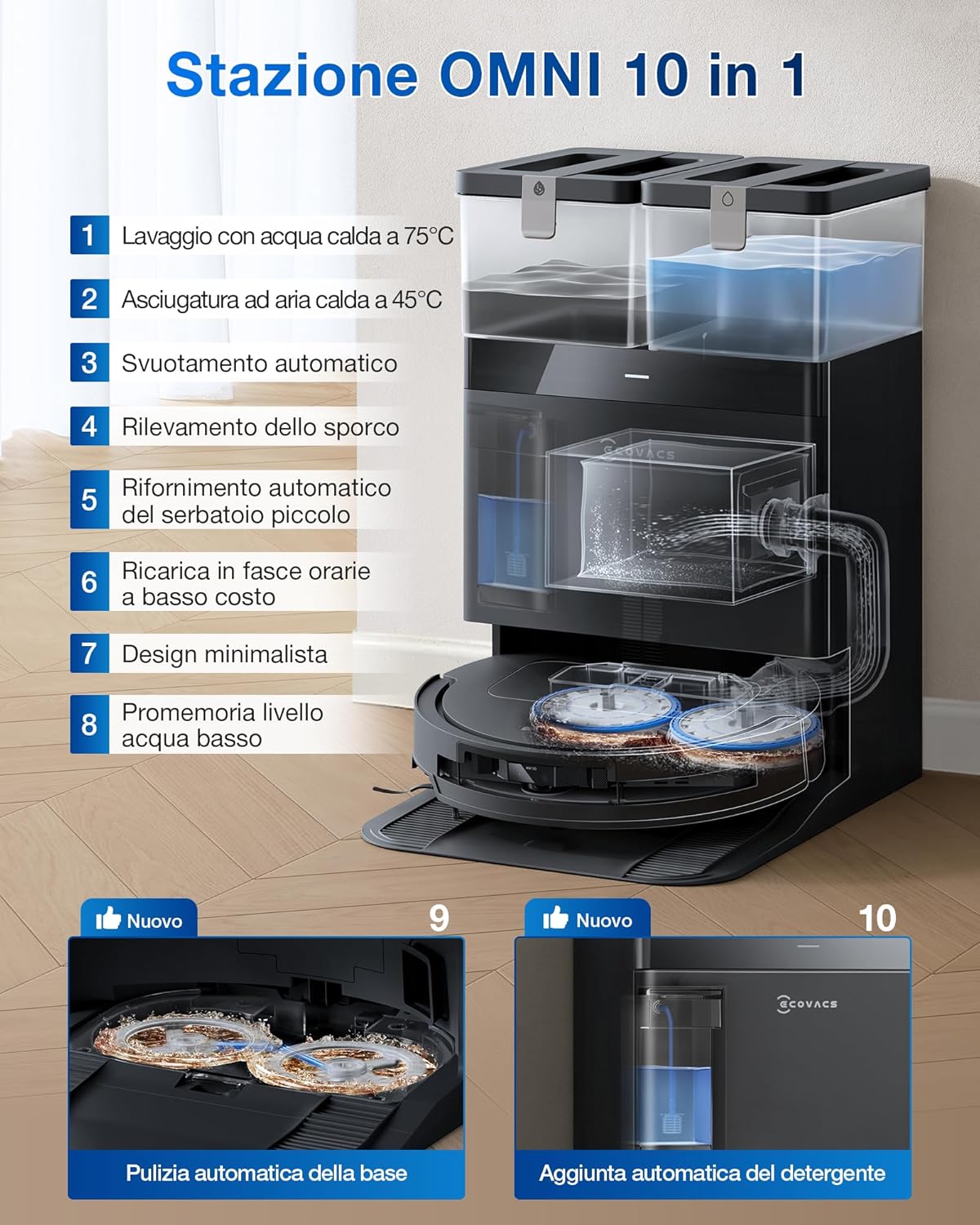
Figure 4.1: The OMNI Station handles most maintenance tasks automatically.
4.2 Regular Cleaning of Robot Components
- Dustbin and Filter: Regularly empty the robot's internal dustbin (if not using auto-empty) and clean the filter.
- Main Brush and Side Brushes: Remove and clean the main brush and side brushes to remove tangled hair and debris. The ZeroTangle 2.0 design minimizes tangles, but periodic checks are recommended.
- Sensors: Wipe all sensors (cliff sensors, anti-collision sensors, charging contacts) with a dry cloth to ensure proper function.
- Mop Pads: Replace mop pads when they show signs of wear or are no longer effectively cleaned by the station.
4.3 OMNI Station Maintenance
- Empty Dirty Water Tank: Regularly empty the dirty water tank and rinse it.
- Refill Clean Water Tank: Ensure the clean water tank is filled.
- Detergent Compartment: Check and refill the detergent compartment as needed. A single refill can last up to 90 days.
- Dust Bag: Replace the dust bag in the auto-empty station when full.
5. Troubleshooting
If you encounter issues with your DEEBOT, refer to the following common solutions. For more detailed troubleshooting, consult the ECOVACS HOME app or the official ECOVACS support website.
- Robot not charging: Ensure the robot is correctly docked on the OMNI Station and the charging contacts are clean. Check if the power cable is securely connected to the station and the wall outlet.
- Robot stuck or unable to navigate: Clear any obstacles from the robot's path. Clean the driving wheels and sensors. Ensure the mapping process was completed successfully. The ultra-slim 81mm design helps it clean under low furniture, but very tight spaces may still pose a challenge.
- Poor cleaning performance: Check if the dustbin is full, the filter is clogged, or the brushes are tangled. Ensure mop pads are clean and properly attached. Verify water tanks are filled and detergent is present.
- OMNI Station issues (e.g., water leakage): Ensure all tanks are correctly seated and sealed. Check for any blockages in the water lines or drainage system.
- App connectivity issues: Ensure your Wi-Fi network is stable and the robot is within range. Restart the robot and your router. Re-pair the device if necessary.

Figure 5.1: The 81mm ultra-slim body allows cleaning in hard-to-reach areas.
6. Specifications
| Feature | Specification |
|---|---|
| Brand | ECOVACS |
| Model Name | DEEBOT T50 PRO OMNI Gen2 |
| Color | Black |
| Product Dimensions | 35 x 47.7 x 53.3 cm |
| Item Weight | 15.8 Kilograms |
| Voltage | 220 Volts |
| Special Features | Edge Cleaning, Self-cleaning Brush Roll, Cordless, AIVI 3D 3.0, TruEdge 2.0, ZeroTangle 2.0, OMNI Station, YIKO Voice Assistant |
| Recommended Surfaces | Multi-surface |
| Suction Power | 21,000 Pa |
7. Warranty and Support
7.1 Warranty Information
For detailed warranty information, please refer to the warranty card included with your product packaging or visit the official ECOVACS website. Warranty terms and conditions may vary by region.
7.2 Customer Support
If you require further assistance or have questions not covered in this manual, please contact ECOVACS customer support through the ECOVACS HOME app or their official website. You can also visit the ECOVACS Store on Amazon for additional resources.


