
1. Introduction
This user manual provides essential information for the proper setup, operation, maintenance, and troubleshooting of your new acer Aspire Laptop. Please read this manual thoroughly before using your device to ensure optimal performance and longevity. Keep this manual for future reference.

Image 1.1: The acer Aspire Laptop, showcasing its sleek design and display.
2. Package Contents
Verify that all items listed below are included in your product package. If any items are missing or damaged, please contact your retailer or acer support.
- acer Aspire Laptop
- USB Type-C Power Adapter
- Power Cord
- TWE Mouse Pad (bundled accessory)
3. Setup
3.1 Initial Power On and Charging
- Unpack the laptop and all accessories from the box.
- Connect the USB Type-C Power Adapter to the laptop's USB Type-C port (which supports Power Delivery) and then plug the power cord into an electrical outlet.
- Allow the laptop to charge for at least 30 minutes before initial use, or until the battery indicator shows sufficient charge.
- Open the laptop lid. The laptop may power on automatically, or you may need to press the power button.
3.2 Initial Windows 11 Setup
Follow the on-screen instructions to complete the Windows 11 Home setup process. This typically includes:
- Selecting your region and keyboard layout.
- Connecting to a Wi-Fi network (IEEE 802.11ax, Wi-Fi 6E supported).
- Accepting the license agreement.
- Creating or signing in with a Microsoft account.
- Setting up security features like Windows Hello (if applicable).
3.3 Connecting Peripherals
Your acer Aspire Laptop offers various ports for connecting external devices:
- USB 3.2 Gen 1 Ports: For connecting USB devices like mice, keyboards, or external storage.
- USB Type-C Ports (USB4, Thunderbolt 4): Versatile ports for data transfer (up to 40 Gbps), video output, and power delivery.
- HDMI 2.1 Port: For connecting to external displays or projectors.
- 3.5 mm Headphone/Microphone Combo Jack: For audio input/output.
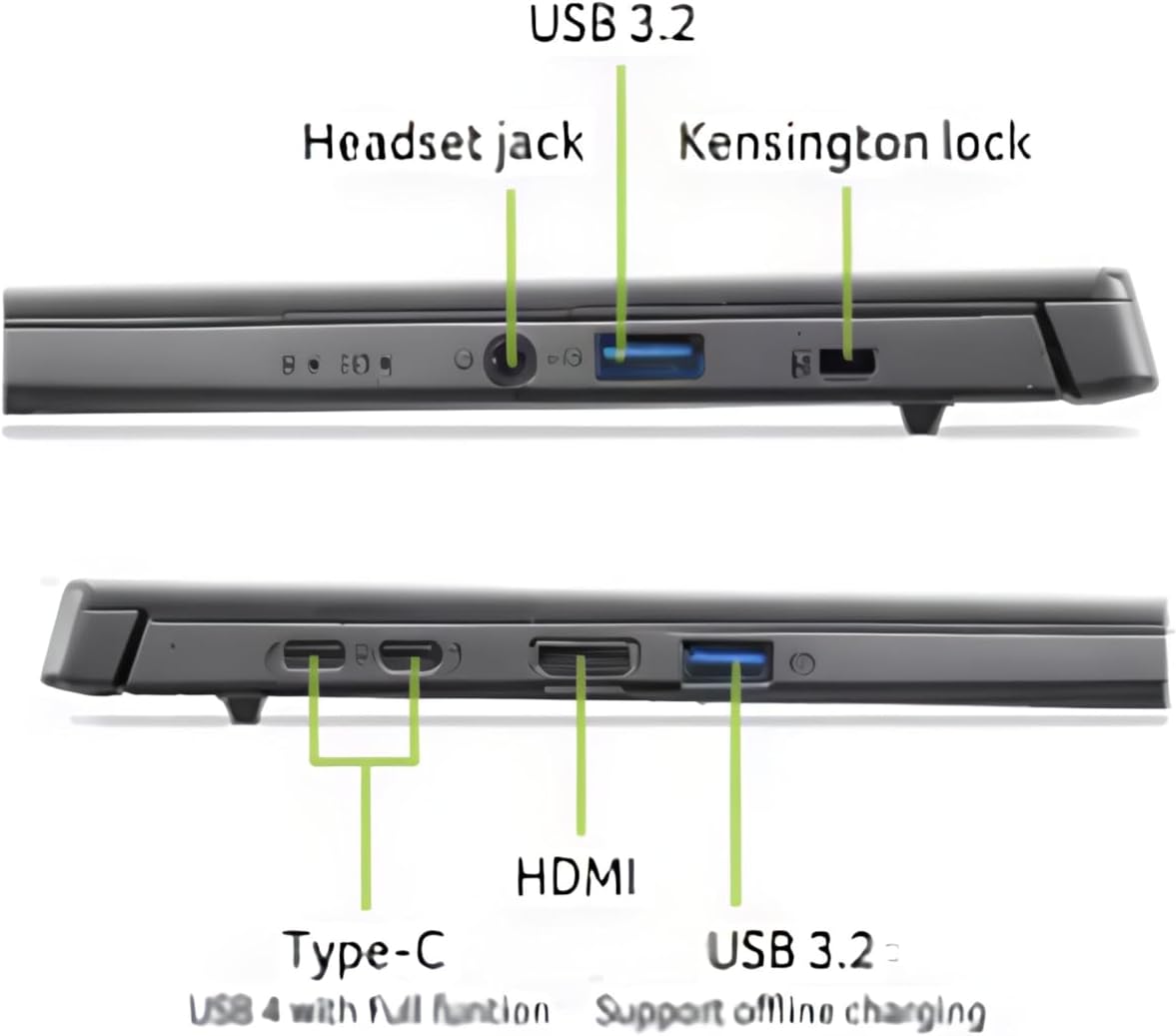
Image 3.1: Overview of the laptop's connectivity ports.
4. Operating Your Laptop
4.1 Display and Touchscreen
The laptop features a 14-inch WUXGA (1920 x 1200) IPS LED Backlit TFT LCD Touchscreen display. This display supports touch input for intuitive interaction with Windows 11. Use gestures similar to a smartphone or tablet for navigation.
4.2 Keyboard and Touchpad
The integrated keyboard is backlit, allowing for comfortable typing in various lighting conditions. The touchpad supports multi-touch gestures for navigation and control. Refer to Windows settings for customizing touchpad gestures.

Image 4.1: Top view of the keyboard and touchpad.
4.3 Power Management
Your laptop is equipped with a battery providing approximately 8 hours of usage. To optimize battery life, adjust power settings in Windows 11. Always use the provided USB Type-C Power Adapter for charging.
4.4 AI Copilot+PC Features
This laptop is an AI Copilot+PC, integrating advanced AI capabilities through its Intel Core Ultra 5 processor with CPU, GPU, and NPU. Key AI features include:
- Copilot: An AI-powered assistant in Windows 11 for productivity, creativity, and information retrieval.
- AcerSense: Acer's experience zone for managing system performance and features.
- AcerLiveArt & Acer AlterView: Tools for creative applications.
- Acer Assist: Your smart AI assistant for system optimization and support.
- Acer PurifiedView™ 2.0 & Acer PurifiedVoice™: Enhanced video call and audio quality.

Image 4.2: The Copilot+PC branding on the laptop screen, indicating advanced AI capabilities.

Image 4.3: Users interacting with the laptop, demonstrating features like Acer PurifiedView and PurifiedVoice for enhanced communication.
5. Maintenance
5.1 Cleaning Your Laptop
- Use a soft, lint-free cloth slightly dampened with water or a screen cleaner to clean the display. Do not spray liquid directly onto the screen.
- For the keyboard and chassis, use a soft, dry cloth. A can of compressed air can help remove dust from between keys.
- Ensure the laptop is powered off and unplugged before cleaning.
5.2 Software Updates
Regularly check for and install Windows updates to ensure your system has the latest security patches and performance improvements. Acer may also provide driver and firmware updates through AcerSense or their official support website.
5.3 Storage and Handling
- Avoid exposing the laptop to extreme temperatures, direct sunlight, or high humidity.
- Do not place heavy objects on the laptop.
- Transport the laptop in a protective sleeve or bag to prevent scratches and impacts.

Image 5.1: The laptop's 180-degree hinge design and durable aluminum chassis.
6. Troubleshooting
This section addresses common issues you might encounter with your acer Aspire Laptop.
6.1 Power Issues
- Laptop does not turn on: Ensure the power adapter is securely connected to both the laptop and a working electrical outlet. Check if the battery is charged. Try holding the power button for 10-15 seconds to perform a hard reset.
- Battery not charging: Verify the power adapter and cable are not damaged. Try a different outlet. Ensure the USB Type-C port used for charging is functional.
6.2 Display Issues
- No display on screen: Connect an external monitor via the HDMI port to check if the issue is with the laptop's internal display. If the external monitor works, the internal display may require service.
- Flickering or distorted display: Update your graphics drivers. Adjust display resolution and refresh rate in Windows settings.
6.3 Connectivity Issues
- Wi-Fi not connecting: Ensure Wi-Fi is enabled in Windows settings. Restart your router and the laptop. Check for updated wireless drivers.
- Bluetooth device not pairing: Ensure Bluetooth is enabled on both the laptop and the device. Place devices close to each other. Remove and re-add the device in Bluetooth settings.
6.4 Performance Issues
- Laptop is slow: Close unnecessary applications. Check Task Manager for processes consuming high CPU or RAM. Ensure sufficient free space on the 512GB PCIe Gen 4 SSD. Run a malware scan.
7. Specifications
| Feature | Specification |
|---|---|
| Brand | acer |
| Model Name | Acer Aspire Laptop |
| Screen Size | 14 Inches |
| Display Resolution | 1920 x 1200 (WUXGA) |
| Display Type | IPS LED Backlit TFT LCD, Touchscreen |
| Processor | 2nd Gen Intel Ultra 5-226V (8 Cores, 2.1GHz ~ 4.5 GHz) |
| Graphics | Intel ARC 130V Integrated Graphics |
| RAM | 16GB LPDDR5X RAM |
| Storage | 512GB PCIe Gen 4 SSD |
| Operating System | Windows 11 Home |
| Wireless Connectivity | IEEE 802.11ax (Wi-Fi 6E), Bluetooth 5.3 |
| Ports | 1x HDMI 2.1, 2x USB 3.2 Gen 1, 2x USB Type-C (USB4, Thunderbolt 4, Power Delivery), 1x 3.5mm Headphone/Mic Combo Jack |
| Webcam | 1080p FHD |
| Keyboard | Backlit |
| Battery Life | Up to 8 Hours |
| Dimensions (L x W x H) | 12.56" x 8.86" x 0.46"-0.67" |
| Weight | 3.04 lbs (1.38 kg) |
8. Warranty Information
Your acer Aspire Laptop comes with a Limited Warranty. The specific terms and duration of the warranty may vary by region and retailer. Please refer to the warranty card included in your product packaging or visit the official acer support website for detailed warranty information, including coverage, limitations, and how to make a claim.
Keep your proof of purchase (receipt or invoice) as it will be required for any warranty service.
9. Support
For further assistance, technical support, or to download updated drivers and manuals, please visit the official acer support website:
You may also contact acer customer service directly through the contact information provided on their website for your specific region.


