
1. Introduction
This manual provides essential information and instructions for the proper use and maintenance of your DigiLand S10 10.1-inch Android 14 Tablet. Please read this manual thoroughly before using your device to ensure optimal performance and longevity. Keep this manual for future reference.
2. What's in the Box
Upon opening your DigiLand S10 tablet package, verify that all the following items are included:
- DigiLand S10 Android Tablet (1 unit)
- USB Cable (1 unit)
- 5V/2A Power Adapter (US standard, 1 unit)
- User Manual (1 unit)
- Warranty Card (1 unit)
3. Product Overview
The DigiLand S10 tablet features a sleek design with essential ports and controls for user interaction.
Image 3.1: Overview of the DigiLand S10 tablet, highlighting the locations of the front camera, memory card slot, headset jack, back camera, power button, volume up/down buttons, and reset pinhole.
Physical Components:
- Front Camera: Located at the top center when held in landscape orientation, used for video calls and selfies.
- Memory Card Slot: For inserting a Micro SD/TF card to expand storage.
- Headset Jack: 3.5mm port for connecting headphones or external speakers.
- Back Camera: Located on the rear panel, used for taking photos and videos.
- Power Button: Used to power the tablet on/off or put it to sleep/wake it up.
- Volume Buttons: Adjust the audio volume.
- Reset Pinhole: A small hole requiring a pin to force a restart if the tablet becomes unresponsive.
- USB Type-C Port: For charging the tablet and connecting to a computer.
4. Setup
4.1 Initial Charging
Before first use, fully charge your tablet. Connect the provided USB cable to the tablet's Type-C port and the power adapter, then plug the adapter into a wall outlet. The battery indicator on the screen will show charging status.
4.2 Powering On/Off
- To Power On: Press and hold the Power button until the DigiLand logo appears on the screen.
- To Power Off: Press and hold the Power button until a power-off menu appears. Select "Power off" and confirm.
- Sleep/Wake: Briefly press the Power button to put the tablet to sleep or wake it up.
4.3 Initial Configuration
Upon first power-on, follow the on-screen prompts to set up your tablet:
- Select your preferred language.
- Connect to a Wi-Fi network.
- Sign in with your Google account or create a new one.
- Review and accept the terms and conditions.
- Set up screen lock (PIN, pattern, or password).
4.4 Inserting a Micro SD Card
To expand storage, you can insert a Micro SD (TF) card:
- Locate the memory card slot on the side of the tablet.
- Gently insert the Micro SD card into the slot with the gold contacts facing down until it clicks into place.
- To remove, gently push the card inward until it pops out.
5. Operating Instructions
5.1 Basic Navigation
The DigiLand S10 uses a multi-touch IPS display. Common gestures include:
- Tap: Select an item or open an app.
- Swipe: Scroll through pages or menus.
- Pinch: Zoom in or out on images and web pages.
- Long Press: Access contextual menus or move icons.
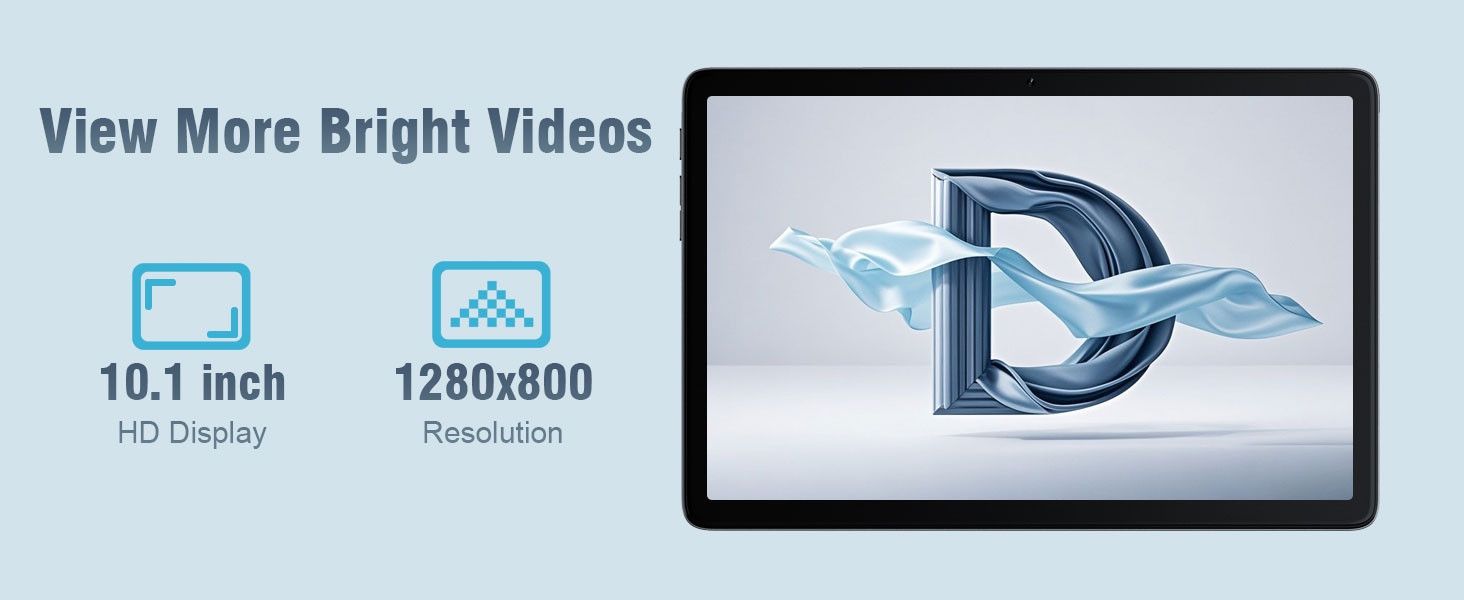
Image 5.1: The 10.1-inch HD display of the DigiLand S10 tablet, showcasing its wide viewing angles and clear resolution for media consumption.
5.2 Connecting to Wi-Fi
To connect to a wireless network:
- Go to Settings > Network & internet > Wi-Fi.
- Toggle Wi-Fi On.
- Select your desired network from the list.
- Enter the password if prompted, then tap Connect.
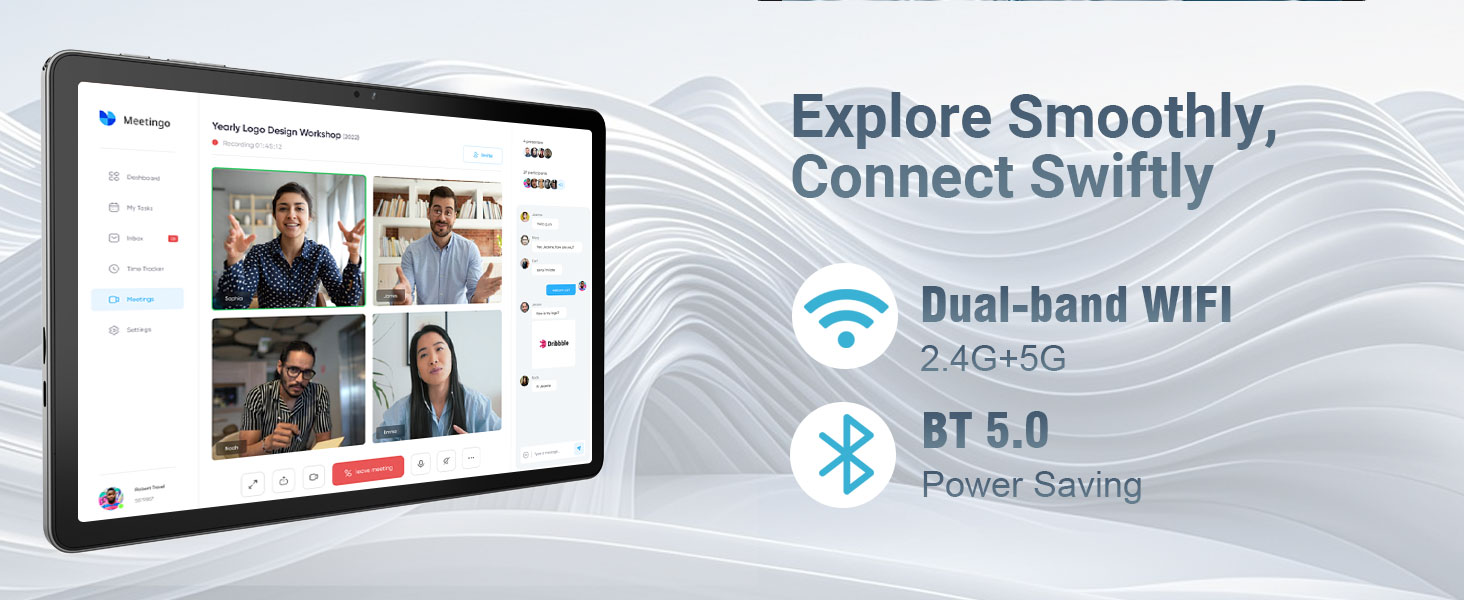
Image 5.2: The tablet's connectivity features, including dual-band Wi-Fi (2.4G+5G) and Bluetooth 5.0, enabling smooth online activities and device pairing.
5.3 Connecting Bluetooth Devices
To pair with Bluetooth accessories:
- Go to Settings > Connected devices > Connection preferences > Bluetooth.
- Toggle Bluetooth On.
- Ensure your Bluetooth device is in pairing mode.
- Select the device from the list of available devices and follow any on-screen pairing instructions.
5.4 Using the Cameras
The tablet is equipped with a 5MP front camera and an 8MP rear camera.
- Open the Camera app.
- Tap the camera switch icon to alternate between front and rear cameras.
- Tap the shutter button to take a photo or start/stop video recording.
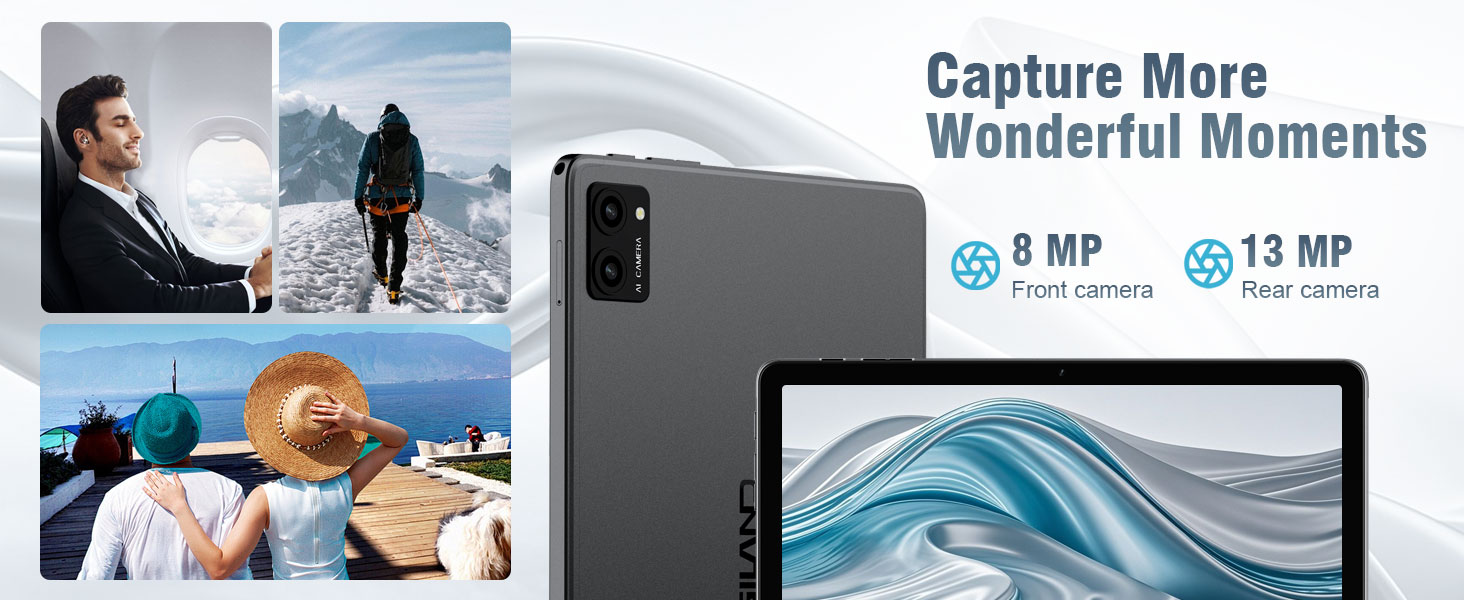
Image 5.3: The tablet's camera capabilities, featuring an 8MP front camera and a 13MP rear camera (note: product specs state 5MP front/8MP rear, this image may be for a different model or marketing exaggeration, refer to specifications for accurate details).
5.5 Split-Screen Functionality
Android 14 supports split-screen mode for multitasking:
- Open the first app you want to use.
- Swipe up from the bottom of the screen and hold to access recent apps.
- Tap the app icon at the top of the first app's card, then select Split top.
- Choose the second app from your recent apps or app drawer to fill the other half of the screen.

Image 5.4: The split-screen feature on the DigiLand S10 tablet, allowing users to run two applications simultaneously for enhanced productivity.
5.6 Battery Management
The tablet is equipped with a 6000 mAh battery. To optimize battery life:
- Adjust screen brightness.
- Close unused applications running in the background.
- Turn off Wi-Fi and Bluetooth when not in use.
- Enable battery saver mode in Settings > Battery.
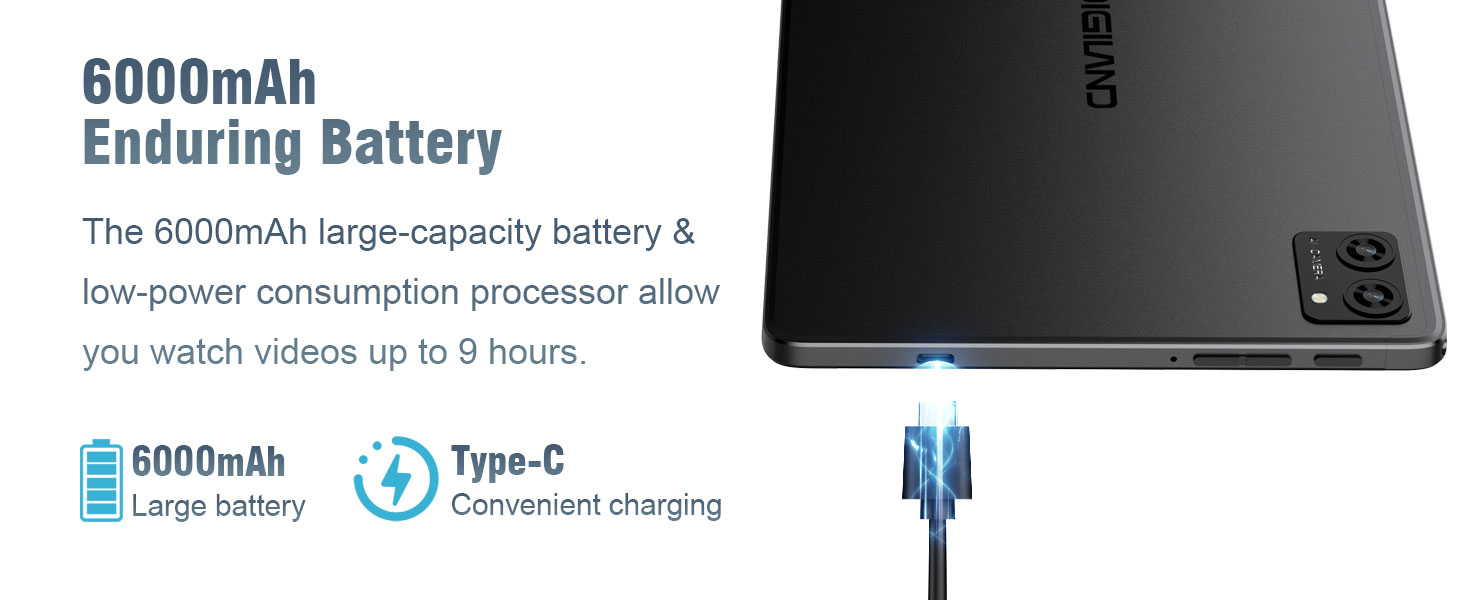
Image 5.5: The 6000mAh battery of the DigiLand S10 tablet, providing extended usage and convenient Type-C charging.
5.7 Storage Management
The tablet has 64GB of internal storage, expandable up to 1TB with a Micro SD card. To manage storage:
- Go to Settings > Storage to view usage and free up space.
- Uninstall unused apps.
- Move large files (photos, videos) to the Micro SD card or cloud storage.
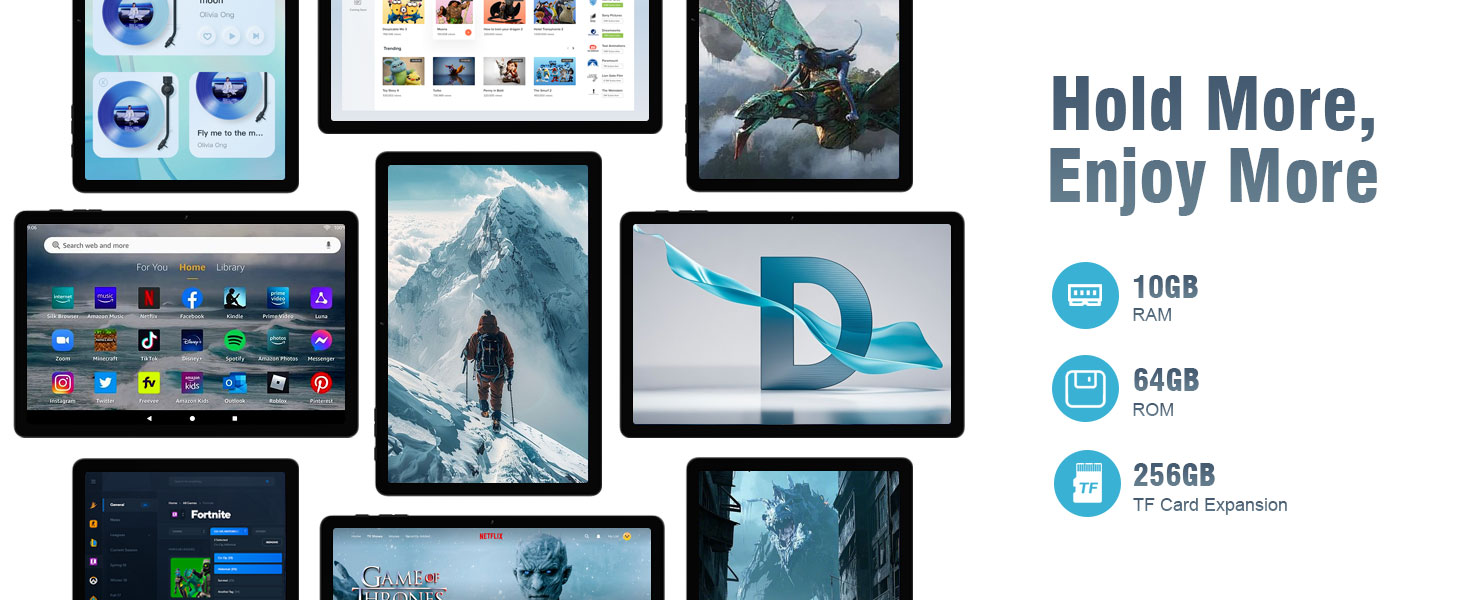
Image 5.6: The tablet's storage and memory capabilities, featuring 10GB RAM, 64GB ROM, and support for TF card expansion, allowing for ample app and data storage.
6. Maintenance
6.1 Cleaning the Tablet
To clean your tablet:
- Use a soft, lint-free cloth to wipe the screen and body.
- For stubborn smudges, slightly dampen the cloth with water or a screen cleaner designed for electronics.
- Avoid using harsh chemicals, abrasive materials, or excessive moisture.
6.2 Software Updates
Regularly check for and install software updates to ensure your tablet has the latest features, security patches, and performance improvements.
- Connect your tablet to a Wi-Fi network.
- Go to Settings > System > System update.
- Follow the on-screen instructions to download and install any available updates.
6.3 Storage Optimization
To maintain optimal performance, periodically optimize your tablet's storage:
- Clear cached data for apps in Settings > Apps > [App Name] > Storage & cache.
- Delete unnecessary files from the Downloads folder.
- Regularly back up important data to cloud storage or an external device.
7. Troubleshooting
This section addresses common issues you might encounter with your DigiLand S10 tablet.
| Problem | Possible Solution |
|---|---|
| Tablet does not power on. | Ensure the tablet is charged. Connect to the power adapter and wait a few minutes before attempting to power on again. If unresponsive, use a pin to press the Reset pinhole. |
| Screen is unresponsive. | Restart the tablet by holding the Power button. If that fails, use the Reset pinhole. |
| Cannot connect to Wi-Fi. | Check if Wi-Fi is enabled in Settings. Ensure the Wi-Fi password is correct. Restart your router and the tablet. Try connecting to a different Wi-Fi network if available. |
| Apps are crashing or running slowly. | Close background apps. Clear app cache (Settings > Apps > [App Name] > Storage & cache). Ensure sufficient free storage space. Restart the tablet. |
| Battery drains quickly. | Reduce screen brightness. Disable Wi-Fi/Bluetooth when not in use. Close unused apps. Check battery usage in Settings > Battery to identify power-hungry apps. |
| Micro SD card not detected. | Ensure the card is inserted correctly and fully seated in the slot. Try reinserting the card. Test the card in another device if possible to rule out card malfunction. |
8. Specifications
Below are the technical specifications for the DigiLand S10 Tablet:
| Feature | Detail |
|---|---|
| Brand | DigiLand |
| Model Name | 10.1-inch Tablet PC (DigiLand S10) |
| Operating System | Android 14 |
| Processor | MTK Octa-core (A523) |
| RAM Memory | 10 GB |
| Internal Storage | 64 GB |
| Expandable Storage | MicroSD/TF card support (up to 1TB) |
| Screen Size | 10.1 inches |
| Display Type | IPS |
| Display Resolution | 1280 x 800 pixels |
| Rear Camera | 8 MP |
| Front Camera | 5 MP |
| Battery Capacity | 6000 mAh |
| Connectivity | Wi-Fi (802.11ax, 2.4G+5G dual-band), Bluetooth 5.0 |
| Ports | USB Type-C, 3.5mm Headset Jack |
| Dimensions (L x W x Th) | 9.49" x 6.3" x 0.34" (approx. 8.8mm thickness) |
| Weight | Approx. 0.51 kg (510g) |
9. Warranty and Support
9.1 Warranty Information
The DigiLand S10 tablet comes with a 1-Year Limited Warranty. Please refer to the included Warranty Card for detailed terms and conditions regarding coverage and claims.
9.2 Customer Support
For any questions, technical assistance, or support needs, please contact DigiLand customer service. We offer comprehensive support to assist you with any issues.
You can typically find contact information on the DigiLand official website or through the seller's support channels where you purchased the product. For purchases made via Amazon, you can contact the seller, GuYi-USA, directly through the Amazon platform.

Image 9.1: DigiLand is committed to providing professional after-sales support.
10. Product Video
Watch the official product video for a visual overview of the DigiLand S10 tablet's features and design.
Video 10.1: A product display video showcasing the DigiLand S10 10.1-inch Android tablet, its components, and key functionalities.


