
DigiLand 10.1-inch Tablet PC
DigiLand 10.1-inch Android 14 Tablet User Manual
Model: 10.1-inch Tablet PC
Introduction
This user manual provides comprehensive instructions for the operation, maintenance, and troubleshooting of your DigiLand 10.1-inch Android 14 Tablet. Please read this manual thoroughly before using your device to ensure proper functionality and to maximize your user experience. This tablet is designed for versatile use, offering high performance for various applications, from entertainment to productivity.
What's in the Box
Upon opening the package, please verify that all listed items are present and in good condition:
- (1) Leather case *1
- (2) USB cable *1
- (3) 5V/2A Adaptor *1; US standard
- (4) Manual *1 (This document)
- (5) Warranty card *1

For a visual guide to unboxing your tablet, please refer to the official unboxing video below.
Video 1: Android 14 Tablet Unboxing Video. This video demonstrates the unboxing process and shows the tablet and its included components.
Product Overview
The DigiLand 10.1-inch Android 14 Tablet is engineered for high performance and user convenience. Key features include:
- Operating System: Android 14 with upgraded personal privacy protection and security.
- Memory & Storage: 12GB RAM + 128GB ROM, with support for TF card expansion for additional storage.
- Processor: New generation Octa-Core CPU (Max 2.0 GHz) for faster and more stable performance.
- Display: 10.1-inch 1280x800 HD IPS screen with Widevine L1 support for high-fidelity streaming on platforms like Netflix, YouTube, and Disney+.
- Connectivity: Ultra-fast WiFi 6 and energy-efficient Bluetooth 5.0.
- Cameras: 8-megapixel front camera and 13-megapixel rear camera.
- Design: Lightweight (485g) and slim (9mm thin body) for portability.
- Battery: 6000 mAh battery for extended usage.
- Multifunctionality: Supports split-screen function for enhanced multitasking.
Components and Features

The tablet features a headset jack, power button, volume up/down buttons, front camera, reset pinhole, memory card slot, and a Type-C charging port. The rear of the tablet houses the main camera module.

This image provides a visual summary of the tablet's core specifications, including its operating system, display size, memory, processor, battery capacity, camera resolution, and physical dimensions.
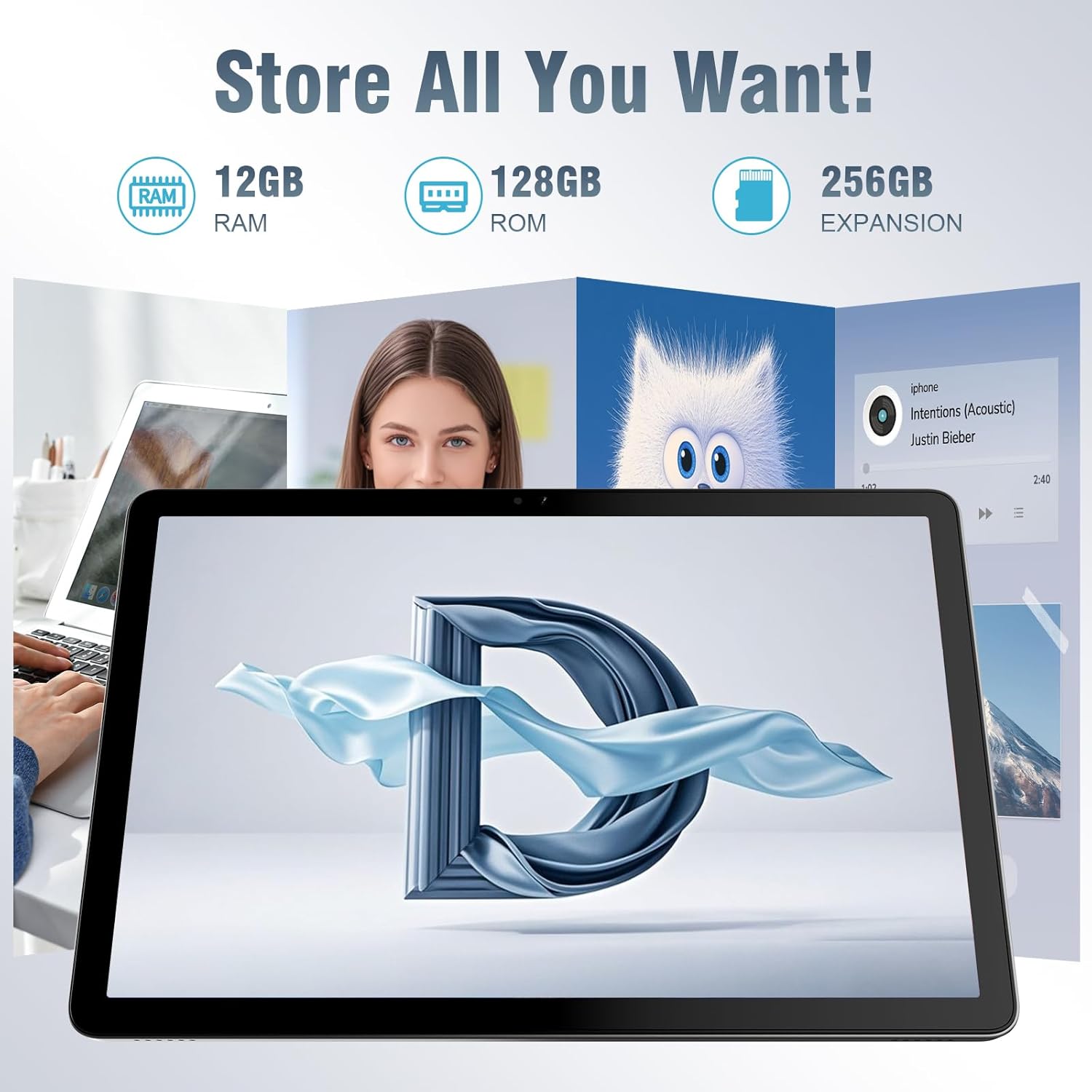
The tablet offers ample storage for your applications, photos, videos, and documents, with expandable memory options.
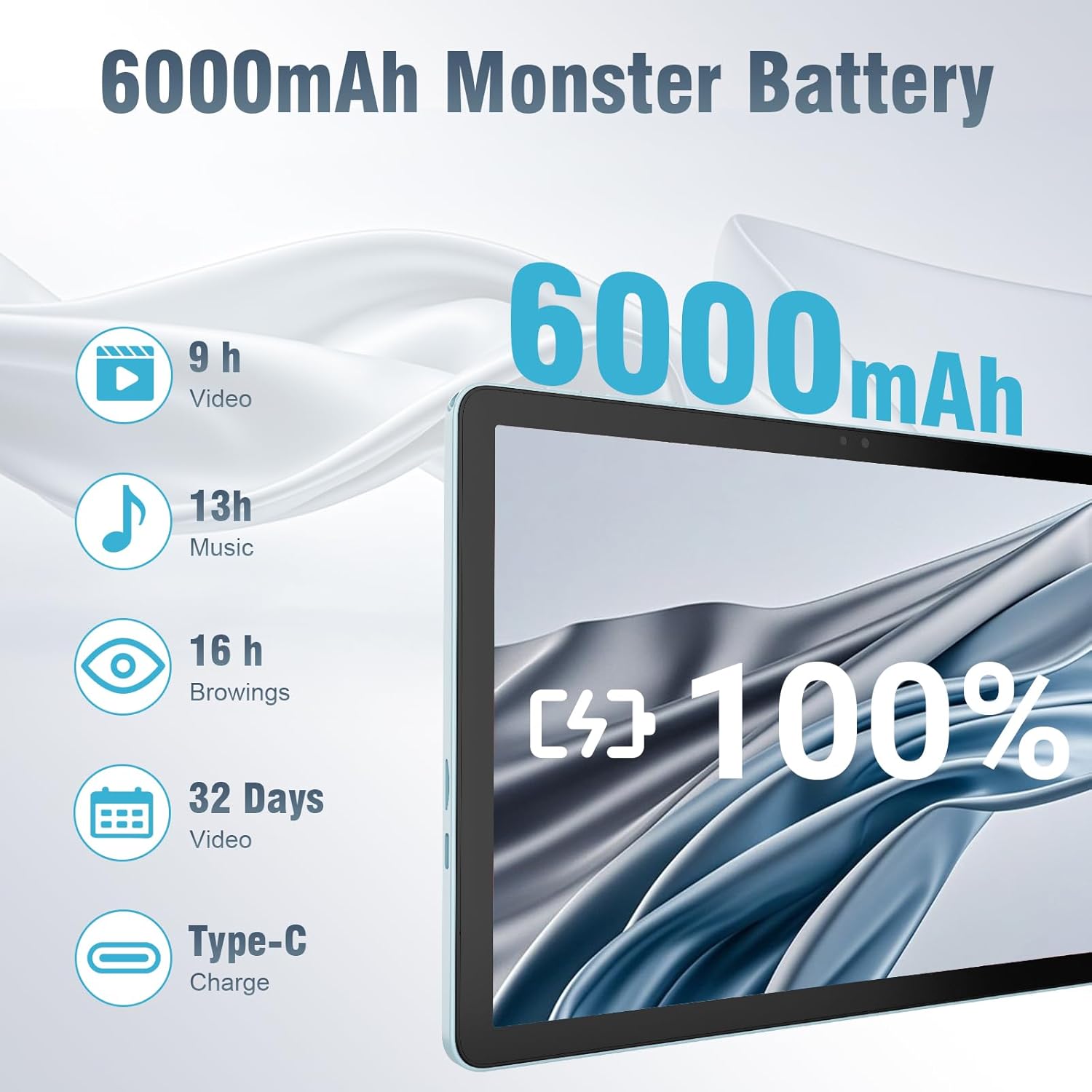
The 6000mAh battery provides extended usage times for various activities, and it supports convenient Type-C charging.
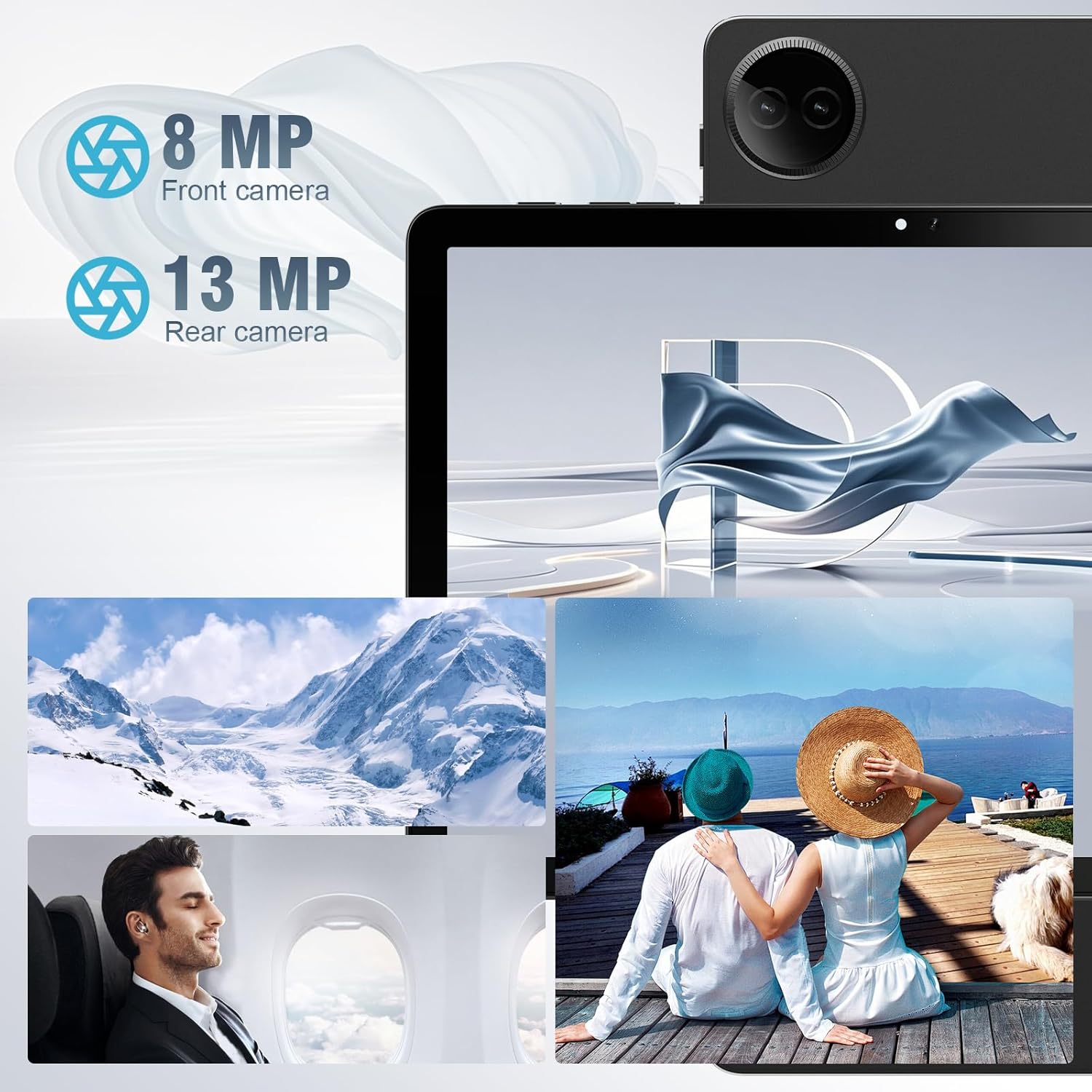
Equipped with both front and rear cameras, the tablet is suitable for capturing moments and engaging in video communication.

The 10.1-inch HD display provides a clear and immersive visual experience with wide viewing angles.

The split-screen function allows for efficient multitasking, enabling you to use two applications simultaneously.
Setup
Initial Power On and Setup
- Charge the Tablet: Before first use, fully charge the tablet using the provided USB cable and power adapter. Connect the Type-C end of the cable to the tablet's charging port and the USB end to the power adapter, then plug the adapter into a wall outlet.
- Power On: Press and hold the Power button located on the side of the tablet until the DigiLand logo appears on the screen.
- Initial Configuration: Follow the on-screen prompts to complete the initial setup. This typically includes selecting your language, connecting to a Wi-Fi network, setting up your Google account, and configuring basic security settings.
- Insert TF Card (Optional): If you wish to expand storage, carefully insert a TF (microSD) card into the designated memory card slot. Ensure the tablet is powered off before inserting or removing the card.
For a visual demonstration of the power-on sequence and initial interaction, refer to the unboxing video in the "What's in the Box" section.
Operating Instructions
Basic Navigation
- Touchscreen Gestures: Navigate the tablet using standard Android gestures: tap to select, swipe to scroll, pinch to zoom, and long-press for contextual menus.
- Home Screen: The main interface where you can access apps, widgets, and notifications.
- Notification Panel: Swipe down from the top of the screen to access quick settings and notifications.
- App Drawer: Swipe up from the bottom of the screen to view all installed applications.
Connecting to Wi-Fi and Bluetooth
- Wi-Fi: Go to Settings > Network & internet > Wi-Fi. Turn on Wi-Fi, select your desired network, and enter the password if required. The tablet supports ultra-fast WiFi 6.
- Bluetooth: Go to Settings > Connected devices > Connection preferences > Bluetooth. Turn on Bluetooth, then select "Pair new device" to connect to Bluetooth headphones, speakers, or other compatible devices. The tablet features energy-efficient Bluetooth 5.0.
Using Cameras
Access the Camera app from your home screen or app drawer. You can switch between the 8MP front camera and the 13MP rear camera within the app. Tap the screen to focus and press the shutter button to capture photos or start/stop video recording.
Multitasking with Split Screen
To use the split-screen feature, open an application, then swipe up from the bottom of the screen and hold to reveal the recent apps overview. Tap the app icon at the top of the app's card and select "Split screen." Choose a second app from the recent apps or app drawer to open it alongside the first. Adjust the size of each app by dragging the divider in the middle of the screen.
Maintenance
- Cleaning: Use a soft, lint-free cloth to clean the screen and body of the tablet. Avoid using abrasive cleaners or solvents.
- Battery Care: To prolong battery life, avoid exposing the tablet to extreme temperatures. It is recommended to keep the battery charge between 20% and 80% for optimal longevity.
- Software Updates: Regularly check for and install system updates to ensure your tablet has the latest security patches and performance improvements. Go to Settings > System > System update.
- Storage Management: Periodically clear unnecessary files and uninstall unused apps to free up storage space and maintain optimal performance.
- Protection: Use the provided leather case to protect your tablet from scratches and minor impacts.
Troubleshooting
This section addresses common issues you might encounter with your tablet. If you experience problems not covered here, please contact customer support.
| Problem | Possible Cause | Solution |
|---|---|---|
| Tablet does not power on. | Low battery; system crash. | Charge the tablet for at least 30 minutes. If still unresponsive, press and hold the power button for 10-15 seconds to force a restart. |
| Wi-Fi connection issues. | Incorrect password; out of range; router issue. | Verify Wi-Fi password. Move closer to the router. Restart your Wi-Fi router. Forget the network and reconnect. |
| Apps are slow or crashing. | Too many apps running; low storage; outdated app. | Close background apps. Clear app cache (Settings > Apps > [App Name] > Storage & cache > Clear cache). Free up storage space. Update the app from Google Play Store. |
| Screen is unresponsive. | Temporary software glitch. | Force restart the tablet by holding the power button. |
| Tablet not charging. | Faulty cable/adapter; dirty charging port. | Ensure cable and adapter are securely connected. Try a different compatible cable and adapter. Clean the charging port gently with a dry, soft brush. |
Specifications
| Feature | Detail |
|---|---|
| Brand | DigiLand |
| Model Name | 10.1-inch Tablet PC |
| Operating System | Android 14 |
| Screen Size | 10.1 inches |
| Max Screen Resolution | 800x1280 |
| Processor Brand | MK G80 (Octa-core) |
| Memory Storage Capacity | 128 GB (expandable via TF card) |
| RAM | 12GB |
| Front Camera | 8 MP |
| Rear Camera | 13 MP |
| Connectivity | WiFi 6, Bluetooth 5.0 |
| Battery Capacity | 6000 mAh |
| Item Weight | 2.82 pounds (approx. 485g) |
| Product Dimensions (LxWxH) | 9.53 x 6.34 x 0.3 inches (approx. 9mm thin) |
| Color | Blue |
Warranty and Support
DigiLand is committed to product quality and customer satisfaction.
- Warranty: This Android 14 tablet comes with a one-year warranty from the date of purchase.
- Customer Support: If you encounter any quality problems or require assistance, please contact us via your Amazon Purchase Record. Our team will endeavor to provide the best service and ensure your satisfaction.
- Protection Plans: Additional protection plans may be available for purchase, such as a 2-Year Protection Plan or Complete Protect, which covers eligible past and future purchases. Please refer to your purchase details for more information on these options.
Related documents10.1-inch Tablet PC


Ask a question about this manual
Ask about setup, troubleshooting, compatibility, parts, safety, or missing instructions. Manuals+ will review the question and use this page’s manual context to help answer it.