
Dekala ACA-002-B
Dekala Sunrise Alarm Clock User Manual
Model: ACA-002-B
1. Introduction
The Dekala Sunrise Alarm Clock is an innovative device designed to enhance your wake-up and sleep experience. It combines a natural sunrise simulation light, FM radio, dual alarms, a variety of white noise and natural sounds, and a customizable 7-color night light. This manual provides detailed instructions for setting up, operating, and maintaining your alarm clock to ensure optimal performance.
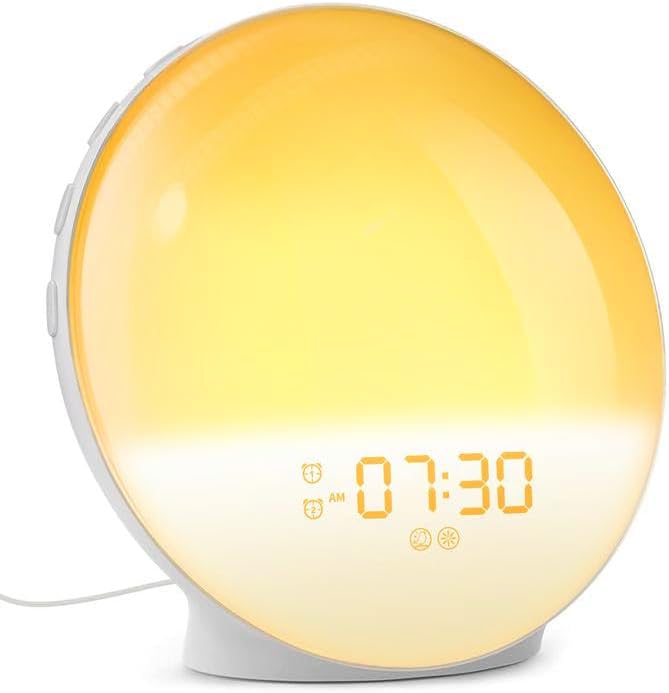
Image: The Dekala Sunrise Alarm Clock with its light panel illuminated in a warm yellow, showing the time 07:30 AM, indicating its primary function as a sunrise simulator.
2. Safety Information
- Read all instructions carefully before use.
- Do not expose the device to water or excessive humidity.
- Use only the provided power adapter or a certified equivalent.
- Keep out of reach of children.
- Do not attempt to disassemble or repair the device yourself. Contact customer support for assistance.
- Place the device on a stable, flat surface to prevent falling.
3. Package Contents
Please check the package for the following items:
- Dekala Sunrise Alarm Clock (Classic Version)
- USB Power Adapter
- USB Cable
- User Manual
4. Product Overview and Components
Familiarize yourself with the various parts and controls of your Dekala Sunrise Alarm Clock:
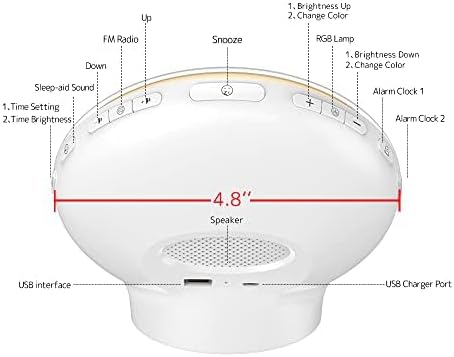
Image: A detailed diagram illustrating the back and top controls of the Dekala Sunrise Alarm Clock, highlighting the location and function of each button and port, including the USB charger port and speaker.
Control Buttons and Ports:
- Snooze Button: Located on top, for temporary alarm pause.
- FM Radio Button: Activates/deactivates FM radio.
- Up/Down Buttons: Adjusts time, brightness, volume, and navigates menus.
- Sleep-aid Sound Button: Selects and activates sleep-aid sounds.
- Time Setting Button: Enters time setting mode.
- RGB Lamp Button: Controls the 7-color night light.
- Alarm 1 Button: Sets and activates Alarm 1.
- Alarm 2 Button: Sets and activates Alarm 2.
- Speaker: Audio output for alarms, radio, and sounds.
- USB Interface: For additional connectivity (if applicable).
- USB Charger Port: For power input.
5. Setup
- Power Connection: Connect the USB cable to the USB Charger Port on the back of the alarm clock and plug the other end into the provided USB power adapter. Plug the adapter into a standard wall outlet. The display will light up.
- Initial Time Setting:
- Press and hold the Time Setting button. The hour digits will start blinking.
- Use the Up and Down buttons to adjust the hour.
- Press the Time Setting button again to confirm the hour and move to the minute setting.
- Use the Up and Down buttons to adjust the minutes.
- Press the Time Setting button one more time to confirm and exit time setting mode.
- Placement: Place the alarm clock on a stable, flat surface such as a bedside table, ensuring the light panel faces towards you for optimal sunrise simulation.
6. Operating Instructions
6.1. Setting Alarms (Alarm 1 & Alarm 2)
Your Dekala alarm clock features two independent alarms.
- Press the Alarm 1 or Alarm 2 button. The alarm time digits will blink.
- Use the Up and Down buttons to set the desired alarm hour, then press the respective Alarm button again to confirm.
- Use the Up and Down buttons to set the desired alarm minute, then press the respective Alarm button again to confirm.
- Wake-up Sound Selection: Use the Up and Down buttons to cycle through available wake-up sounds (e.g., bird chirping, ocean waves, FM radio, traditional beep). Press the Alarm button to confirm your selection.

Image: This image illustrates the variety of 7 built-in sound effects available on the Dekala Sunrise Alarm Clock, including natural sounds like bird chirping and ocean waves, as well as FM radio and a traditional beep.
- Light Intensity Setting: Use the Up and Down buttons to set the desired light intensity for the sunrise simulation. Press the Alarm button to confirm.
- The alarm icon will appear on the display, indicating the alarm is active.
6.2. Sunrise Simulation
The sunrise simulation feature gradually brightens the light panel before your set alarm time, mimicking a natural sunrise to gently wake you up. The light intensity will increase from a dim red to a bright white over a period of time (typically 10-60 minutes, depending on settings).
6.3. Snooze Function
When the alarm sounds, press the large Snooze button on top of the clock to temporarily pause the alarm. The alarm will sound again after 9 minutes. This function can typically be used up to 5 times.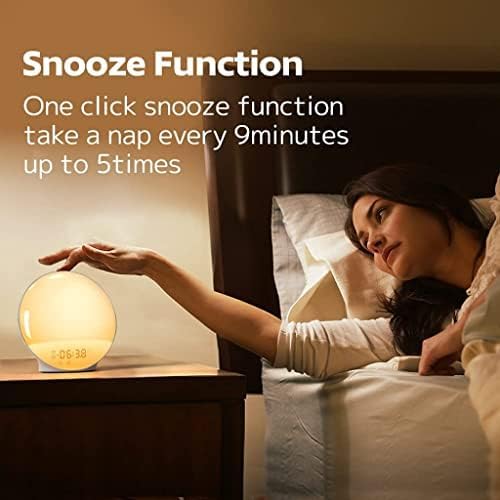
Image: This image demonstrates the snooze function, showing a hand pressing the top of the alarm clock, with text explaining that a single click activates a 9-minute snooze, repeatable up to 5 times.
6.4. FM Radio
- Press the FM Radio button to turn the radio on/off.
- To scan for stations, press and hold the FM Radio button. The clock will automatically scan and save available stations.
- Use the Up and Down buttons to switch between saved FM stations.
- Adjust volume using the Up and Down buttons when the radio is playing.
6.5. White Noise / Sleep Aid Sounds
The clock offers various soothing sounds to help you fall asleep.
- Press the Sleep-aid Sound button to activate the sleep aid function.
- Use the Up and Down buttons to cycle through the available sleep sounds (e.g., white noise, rain, stream, bird).

Image: This image highlights the sleep aid function, depicting a couple asleep with the alarm clock nearby, and showcasing four optional sleeping sounds: Bird, Steam, White Noise, and Rain, designed to promote relaxation.
- Press the Sleep-aid Sound button again to set a timer for the sound to play (e.g., 15, 30, 60 minutes).
- To turn off the sleep aid sound, press the Sleep-aid Sound button until the function is deactivated.
6.6. Night Light / RGB Lamp
The clock can function as a night light with customizable colors and brightness.
- Press the RGB Lamp button to turn on the night light.
- Press the RGB Lamp button repeatedly to cycle through the 7 available colors.
- Use the Brightness Up and Brightness Down buttons to adjust the light intensity (20 levels of brightness).
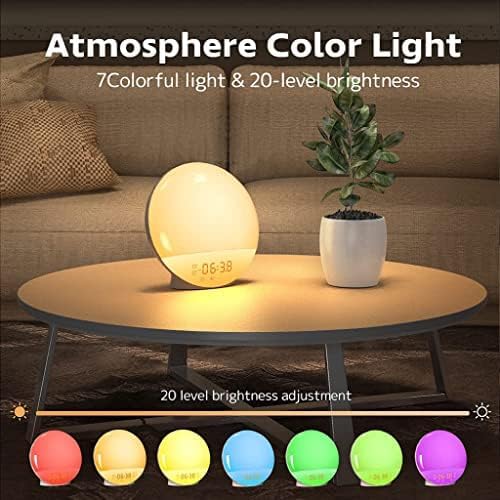
Image: This image showcases the 'Atmosphere Color Light' feature, displaying the alarm clock emitting a warm glow, with an illustration of 7 distinct color options and the capability for 20 levels of brightness adjustment.
- Press and hold the RGB Lamp button to turn off the night light.
7. Maintenance
- Cleaning: Wipe the device with a soft, dry cloth. Do not use abrasive cleaners, waxes, or solvents.
- Storage: If not in use for an extended period, unplug the device and store it in a cool, dry place.
- Avoid Liquids: Do not immerse the device in water or expose it to dripping or splashing.
8. Troubleshooting
| Problem | Possible Cause | Solution |
|---|---|---|
| Device does not power on. | Power adapter not connected or faulty. | Ensure the power adapter is securely plugged into the clock and the wall outlet. Try a different outlet. |
| Alarm does not sound. | Alarm not activated, volume too low, or incorrect time set. | Check if the alarm icon is displayed. Verify alarm time and ensure volume is set to an audible level. |
| FM Radio static or poor reception. | Weak signal or interference. | Extend the FM antenna fully. Reposition the clock to a location with better signal. Perform an auto-scan for stations again. |
| Light is too dim/bright. | Brightness setting needs adjustment. | Use the Brightness Up/Down buttons to adjust the light intensity. |
9. Specifications
- Brand: Dekala
- Model: ACA-002-B (Classic Version)
- Product Dimensions: 3 x 1.5 x 7 inches
- Item Weight: 1.17 pounds (0.53 Kilograms)
- Power Source: USB Powered (AC Adapter included)
- Indoor/Outdoor Usage: Indoor
- Mounting Type: Tabletop
- Features: Sunrise Simulation, Dual Alarms, FM Radio, White Noise Sounds, 7 Colors Night Light, Snooze Function.
10. Warranty and Support
Dekala products are manufactured with high-quality standards. For any questions, technical support, or warranty claims, please contact Dekala customer service. Please refer to your purchase documentation for specific warranty terms and contact information.
You can typically find support contact details on the official Dekala website or through the retailer where you purchased the product.
Related documentsACA-002-B


Ask a question about this manual
Ask about setup, troubleshooting, compatibility, parts, safety, or missing instructions. Manuals+ will review the question and use this page’s manual context to help answer it.