1. Introduction
This manual provides essential instructions for setting up, operating, maintaining, and troubleshooting your HONOR 400 Lite 5G Smartphone. Please read this guide thoroughly to ensure proper use and to maximize the device's performance and longevity. Keep this manual for future reference.
2. Package Contents
Verify that all items are present in your product package:
- HONOR 400 Lite 5G Smartphone
- USB Cable
- Quick Start Guide (may vary by region)
- Safety Information (may vary by region)
3. Device Overview
The HONOR 400 Lite features a sleek design with a large AMOLED display and a powerful camera system.
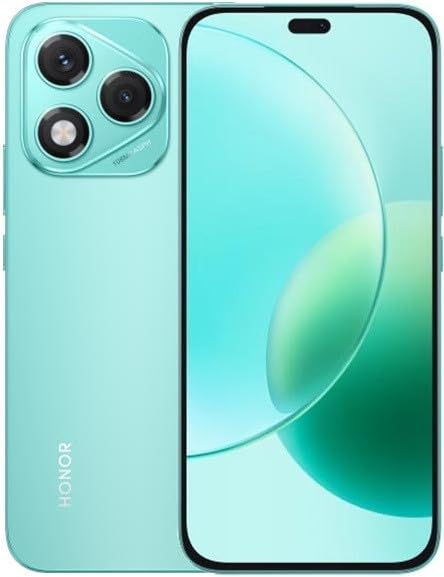
Image 3.1: Front and rear view of the HONOR 400 Lite 5G Smartphone in Marrs Green. The front shows the full-screen display with a punch-hole camera. The rear features a distinct camera module with three lenses and the HONOR branding.
Key physical features include:
- Display: 6.7-inch AMOLED screen, 1080 x 2412 pixels resolution.
- Rear Camera: 108 MP wide lens and 16 MP wide lens.
- Front Camera: Integrated into the display.
- Buttons: Power button, Volume up/down buttons.
- Ports: USB-C port for charging and data transfer.
4. Setup
4.1. SIM Card Installation
The HONOR 400 Lite supports Dual-SIM functionality and eSIM. Ensure your SIM cards are compatible with the device's network bands before installation.
- Locate the SIM card tray on the side of your device.
- Insert the SIM ejector tool (not included, typically comes with SIM cards) into the small hole next to the tray and push gently until the tray pops out.
- Place your Nano-SIM cards into the designated slots on the tray. Ensure the gold contacts face downwards and the cut corner aligns correctly.
- Carefully reinsert the SIM card tray into the device.
- For eSIM activation, follow the instructions provided by your network carrier.
Important Network Compatibility Note:
This smartphone is designed for GSM networks. It is not compatible with CDMA networks, including carriers such as VERIZON, SPRINT, and US CELLULAR. Please verify network compatibility with your service provider before use.
4.2. Initial Power On and Setup
- Press and hold the Power button on the side of the device until the HONOR logo appears.
- Follow the on-screen prompts to complete the initial setup, including language selection, Wi-Fi connection, Google account setup, and security settings.
5. Operating Instructions
5.1. Basic Device Operation
- Power On/Off: Press and hold the Power button. Select "Power off" or "Restart" from the menu.
- Screen Lock/Unlock: Briefly press the Power button to lock or wake the screen. Use your set security method (PIN, pattern, fingerprint, face unlock) to unlock.
- Volume Adjustment: Use the Volume Up and Volume Down buttons located on the side of the device.
- Navigation: Utilize gestures or the navigation bar (Back, Home, Recent Apps) at the bottom of the screen to move between applications and screens.
5.2. Network and Connectivity
Your HONOR 400 Lite supports 5G cellular networks, Wi-Fi, and Bluetooth for various connectivity needs.
- Cellular Data: Access mobile internet via your installed SIM card. Ensure mobile data is enabled in Settings > Network & internet > Mobile network.
- Wi-Fi: Connect to wireless networks for internet access. Go to Settings > Network & internet > Wi-Fi, turn on Wi-Fi, and select your desired network.
- Bluetooth: Pair with Bluetooth devices like headphones or speakers. Go to Settings > Connected devices > Bluetooth, turn on Bluetooth, and select a device to pair.
5.3. Camera Usage
The device features a high-resolution camera system for capturing photos and videos.
- Open the Camera application from your home screen or app drawer.
- Select your desired mode (Photo, Video, Portrait, etc.).
- Tap the shutter button to take a photo or start/stop video recording.
- Adjust settings like zoom, flash, and filters as needed.
6. Maintenance
6.1. Battery Care
- Use the provided USB cable for charging.
- Avoid extreme temperatures, as they can affect battery performance.
- To prolong battery life, avoid fully discharging the battery frequently.
- Optimize battery usage by managing background apps and screen brightness in Settings > Battery.
6.2. Software Updates
Regularly check for and install software updates to ensure your device has the latest features, security patches, and performance improvements. Go to Settings > System > System update.
6.3. Cleaning Your Device
Use a soft, lint-free cloth to clean the screen and body of your smartphone. Avoid using harsh chemicals or abrasive materials.
7. Troubleshooting
If you encounter issues with your HONOR 400 Lite, refer to the following common solutions:
- Device Not Responding: Press and hold the Power button for about 10-15 seconds to force a restart.
- Network Issues:
- Ensure SIM cards are correctly inserted.
- Check if Airplane mode is off.
- Restart the device.
- Verify network settings with your carrier.
- Battery Draining Quickly:
- Reduce screen brightness.
- Close unused background applications.
- Disable unnecessary features like GPS, Bluetooth, or Wi-Fi when not in use.
- Apps Crashing:
- Clear the app's cache and data (Settings > Apps > [App Name] > Storage > Clear cache/Clear data).
- Update the app to the latest version.
- Reinstall the app.
For persistent issues, consider performing a factory reset (backup your data first) or contacting HONOR customer support.
8. Specifications
| Feature | Detail |
|---|---|
| Model Name | HONOR 400 Lite |
| Operating System | Android 15 |
| Processor | Mediatek Dimensity 7025 Ultra (6 nm), Octa-core (2x2.5 GHz Cortex-A78 & 6x2.0 GHz Cortex-A55) |
| RAM | 12 GB |
| Internal Storage | 256 GB |
| Display | 6.7 Inches AMOLED, 1080 x 2412 pixels |
| Rear Camera | 108 MP, f/1.8, (wide), 1/1.67", PDAF; 16 MP, f/2.5, (wide) |
| Battery Capacity | 5230 mAh (non-removable) |
| SIM Type | Dual-SIM (Nano-SIM) + eSIM |
| Cellular Technology | 5G (SA/NSA), 4G LTE, 3G HSDPA, 2G GSM |
| Wireless Carrier | Unlocked (GSM Only) |
| Color | Marrs Green |
| Special Features | Dual SIM |
| Dimensions | (Not specified) |
| Weight | (Not specified) |
9. Warranty and Support
Your HONOR 400 Lite smartphone is covered by a limited manufacturer's warranty. For detailed warranty terms and conditions, please refer to the warranty card included in your package or visit the official HONOR website.
For technical support, service, or further assistance, please contact HONOR customer service through their official support channels. You can typically find contact information on the HONOR website or in the device's settings under "About phone" or "Support".


