
Introduction
This manual provides detailed instructions for the assembly, operation, and maintenance of your FLEXISPOT Standing Desk with a 40x24 inch one-piece desktop. Please read this manual thoroughly before assembly and use to ensure proper function and safety.
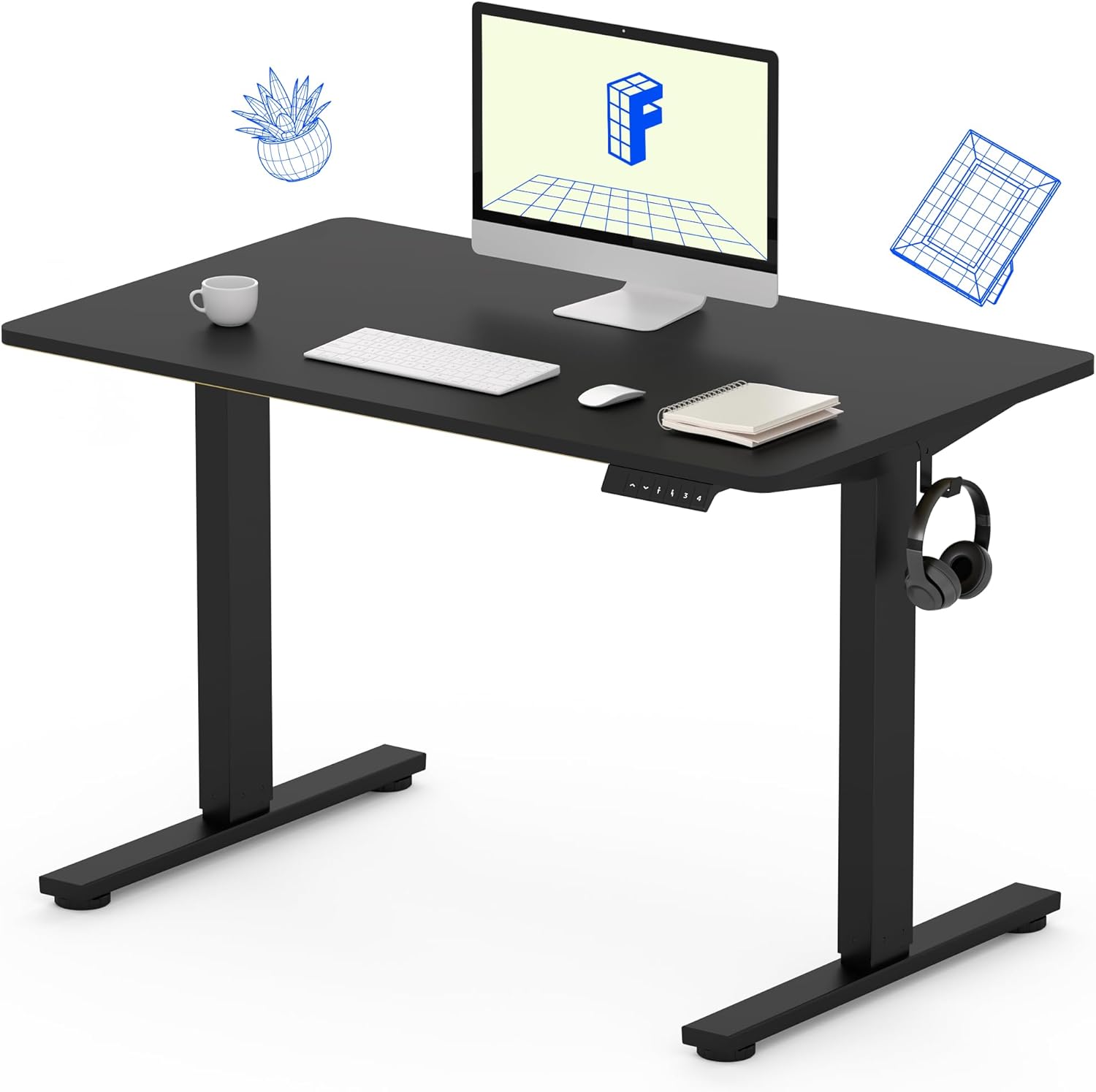
Image 1: The FLEXISPOT Standing Desk, showcasing its black desktop, black frame, and integrated control panel with a headphone hook.
Safety Information
WARNING:
- Always use caution when assembling the desk, especially when using a drill.
- Do not exceed the maximum weight limit of 154 lbs (70 kg).
- Keep hands and body parts away from moving parts during height adjustment to prevent injury.
- Ensure all cables are properly managed to avoid entanglement during desk movement.
Package Contents
Before beginning assembly, verify that all components are present and undamaged. If any parts are missing or damaged, please contact customer support.
- One-Piece Desktop (40" x 24", Black)
- Desk Legs (Black Frame, Dual-Stage)
- Motor and Control Box
- Control Panel with Memory Presets
- Headphone Hook
- Assembly Hardware (screws, Allen wrench)
- Power Cable

Image 2: Illustration highlighting the seamless design of the FLEXISPOT one-piece desktop, contrasting it with multi-piece alternatives.
Setup and Assembly
Assembly typically requires 30 minutes to an hour. It is recommended to have two people for assembly due to the weight of the package. A power drill (not included) may be needed for some steps.
- Unpack Components: Carefully remove all parts from the packaging. Inspect for any damage. Note that the packaging can be heavy.
- Assemble Desk Frame: Attach the crossbar to the lifting columns (legs) using the provided hardware. Ensure all screws are tightened securely.
- Attach Feet: Secure the desk feet to the bottom of the lifting columns.
- Mount Desktop: Carefully place the one-piece desktop upside down on a soft, clean surface. Position the assembled frame onto the desktop. Align the pre-drilled holes (if present) or mark positions for screws. Secure the frame to the desktop using the provided screws. A power drill may be helpful for this step.
- Install Control Box and Panel: Mount the control box and control panel to the underside of the desktop in the designated locations. Connect the motor cables and control panel cable to the control box.
- Attach Accessories: Install the headphone hook to the side of the desktop as desired.
- Cable Management: Route all cables neatly using cable ties or management clips (not included) to prevent interference with desk movement.
- Final Placement: With assistance, carefully flip the desk upright and place it in its desired location. Ensure it is stable and level.

Image 3: The FLEXISPOT Standing Desk integrated into a home office setup, demonstrating its spacious desktop and functionality.
Operating Instructions
Your FLEXISPOT Standing Desk features an electric motor for smooth height adjustments and a control panel with memory presets.
Height Adjustment
- Press the Up (▲) button to raise the desk.
- Press the Down (▼) button to lower the desk.
- The desk moves smoothly and quietly (under 50 dB) between 28.7 inches (73 cm) and 46.5 inches (118 cm).
Memory Presets
The control panel allows you to save up to four preferred height settings.
- Set a Height: Adjust the desk to your desired sitting or standing height using the Up/Down buttons.
- Save Preset: Press the "M" button, then immediately press one of the numbered preset buttons (1, 2, 3, or 4). The display will show "S-" followed by the number, indicating the height is saved.
- Recall Preset: Press the corresponding numbered preset button (1, 2, 3, or 4) to automatically move the desk to the saved height.

Image 4: Visual representation of the desk's adjustable height range, showing it at its lowest (29") and highest (46.6") positions.
Maintenance
- Cleaning: Wipe the desktop and frame with a soft, damp cloth. Avoid harsh chemicals or abrasive cleaners.
- Cable Check: Periodically inspect all cables for wear or damage. Ensure they are securely connected and not pinched.
- Screw Tightness: Occasionally check and tighten any loose screws on the frame or desktop connections.
Troubleshooting
| Problem | Possible Cause | Solution |
|---|---|---|
| Desk does not move. | Power cable disconnected, control box cable loose, overload. | Check power connection. Ensure all cables to the control box and motor are secure. Reduce weight on the desk if exceeding 154 lbs. |
| Desk moves unevenly or makes unusual noise. | Loose connections, obstruction, uneven weight distribution. | Check all assembly screws. Ensure no objects are obstructing the legs. Distribute weight evenly on the desktop. |
| Control panel display shows an error code. | Specific error condition. | Refer to the specific error code in the full product manual (if available) or contact customer support. Often, a power cycle (unplug for 10 seconds, then plug back in) can resolve temporary errors. |
Specifications
| Feature | Detail |
|---|---|
| Brand | FLEXISPOT |
| Model | B0F747SWWB |
| Desktop Dimensions (D x W) | 24" x 40" (One-Piece) |
| Height Range | 28.7" - 46.5" (73 cm - 118 cm) |
| Maximum Weight Capacity | 154 lbs (70 kg) |
| Noise Level | Less than 50 dB |
| Frame Material | Alloy Steel |
| Top Material | Engineered Wood |
| Color | Black Frame / Black Top |
| Assembly Required | Yes |

Image 5: Details of the desk's construction, including the dual-stage lifting columns and the convenient backpack/headphone hook.
Warranty and Support
Your FLEXISPOT Standing Desk is backed by a comprehensive warranty:
- Frame and Motor: 5-year limited warranty.
- Electronics: 2-year limited warranty.
For warranty claims, technical assistance, or any questions regarding your product, please contact FLEXISPOT customer support through their official website or the retailer where the product was purchased.


