
UPERFECT 15.6" 1080P 120Hz (ASIN: B0F6YC1L4P)
UPERFECT Portable Monitor User Manual
Model: 15.6" 1080P 120Hz (ASIN: B0F6YC1L4P)
Brand: UPERFECT
1. Introduction
Thank you for choosing the UPERFECT Portable Monitor. This device is designed to enhance your productivity and entertainment experience on the go, featuring a built-in battery, responsive touchscreen, and a high refresh rate for smooth visuals. This manual provides essential information for setting up, operating, maintaining, and troubleshooting your monitor to ensure optimal performance and longevity.

Image: UPERFECT Portable Monitor showcasing its touchscreen and 120Hz capabilities.
2. Safety Information
Please read all safety instructions carefully before using the monitor. Failure to follow these guidelines may result in electric shock, fire, or damage to the device.
- Avoid Liquids: Do not expose the monitor to water or excessive moisture. If liquid enters the device, disconnect power immediately and contact support.
- Temperature Extremes: Operate and store the monitor within recommended temperature ranges (typically 0°C to 40°C / 32°F to 104°F). Avoid direct sunlight or extreme cold.
- Ventilation: Ensure proper ventilation around the monitor. Do not block ventilation openings.
- Power Source: Use only the provided power adapter or a certified equivalent. Ensure the power source matches the monitor's voltage requirements.
- Battery Safety: The monitor contains a built-in 10800mAh battery. Do not attempt to replace the battery yourself. Avoid puncturing, dropping, or disassembling the battery. Do not expose to high temperatures or fire.
- Cleaning: Disconnect the monitor from all power sources before cleaning. Use a soft, dry cloth.
- Handling: Handle the monitor with care. Avoid dropping or subjecting it to strong impacts.
3. Package Contents
Verify that all items are present in your package:
- UPERFECT Portable Monitor (15.6" 1080P 120Hz)
- Smart Folding Leather Case
- USB-C to USB-C Cable (Full-featured)
- HDMI to Mini HDMI Cable
- USB-A to USB-C Cable (for power/data)
- Power Adapter
4. Product Overview & Features
The UPERFECT Portable Monitor is engineered for versatility and high performance. Key features include:
- 10800mAh Powerful Battery: Provides 6-8 hours of continuous operation, and can serve as an emergency power source for laptops or smartphones.
- 120Hz Gaming Touch & 1ms Response: Offers silky smooth visuals and eliminates motion blur, crucial for fast-paced gaming. The 1ms response time ensures pixel accuracy.
- 10-point Capacitive Touchscreen: Supports multi-touch gestures and is compatible with Windows and Mac OS without extra drivers. Note: Touch function may not work on all gaming devices and mobile phones without full-featured Type-C connectivity.
- Recyclable Aluminum Material: Durable, modern, and environmentally conscious design.
- Quad Speaker & Smart Cover: Delivers an immersive surround sound experience and includes a protective, adjustable smart cover.
- Matte Screen: Reduces glare and reflections, promoting eye comfort during extended use.
- FHD 1080p Resolution: Crisp and clear visuals with 1920 x 1080 pixels.
- 350 Candela Brightness: Ensures vibrant and clear images.
- 178° IPS View Angle: Provides consistent image quality from wide viewing angles.
Port and Button Layout

Image: Side view of the monitor highlighting the various input and control ports.
- Type-C Port (Full-featured): For power, video, and touch signal via a single cable.
- Mini HDMI Port: For video input from devices.
- OTG Port (Micro USB-B): For connecting peripherals like a keyboard or mouse.
- Charge Port: Dedicated port for charging the monitor's internal battery.
- Volume +/- Buttons: Adjust audio output.
- Brightness +/- Buttons: Adjust screen brightness.
5. Setup
5.1 Powering On/Off
- To Power On: Press and hold the Power button (usually integrated with a control dial or a dedicated button) for a few seconds until the screen illuminates.
- To Power Off: Press and hold the Power button until the screen turns off.
5.2 Connecting to Devices
The UPERFECT Portable Monitor offers flexible connectivity options:
Image: The monitor connected to both a smartphone and a laptop, demonstrating versatility.
- Single USB-C Cable Connection (Full-featured Type-C):
If your laptop, smartphone, or tablet has a full-featured USB-C port (supporting DisplayPort Alternate Mode and Power Delivery), you can connect it to the monitor using a single USB-C to USB-C cable. This cable will transmit video, audio, touch signals, and power simultaneously.
Note: Ensure your device's USB-C port supports these functions. - HDMI + USB-C (Power/Touch) Connection:
For devices with an HDMI output (e.g., most laptops, desktop PCs, gaming consoles), connect the Mini HDMI port on the monitor to your device's HDMI port using the provided HDMI to Mini HDMI cable. For touch functionality and power, connect the monitor's USB-C port to your device's USB-A or USB-C port (for data/touch) and ensure the monitor is powered via its dedicated charge port or a power adapter. - Gaming Consoles (e.g., Nintendo Switch, PS5, Xbox):
Connect the console to the monitor via the Mini HDMI port. The monitor will require external power via its dedicated charge port or a power adapter, as most consoles do not provide sufficient power through HDMI. Touch functionality is generally not supported with gaming consoles.
Image: A user enjoying gaming on the portable monitor connected to a Nintendo Switch.
5.3 Using the Smart Cover
The included smart cover protects your monitor and doubles as a stand. Fold the cover into a triangular prism shape to prop up the monitor at various viewing angles. Experiment with different folds to find the most comfortable angle for your use case.
6. Operation
6.1 Touchscreen Functionality
The 10-point capacitive multi-touch screen allows for intuitive interaction. Simply connect the USB-C port on the monitor to your compatible device (Windows/Mac OS) to enable touch functions like tapping, swiping, and pinch-to-zoom. No additional drivers are typically required.
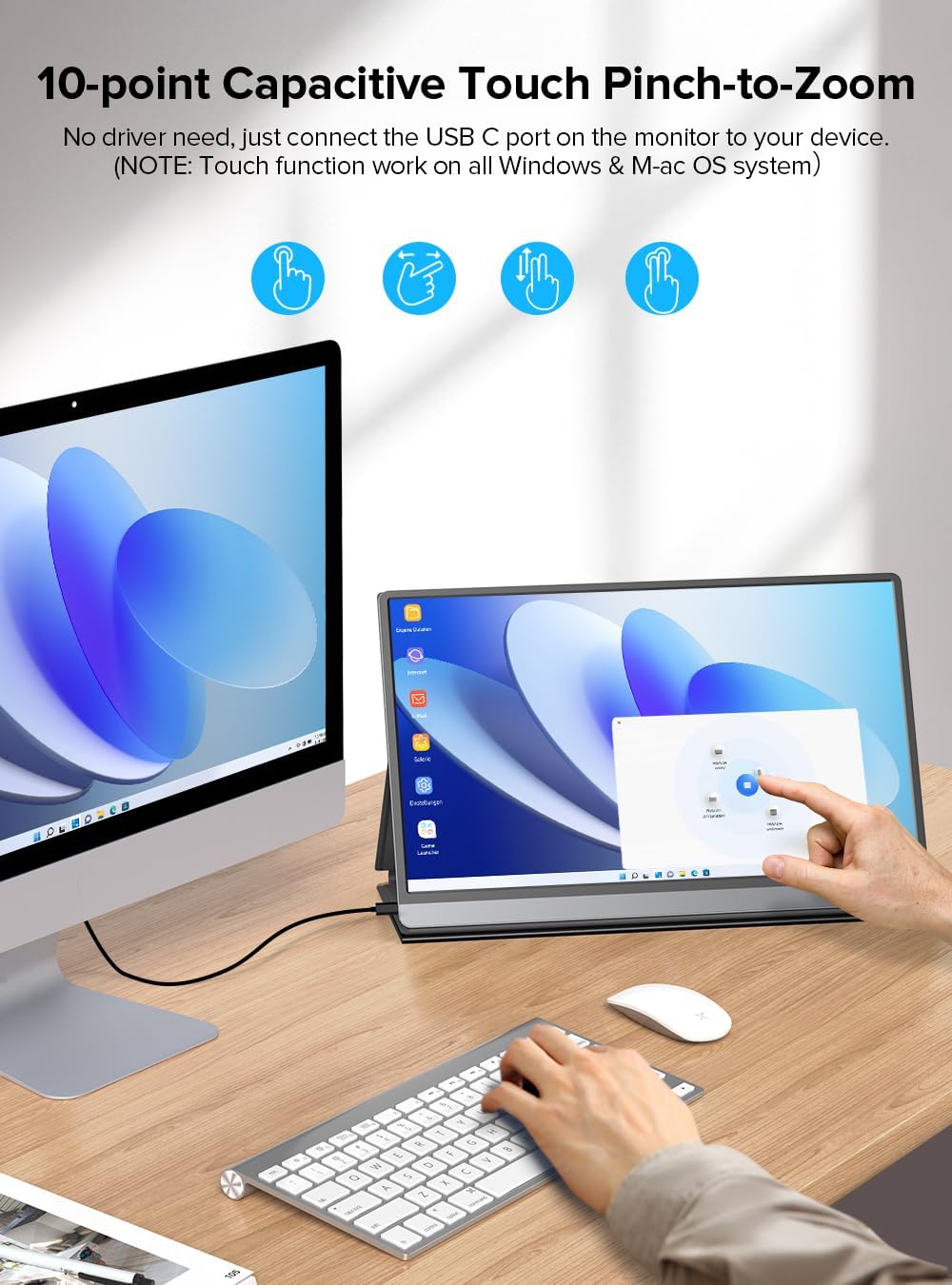
Image: The monitor displaying common 10-point touch gestures.
Important: As noted in the features section, touch functionality is dependent on the connected device's capabilities. Devices like gaming consoles (e.g., PS5, Xbox, Nintendo Switch) and some mobile phones without full-featured Type-C ports may not support touch input.
Image: Visual representation of devices that typically do not support touch functionality with the monitor.
6.2 Menu Navigation (OSD)
The On-Screen Display (OSD) menu allows you to adjust various monitor settings. Typically, the OSD is accessed and navigated using the control dial or dedicated buttons on the side of the monitor.
- Access OSD: Press the OSD button (or push the control dial inwards).
- Navigate: Use the control dial (up/down or rotate) to move through menu options.
- Select/Confirm: Press the control dial inwards to select an option or confirm a setting.
- Exit: Use the 'Back' or 'Exit' option in the menu, or press the OSD button again to close the menu.
Common OSD settings include:
- Brightness/Contrast: Adjust display luminance and contrast levels.
- Volume: Control the audio output from the built-in quad speakers.
- Input Source: Manually select between USB-C and HDMI inputs.
- Color Settings: Adjust color temperature, hue, and saturation.
- FreeSync/HDR: Enable or disable these features for enhanced gaming and visual experience.
6.3 Battery Usage and Charging
The integrated 10800mAh battery provides significant portability. To charge the monitor, connect the provided power adapter to the monitor's dedicated charge port. The battery indicator on the screen will show charging status.

Image: The portable monitor demonstrating its ability to charge a smartphone.
The monitor can also act as an emergency power bank. When connected to a device via a full-featured USB-C cable, it can provide power to that device. Be aware that using the monitor as a power bank will reduce its own operational time.
6.4 Enhanced Visuals: 120Hz, FreeSync, HDR, and Matte Screen
- 120Hz Refresh Rate: For gaming and fast-motion content, the 120Hz refresh rate provides a significantly smoother experience compared to standard 60Hz displays, reducing motion blur and ghosting.

Image: Visual comparison illustrating the smoothness difference between 60Hz and 120Hz refresh rates.
- FreeSync: This adaptive sync technology synchronizes the monitor's refresh rate with your graphics card's frame rate, eliminating screen tearing and stuttering for a fluid gaming experience. Enable FreeSync in the OSD menu.
- HDR (High Dynamic Range): When enabled, HDR enhances the contrast and color accuracy, providing a more vibrant and realistic image with brighter whites and deeper blacks.
- Matte Screen: The anti-glare matte finish minimizes reflections from ambient light, reducing eye strain and making the screen more comfortable to view in various lighting conditions.

Image: The matte screen effectively reducing glare for improved eye comfort.
7. Maintenance
Proper maintenance ensures the longevity and performance of your UPERFECT Portable Monitor.
- Cleaning the Screen: Gently wipe the screen with a soft, lint-free microfiber cloth. For stubborn smudges, slightly dampen the cloth with water or a screen-specific cleaning solution (do not spray directly on the screen). Avoid using harsh chemicals or abrasive materials.
- Cleaning the Body: Use a soft, dry cloth to wipe the monitor's aluminum body.
- Storage: When not in use, store the monitor in its smart cover to protect it from dust and scratches. Store in a cool, dry place away from direct sunlight and extreme temperatures.
- Battery Care: To prolong battery life, avoid fully discharging the battery frequently. If storing for an extended period, charge the battery to around 50-70% before storage.
8. Troubleshooting
If you encounter issues with your UPERFECT Portable Monitor, refer to the following common problems and solutions:
| Problem | Possible Cause | Solution |
|---|---|---|
| No signal / Black screen | Incorrect input source selected; Loose cable connection; Device not outputting signal. | Check all cable connections (USB-C, HDMI). Ensure the monitor is powered on. Select the correct input source in the OSD menu. Restart the connected device. |
| Touch function not working | Device not compatible with touch; USB-C cable not full-featured; Driver issue. | Ensure your device (laptop/PC) supports touch output via its USB-C port. Use a full-featured USB-C cable. For Windows/Mac, ensure the USB-C connection is established. Note that gaming consoles do not support touch. |
| Monitor not powering on | Low battery; Faulty power adapter/cable. | Connect the monitor to the power adapter and allow it to charge for a few minutes. Try a different power outlet or USB-C cable/adapter if available. |
| Screen flickering or distorted image | Cable issue; Resolution/refresh rate mismatch; Graphics driver issue. | Check cable connections. Try a different cable. Adjust the resolution or refresh rate on your connected device. Update graphics drivers on your computer. |
| No audio from speakers | Volume too low; Muted; Incorrect audio output selected on device. | Increase monitor volume using the +/- buttons or OSD. Check if the monitor is muted. Ensure the monitor is selected as the audio output device on your connected computer/device. |
9. Specifications
Detailed technical specifications for your UPERFECT Portable Monitor:
| Feature | Specification |
|---|---|
| Product Dimensions | 15.35 x 2.36 x 10.63 inches |
| Item Weight | 4.99 pounds |
| Batteries | 1 x 9V batteries required (included) - 10800mAh built-in |
| Standing Screen Display Size | 15.6 Inches |
| Aspect Ratio | 16:9 |
| Resolution | 1920 x 1080 Pixels (FHD 1080p) |
| Image Brightness | 350 Candela |
| Screen Surface Description | Matte |
| Refresh Rate | 120Hz |
| Response Time | 1ms |
| Touchscreen | 10-point Capacitive Multi-touch |
| Speakers | Built-in Quad Speakers |
10. Warranty and Support
UPERFECT is committed to providing high-quality products and excellent customer service.
- Warranty: UPERFECT offers a lifetime commitment to its products. Please refer to the product packaging or official UPERFECT website for specific warranty terms and conditions.
- Customer Support: For any technical assistance, troubleshooting beyond this manual, or warranty inquiries, please contact UPERFECT customer support. Support is available 24/7 to assist you.
You can typically find contact information on the UPERFECT official website or through your purchase platform.
Related documents15.6" 1080P 120Hz (ASIN: B0F6YC1L4P)


Ask a question about this manual
Ask about setup, troubleshooting, compatibility, parts, safety, or missing instructions. Manuals+ will review the question and use this page’s manual context to help answer it.