
Redragon K525
Redragon K525 RGB Backlit 104 Keys Wired Membrane Gaming Keyboard User Manual
Model: K525 | Brand: Redragon
1. Product Overview
The Redragon K525 is a full-sized 104-key wired membrane gaming keyboard designed for an enhanced gaming and typing experience. It features dynamic RGB backlighting, dedicated multimedia controls, and four onboard macro keys for customizable functions. The keyboard also includes an ergonomic wrist rest for comfort during extended use and utilizes linear mechanical-feel switches for quiet and precise keystrokes. Its durable construction ensures long-term reliability.

Image: The Redragon K525 keyboard, showcasing its full 104-key layout, RGB backlighting, and integrated wrist rest.
2. Package Contents
- Redragon K525 RGB Backlit 104 Keys Wired Membrane Gaming Keyboard
- User Manual
3. Setup Guide
3.1 Connecting the Keyboard
- Locate an available USB port on your computer.
- Plug the USB connector of the Redragon K525 keyboard into the USB port.
- Your operating system will automatically detect and install the necessary drivers. This process may take a few moments.
- Once the installation is complete, the keyboard's RGB lighting will illuminate, indicating it is ready for use.
3.2 Software Installation (Optional)
For advanced customization of RGB lighting and macro functions, it is recommended to install the official Redragon software. Please visit the official Redragon website to download the latest software version for the K525 model.

Image: Screenshot of the Redragon K525 software interface, showing options for customizing lighting and macros.
4. Operating Instructions
4.1 Onboard Macro Keys (G1-G4)
The K525 keyboard features four dedicated macro keys (G1, G2, G3, G4) located on the top left. These keys can be programmed on-the-fly without software to execute a sequence of commands with a single press.
- To Record a Macro:
- Press the REC key (usually near the macro keys). The REC indicator light will blink.
- Press the desired macro key (G1, G2, G3, or G4) you wish to program. The REC indicator light will continue to blink.
- Type the sequence of keys you want to record.
- Press the REC key again to save the macro. The REC indicator light will turn off.
- To Use a Macro: Simply press the programmed G-key.
- To Clear a Macro: Refer to the software instructions or specific key combinations in the full manual if available.
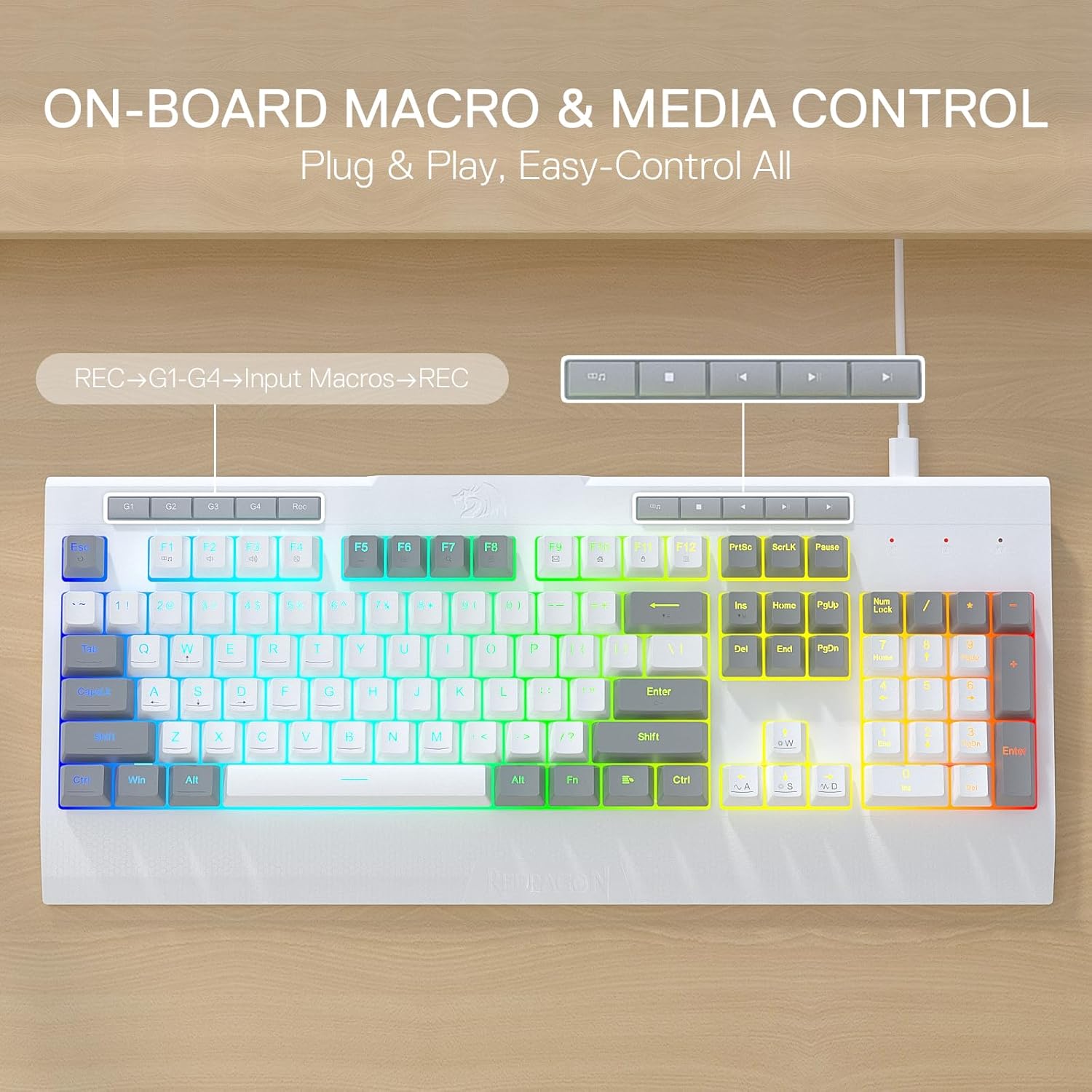
Image: Close-up view of the Redragon K525 keyboard highlighting the G1-G4 macro keys and dedicated media control buttons.
4.2 RGB Backlighting
The K525 offers full dynamic RGB backlighting with multiple preset modes and customizable options.
- Changing Lighting Modes: Use the dedicated lighting control keys (often Fn + specific keys like Ins, Home, PgUp, Del, End, PgDn, or dedicated lighting buttons if present) to cycle through 7 preset lighting modes.
- Brightness Control: Adjust brightness using specific key combinations (e.g., Fn + Up/Down arrow keys).
- Customizable Modes: Utilize the Redragon software to create and save up to 6 custom lighting profiles.

Image: Visual representation of various RGB lighting modes available on the Redragon K525 keyboard, including Static, Breathing, Self-define, Wave, Specter, Neon, and Activate.
4.3 Dedicated Media Controls
The keyboard includes dedicated media control keys for convenient audio and video management without interrupting your workflow or game.
- Play/Pause: Control media playback.
- Previous/Next Track: Navigate through your playlist.
- Volume Up/Down/Mute: Adjust audio levels.
4.4 Anti-Ghosting Keys
The K525 features 26 anti-ghosting keys, allowing for simultaneous key presses to be registered accurately. This is crucial for fast-paced gaming where multiple commands are often executed at once.

Image: A close-up of the Redragon K525 keycaps, illustrating the two-color mix design and highlighting the concept of 26-key anti-ghosting for accurate simultaneous inputs.
4.5 Ergonomic Wrist Rest
The integrated ergonomic wrist rest provides support to reduce strain during long typing or gaming sessions, promoting comfort and better posture.

Image: A hand resting comfortably on the integrated ergonomic wrist rest of the Redragon K525 keyboard, demonstrating its design for comfort.
5. Maintenance and Care
- Cleaning: Use a soft, dry cloth to wipe down the keyboard surface. For deeper cleaning, use a slightly damp cloth with mild soap, ensuring no liquid enters the keyboard. Avoid abrasive cleaners or solvents.
- Keycap Cleaning: Keycaps can be carefully removed for thorough cleaning if necessary. Use a keycap puller to avoid damage. Clean keycaps with mild soap and water, then dry completely before reattaching.
- Storage: Store the keyboard in a cool, dry place away from direct sunlight and extreme temperatures.
- Avoid Spills: While the keyboard may have some spill resistance, it is not waterproof. Avoid spilling liquids on the keyboard to prevent damage.
6. Troubleshooting
| Problem | Possible Cause | Solution |
|---|---|---|
| Keyboard not responding | Loose USB connection, faulty USB port, driver issue. |
|
| RGB lighting not working or incorrect | Lighting mode not selected, software conflict, brightness set to minimum. |
|
| Macro keys not working | Macro not recorded correctly, software issue. |
|
7. Specifications
- Model Name: Shiva Lite
- Item Model Number: K525
- Brand: Redragon
- Keyboard Description: 104 Keys Wired Gaming Membrane Keyboard
- Connectivity Technology: USB
- Number of Keys: 104
- Special Features: On-board Macro, Membrane Switch, RGB Backlighting, Dedicated Media Controls, Ergonomic Wrist Rest, 26 Anti-ghost Keys
- Color: White
- Compatible Devices: PC
- Product Dimensions: 18.3 inches (L) x 8.4 inches (W) x 0.6 inches (H)
- Item Weight: 2.09 pounds
- Country of Origin: China
- Date First Available: April 30, 2025

Image: An overview of the Redragon K525 keyboard highlighting its key features: 100% 104 keys layout, quiet membrane keys, comfy wrist rest, 4 onboard macros, 5 media controls, and software support.
8. Warranty and Support
For information regarding product warranty, please refer to the warranty card included with your purchase or visit the official Redragon website. Redragon provides customer support for product inquiries, technical assistance, and warranty claims.
Official Redragon Website: www.redragonusa.com (Please note: This is a general example, actual URL may vary. Refer to product packaging for precise contact information.)
No official product videos were found for this model from the seller.
Related documentsK525


Ask a question about this manual
Ask about setup, troubleshooting, compatibility, parts, safety, or missing instructions. Manuals+ will review the question and use this page’s manual context to help answer it.