
1. Introduction
Thank you for choosing the Inateck iPad Keyboard Case N0001. This manual provides essential information for setting up, operating, and maintaining your new keyboard case. Please read it thoroughly to ensure optimal performance and longevity of your device.
The Inateck iPad Keyboard Case N0001 is designed to enhance your iPad experience with a detachable magnetic keyboard, a responsive touchpad, and a secure pen holder. It offers robust 360-degree protection for your device and features adjustable viewing angles for various scenarios.

Image: The Inateck iPad Keyboard Case N0001 providing 360-degree full body protection with a soft rubber back cover and secure magnetic closure. This design safeguards your iPad from accidental drops, scratches, and bumps.
2. Compatibility
This Inateck iPad keyboard case is compatible with a range of iPad models. To ensure compatibility, please verify the AXXXX model number located on the back of your iPad.
- iPad Air (6th Generation, M2 2024/M3 2025, 11 inches)
- iPad Air (5th/4th Generation, 10.9 inches)
- iPad 10th Generation (10.9 inches)
- iPad 11th Generation (A16, 10.9 inches)
- iPad Pro (11 inch, 4th/3rd/2nd/1st generation)

Image: A visual guide detailing the compatibility of the Inateck keyboard case with various iPad models, including iPad A16 11th Gen, iPad 10th Gen, iPad Air (M3, 6th, 5th, 4th Gen), and iPad Pro 11-inch (4th, 3rd, 2nd, 1st Gen). It explicitly states that the iPad Pro 11-inch (2024) is not compatible.
3. Setup
3.1 Attaching the iPad to the Case
- Gently align your iPad with the protective shell of the case.
- Press the iPad firmly into the case, ensuring all edges are securely seated. The soft rubber back cover provides a snug fit.
3.2 Connecting the Keyboard via Bluetooth
- Ensure the keyboard is charged (refer to section 4.5 for charging instructions).
- Turn on the keyboard using the power switch, usually located on the side or back of the keyboard.
- On your iPad, go to Settings > Bluetooth.
- Toggle Bluetooth On.
- The keyboard (e.g., "Inateck Keyboard") should appear in the "Other Devices" list. Tap on it to pair.
- If prompted, enter the pairing code displayed on your iPad using the keyboard and press Enter.
- Once paired, the keyboard will show as "Connected" under "My Devices".
3.3 Touchpad Setup (for optimal experience)
To fully utilize the precision touch function and multi-finger gestures, adjust your iPad settings:
- On your iPad, go to Settings > General > Trackpad.
- Adjust the tracking speed slider to your preferred level.
- Enable "Tap to Click" and "Two Finger Secondary Click" for enhanced functionality.
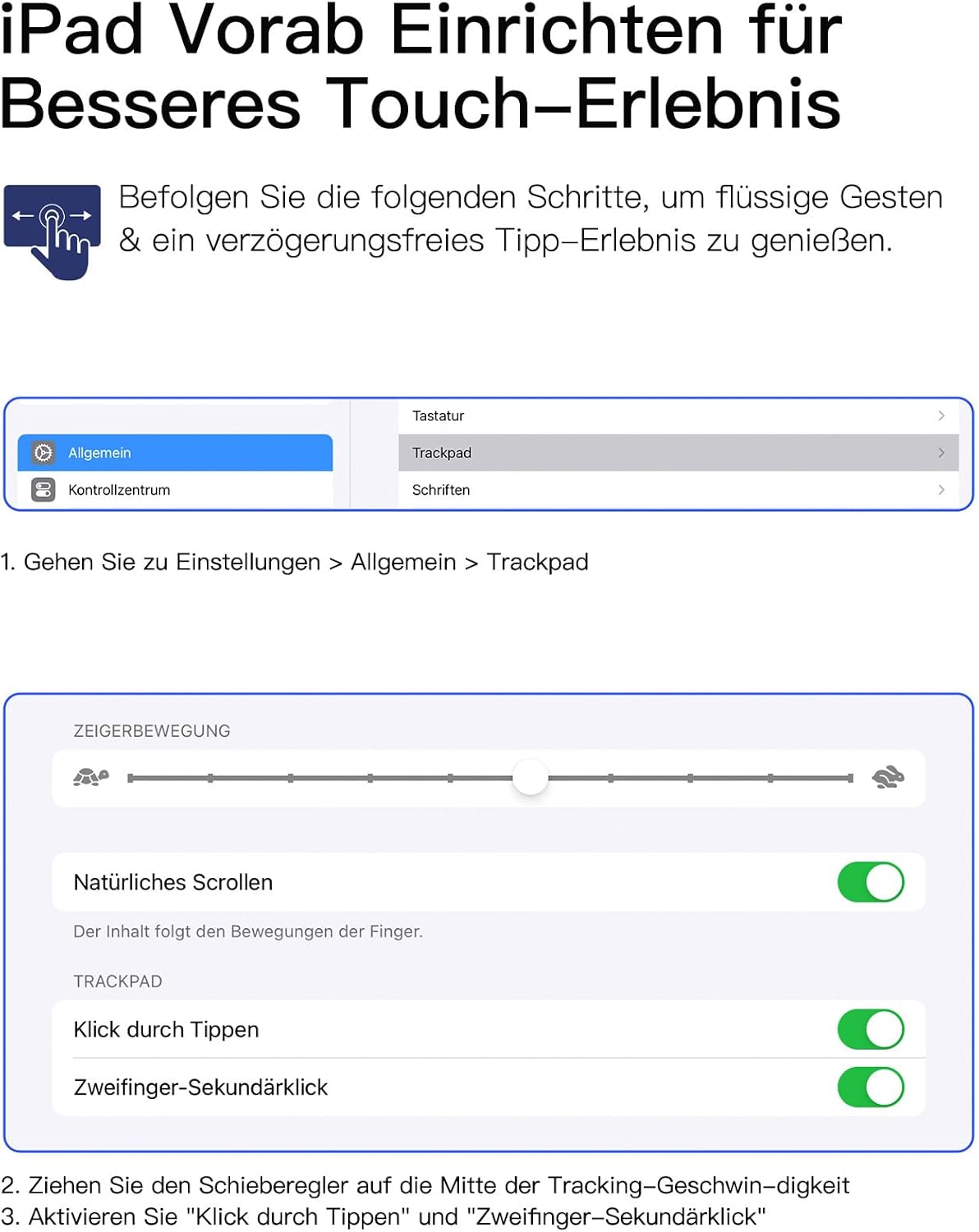
Image: A screenshot illustrating the iPad's Trackpad settings menu. It highlights options to adjust pointer movement speed, enable natural scrolling, activate 'Tap to Click', and set up 'Two Finger Secondary Click' for improved touchpad interaction.
4. Operating Instructions
4.1 Detachable Magnetic Keyboard
The keyboard is magnetically attached to the case, allowing for flexible detachment and reattachment. This feature enables you to use the keyboard separately from the iPad or remove it for easier transportation.

Image: The Inateck iPad Keyboard Case N0001 showcasing its magnetically detachable keyboard. The keyboard can be easily removed or reattached, providing versatility for different usage scenarios. A yellow-highlighted area indicates the optimal placement for a secure magnetic connection.
4.2 Touchpad Usage
The integrated touchpad supports multi-finger gestures for precise and lag-free operation. You can browse, click, and switch between applications efficiently. Refer to your iPad's gesture settings for a full list of supported actions.
4.3 Adjustable Viewing Angles
The case features a three-level stand, allowing you to adjust the viewing angle for optimal comfort during work, study, or leisure. The reinforced base with three grooves ensures stability at your chosen angle.

Image: The Inateck iPad Keyboard Case N0001 illustrating its capability to provide three adjustable viewing angles. This feature ensures stable support and ergonomic comfort for diverse activities.
4.4 Pen Holder
The case includes a built-in pen holder designed to store and protect your stylus. This ensures your pen is always accessible and secure.

Image: The Inateck iPad Keyboard Case N0001 featuring a built-in pen slot. This slot allows for convenient storage and protection of your stylus, with an additional note indicating immediate charging of the pen when placed in the slot.
4.5 Charging the Keyboard
The keyboard is powered by a rechargeable battery. Connect the provided charging cable to the keyboard's charging port and a suitable USB power source. A full charge typically takes 2-3 hours.
- Operating time: Approximately 90 hours on a full charge.
- Standby time: Up to 180 days.

Image: A close-up view of the keyboard's charging port, showing a USB-C cable connected. Text indicates that a full charge takes 2-3 hours, providing approximately 90 hours of operating time and 180 days of standby time.
5. Maintenance
- Cleaning: Use a soft, damp cloth to clean the exterior of the case and keyboard. Avoid harsh chemicals or abrasive materials.
- Storage: When not in use for extended periods, store the keyboard case in a cool, dry place. Ensure the keyboard is turned off to conserve battery life.
- Battery Care: To prolong battery life, avoid fully discharging the keyboard frequently. Charge it regularly, even if not in constant use.
6. Troubleshooting
6.1 Keyboard Not Connecting
- Check Power: Ensure the keyboard is turned on and has sufficient battery charge.
- Bluetooth On: Verify that Bluetooth is enabled on your iPad.
- Re-pair: Go to iPad Settings > Bluetooth, forget the "Inateck Keyboard" device, and then attempt to pair it again.
- Restart Devices: Restart both your iPad and the keyboard.
6.2 Touchpad Not Responding
- Bluetooth Connection: Ensure the keyboard is properly connected via Bluetooth.
- iPad Settings: Check iPad Settings > General > Trackpad to ensure it's enabled and configured correctly.
- Clean Touchpad: Ensure the touchpad surface is clean and free of debris.
6.3 Keys Not Working
- Battery Level: Low battery can affect key functionality. Charge the keyboard.
- Reconnection: Disconnect and reconnect the Bluetooth connection.
- Interference: Move away from other wireless devices that might cause interference.
7. Specifications
| Feature | Detail |
|---|---|
| Model | N0001 |
| Product Dimensions | 25.2 x 21.3 x 1.96 cm |
| Item Weight | 790 g |
| Connectivity Technology | Bluetooth 5.3 |
| Battery Type | Rechargeable (1 9V battery included - *Note: This typically refers to a rechargeable Li-ion battery within the keyboard, not a standard 9V block battery*) |
| Charging Time | 2-3 hours |
| Operating Time | Approx. 90 hours |
| Standby Time | Up to 180 days |
| Special Features | Touchpad, Pen Holder, Adjustable Viewing Angle, 360° All-round Protection, Detachable Magnetic Keyboard |
| Material | Plastic, Silicone, Rubber |
| Colour | Black |
8. Safety Information
- Do not expose the device to extreme temperatures, direct sunlight, or high humidity.
- Avoid dropping or subjecting the device to strong impacts.
- Keep out of reach of children.
- Do not attempt to disassemble or repair the device yourself. Contact customer support for assistance.
- Use only the provided or recommended charging cables.
9. Warranty and Support
For warranty information and customer support, please refer to the official Inateck website or contact their customer service directly. Details regarding returns policy may also be found on the purchase platform.
Official Inateck Website: www.inateck.com


